
Tracking Setup
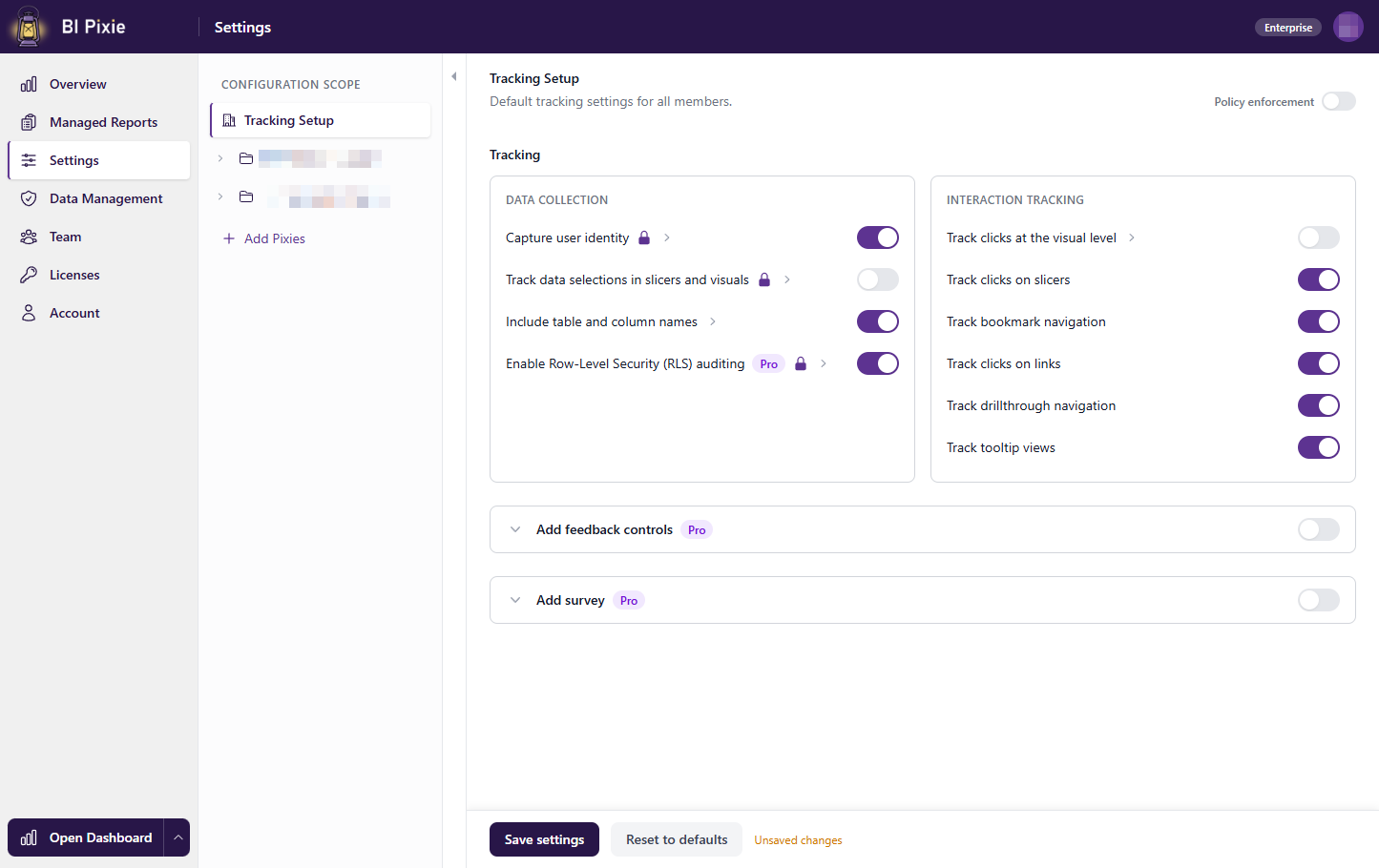
The Tracking Setup page lets you control what BI Pixie tracks in your reports: from page views and visual clicks to feedback controls, surveys, and Row-Level Security (RLS) auditing. You can set defaults for your entire account, then fine-tune them per workspace or per report (available from Pro plan).
Workspace and Report-level Granularity Pro
Configuration in BI Pixie works at three levels. You start by setting account-wide defaults, and on Pro plans you can override specific settings at the workspace or report level. The left pane shows a hierarchy of your workspaces and reports. Only managed reports (reports that already have Pixies) appear in this pane:
| Level | Scope | Availability |
|---|---|---|
| Account Defaults | Default settings that apply to all workspaces and reports. | All plans |
| Workspace | Override account defaults for a specific workspace. | From Pro plan |
| Report | Override workspace or account settings for a specific report. | From Pro plan |
On the Enterprise tier, Admins can enforce specific settings so they cannot be changed at lower levels. This ensures consistent tracking policies across all workspaces and reports in your organization. See Policy Enforcement below for details.
Data Collection Settings
These settings control what data is collected from your reports:
| Setting | Description | Availability |
|---|---|---|
| Capture user identity | Whether BI Pixie collects each viewer's Power BI user name with their usage events. This setting is off by default, and while it is off BI Pixie counts distinct viewers by a masked IP address. When it is on, the choice on the Account page decides whether BI Pixie keeps the email address, a masked ID or nothing. Turning it on asks you to consent to personal data collection. | All plans |
| Track data selections in slicers and visuals | Capture the values end users select in slicers and visuals. This setting is off by default. For example, if a bar chart shows revenues by city and a user clicks the bar for 'Chicago', we track the value 'Chicago'. Enabling this setting requires consent for sensitive data collection. | All plans |
| Include table and column names | When enabled, we track which table and column from the semantic model were involved in each interaction. For example, if a user clicks a bar in a city chart, we track that the interaction was on 'Location'[City]. | All plans |
| Enable Row-Level Security (RLS) auditing | Tracks secured dimensional data that end users view or click on. This setting is off by default. For example, if RLS restricts a sales report so users can only see data in their assigned city, we capture the city and the RLS role that was applied. Automatically enables data selections and column name tracking. | From Pro plan |
Interaction Tracking Settings
These settings control which user interactions are tracked:
| Setting | Description |
|---|---|
| Track clicks at the visual level | Tracks which visuals users click on, enabling click heatmaps per report page. This setting is off by default. Note that this significantly increases data volume. Each page view generates additional rows per visual, and each visual interaction adds more. For reports with high usage, this may slow down the refresh time of your BI Pixie Dashboard. Consider whether you need visual-level detail or if page-level tracking is sufficient for your needs. |
| Track clicks on slicers | Track when users interact with slicer visuals. |
| Track bookmark navigation | Track when users navigate using bookmarks. |
| Track clicks on links | Track when users click hyperlinks in your reports. |
| Track drillthrough navigation | Track when users drill through to other report pages. |
| Track tooltip views | Track when users trigger tooltip pages. |
If all interaction tracking options are turned off, BI Pixie still records engagement at the lowest level of detail. Every interaction is logged without collecting the specific data or associating it with individual visuals. You can still analyze report and page sessions, compare reports and pages by session duration and total or average interactions, and examine how these metrics are distributed across all your end users.
Feedback Controls Pro
Enable the Add feedback controls toggle to include feedback buttons in your reports. We recommend enabling this at the workspace or report level for specific reports where you want to collect feedback, rather than at the account level where it would apply to all reports by default. When enabled, you can configure:
- Icon style: Choose between thumbs up/down, smile/frown, or custom emoji.
- Tooltip text: The text shown when hovering over the feedback control (default: "Is this report helpful?").
- Add feedback to all pages: When on, every report page gets a feedback control. When off, feedback appears on a single page.
- Show feedback on page number: When not using all pages, specify which page gets the feedback control.
See Collect User Feedback for detailed instructions.
Survey Settings Pro
Enable the Add survey toggle to embed a survey page into your reports. As with feedback controls, we recommend enabling this at the workspace or report level for specific reports where you want to collect survey responses, rather than as the default for all reports. When enabled, you can configure:
Note: Embedded surveys require the report's semantic model to be in the same workspace as the report. See Embed User Surveys for more details on this requirement.
- Add navigation buttons from all pages: When on, a button linking to the survey appears on every report page.
- Survey button label: The text shown on the navigation button (default: "Share feedback").
- Survey questions: Toggle individual questions on or off, and customize the question text and answer options. Available questions: Email, NPS, Issues, Time Savings, Decision Making, and Financial Benefit.
- Survey page fields: Customize the survey page name, title, page instructions, progress gauge title, and thank you title for the survey page.
See Embed User Surveys for detailed instructions.
Policy Enforcement (Admin Only) Enterprise
Policy enforcement is enabled from the Account page by an admin. Once enabled, the Tracking Setup page displays a Policy enforcement toggle at the top. Turn it on to reveal enforcement controls next to each setting, allowing admins to control how settings are applied across the organization. Policy enforcement is only available at the account (root) level. Each setting displays an enforcement dropdown with three options:
| Level | Behavior |
|---|---|
| None | No enforcement. Team members can set their own values. |
| Recommended | The value is suggested, but members can override it. |
| Enforced | The value is locked and cannot be changed or overridden at the workspace or report level. |
Saving Settings
When you make changes, a sticky bar appears at the bottom with a Save settings button and a Reset to defaults button. Before saving:
- At the account level, a confirmation dialog asks whether to also apply the settings to all workspaces and reports (overwriting their custom settings).
- At the workspace level, a confirmation dialog asks whether to also apply to all reports in that workspace.
- At the report level, changes save directly without a confirmation dialog.
Note: After you make changes in Tracking Setup, you still need to update the Pixies in your existing managed reports. You can do it from the Managed Reports page.
Sensitivity Consent
Certain settings collect personal or sensitive data (such as user identity and data selections). When you enable these settings for the first time, a consent dialog will appear explaining what data is collected and asking for explicit confirmation.
What's Next
- Set up Dashboard: Install the BI Pixie Dashboard Power BI app to view engagement analytics.
- Use Heatmap: Visualize click patterns across your report pages.
- Collect User Feedback: Detailed guide for the feedback controls feature.
- Embed User Surveys: Detailed guide for the embedded surveys feature.