Deploy BI Pixie on Azure
BI Pixie can be deployed in your Azure tenant or Power Platform environment to ensure that collected data will never leave your organization. In this article, you will learn how to deploy BI Pixie on Azure.
Deployment Prerequisites
- Before you start, make sure you have the Contributor role at the Resource Group you will use.
- The deployment requires a BI Pixie license key. Contact us here to request one.
Background
Deploying BI Pixie on Azure allows you to set up a serverless web service in your Azure tenant. It collects usage events from your BI audience as they interact with your instrumented Power BI reports and stores the events in Azure Data Lake Storage Gen2.
The deployment is offered as an Azure Marketplace Solution Template or a Managed App (via the public or private offer). With the Solution Template you can:
- Start a new deployment of a single function app (Single Mode Deployment)
- Start a new deployment of two function apps (Dual Mode Deployment)
In this diagram, you can see the main resources of BI Pixie Azure Deployment in both Single and Dual modes.
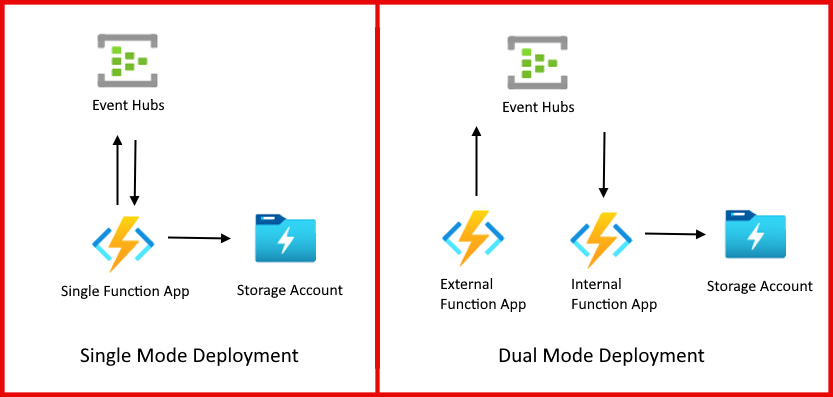
The Solution Template includes the following resources:
- One or Two Azure Function App (Depending on the Single/Dual mode you select).
- One or Two Azure Storage Data Lake Gen 2 (ADLS gen2) storage accounts
- Azure Event Hubs: A new or existing Event Hubs namespace and Event Hub resource to handle high volume of Power BI events
- Azure Application Insights (Optional, but recommended): you can create a new resource, use an existing one
Note: billing for deployed resources
By deploying the solution template on Azure, you will be charged by Microsoft for the costs of the deployed resources. You can use your Azure credits for these resources.
Note: on the term "Enterprise"
We may refer to this deployment option as the "Enterprise version" in older articles, recorded demos, and presentations. To avoid confusion, the term "Enterprise" in this context is not related to the Enterprise pricing tier. You can deploy BI Pixie on Azure in any pricing tier of BI Pixie. Starting in February 2025, we now refer to this deployment as "BI Pixie Azure Deployment" instead of "Enterprise" to prevent confusion.
Deployment Instructions
- Go to the Solution Template on Microsoft Marketplace, and select Get it now.
- In Confirm your details to continue window, select Get it now.
- Select a plan. Contact Sales for plan details and pricing.
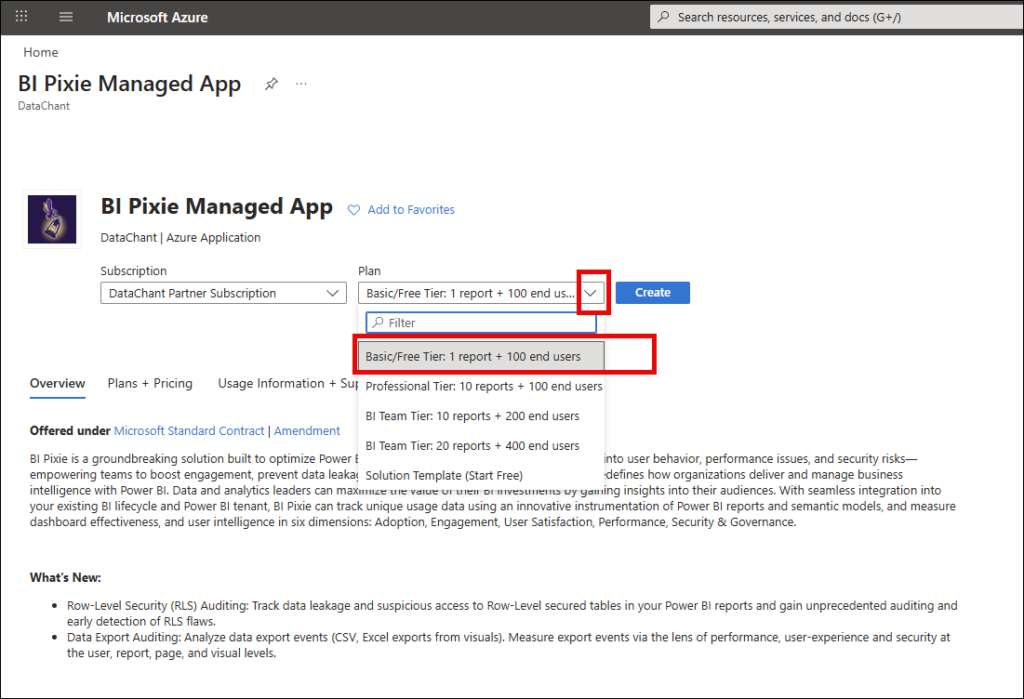
- Select Create to start the deployment of BI Pixie.
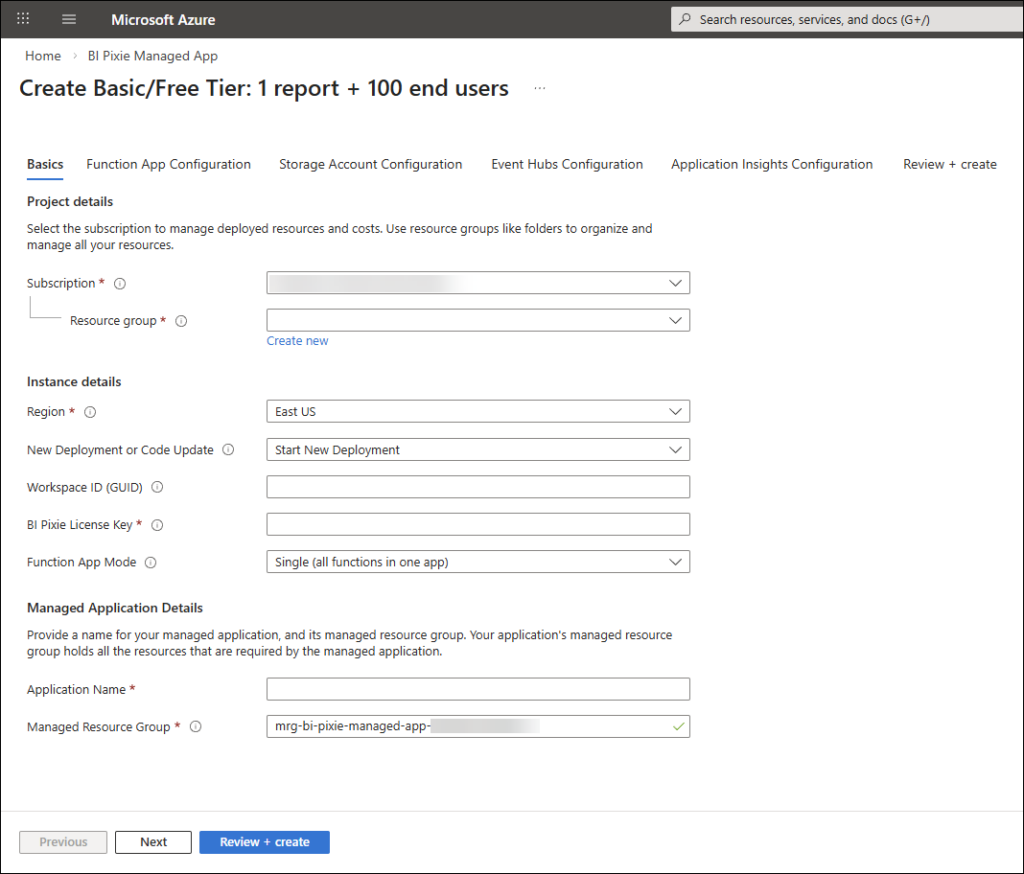
On the Basics tab, What do you want to install? lets you choose what gets deployed:
- Full BI Pixie (data collection + optional MCP server). Deploys the data-collection stack (Function Apps, Storage, Event Hubs) that instruments your Power BI reports, and lets you optionally add the MCP server on the AI Agent Access (preview) tab.
- MCP server only (AI agent access to existing BI Pixie data). Deploys only the BI Pixie MCP Server, without the data-collection components. Choose this when you do not need the self-hosted collectors because your BI Pixie data already lives elsewhere, for example you use BI Pixie Cloud or BI Pixie in Microsoft Fabric (as a workload), and you only want to add a remote MCP endpoint over that existing semantic model.
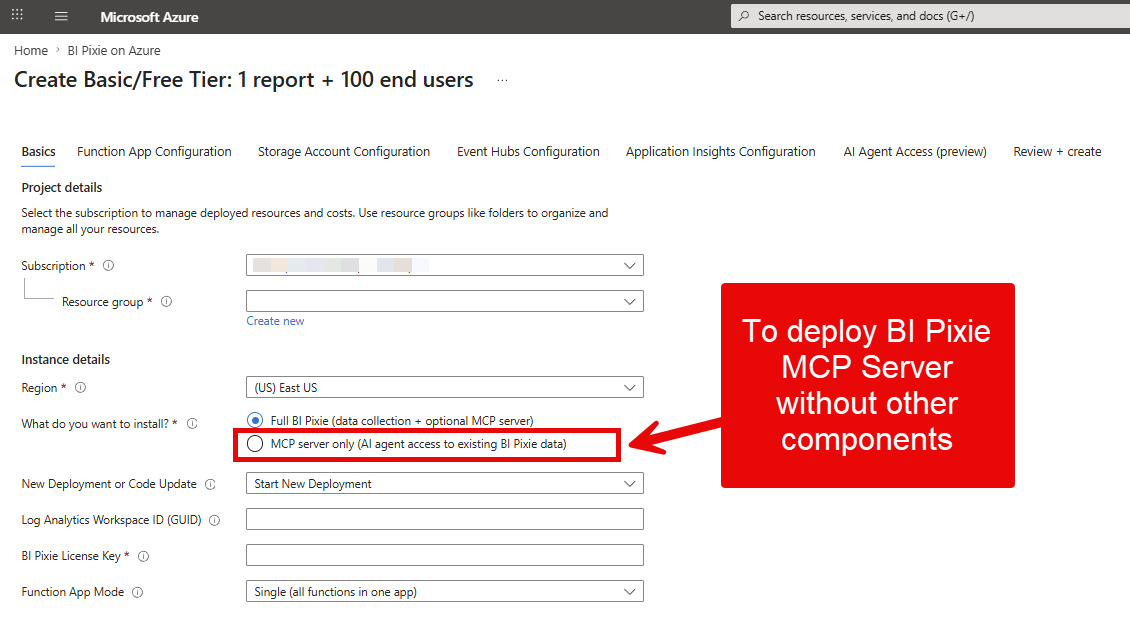
- In the Basics tab, select your Azure subscription in Subscription. You can select Create new to create a new resource group for the deployment of BI Pixie or use an existing resource group in Resource group.
- Select the region where you would like to deploy BI Pixie.
- In New Deployment or Code Update, select Start New Deployment to start a new deployment of BI Pixie. If you already deployed BI Pixie, you can select Update Functions in Existing Deployment, which will replace your existing BI Pixie functions in your existing BI Pixie deployment.
- If you use Azure Log Analytics to monitor the performance of your Power BI semantic models, enter the Log Analytics workspace ID in Workspace ID (This is optional. You can do it later in the deployed Function App as explained here).
- In BI Pixie License Key, enter the license key that we have sent you (request one here if you do not have it yet).
- In Function App Mode
,select Single (all functions in one app) to create a single Function App or select Dual (external and internal apps), If you want to deploy two Function Apps in order to harden the security of BI Pixie components and decouple between external and internal-facing functions. - In Application Name, enter the name of BI Pixie App as a single word (For example: bipixieapp). This name will be used as the name of BI Pixie managed application.
- In Managed Resource Group, enter the name for the managed resource group. For example: bi-pixie-managed-resource-group
- Select Next to create a new or define the existing function app.
Creating the Function App: Single Mode
Skip this section if you selected Dual mode in Step 10.
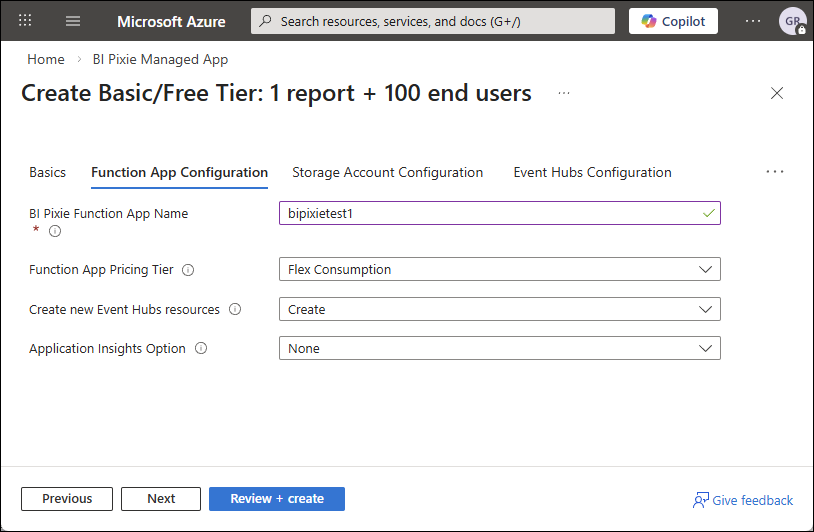
- In the Function App Configuration tab, enter a globally unique name in BI Pixie Function App Name. For example, enter bipixie[company][team].
- If you selected Update Functions in Existing Deployment in Step 5 above, select Review + create and go to Starting the deployment section below.
- In the Function App Pricing Tier, select the the tier you want to use. Your options are: Flex Consumption (Learn more here), Elastic Premium EP1, EP2 or EP3 (Learn more here).
- In Create new Event Hubs resources, select Create or Use Existing.
- In Application Insights Option, select None, New or Existing. Creating a new Application Insights resource or associating an existing one is optional. You add Application Insights resource to the function app later.
- Select Next.
- Skip to Creating The Storage Account section below.
Creating Two Function Apps: Dual Mode
Skip this section if you selected Single mode in Step 10.
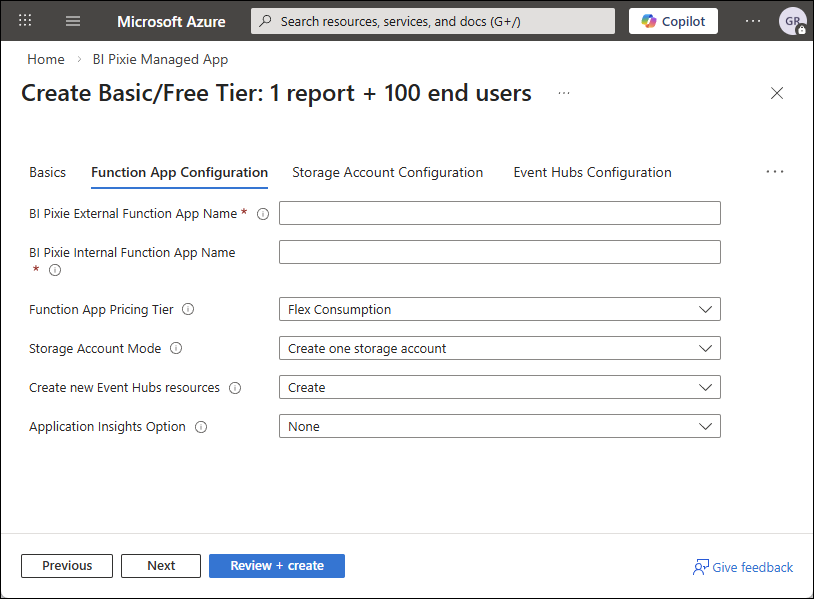
- In the Function App Configuration tab, enter a globally unique name as BI Pixie External Function App Name. For example, enter bipixie[company][team]external. Enter a globally unique name as BI Pixie Internal Function App Name. For example, enter bipixie[company][team]internal.
- If you selected Update Functions in Existing Deployment in Step 5 above, select Review + create and go to Starting the deployment section below.
- In the Function App Pricing Tier, select the the tier you want to use. Your options are: Consumption (Learn more here), Elastic Premium EP1, EP2 or EP3 (Learn more here).
- In Storage Account Mode, select Create one storage account, or Create two storage accounts. Selecting one storage account will allocate one storage account to both internal and external function apps. It is recommended to create two accounts if you are on Dual deployment mode.
- In Create new Event Hubs resources, select Create or Use Existing.
- In Application Insights Option, select None, New or Existing. Creating a new Application Insights resource or associating an existing one is optional. You add Application Insights resource to the function app later.
- Select Next.
Creating The Storage Account
- If you selected Single mode in Step 8, in Storage Account Name, enter the name of the new storage account for BI Pixie. For example: you can enter a storage account name in this format: bipixiestorage[company][team].
- If you selected Dual mode in Step 8, and two storage accounts in Step 13, enter the internal and external storage account names. For example, you can enter bipixiestorageint[company][team] for the internal storage and bipixiestorageext[company][team] for the external storage.
- In Storage Account SKU, select the SKU and redundancy of the storage account(s). You can select one of the following options:
| Name | Description |
|---|---|
| Standard LRS | Standard Locally Redundant Storage |
| Standard GRS | Standard Geo Replicated Storage |
| Standard RAGRS | Standard Read-Access Geo Replicated Storage |
| Standard ZRS | Standard Zone Redundant Storage |
| Standard GZRS | Provisioned IO Locally Redundant Storage |
| Standard RAGZRS | Provisioned IO Locally Redundant Storage |
- Select Next to go to the Event Hubs Configuration tab.
Deploying Event Hubs
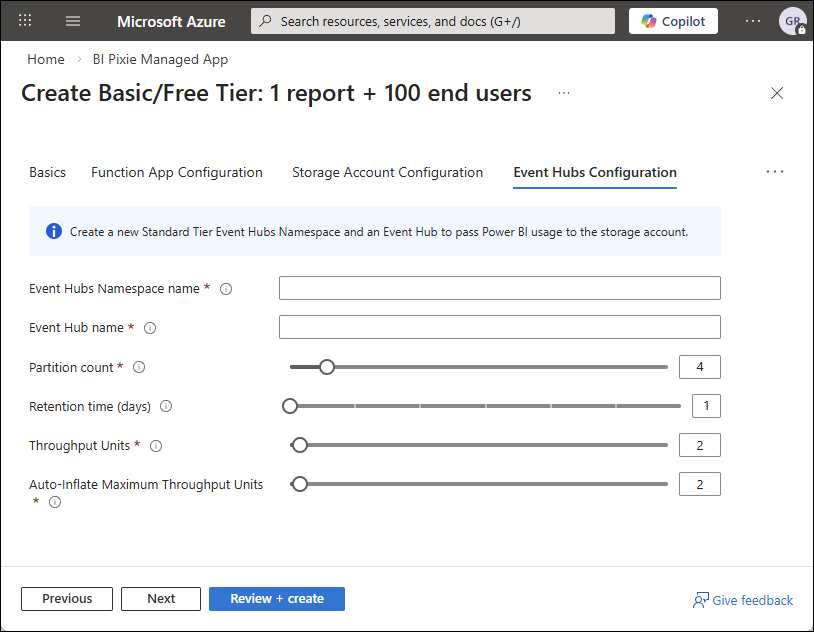
- If you selected Create in Step 17, enter a new globally unique name for the Event Hubs namespace in Event Hubs Namespace name, and then enter a name for the Event Hub in Event Hub name. For example: “[company]-bipixie-ns” will be the namespace and “bipixie-hub” can be the Event Hub name (The latter name doesn’t need to be unique).
- If you selected Use Existing in Step 17, enter the existing namespace and Event Hub you want to use.
- You can change the Event Hubs partition count from the default 4 to any number between 1 to 32. Read more about partitions here.
- Select the Retention time of the event logs in Event Hubs in days (between 1 to 7 days).
- Select the Throughput Units for Events Hub (Default is 2. You can select anything between 1 to 40). Read more about Throughput Units here.
- Select the Auto-inflate maximum throughput units. (Default is 2. You can select anything between the number of your previously-selected throughput units to 40).
- Click Next. If you opted out Applications Insight in Step 18, you can skip this step. In Application Insights Configuration tab, enter the name of the new or existing Application Insights, and select Next.
- In the Encryption tab, leave Encrypt with my own key cleared to use Microsoft-managed keys, or follow Encrypting with your own key below. Then select Next.
- In the Network tab, leave Public selected to keep the standard setup, or follow Restricting network access below. Then select Review + create.
Optional: Encrypting with your own key
By default, Azure encrypts the BI Pixie storage and Event Hubs with Microsoft-managed keys. From version 1.1.0 of the deployment template, a new deployment can encrypt its storage accounts with a key you hold in your own Azure Key Vault. This covers the data lake that holds your events and the storage that the Function Apps run from. The choice is made when the storage accounts are created, so it is offered only when the deployment creates new Function Apps.
Before you start the deployment, prepare the following in your subscription:
- A Key Vault or Managed HSM with soft delete and purge protection turned on, and an RSA key in it. If the vault has a firewall, allow trusted Microsoft services to bypass it.
- A user-assigned managed identity in the same tenant.
- The Key Vault Crypto Service Encryption User role for that identity on the key. If the vault uses access policies instead of Azure role-based access control, give the identity the Get, Wrap Key and Unwrap Key key permissions.
Then, in the Encryption tab:
- Select Encrypt with my own key.
- In Key URI, enter the key identifier, for example
https://myvault.vault.azure.net/keys/bipixie-key. When you leave out the version, storage uses the latest version of the key, so a key rotation needs no change to BI Pixie. - In User-assigned managed identity resource ID, enter the full resource ID of the identity.
- Optionally, select Also encrypt Event Hubs with my key. Encryption with your own key is available only on the Event Hubs Premium tier, which costs about 10 times the Standard tier. The namespace is created with one processing unit. This option is offered only when the deployment creates a new Event Hubs namespace.
What stays on Microsoft-managed keys. Without the Event Hubs option, events wait in a Standard Event Hubs namespace under Microsoft-managed keys for the retention period you selected (1 to 7 days) before they reach your storage. Application Insights and Log Analytics, when you use them, keep their own encryption settings. An existing storage account or Event Hubs namespace that you point the deployment to keeps the encryption it already has.
What happens if you revoke the key. If you disable or delete the key, or remove the identity’s access to it, Azure can no longer decrypt the storage. The Function Apps that run from that storage stop working, so new events are no longer recorded. Your Power BI reports keep working for their viewers, but their activity is not captured while the key is unavailable. Usage events that viewers send while the key is unavailable are refused when they arrive. They are not held for later, so they are lost. Events already waiting in Event Hubs are lost once the retention period passes, unless access to the key is restored first. When you restore access, the deployment resumes and processes the events that are still within the retention period.
How long tracking takes to show again. After access to the key is restored and the Function Apps restart, new usage events can take about 10 minutes to appear in your storage. Usage events that viewers send during those minutes are not lost. They reach your storage a few minutes late.
What it does not do. A customer-managed key controls whether Azure can decrypt your data at rest. It does not limit what the deployed BI Pixie Function Apps, or anyone with access to your subscription, can read while the key is available. If your requirement is that data stays under your control in Microsoft Fabric, the answer for BI Pixie Cloud and the BI Pixie Workload is OneLake data residency, not this option.
Optional: Restricting network access
From version 1.1.0 of the deployment template, a new deployment can limit who reaches BI Pixie over the network. The choice is offered only when the deployment creates new Function Apps. Every cost in this section is an Azure charge in your own subscription, billed to you by Microsoft, not by BI Pixie.
Pixies are images that each report viewer’s own browser loads. The BI Pixie event address must therefore be reachable from wherever your viewers sit. A viewer who cannot reach it is not tracked. Their reports still open and work normally.
The Network tab offers three choices:
- Public. The standard setup. Every viewer is tracked, wherever they are.
- Restricted to my network addresses. The event address accepts requests only from the public IP addresses or ranges you list, such as your office and VPN exit addresses. Viewers whose traffic does not leave through one of them are not tracked, for example a phone on a cellular network, a guest user, or a laptop off the VPN. Storage and Event Hubs keep their public addresses, protected by keys and identity. This option costs nothing.
- Private. The event address, the storage accounts and the event hub get private addresses in your virtual network, and their public access is turned off. Only viewers on your corporate network or VPN are tracked. This option adds private endpoints, which cost about $44 to $66 a month.
Before you choose Private, prepare an existing virtual network with two free subnets: one for the BI Pixie Function Apps, delegated to Microsoft.App/environments for the Flex Consumption plan or Microsoft.Web/serverFarms for the Premium plan, and one for the private endpoints. Then enter the virtual network resource ID and the two subnet names in the Network tab. Select Create private DNS zones for me only if your network does not already have private DNS zones for Azure Storage, Event Hubs and Azure Functions. If your organization manages DNS centrally, leave it cleared and add the records yourself.
What else changes with Private:
- The BI Pixie Dashboard refresh needs an on-premises or virtual network data gateway, because the Power BI service cannot reach private storage.
- If you also use the BI Pixie workload, choose Restricted or Public.
- The MCP server for AI agents is not offered in the same deployment.
- The Function Apps still need outbound access to the Power BI REST API (
api.powerbi.com), Microsoft sign-in (login.microsoftonline.com), Log Analytics when you use it (api.loganalytics.io), andbipixie.com, which serves the BI Pixie code package at deployment. Allow them if your network filters outbound traffic.
Optional with Private: a web application firewall
With Private selected, you can also select Add a web application firewall. The deployment then adds an Azure Application Gateway with a web application firewall, on a private address in your virtual network, in front of the event address. It costs about $335 to $350 a month, billed by Microsoft to your own Azure subscription, not by BI Pixie.
Viewers reach Pixies under your own address. With the firewall, the event address is a host name in your own domain, for example pixies.contoso.com. After the deployment, enter https://[your host name]/api/send_event?code=[your send_event function key] in the pixies_flow_endpoint_url setting before you add Pixies. The deployment shows this address, without the key, as the wafEventAddress output. Reports that already carry Pixies need Update Pixies to use the new address. Nothing about what Pixies write changes, and the function key stays the same.
Before you start the deployment, prepare the following:
- A third free subnet in the same virtual network, used by the firewall alone. An Application Gateway cannot share a subnet with anything else.
- A free private IP address in that subnet. In your DNS, point your host name at it.
- A certificate for your host name, stored as a PFX in your Key Vault. A certificate from your internal certificate authority works when your viewers’ devices trust it.
- A user-assigned managed identity with the Key Vault Secrets User role on the certificate. The firewall reads the certificate through it.
The firewall rules. The firewall uses the Microsoft Default Rule Set 2.1 in Prevention mode. A Pixie event carries report names, page names and, when you turn them on, filter values, and a standard rule can block a value that contains quotes or words that look like SQL. A blocked event is lost without any error. So these event parameters are excluded from the rules, and your security team can review each one: r, p, b, d, t, fc, fd, fv, fs, pi, w, u, ur, e and a. Request bodies are not inspected, because report scans send semantic model expressions that resemble SQL. The event address limits a request body to 1 MB itself.
A public IP address that serves nothing. Azure requires every Application Gateway of this kind to have a public IP address. The deployment attaches one but puts no listener on it, so nothing is reachable through it.
Starting the deployment
- Review the terms and select Create.
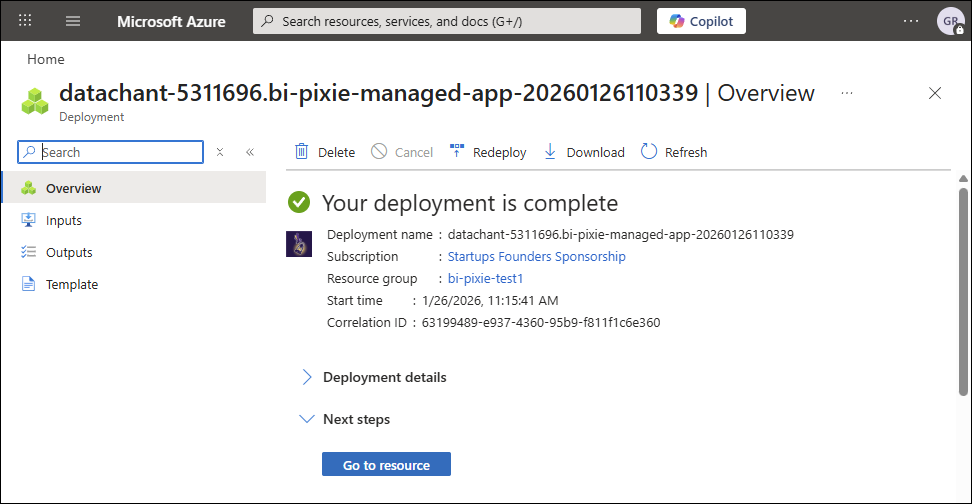
- The deployment can take few minutes. When it’s done, select Go to resource.
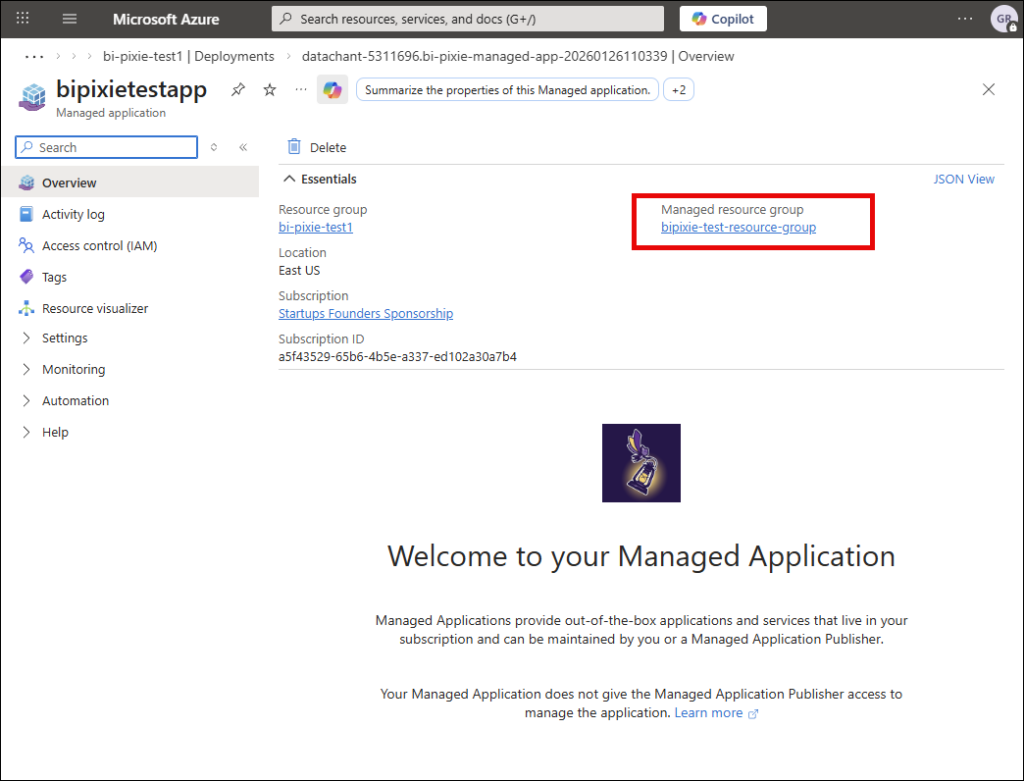
- This is BI Pixie managed application page. You selected its name earlier in step 11. You should note that we as the publisher have no access to the application and its resources. Click the hyperlink under Managed resource group.
Getting the Function URL
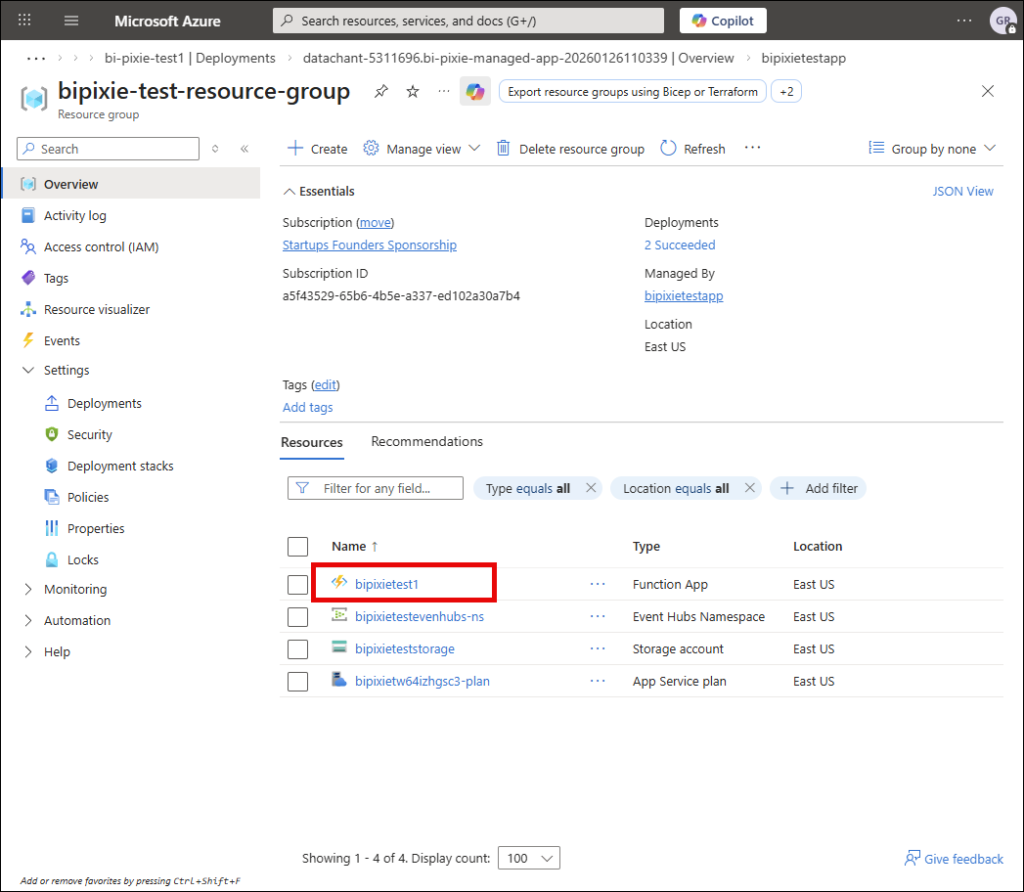
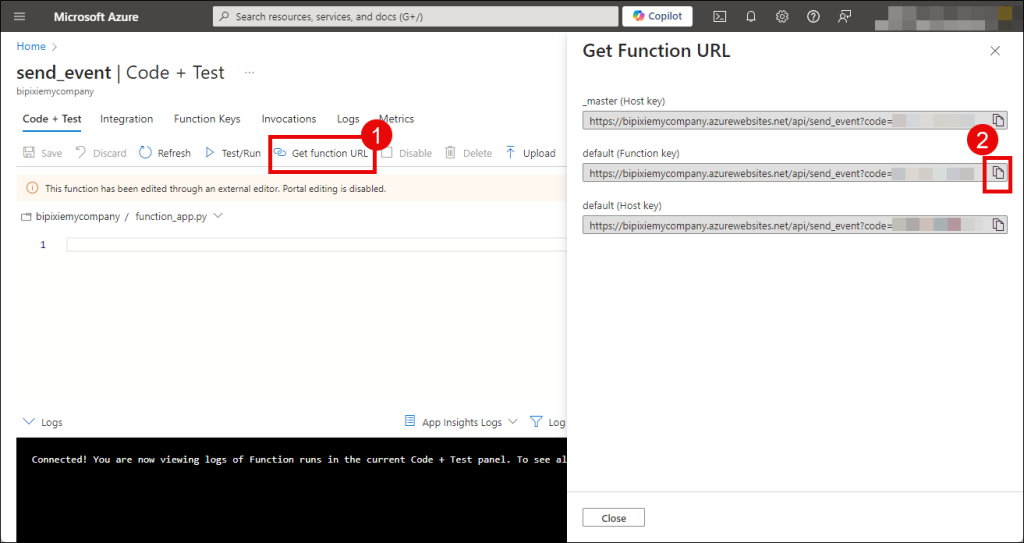
In the managed resource group, you can find the Azure resources that you deployed for BI Pixie. In this section, you learn how to get the Function URL of BI Pixie which is needed by BI Pixie Instrumentation that is covered in the next article.
- If you deployed BI Pixie in Single mode, select the Azure Function App in the Resource group. If you deployed BI Pixie in Dual mode, select the external Function App in the Resource Group.
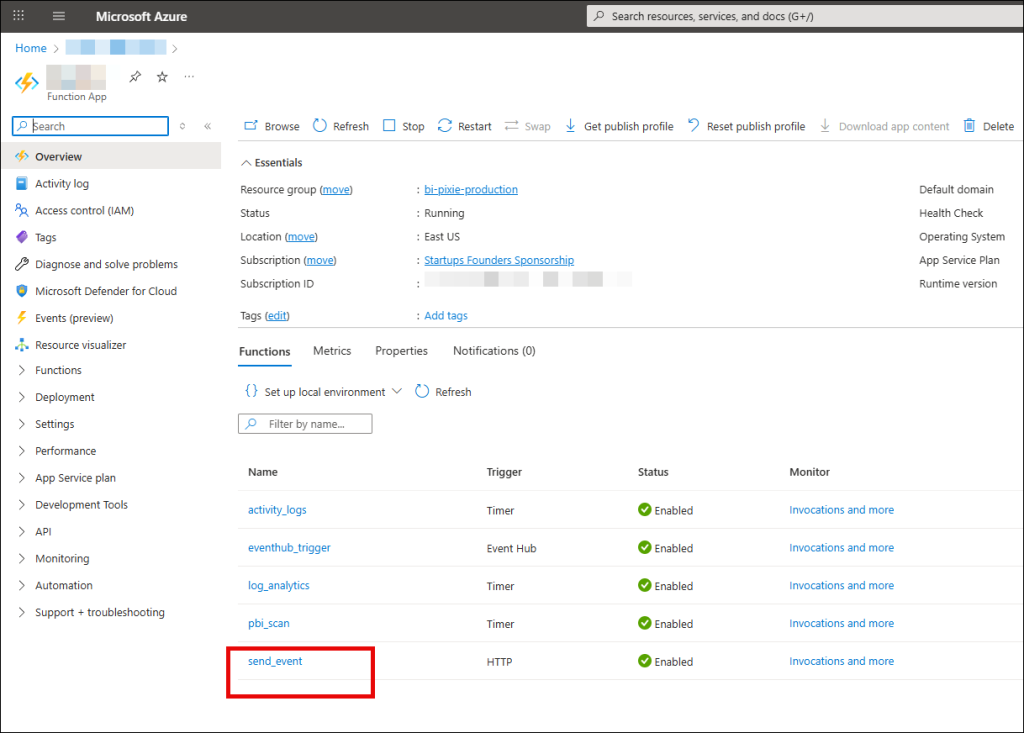
- In the Function App page, select send_event (In Dual mode, if you don’t see the send_event function, but you see the other four functions as shown in the screenshot below, it means that you selected the internal function app instead of the external one. In such case, select the external function app and then select send_event).
- In send_event page, select Get function URL. Once the Get Function URL pane loads, click the copy icon of default (Function key) field and save it; you will need it in the next article.
Optional: Collecting Power BI Activity Logs
After the deployment of the Function App in Single mode or the Internal Function App in Dual mode, the activity_logs function will appear in the Function App page in Azure Portal. The activity_logs is a Timer function that collects your Power BI Activity Logs. By integrating BI Pixie with Power BI Activity Logs, you can track a wider set of activities and analyze then in BI Pixie Dashboard as described here.
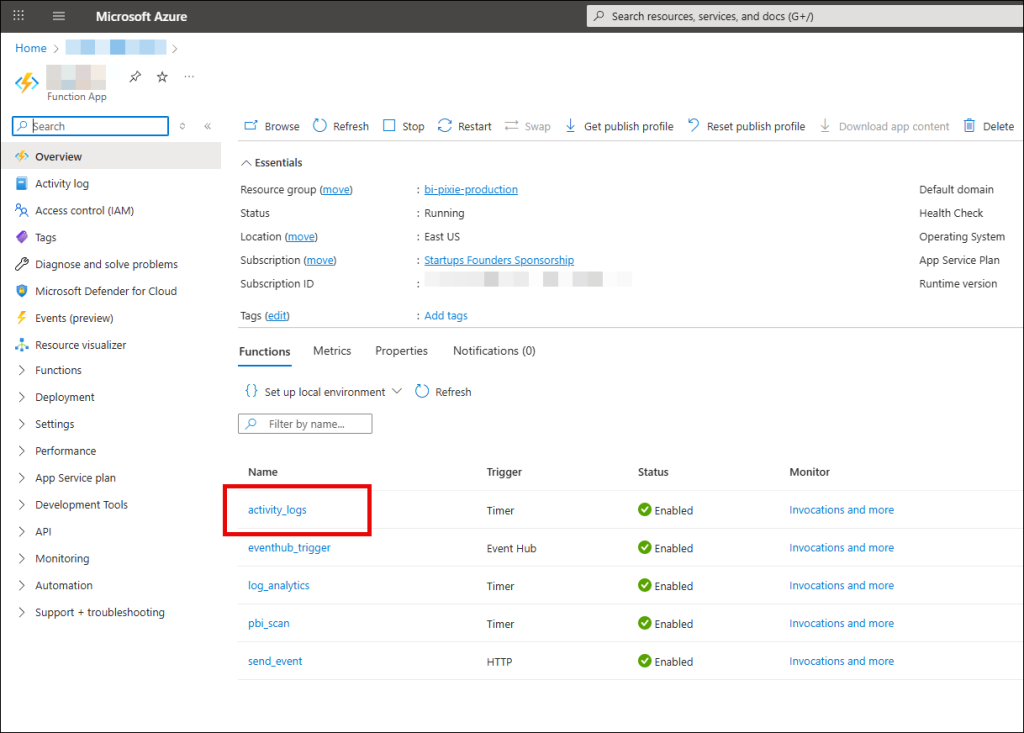
To activate the activity_logs function, you will need to ensure it has the right permissions to access the Power BI Activity Logs. To do it, you need Power BI Tenant Admin permissions or ask help from the relevant administrator in your organization. Until you get the permissions, you can opt opt the activity_logs by disabling the function. To disable the function, click activity_logs and in the function page, click Disable. Once you have the permissions, you can enable it back from the function page by clicking Enable.
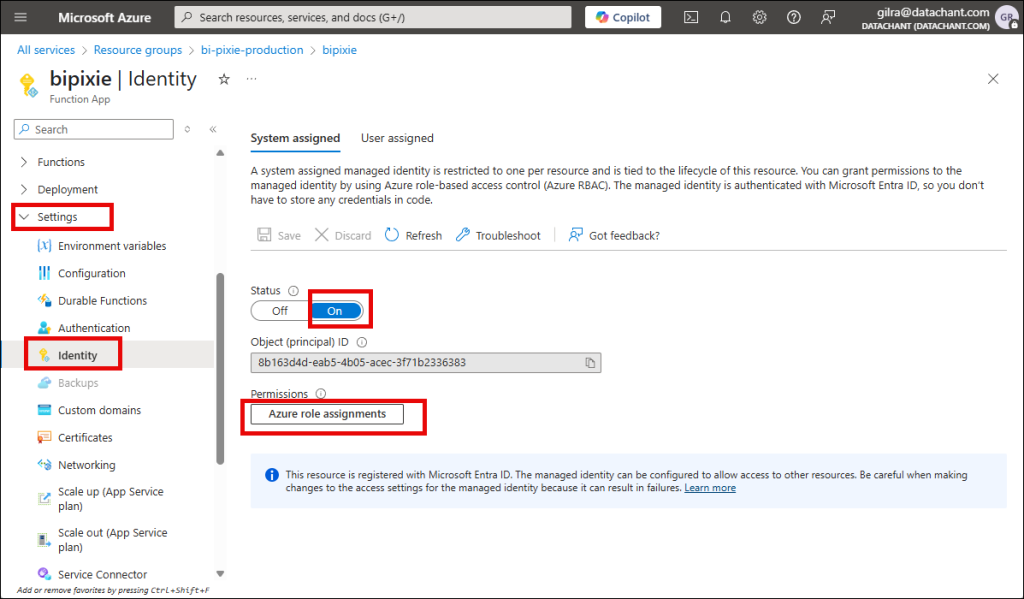
To allow the activity_logs function to collect Power BI Activity Logs, the first step is to assign the Power BI tenant role to the function app’s system-assigned managed identity.
- In the function app page, select
SettingsandIdentity. - In
System assignedtab, ensure theStatusisOn. - Click
Azure role assignments.
- In
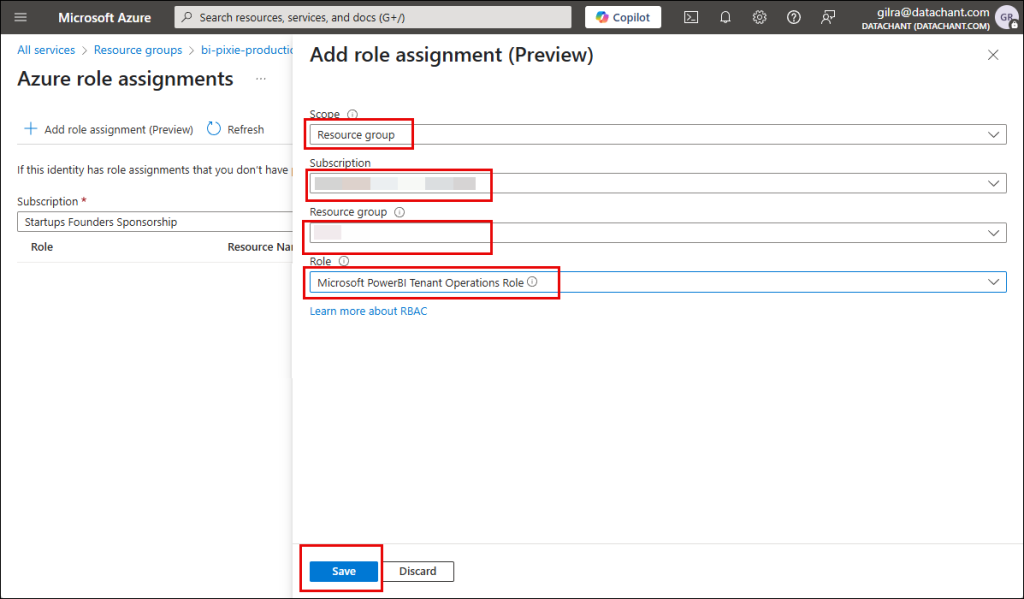
Azure role assignmentspage, selectAdd role assignment (Preview). - In Add role assignment (Preview), select Resource group in Scope.
- Select the subscription of BI Pixie Function App in
Subscription. - Select the resource group of BI Pixie Function App in
Resource group. - In
Role, assignMicrosoft PowerBI Tenant Operations Role. - Click
Save.
If you are a Power BI Tenant Administrator, proceed with the steps below or ask your Power BI Tenant Administrator to follow these steps:
- Open the Power BI Admin Portal and go to Tenant Settings.
- Find Admin API settings
- Enable
Service principals can access read-only admin APIs. If it was already enabled go to Step 5. - Assign a Security Group to Specific security groups,
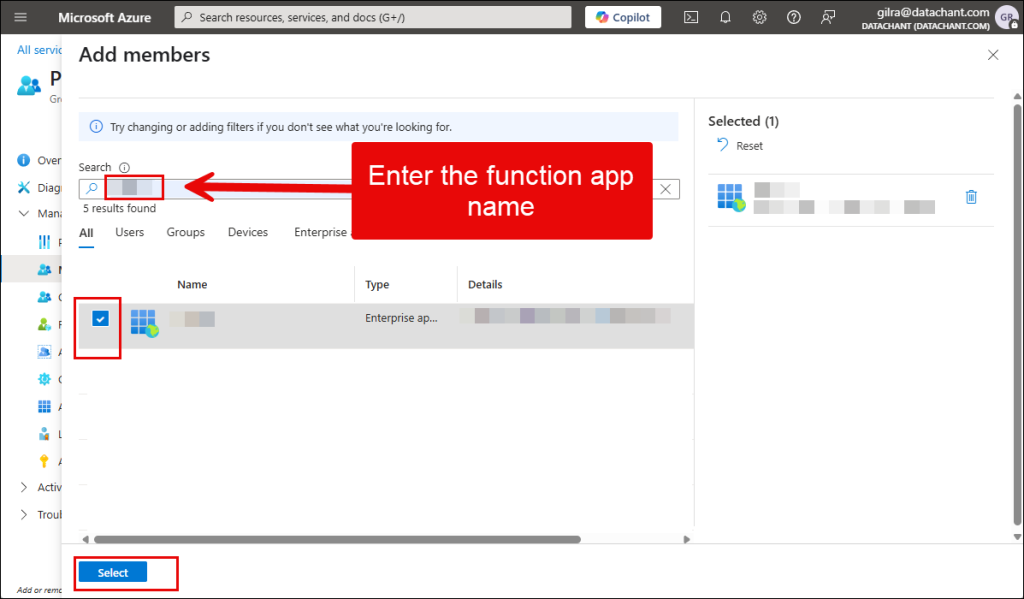
- In Microsoft Entra ID, add BI Pixie Function app to the assigned security group that can access the read-only admin APIs. Select the relevant security group and click
Add members. In theAdd memberspage of the Security Group, you can enter BI Pixie Function App name (e.g. bipixie[Company][Team]) inSearch. Check the BI Pixie Function App in the search results section, and clickSelect.
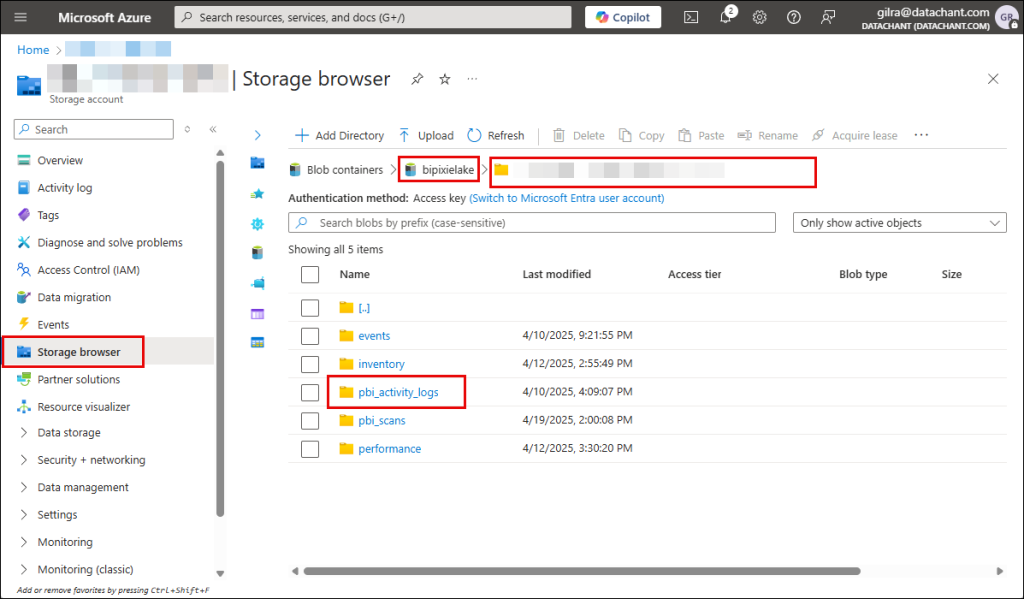
It can take 30 minutes for the permissions to get activated. To test that the activity_logs function works, go to BI Pixie Azure Storage account and open the Blob container bipixielake. You will find a folder with the license key. Under that folder you will find pbi_activity_logs folder. In that folder you will find the Power BI Activity Logs as Json files.
Optional: Scheduling the Power BI Activity Logs collection
Every you time you restart BI Pixie Function App, the activity_logs timer will initiate the next collection of the Power BI Activity Logs. Then, every round hour it will collect new activities. To change the schedule of the timer go to the activity_logs function page in Azure portal and follow these steps:
- In the function app page, select
Settings. - Select
Environment variables. - Edit the
PBI_ACTIVITY_LOGS_SCHEDULEvariable. - Change the schedule following the format here. The format is 6 numbers separated by a space character:
{second} {minute} {hour} {day} {month} {day-of-week}. You can use wildcards (*) at the level you want to run the function. For example: “0 0 * * * *” runs the function every hour at 0 minutes and 0 seconds. “0 0 8 * * *” will run the function at 8:00am every day. - Click
Apply. The function app will restart and the timer will activate an immediate collection of logs on start in addition to the collection of new logs following the new schedule.
Optional: Deploying the BI Pixie MCP Server
The BI Pixie MCP Server lets AI assistants (Claude, GitHub Copilot, Codex), Microsoft Fabric data agents, and Azure AI Foundry query your BI Pixie usage data in plain language. As part of your Azure Deployment, it runs as a small container in your own managed resource group, alongside the rest of your BI Pixie resources. It exposes a single secure POST /mcp endpoint, reads only your own workspace’s telemetry, and is strictly read-only, so your data never leaves your organization.
You deploy it as part of this wizard. In Full BI Pixie mode, open the AI Agent Access (preview) tab and select Deploy the BI Pixie MCP server. In MCP server only mode it is deployed automatically.
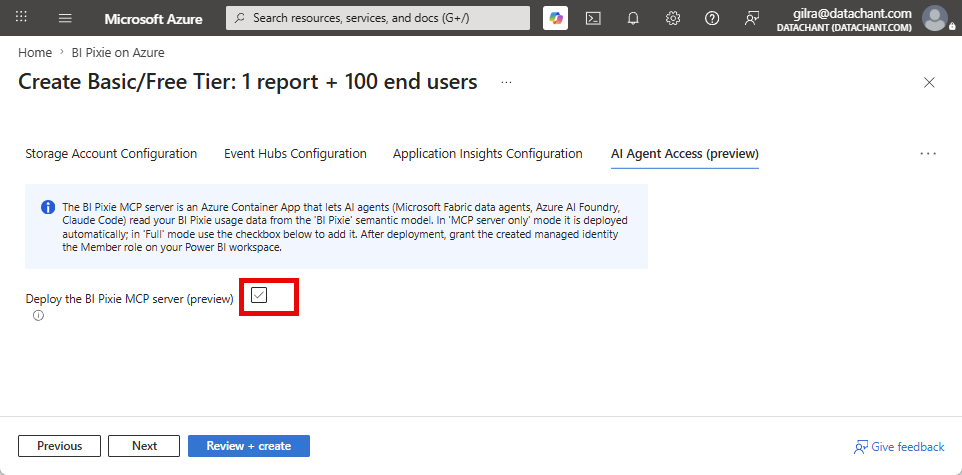
The deployment provisions the MCP container already configured to sign in with a managed identity (keyless, with no secret to manage). After the deployment completes, three steps connect it to your data and your assistants:
- Grant the deployment’s managed identity the
Memberrole on the workspace that holds your BI Pixie model, underManage access. Member gives it the Read and Build rights the server needs. - Have a Power BI admin enable two Tenant Settings in the Power BI Admin Portal:
Dataset Execute Queries REST APIandAllow service principals to use Power BI APIs. - Copy the deployed endpoint URL (it ends in
/mcp) and register it with your AI assistants, Fabric data agents, or Azure AI Foundry as a remote MCP server, using Microsoft Entra authentication.
For the full setup, including the local install and the complete list of tools, see the BI Pixie MCP Server guide.
Minimizing Costs in Elastic Premium Tier
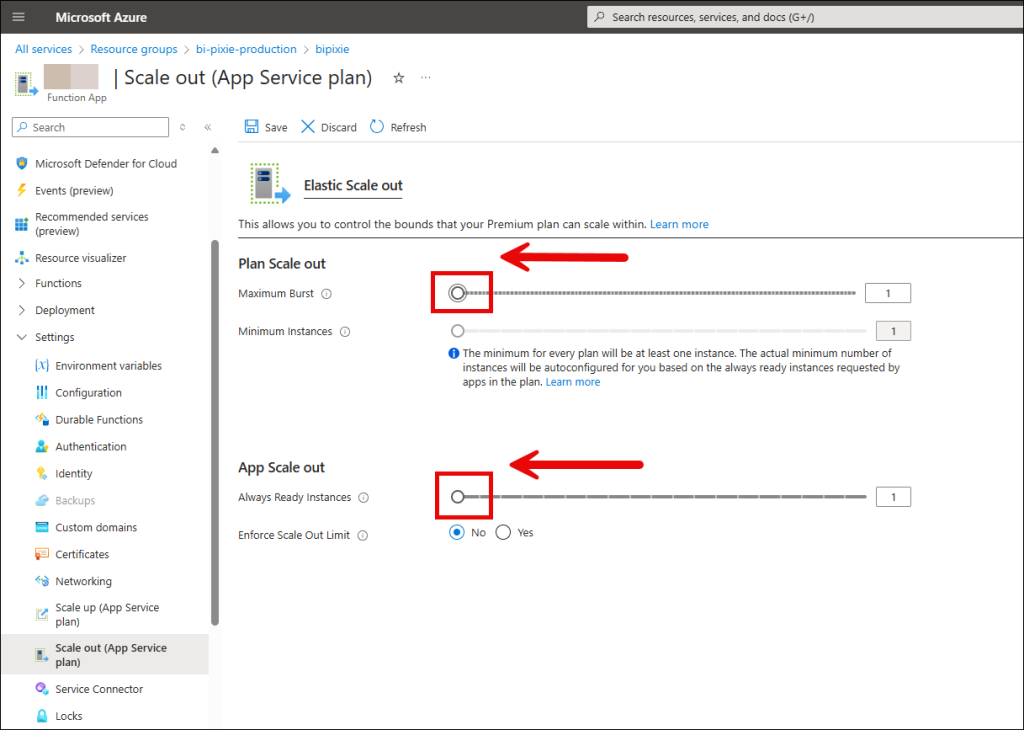
If you use Elastic Premium (EP1, EP2, EP3) as the pricing tier for BI Pixie Function App, we recommend that you scale down the App Service plan to a single instance if you have a low usage in your target Power BI reports or during the initial evaluation of BI Pixie. To scale down the App Service plan to a single unit, open the function app in the Azure portal, and select Settings. Select Scale out (App Service plan). Set both Maximum Burst and Always Read Instances to 1. Then click Save. This will ensure that you are charged only for one instance of the Elastic Premium Plan.