Instrument Power BI Reports via Microsoft Fabric API
BI Pixie now supports instrumenting your Power BI reports through the Microsoft Fabric REST API — no manual PBIX editing, no Git repository required. Connect, select your reports, and start tracking in minutes.
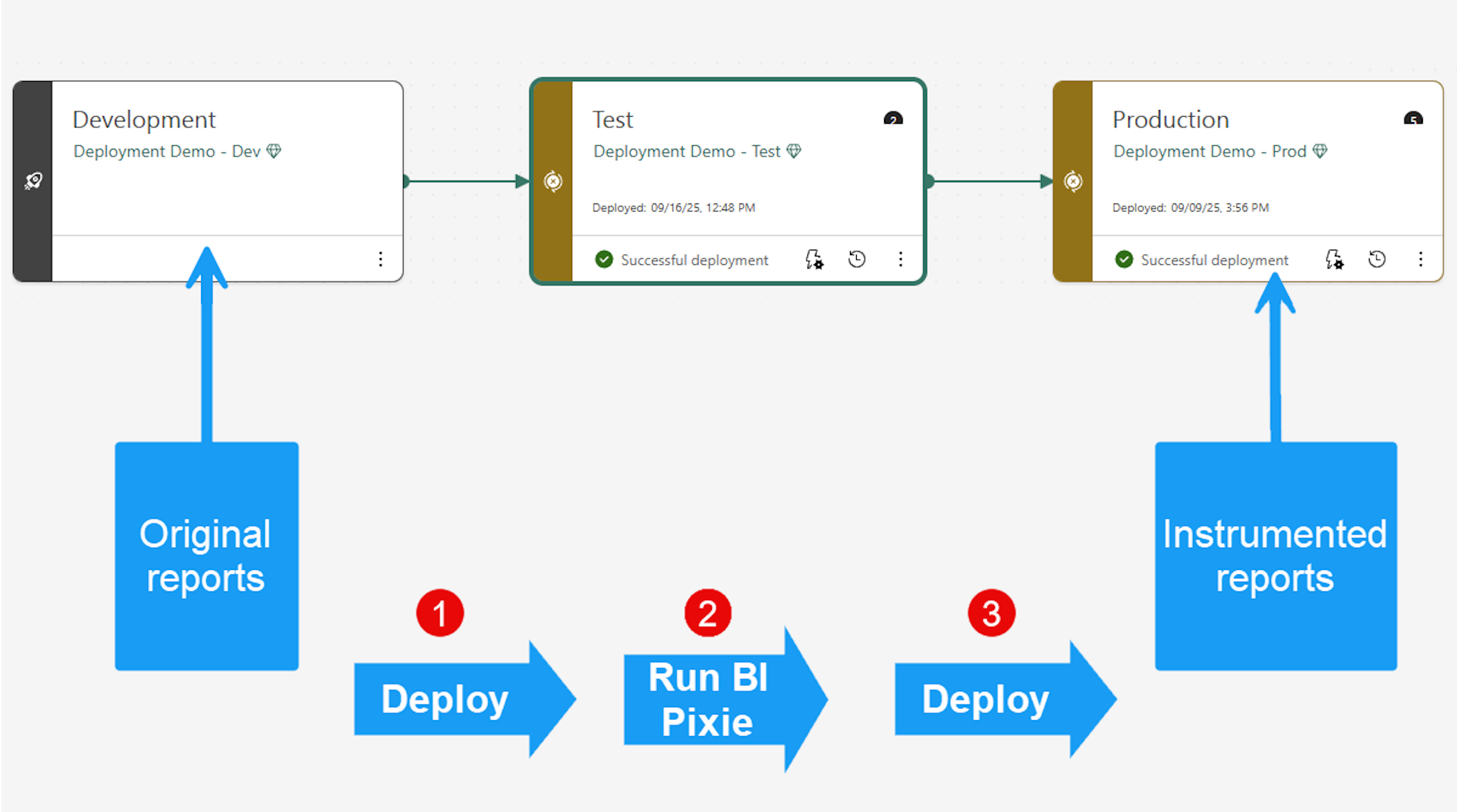
We’re introducing a new way to instrument your Power BI reports with BI Pixie using Microsoft Fabric API. The new method streamlines your existing CI/CD processes without the need to manually export your reports. With it, you can now choose among three methods to instrument your reports:
-
Manually or externally: You bring your reports and semantic models locally, then you run BI Pixie Instrumentation using the target folder. This method is documented here.
-
Using Git: You connect BI Pixie Instrumentation with your Git or GitHub repository. BI Pixie Instrumentation will pull the definitions of your reports and semantic models and can even commit and push the instrumented items in the repository and the Power BI workspaces that are integrated with Git. This method is documented here.
-
Using the new way via Microsoft Fabric API: You tell BI Pixie which workspaces and reports to use. BI Pixie will load the definitions of the reports and semantic models (Using Get Item Definition API call) and will store the files locally. Then, BI Pixie will instrument the reports and semantic models and update the report definitions in their corresponding workspaces.
How Does It Work
You can connect BI Pixie Instrumentation to Microsoft Fabric / Power BI service to automatically export the definitions of your reports and semantic models, and import back the instrumented items into your workspaces. First, you will tell BI Pixie which workspaces to use. Then, you can specify which reports to include or exclude. BI Pixie will load the definitions of the reports and semantic models (Using Get Item Definition API call) and will store the files locally. Then, BI Pixie can instrument the reports and semantic models locally and even update the changes in the workspaces.
Learn more about the new method using Fabric API in BI Pixie User Guide.
Why choose the Fabric API path?
- Easier: No need to export the reports locally.
- Scoped & safe: Include/exclude specific workspaces and reports to stay within API limits. The data in the semantic models is not exported as part of the instrumentation.
- Dry-run friendly: Test locally first; push to service only when ready.
- Pipeline-ready: Fits cleanly into Power BI Deployment Pipelines for a disciplined Dev → Test → Prod flow.
Before you start
- Define all mandatory BI Pixie configuration parameters as described in the Manual / External folder guide. Checklist
- Install the Azure CLI on the machine that runs
bi-pixie.exe, and sign in withaz loginbefore running instrumentation. Install Azure CLI
How it works (at a glance)
- Tell BI Pixie which workspaces to use and which reports to include or exclude.
- BI Pixie uses the Fabric Get Item Definition API to download report & semantic model definitions and stores them locally.
- BI Pixie applies instrumentation locally (adds usage tracking and other selected features).
- Optionally, BI Pixie updates the workspace items with the instrumented definitions.
Quick-start configuration
Add or update these keys in your bi_pixie_configuration.json:
{
  "use_report_folder_as_project": true,
  "fabric_settings": {
    "enable_workspace_context": true,
    "auto_mapping_folders_to_workspaces": true,
    "load_items_using_fabric_api": true,

    // Set to false for a dry run (local test only), true to write back to the service
    "save_items_using_fabric_api": true,

    // Scope which workspaces to pull from
    "include_all_workspaces": false,
    "include_workspace_ids": [
      "<TEST-WORKSPACE-ID>"
    ],

    // Scope which reports to pull from those workspaces
    "include_all_reports": false,
    "include_report_ids": [
      "<REPORT-ID-1>",
      "<REPORT-ID-2>"
    ]
  }
}
Tip: Keep
save_items_using_fabric_api = falsewhile you test locally. When the instrumented reports look good, flip it totrueto push changes back to the Power BI Service.
Streamline BI Pixie instrumentation into your Deployment Pipelines
If you use the Deployment Pipelines in Power BI, you can set BI Pixie to load the definitions from your Test stage while keeping the original reports in the Development stage. After you run BI Pixie, you can test the reports in the Test workspace in Power BI Service and then deploy them in the Production stage using the Deployment Pipeline feature in Power BI. The following diagram illustrates how you can instrument BI Pixie as part of your existing process using Power BI Deployment Pipeline.
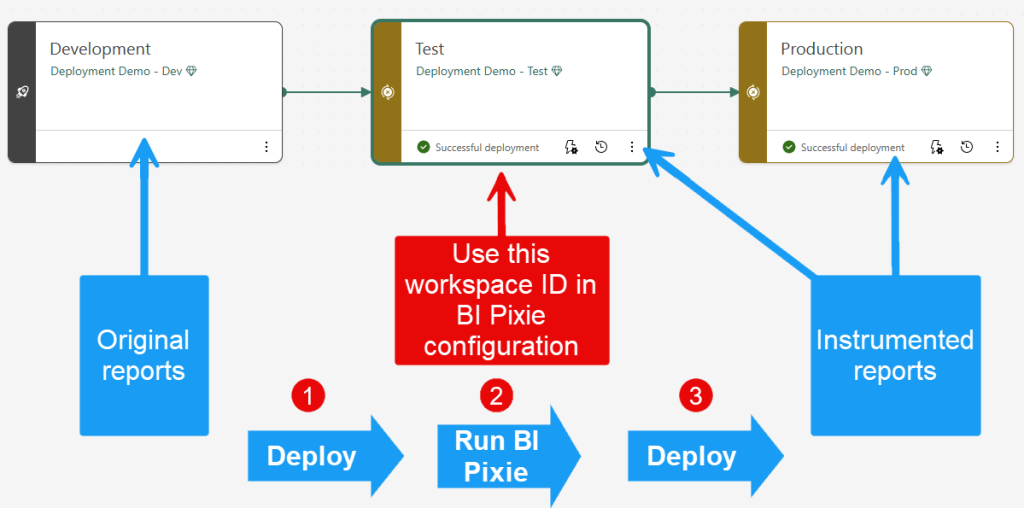
If you manage releases with Deployment Pipelines, the Fabric API method slots neatly into your flow:
- In your pipeline, open the Test stage and navigate to the workspace. Copy the Workspace ID from the URL (e.g.,
https://app.powerbi.com/groups/xxxxxxxx-xxxx-xxxx-xxxx-xxxxxxxxxxxx/list?...). - Add that ID to
include_workspace_idsin your config. Optionally specify particular report IDs. - When changes in Development are ready, deploy to Test (Step 1 in the diagram).
- Run BI Pixie. It will pull definitions from Test, instrument them, and (optionally) write back (Step 2).
- Validate in Test.
- Deploy instrumented artifacts from Test → Production (Step 3).
FAQ
Do I need a Microsoft Fabric capacity for this feature? No. You can use this feature with any workspace in Power BI service
Do I need Git for this? No. The Fabric API method talks directly to your Power BI Service workspaces. If you already use Git integration in your workspaces, you can consider using the Git route
Can I test locally before touching the service?
Yes—set save_items_using_fabric_api to false for a dry run.
Which permissions are required?
You must be able to read item definitions and (if saving) update items in the targeted workspaces. Sign in via az login with an account that has the appropriate rights.
Is this feature available in all plans?
This capability is available in the Professional and Enterprise self-hosted plans. Contact Sales for details. You can also evaluate it during a proof-of-concept engagement.
What’s next
- Check out the Pricing model
- Start Free
- Learn how to set up BI Pixie Instrumentation using Microsoft Fabric API