
Dashboard Data Source
To keep the BI Pixie Dashboard refreshing in Power BI, you need to give Power BI permission to read your engagement data. You grant that permission with a SAS Token, generated for you in the BI Pixie Portal's Dashboard Data Source card. Copy the Token the first time you install the dashboard, and again whenever you rotate it.
The card lives in two places. The Account page shows the Token for everyone. The Licenses page is admin-only and shows the full per-license connection parameters in the expanded card.
What's on each card
On the Licenses page (Enterprise per-license setup)
Open the Licenses page and expand the license you are setting up. The card shows two values, with a description that reads Here are the parameters and SAS Token you need to refresh the semantic model of your BI Pixie Dashboard.
- Data Lake URL with a Copy URL button.
- SAS Token with Show/Hide and a Copy Token button.
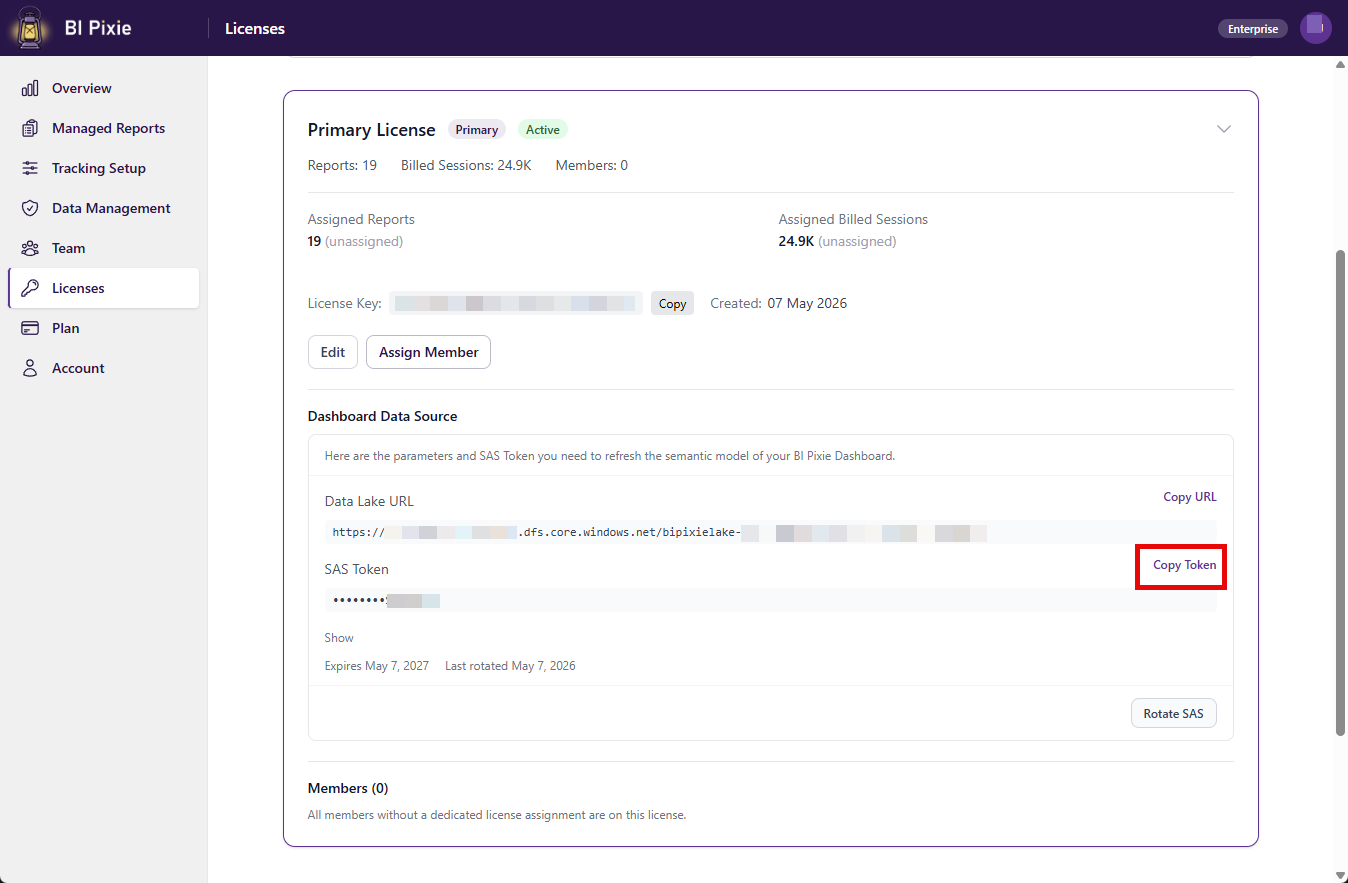
Use these values when you first wire up the dashboard for a license. The full install walkthrough is on Set up the BI Pixie Dashboard.
On the Account page
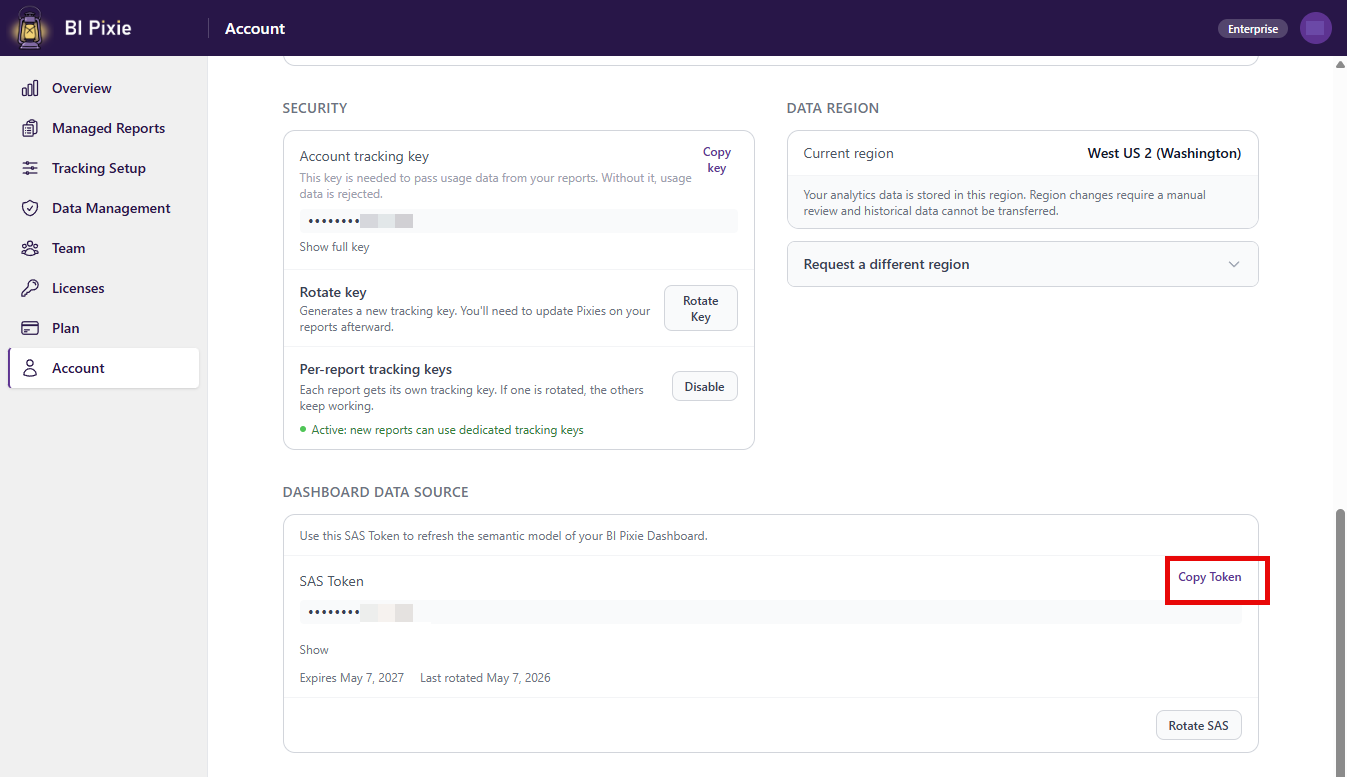
The Account page shows only the SAS Token, with a description that reads Use this SAS Token to refresh the semantic model of your BI Pixie Dashboard. Use this Token in two cases:
- First-time install on Standard and Pro plans, or as a member of any plan. The install wizard pre-fills the Data Lake URL from the install ticket; you only need to paste the Token. Members see the Token for their assigned license.
- Re-credentialing after a rotate. The URL has not changed, so you only need the new Token. Paste it into Power BI's Edit credentials dialog for the BI Pixie semantic model.
On Enterprise plans, the Account page Token covers your default license. To install the dashboard for a non-default license, use the Licenses page expanded card instead.
Rotating the SAS
Rotate the SAS if you suspect the Token has leaked, when someone with access leaves, or as part of a periodic security review. Rotation is admin-only.
- Click Rotate SAS. A confirmation card appears with this warning: Your existing Power BI data source connection continues to work until the current URL expires. After rotating, update the credential in Power BI when you next re-publish the dashboard.
- Click Confirm Rotate.
- Click Copy Token and paste the new Token into your Power BI semantic model's Edit credentials dialog.
If you are not an admin, the Rotate button is disabled with the tooltip Only admins can rotate the SAS URL. If your subscription is past-due or frozen, the tooltip reads Renew your subscription to rotate the SAS URL.
Expiration
Each SAS Token is valid for one year from the moment it is generated. The card shows both an Expires date and a Last rotated date so you always know when the next rotation is due. Rotating before expiration is non-disruptive: the previous Token keeps working until its expiration time, which gives you a window to update Power BI.