
Connect AI Assistants (MCP Server)
The BI Pixie MCP Server lets AI assistants such as Claude, GitHub Copilot, Codex, Microsoft Fabric data agents, and Azure AI Foundry answer questions about how your Power BI reports are actually used, in plain language. It connects to your BI Pixie semantic model and returns numbers that match your BI Pixie Dashboard exactly. It is strictly read-only, so it can never change, delete, or refresh your data.
What is MCP?
The Model Context Protocol (MCP) is an open standard for connecting AI assistants to tools and data. The BI Pixie MCP Server is one such tool. Once you register it with your AI assistant, you can ask usage questions in chat and the assistant pulls the answers straight from your BI Pixie data, with no DAX and no exports.
Two ways to run it
You can run the MCP server two ways. Almost everyone starts with the local install, then deploys the remote option to run it in production for AI agents and teams.
- Local (start here). Install it on your own machine and sign in as yourself. You are asking questions within minutes, with no service principal and no admin setup beyond one tenant setting. This guide walks you through it below.
- Remote (run it in production). Host the server as a secure, always-on endpoint so AI agents in production workflows can query usage data on their own, and so Microsoft Fabric data agents, Azure AI Foundry, and your team can reach it with no local install. Your IT or Azure team deploys it. See the Hosted option section below.
Ground your data agent in real human usage
When a data agent turns a question into DAX against a mission-critical model, it has to guess which column and which value the user means. Point it at the BI Pixie MCP server first: audit_overview (with group_by="column") ranks columns by how often people actually select and filter them, and audit_column_values returns a column's most-selected values, so the agent picks the column and the values real users rely on instead of guessing. This is the kind of grounding you want in a hosted, always-on deployment where agents run on their own. These tools count BI Pixie's captured data-selection events (slicer, filter, cross-filter, and drill selections), not raw clicks on individual visuals, and every result carries a freshness footer.
What you can ask
Once connected, ask your assistant questions like:
- "Which of my reports are used the most? Which are unused and could be retired?"
- "How many monthly and daily active users do I have, and what's my stickiness (DAU/MAU)?"
- "Which pages in the Executive Dashboard get the most clicks and time spent?"
- "What's my CSAT and NPS, and which reports are dragging satisfaction down?"
- "How has adoption trended over the last 90 days?"
- "How much time savings and financial benefit have users reported in surveys?"
- "Users keep asking about 'region'. Which audited column do people actually filter on most, so my agent groups by the right one?" (resolves the name, then ranks columns by real selection activity)
- "Before I write the DAX, what are the most-selected values of the Country column, the ones people deliberately click, so I can default my filter to them?" (ranks the column's values by what people actually select)
Tip: ask your assistant to "suggest questions". The server ships a built-in menu of example questions grouped by topic, so you can explore what's available.
Before you start
The local install signs in as you and runs entirely under your own Power BI identity. You do not need a service principal, an admin-consented app registration, or the "Allow service principals to use Power BI APIs" tenant toggle for this local setup. There is exactly one piece of admin involvement, and it is the tenant setting called out below.
- An active BI Pixie license and a deployed BI Pixie semantic model. This is the same model behind your BI Pixie Dashboard.
- Python 3.12 or later on your machine.
- The Azure CLI, for the simplest sign-in (
az login). - The one admin setting: "Dataset Execute Queries REST API" enabled (Power BI Admin portal > Tenant settings > Integration settings). This is the single tenant prerequisite for the local install, and it is the most common setup blocker. If it is off, queries fail silently with a permission error (403).
- Normal workspace access. Your signed-in account needs standard per-user access to the workspace (Viewer, Member, or whatever the model requires), granted in the usual "Manage access" pane. This is ordinary Power BI access, not a service-principal enrollment.
- Three values that identify your data: your Microsoft Entra tenant, the workspace that holds the BI Pixie model, and the model name (
BI Pixie). You can use the workspace's display name instead of its GUID.
Step 1: Install
Already running BI Pixie? Install in one click from your Overview
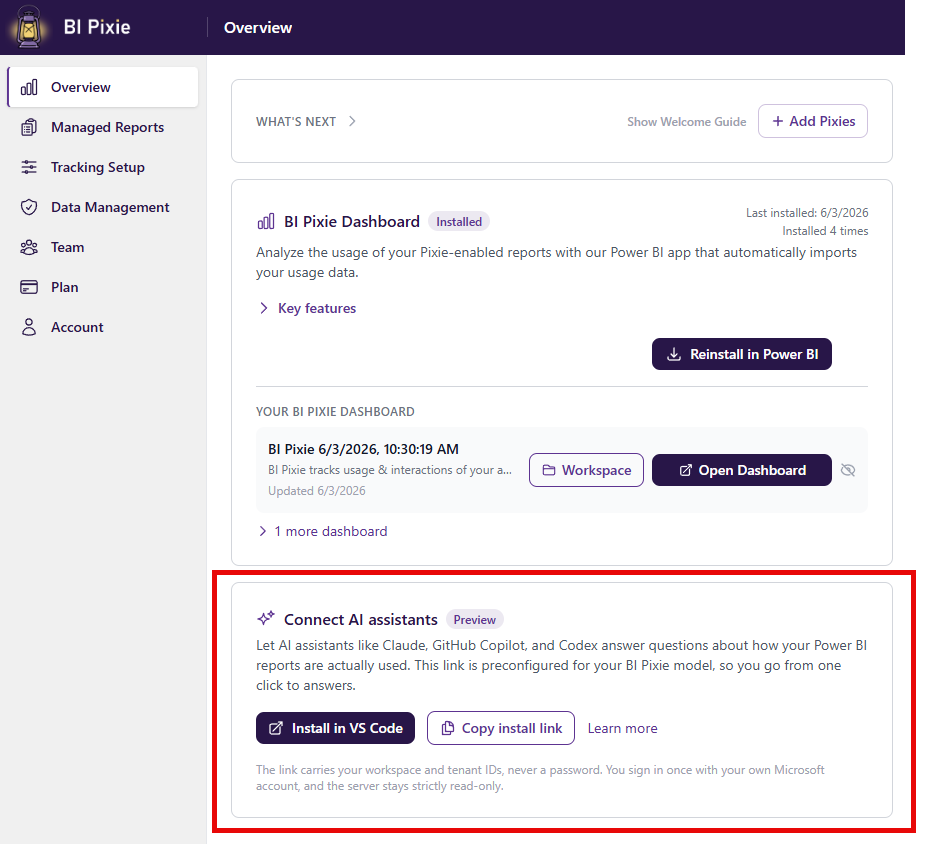
If you have deployed the BI Pixie Dashboard, the fastest way to connect is from the portal: open app.bipixie.com, go to the Overview page, and click Install in VS Code on the Connect AI assistants card. That link is already filled in with your workspace, so you can skip the manual configuration in Step 2. You still need Python (Step 1) and a one-time az login. Prefer to set it up by hand? Follow the steps below.
Install from PyPI. There is no download or clone required.
# Zero-install runner (recommended), always fetches the latest version:
uvx bipixie-mcp

# Or install into your current Python environment:
pip install bipixie-mcp
First run walks you through it
Run uvx bipixie-mcp in a terminal with no settings yet and it starts a short guided setup: it signs you in (reusing az login when available), lists the workspaces you can access, flags your BI Pixie models, lets you pick one from a numbered menu, runs a quick test query to confirm it works, and saves a .env you can reuse. Re-run it any time with uvx bipixie-mcp setup. Prefer to configure by hand? Skip ahead to Step 2. (When your AI assistant launches the server it never prompts — it reads the settings below.)
Using VS Code? Register it in one click, then add your settings in Step 2:
Step 2: Configure
The server reads its settings from environment variables (or from your AI assistant's MCP config). The simplest setup uses your existing Azure CLI sign-in, with no app registration and no secret. Create a .env file with these four values:
BIPIXIE_MCP_TENANT_ID=<your-entra-tenant-guid>
BIPIXIE_MCP_WORKSPACE_NAME=<workspace that holds the BI Pixie model>
BIPIXIE_MCP_DATASET_NAME=BI Pixie
BIPIXIE_MCP_AUTH_MODE=azure_cli
Then sign in once. The server reuses that session for every query:
az loginTip: find your tenant GUID with az account show --query tenantId -o tsv. Prefer to use GUIDs? Set BIPIXIE_MCP_WORKSPACE_ID instead of the workspace name.
No need to hunt for IDs. The settings above use display names, so you do not have to copy GUIDs from the Power BI portal. Easier still, let the guided setup do it: run uvx bipixie-mcp setup and pick your workspace and model from a menu — it writes the .env for you. And after the server connects, you can ask your assistant to list your workspaces and BI Pixie models and pick one, then switch between them at any time.
Don't use the Azure CLI?
Set BIPIXIE_MCP_AUTH_MODE=device_code instead. The first time you use the server it prints a short sign-in code to paste into your browser. Either way, the server runs as you, so it can only reach data you already have access to in Power BI.
Step 3: Register with your assistant
Claude Code, Claude Desktop, or Cursor
Add the server to your project's .mcp.json:
{
  "mcpServers": {
    "bipixie": {
      "command": "uvx",
      "args": ["bipixie-mcp"],
      "env": {
        "BIPIXIE_MCP_TENANT_ID": "<your-entra-tenant-guid>",
        "BIPIXIE_MCP_WORKSPACE_NAME": "<your-workspace-name>",
        "BIPIXIE_MCP_DATASET_NAME": "BI Pixie",
        "BIPIXIE_MCP_AUTH_MODE": "azure_cli"
      }
    }
  }
}
VS Code
Click Install in VS Code above, then add the same env block to .vscode/mcp.json so the server knows which workspace and model to query.
Restart your assistant. Ask "describe the BI Pixie model" to confirm the connection. You should see your tables, measures, and the data's freshness date.
Switch workspaces while you chat
If you manage several BI Pixie models, you don't need to reconfigure to move between them. On the local install, just ask:
- "List my Power BI workspaces."
- "List the datasets in <workspace>." (BI Pixie models are flagged for you.)
- "Use the BI Pixie model in <workspace>."
The switch lasts for the session and resets when you restart. You only ever see workspaces and models your own Power BI account can already access. (This applies to the local install. A hosted deployment stays pinned to one model.)
Privacy and security
- Read-only. The server can only run read queries. It can never change, delete, or refresh your data, and write commands are rejected before they reach Power BI.
- Runs as you. It uses your own Microsoft sign-in, so it can only reach data you're already permitted to see.
- No personal data by default. User names and IP addresses are stripped from every result unless an administrator explicitly enables them after a privacy review.
- Numbers you can trust. Answers come from the same validated measures as your BI Pixie Dashboard, so they match. Every answer is stamped with how fresh the data is (the most recent refresh date).
Hosted option (Fabric and Azure AI Foundry)
The same server can run hosted in your Azure environment as a secure, always-on endpoint, so AI agents in production workflows can query usage data on their own, and so Microsoft Fabric data agents, Azure AI Foundry, and your team can reach it without anyone installing anything locally. For step-by-step deployment, see Deploy the BI Pixie MCP Server, which walks your Azure team through standing up the remote endpoint as part of the BI Pixie managed app. This is an enterprise setup; contact support to plan it.
Unlike the local install, the hosted path runs under a shared identity rather than your personal sign-in, so it is the only path that involves a service principal or managed identity. The local install above needs none of the following. These requirements apply only to the hosted deployment:
- Admin tenant toggle. "Allow service principals to use Power BI APIs" (Power BI Admin portal > Tenant settings > Developer settings) must be on. This setting gates the service principal and managed identity modes only, never the local user-identity modes.
- Workspace role for the shared identity. The service principal or managed identity is added as a workspace Member or Admin so it can read and build the dataset.
- Service principal mode. Uses a confidential-client app registration with the
Dataset.Read.Allapplication permission, admin consent, and a client secret (stored as a Key Vault reference in Azure). - Managed identity mode (preferred when hosted). Needs no app registration and no secret. The Azure-assigned identity is resolved automatically and only needs the workspace Member or Build role.
Troubleshooting
- Queries fail with a permission error (403): the "Dataset Execute Queries REST API" tenant setting is off, or your account isn't a Member of the workspace. Ask your Power BI admin to enable the setting and confirm your workspace access.
- "Workspace or dataset not found": check the workspace name and confirm the model is named
BI Pixie(or setBIPIXIE_MCP_DATASET_NAMEto your model's actual name). - Wrong data or empty results: confirm
BIPIXIE_MCP_TENANT_IDmatches the tenant where your Power BI workspace lives.
Related
- BI Pixie Semantic Model: the tables and measures the assistant queries.
- BI Pixie Metrics: what each measure means.
- bipixie-mcp on PyPI: full technical reference covering every setting, all sign-in modes, the complete tool catalog, and hosted deployment.
- Contact Support: get help with setup.