
Set up BI Pixie Dashboard
The BI Pixie Dashboard is a Power BI report that turns your engagement data into insights about how your audience uses your reports. It shows which reports get viewed, which visuals get clicked, who returns, and where users focus their attention, so you can see what is delivering value and where to iterate next.
User satisfaction, survey analysis, data auditing, and row-level security are all covered in the same dashboard. See the BI Pixie Dashboard walkthrough for a full tour of every page and metric.
BI Pixie installs the Dashboard in your Fabric workspace automatically when you create the BI Pixie item. Before the Dashboard can show your engagement data, there is a short one-time setup in Power BI.
What gets installed
The Dashboard installs in the background as soon as you create the BI Pixie item. The install takes about 60 seconds, and the BI Pixie item shows live progress while it runs.
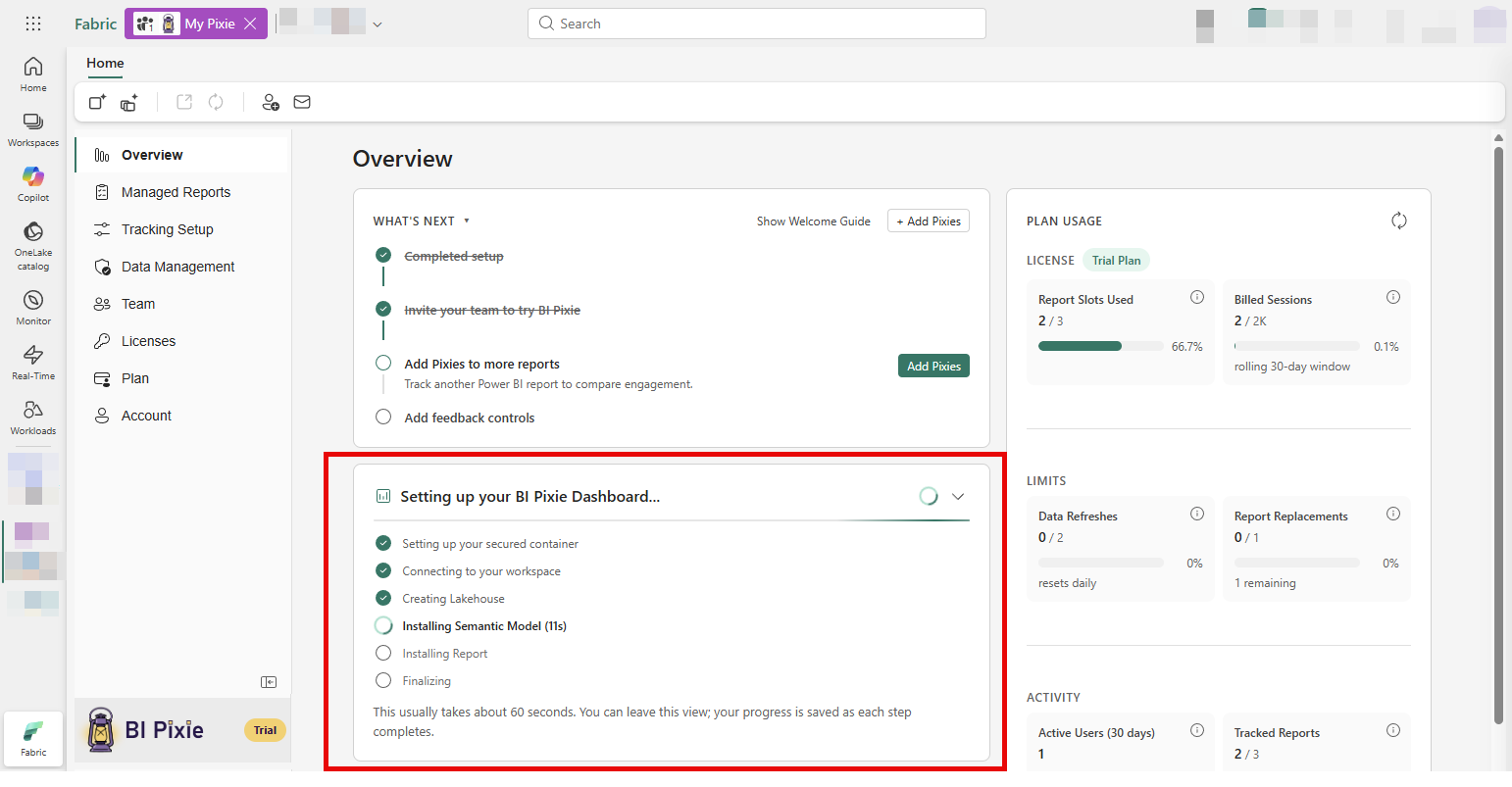
When it finishes, you will find a new BI Pixie folder in your Fabric workspace containing three items:
- A Lakehouse called BI_PIXIE_Lakehouse. It includes a OneLake shortcut to your BI Pixie telemetry data.
- A Semantic Model called BI Pixie Dashboard.
- A Power BI report called BI Pixie Dashboard. This is the dashboard you open to see your engagement insights.
Connect BI Pixie to its data sources
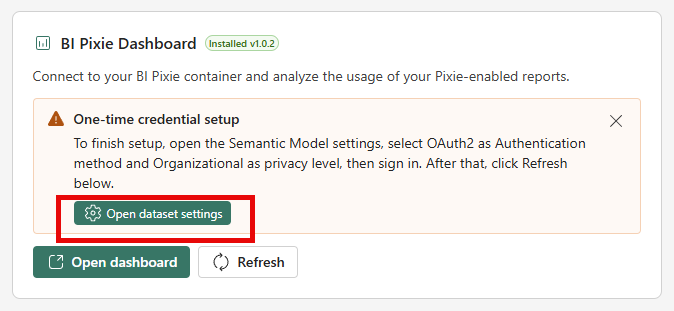
In the BI Pixie item's Overview, find the BI Pixie Dashboard card and click Open dataset settings. This jumps you straight to the Power BI dataset settings page, so you do not need to navigate through the workspace, folder, and semantic model.
On the Power BI dataset settings page, expand Data source credentials. You will see two rows. Both need credentials applied.
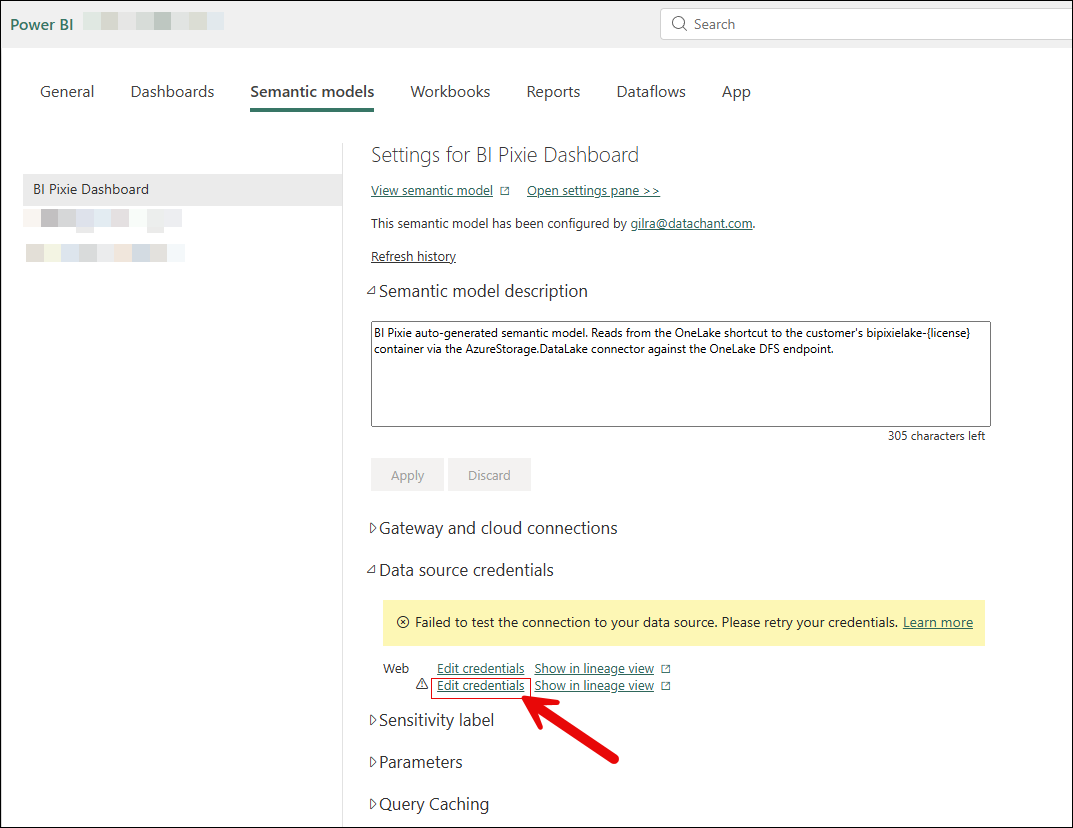
The yellow Failed to test the connection to your data source banner is expected at this point — it clears once both credentials are saved.
- Click Edit credentials on the first row (Web).
- Set Authentication method to Anonymous.
- Set Privacy level setting for this data source to Organizational.
- Click Sign in to save.
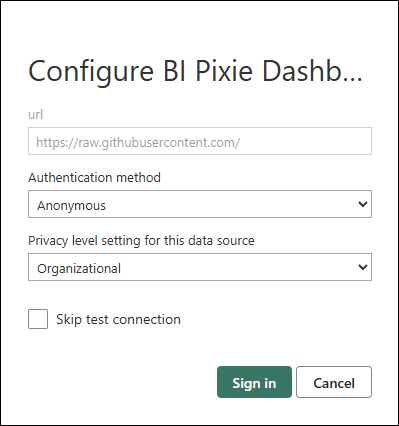
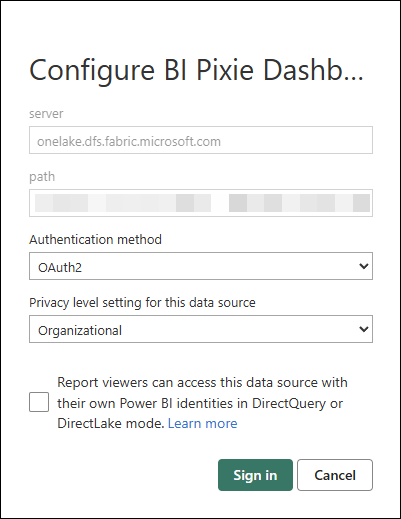
- Click Edit credentials on the second row (the one flagged with the warning triangle).
- Set Authentication method to OAuth2.
- Set Privacy level setting for this data source to Organizational.
- Click Sign in. A Microsoft sign-in window opens. Use your organizational account (the same one you use for Fabric).
Finish
After both credentials are saved, return to the BI Pixie item in Fabric and click Refresh in the Overview, or open the report directly. The dashboard will pull fresh engagement data.
If the yellow Failed to test the connection banner is still showing on the credentials page after both steps, check that no row in the list still carries a warning triangle. A row that opens a different dialog (no Authentication method dropdown) means the source type doesn't match this guide — reach out to support.
Schedule data refresh
To keep the dashboard up to date with the latest engagement data, configure a scheduled refresh on the semantic model in your Fabric workspace.
- In the Fabric workspace, find the BI Pixie Dashboard semantic model.
- Click the three-dot menu and select Settings.
- Expand the Refresh section and toggle Scheduled refresh on.
- Set the refresh frequency. A daily refresh is suitable for most teams. Your BI Pixie subscription includes a daily refresh limit, which you can monitor on the Account page under Data Refreshes.
- Click Apply.
Note: Workspaces backed by a Power BI Pro license support up to 8 refreshes per day. For more frequent refreshes or large data volumes, use a Microsoft Fabric capacity. See Microsoft's data refresh documentation for details.
Customize the Dashboard
The BI Pixie Dashboard is a regular Power BI report and semantic model. You can customize it to fit your needs:
- Edit existing pages. Open the report in your Fabric workspace and edit visuals, colors, or layouts to match your organization's style.
- Add new pages. Create additional report pages with custom visuals or KPIs specific to your team.
- Create thin reports. Build new Power BI reports that connect live to the BI Pixie Dashboard semantic model, giving you full flexibility without modifying the original report.
- Create new measures. Add DAX measures in your thin report for custom calculations.
- Share with your team. Share the Fabric workspace, or publish a Power BI app, so stakeholders can access engagement insights without needing access to the BI Pixie item.
Because the imported data in the semantic model stays inside your own Microsoft Fabric tenant, you can also use Copilot and AI agents to query your usage data using natural language.