
Getting Started
This guide walks you through your first five minutes with BI Pixie inside Microsoft Fabric: create a BI Pixie item, add Pixies to a Power BI report, verify events are flowing, and connect the dashboard to start analyzing engagement.
Before You Start
Make sure you have the following in place:
- A Microsoft Fabric capacity attached to your tenant — a paid SKU or an active Fabric trial.
- A Fabric workspace where you have Contributor, Member, or Admin role.
- BI Pixie added to your Fabric tenant. A Fabric tenant admin adds it from the BI Pixie page in the Fabric Workload Hub by selecting Add to Tenant, which makes the BI Pixie item type available across the tenant. See the Add BI Pixie to Your Tenant page for the admin steps.
- At least one published Power BI report in the workspace you want to track.
Step 1: Create a BI Pixie item
- Open Microsoft Fabric and navigate to a workspace where you want the BI Pixie Dashboard to live. The reports you track can be in any workspace you have access to — they do not need to be in this one.
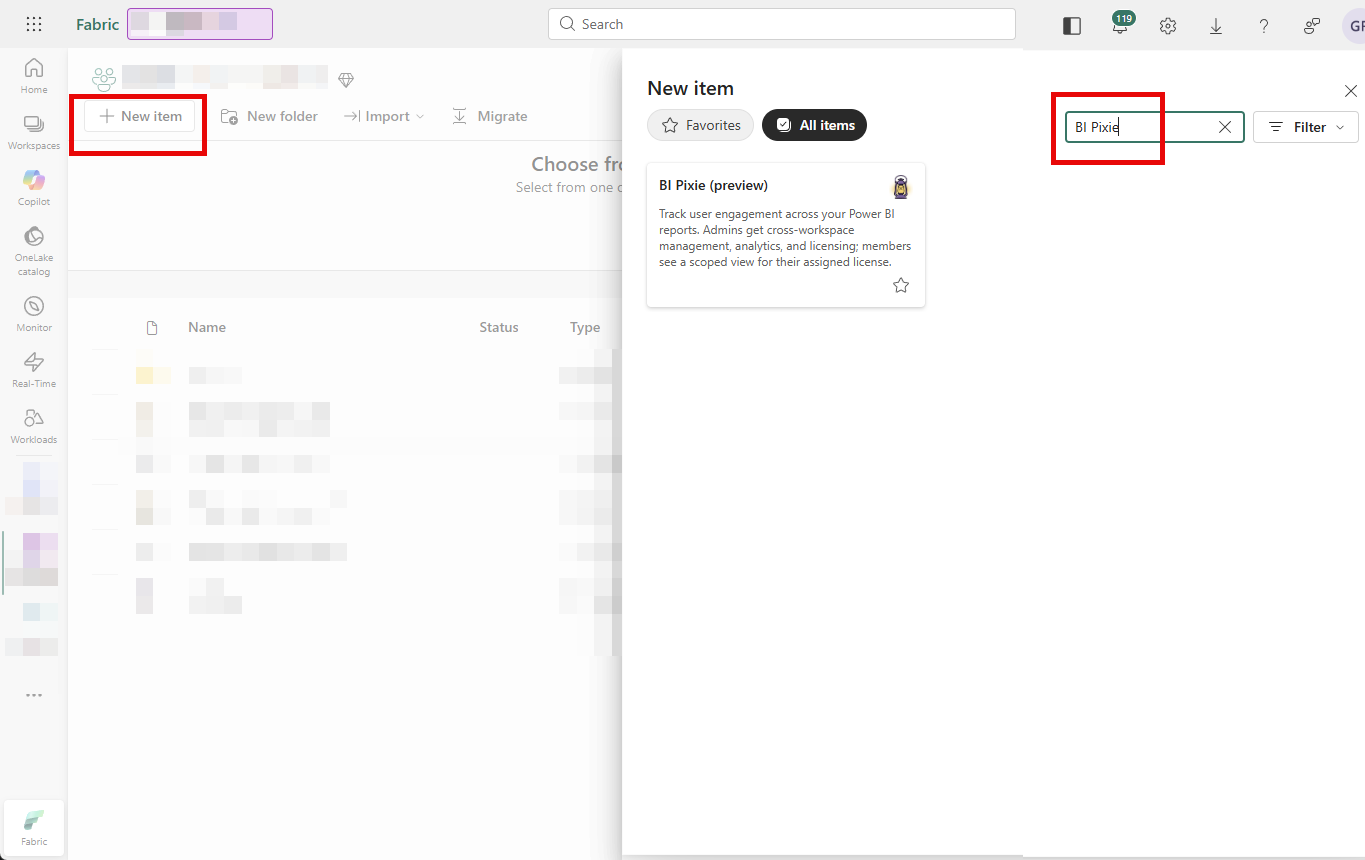
- Click + New in the workspace toolbar and choose BI Pixie. If you do not see it, use the search box in the dialog or check that the workload is enabled in your tenant.
- Give the item a name (for example, My BI Pixie) and click Create.
- The BI Pixie item opens on the Overview view with the workspace context already established. There is no separate sign-in step — Fabric provides your identity automatically.
Step 2: Add Pixies to a Report
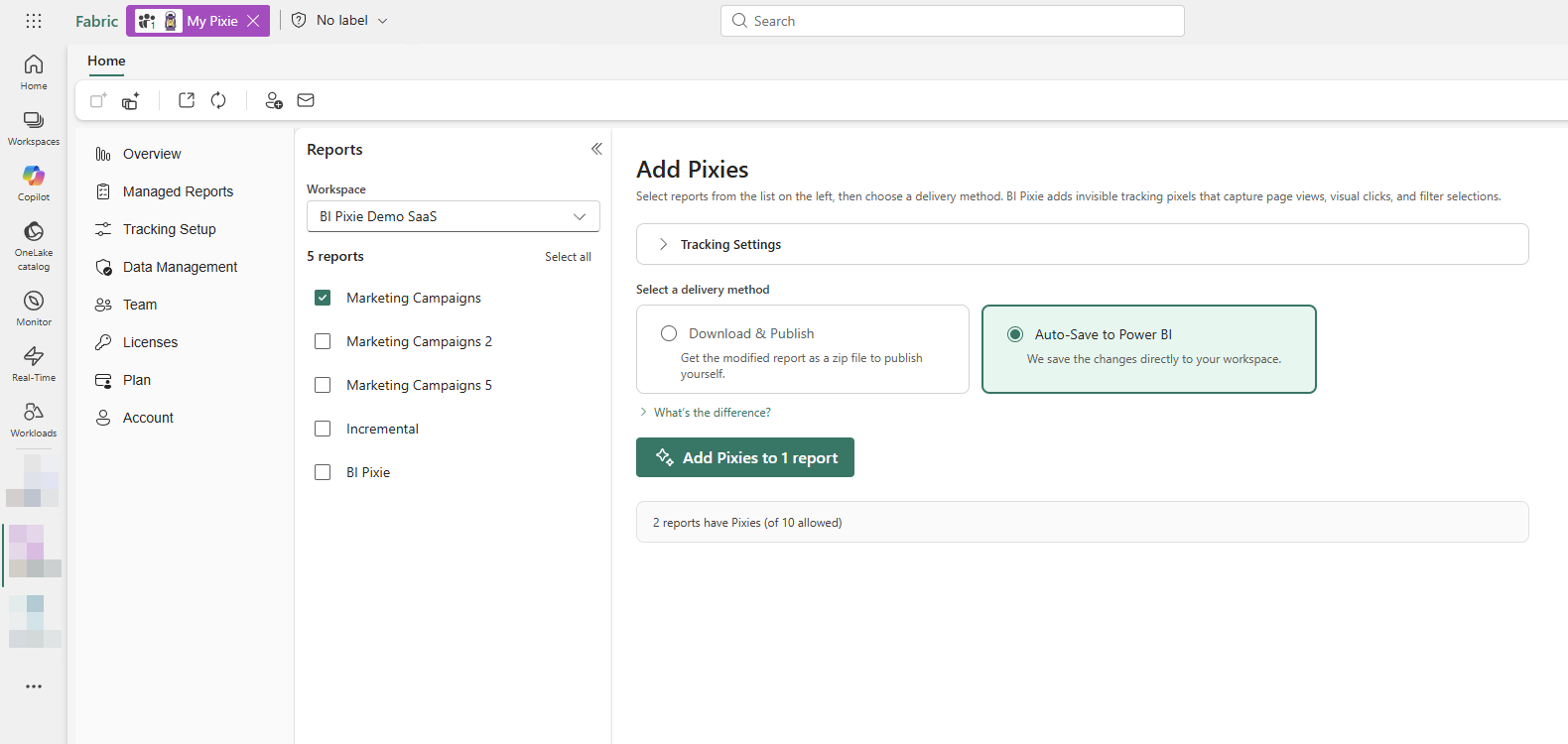
- In the BI Pixie item, open the Managed Reports view from the sidebar and click Add Pixies.
- BI Pixie lists the Power BI reports in the current workspace. To track reports from a different workspace, use the workspace selector at the top of the view to switch to any other workspace where you have Contributor, Member, or Admin role. Select one or more reports you want to track.
- Choose how to apply the changes:
- Auto-Save to Power BI — BI Pixie saves the changes directly to your workspace.
- Download & Publish — get the modified report as a ZIP to publish yourself.
- Click the action button. Adding Pixies runs as a background job, so you can keep working in the BI Pixie item while it completes. Progress appears right inside the item.
- When the job finishes, the report appears in the Managed Reports view as a tracked report.
Step 3: Verify Events Are Flowing
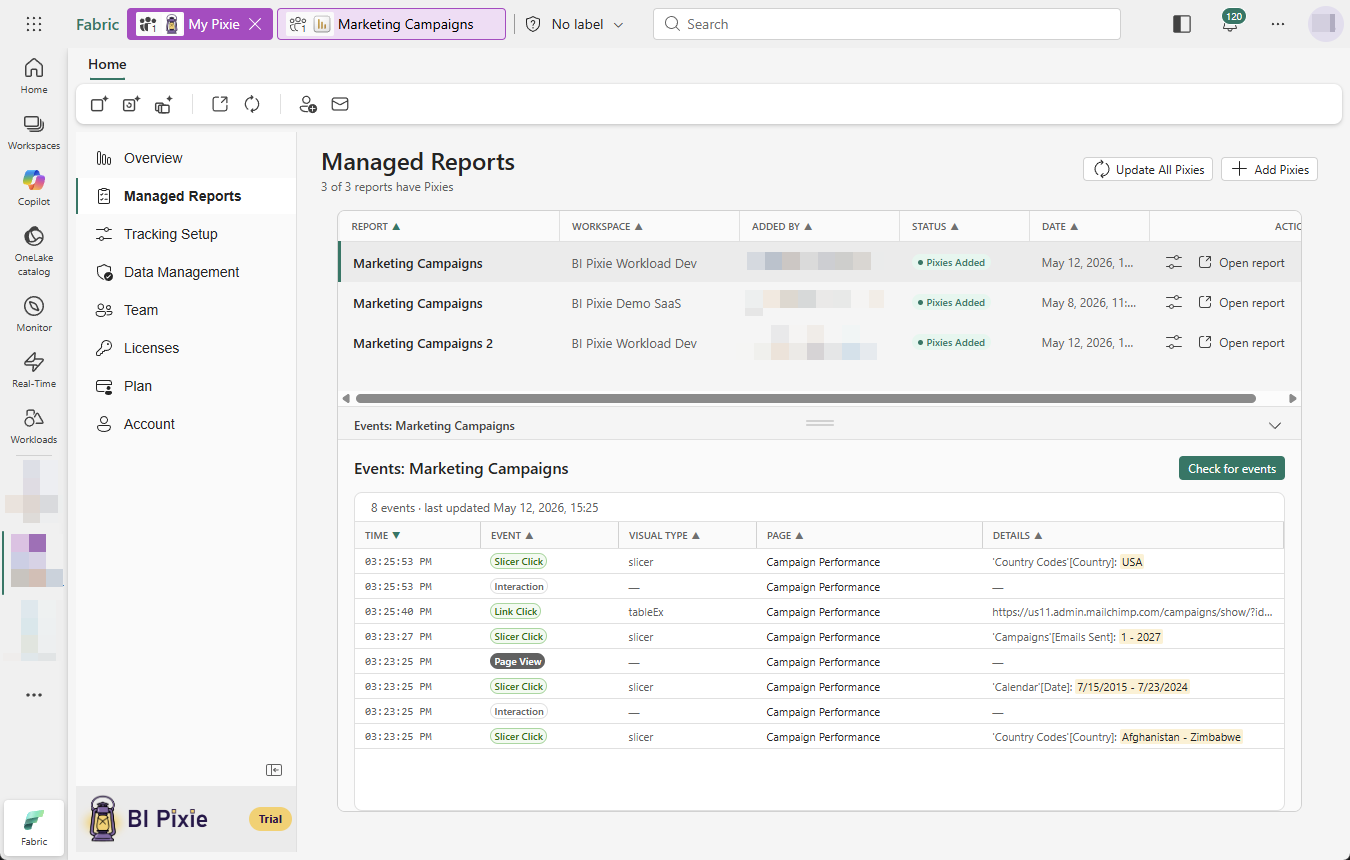
- Open Managed Reports and click Open report. The report opens in a new Fabric tab.
- Interact with the report: change a slicer, click a visual, switch pages.
- Return to the BI Pixie item, and in Managed Reports, select the report. Then click Check for events in the Events pane.
- Within 3 seconds you should see your interactions appear as events: page views, visual clicks, filter changes, and so on. Each row shows the event type, the report, the page, and the timestamp.
Step 4: Connect the BI Pixie Dashboard
The BI Pixie Dashboard is set up automatically in the same workspace when you create the BI Pixie item. To start seeing your engagement data, complete the one-time credential setup — see Set up BI Pixie Dashboard.
What's Next
- Tracking Setup — Customize tracked event types, enable feedback controls, and configure project-level defaults.
- Embed Surveys — Embed NPS, business value, and time-saved surveys directly inside your Power BI reports.
- Overview — Tour the full BI Pixie item and feature set.