
Managed Reports
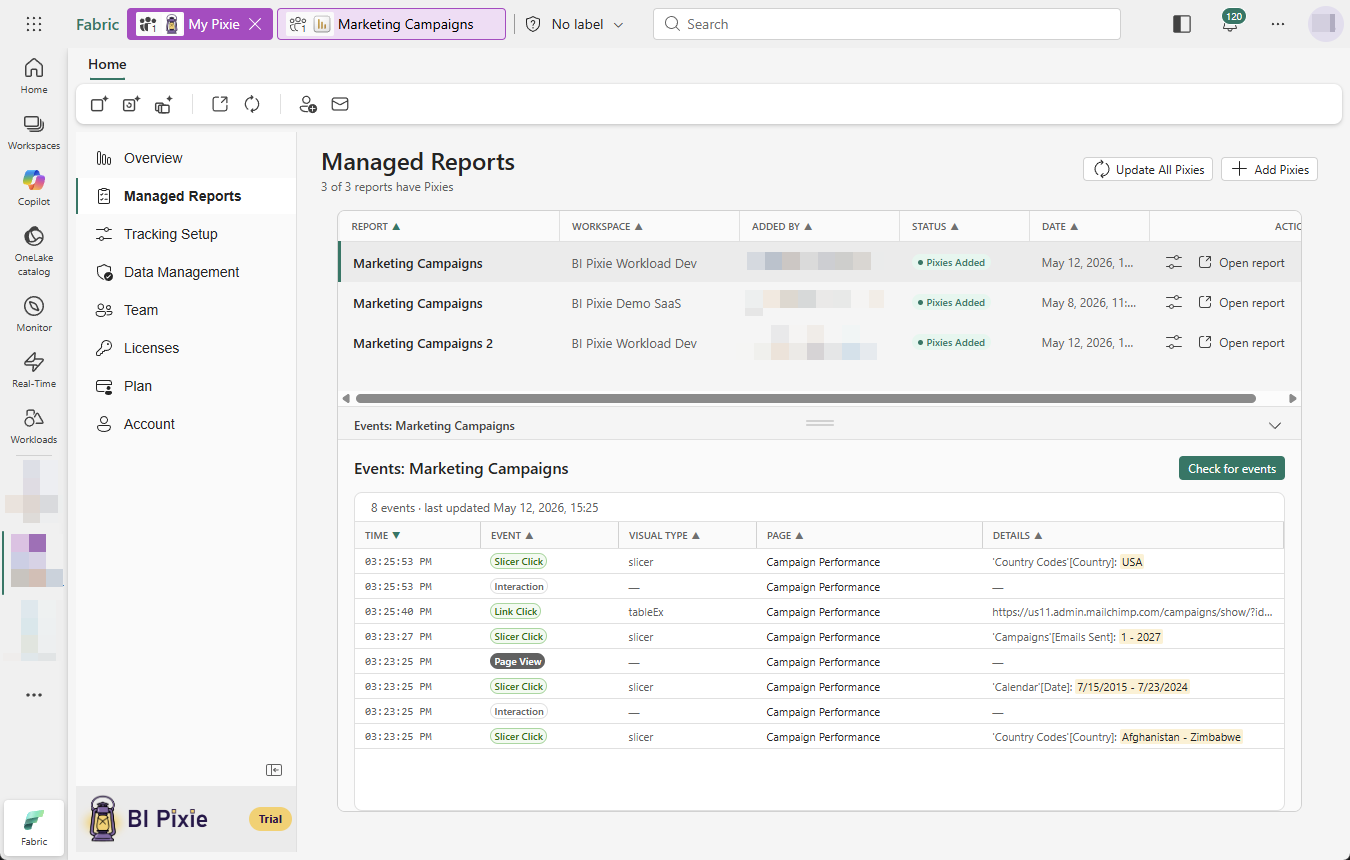
The Managed Reports view in the BI Pixie item is your central hub for viewing and managing all Power BI reports tracked with Pixies. From here you can see which reports are being tracked, perform management actions like updating Pixies and deleting reports you no longer track, and check that events are flowing in the Events pane below the list.
How to Get Here
Open the BI Pixie item from your Fabric workspace, then open the Managed Reports view from the sidebar. The list includes tracked reports from every workspace, not only from the workspace where the BI Pixie item lives.
Reports List
The Managed Reports list shows every report that is tracked with Pixies, in any workspace. From here you can see each report's status, who added the Pixies, and take actions like updating, removing, or deleting reports. The list shows the following columns:
| Column | Description |
|---|---|
| Report | The report name. |
| Workspace | The Fabric workspace containing the report. |
| Added By | The email address of the user who added Pixies to the report (Admin only). |
| Status | Shows "Pixies Added", "Pixies Missing" or "Pixies Removed". "Pixies Missing" means BI Pixie used to receive usage from the report and has received none for seven days. See Pixies Missing Emails. Reports added through Download mode also show a "Download" marker. Reports added through Download mode are updated manually through Add Pixies, so Update All Pixies skips them. |
| Date | When Pixies were added or removed. |
| Actions | Open in Tracking Setup (settings icon), Open report, and the action menu (three-dot icon). |
All columns are sortable. Select a report row to load that report into the Events pane below the list.
Report Actions
Each report row has three action elements:
Open in Tracking Setup (Settings Icon)
Opens the Tracking Setup view pre-filtered for that specific report, so you can view or edit its tracking configuration.
Open Report (External Link Icon)
Opens the report in Fabric.
Action Menu (Three-Dot Icon)
A dropdown menu with the following options:
| Action | What It Does |
|---|---|
| Update Pixies | Updates the Pixies after you change your report, so your tracking data stays accurate. Opens the Add Pixies flow with this report pre-selected for updating. We recommend updating Pixies after any change to the report definition. |
| Remove Pixies | Removes all Pixie tracking elements from the report and restores it to its original state. Opens the Remove Pixies flow with this report pre-selected. This action is only available when the report status is "Pixies Added". See Remove Pixies below for more details. |
| Delete all events | Permanently deletes all collected event data for this report. The report remains tracked and continues collecting new events. This action cannot be undone. |
| Delete tracked report | Removes the report from Managed Reports. Tracking stops and its collected events are permanently deleted. The report still counts toward your plan's tracked items; deleted items remain listed on the Usage tab of the Account view. Upgrading your plan adds more tracked items. |
Tracking Progress and Retrying Failures
When you add, update, or remove Pixies, especially across many reports at once, the BI Pixie item shows a live progress panel with the current step, an overall percentage, and a per-report counter. Progress appears inside the BI Pixie item. Fabric's Monitoring Hub does not list these operations. Short actions like saving a tracking setting complete immediately without a panel.
For a batch, each report's result is tracked separately, so one failure does not roll back the rest: reports that succeeded keep their Pixies. To recover, re-run the operation on just the reports that failed. Transient failures (Power BI briefly limiting requests, or a sign-in being renewed) usually clear on a re-run. For repeated failures, open the report in Power BI and confirm the person running it has Build permission on the report's semantic model, which is the most common cause.
Verifying Events
After adding Pixies to a report, use the Events pane below the report list to verify that the Pixies are working and capturing events. Select a report in the list, then select Check for events. See Test Events for the full walkthrough.
Remove Pixies
To remove Pixies from a report, open the action menu (three-dot icon) on the report row and select Remove Pixies. The Remove Pixies flow opens with the report pre-selected.
When you remove Pixies, BI Pixie reads the report and semantic model definitions, strips all Pixie tracking elements (visuals and hidden measures), and writes the clean definitions back to your workspace. Your report is restored to its original state before Pixies were added.
After removal, the report's status changes to "Pixies Removed" in the Managed Reports list. The report remains listed so you can still view its previously collected events. No new events will be collected. The report still counts toward your plan's tracked items; a report or semantic model keeps counting after you remove its Pixies or delete it.
Note: Remove Pixies is only available when the report status is "Pixies Added". If your plan has expired, you can still remove Pixies during the 7-day grace period. After the grace period ends, BI Pixie suspends the account. The BI Pixie item still opens and shows a Reactivate Plan button. A suspended or canceled account can still remove Pixies from its reports, so you can stop tracking before you leave. In the Managed Reports view, such an account sees only Remove Pixies and Open report. Everything else stays unavailable until the plan is reactivated.
What's Next
- Test Events: Verify events are flowing from your tracked reports, in the Events pane of this view.
- Tracking Setup: Change tracking settings for specific reports.
- Set up BI Pixie Dashboard: Load your engagement data into the BI Pixie Dashboard for full analytics.