
Optimize a Semantic Model for AI in Microsoft Fabric
When you optimize a semantic model, you close the gaps that its assessment found without writing every fix by hand. BI Pixie proposes each fix, you review and edit it, and nothing is written until you apply it. Each time you apply, the changes are written into the semantic model as one update, so either all of them are saved or none are, and you see them in Power BI right away.
BI Pixie never renames anything, and it changes existing text only when you select that text for review. AI instructions and the AI data schema are written to the same place that Power BI's own Prep data for AI reads and writes, so the two stay in step.
Prerequisites
- An assessment of the semantic model. See Assess a semantic model.
- Permission to edit the semantic model in Fabric, the Contributor role or higher on its workspace.
- For AI instructions, descriptions, and grouping the rest of the measures into folders, your AI. You can curate the AI data schema, fix field defaults, and apply BI Pixie's own folder proposal without it.
Open the Optimize semantic model card
- Open an assessment result of the semantic model.
- Below the score card, find the Optimize semantic model card. It's open every time you open a result.
On the card, you see six areas, one for each kind of fix on this page, in the order that Microsoft's Prep data for AI uses. When you collapse the card, BI Pixie names what's inside on one line, and opens the card again when something needs your attention, such as a review step or an apply that failed. Your selections in progress are saved as a draft and restored when you return.
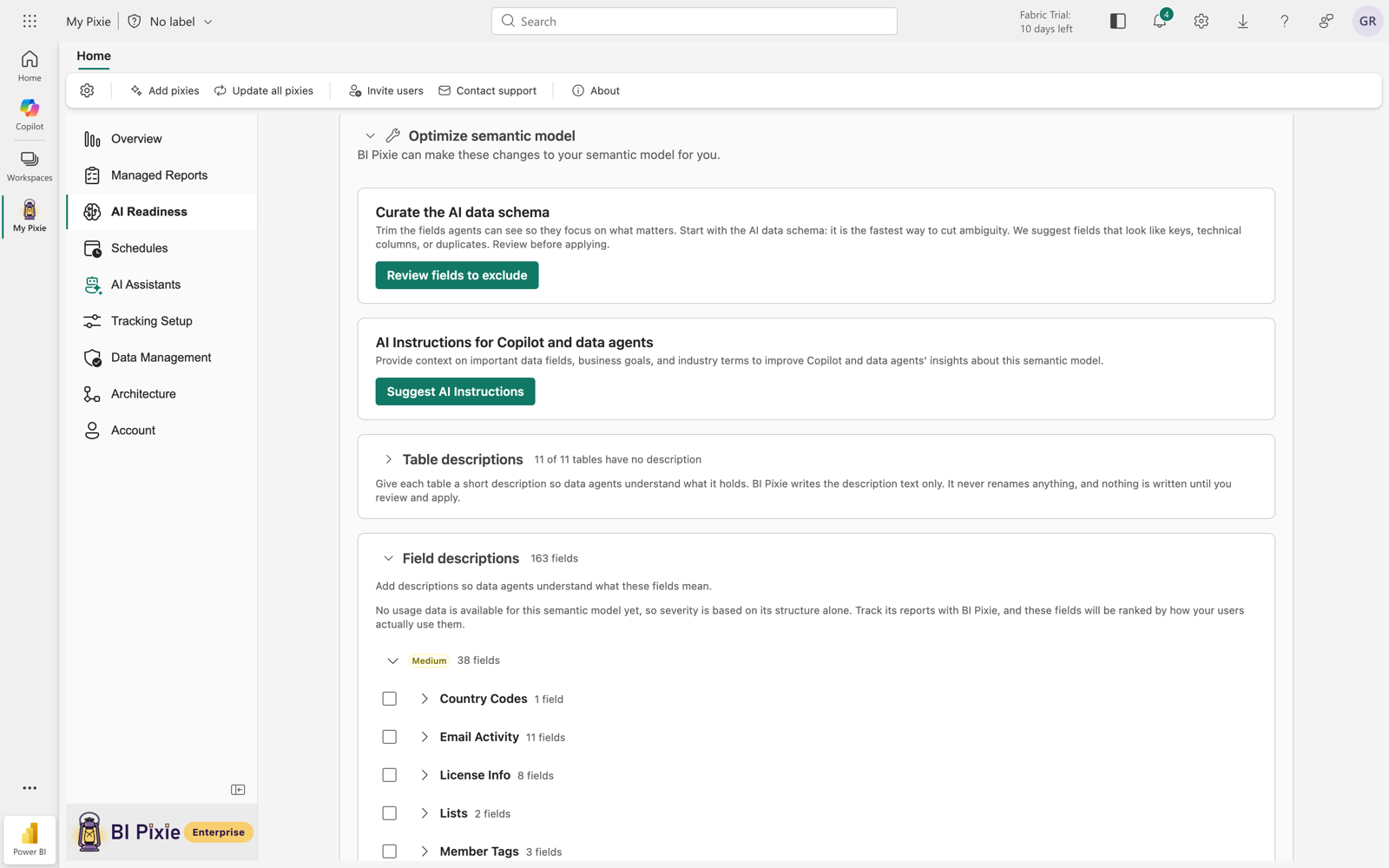
Curate the AI data schema
To limit what Copilot and data agents see to the fields that matter:
- Select Propose changes. On a semantic model with nothing excluded yet, select Create AI data schema. BI Pixie compares the semantic model's current AI data schema with its own recommendation. To see the signals behind every recommendation, open What BI Pixie looks for.
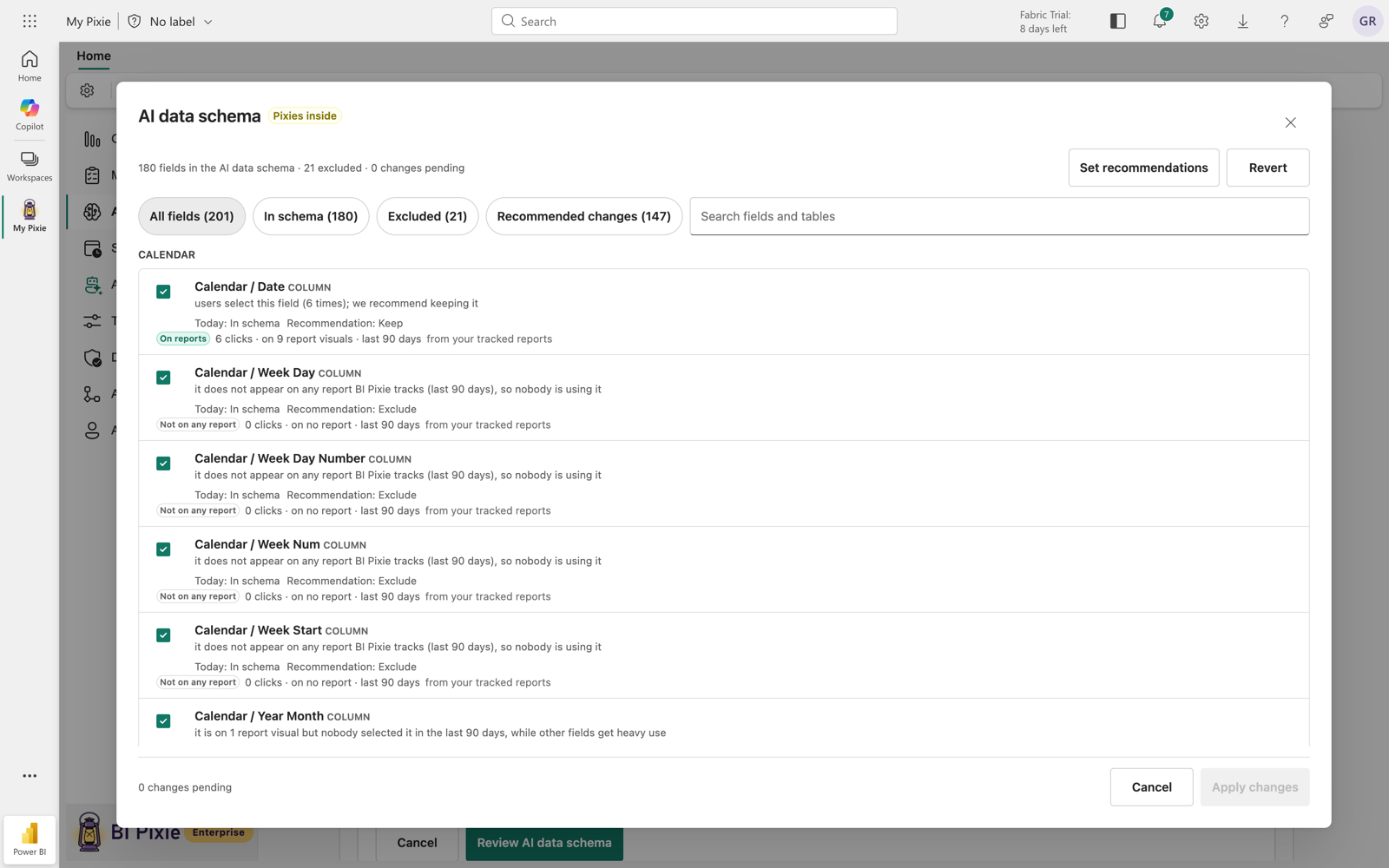
- Under Recommended changes, check each field you want in the AI data schema:
- Fields tagged Recommended are exclusions BI Pixie is confident about, and they start unchecked.
- Fields tagged Consider are left for you to decide.
- Bring back rows are fields excluded today that people use heavily. They're never checked for you, because bringing a field back is always your decision.
- Fields already excluded as recommended are grouped out of the way. To bring one back, check it.
- Select Apply to AI data schema, or Save AI data schema on a semantic model with nothing excluded yet. Your exclusions and the fields you bring back are written in one update.
To see every field, select Review recommendations. For each field, you see its current state, BI Pixie's recommendation, and the reason. You can search and filter, select Set recommendations to accept them all, or select Revert to undo the changes you haven't applied.
Write AI instructions
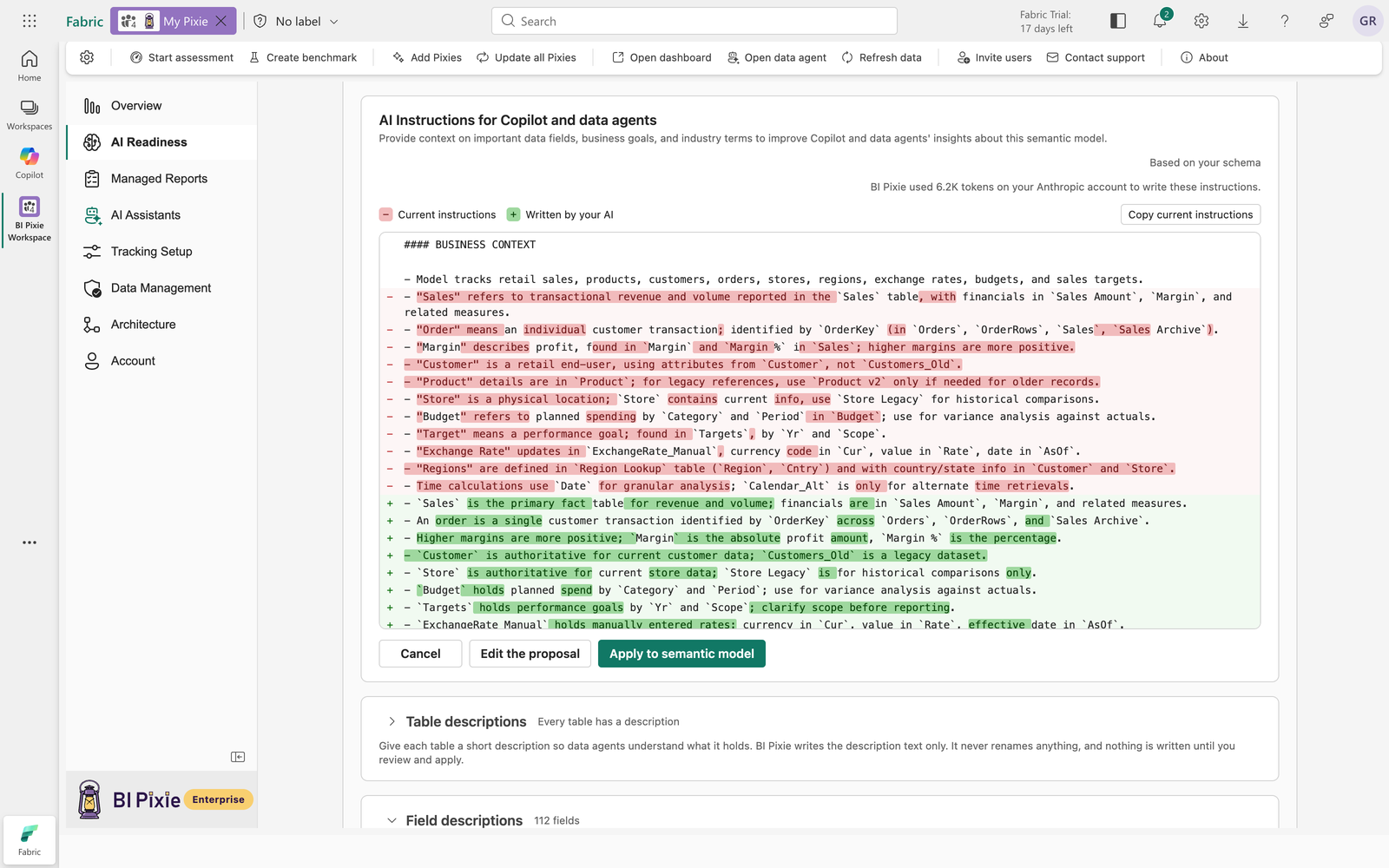
AI instructions are the guidance that Copilot and data agents read about the semantic model before they answer.
- Select Suggest AI Instructions. Your AI writes instructions when there are none, or improves the ones that exist. This can take up to a minute.
- Read what changes. Where the semantic model already has AI instructions, BI Pixie opens on a single comparison: every line is shown in place, a line marked with a minus is one the instructions lose, a line marked with a plus is one the proposal adds, and inside a changed line only the words that differ are highlighted. Nothing is hidden behind a count of unchanged lines.
- To change the wording, select Edit the proposal. As you type, BI Pixie counts your text against Microsoft's limit of 10,000 characters. To return to the comparison, rebuilt from your edited text, select Show the changes.
- Select Apply to semantic model.
Write table and field descriptions
To describe tables:
- In the Table descriptions area, select the tables, or Select all tables.
- Select Review table descriptions. BI Pixie writes missing descriptions and refines existing ones, and shows any existing description beside its proposal.
- Edit the proposals, and then select Apply descriptions.
To describe measures and columns:
- In the Field descriptions area, select the rows to work on. Each row is tagged with why it needs attention: Similar name, Unclear name, or its usage.
- Select Review field descriptions to open Review proposed descriptions.
- Edit each proposal. Each row carries a badge that marks it as a measure, a column, or a table, and any existing description is shown beside its proposal. A proposal longer than 200 characters is flagged, because Copilot reads only the first 200.
- Select Apply descriptions.
To describe tables and fields in one review, select rows in both areas, and then select Review descriptions in the bar at the foot of the page. To rewrite existing descriptions that run past 200 characters, with the most important information first, use the list under Shorten for Copilot in the Field descriptions area.
Organize measures into folders
BI Pixie proposes folders as part of the assessment result, with the measures grouped under their table headings.
- In the folders area of the Optimize semantic model card, rename, move, or remove folders and measures in the proposal. To create a folder while you move a measure, select New folder... in its Move list.
- For each measure under Not grouped yet, use Add to folder. With your AI set up, you can select Ask AI to group the rest instead.
- Select Apply folders. The button shows how many measures are written.
To start over, open the menu in the folders area and select Clear all folders to empty the proposal, or Reset to BI Pixie's proposal to bring it back.
Fix field defaults
BI Pixie proposes Don't summarize for text columns that Power BI would otherwise count, in visuals and in AI answers.
- Select Review defaults.
- Adjust the selection in Review default changes.
- Select Apply defaults.
Understand how your AI works for you
To read what a step asks of your AI and which account pays for it, open How your AI works for you above the step's button. Three steps ask your AI to do part of the work:
- Suggest AI Instructions asks your AI one question: to write the AI instructions for this semantic model.
- Ask AI to group the rest asks your AI about the measures that BI Pixie couldn't place in a folder.
- Propose changes on the AI data schema runs BI Pixie's own analysis. When BI Pixie is unsure whether two fields hold the same thing, it may ask your AI to confirm. It never asks the BI Pixie data agent on this step.
When your AI is the BI Pixie data agent, each question it answers runs on your own Fabric capacity. When your AI is Microsoft Foundry, OpenAI, or Anthropic, each question is billed to that account, and none runs on your Fabric capacity. To choose or change your AI, see Set up your AI.
When BI Pixie AI is your AI in AI setup, each question counts toward your organization's monthly allowance. BI Pixie never bills you for it, and none of it runs on your Fabric capacity. See Use AI Run by BI Pixie for AI Readiness.
Fix the rest on your own
Some findings need someone who knows the semantic model to change them safely, so BI Pixie leaves them to you. You find them under Fix on your own, below the Optimize semantic model card, each with guidance:
- Tables with no relationship to the rest of the semantic model.
- Measures with a hard-coded date range.
- Columns that look like personal data, in a semantic model with no row-level security.
- Tables whose numeric columns summarize automatically but have no explicit measure.
Mark the semantic model as approved for Copilot
Power BI has its own approval mark, Approved for Copilot. Whether the standalone Copilot experience in Power BI finds your semantic model on its own depends on that mark. A workspace admin can limit Copilot to approved content in Workspace settings, under Delegated settings and then Copilot and Azure OpenAI service. A tenant admin can set the same default for the whole organization with the tenant setting Only show approved items in the standalone Copilot in Power BI experience (preview).
Where an admin limits Copilot to approved content, the standalone Copilot searches only the content that carries the Approved for Copilot mark, so a semantic model without the mark doesn't appear in the results, however well it scores in BI Pixie. Someone who knows the semantic model can still attach it themselves and ask questions of it directly. Even where the organization hasn't turned the setting on, the standalone Copilot puts approved content first.
You set the Approved for Copilot mark, and check whether it's already set, in the Power BI service:
- Open the semantic model in the Power BI service.
- Select the Settings icon.
- Expand Approved for Copilot.
- Select the Approved for Copilot box, then select Apply.
Microsoft states that in most cases a change to the Approved for Copilot mark is fully reflected within an hour, and that it can take up to 24 hours when many reports are built on the semantic model. Microsoft describes the mark and that timing in Prep data for AI, and the tenant setting in Enable Copilot in Power BI.
Endorse what people ask about
Power BI's endorsement marks, Promoted and Certified, also carry weight when an AI chooses what to answer from. Microsoft documents that the Fabric IQ plugin in Microsoft 365 Copilot Cowork uses "a tuned semantic index and signals like endorsements, cross-item relationships, and most-recently-used activity to find the right report". So when someone names a report in a question instead of attaching one, endorsing the reports you want answers to come from, and the semantic model behind them, helps Cowork pick the one you'd want.
Endorsement isn't part of the AI Readiness score, so it's worth setting yourself. To promote a report or a semantic model:
- In the Power BI service, open the settings of the report or the semantic model.
- Expand the endorsement section.
- Select Promoted, and then select Apply.
Certifying a report or a semantic model takes a reviewer your Power BI administrator has authorized, and you ask for certification in the endorsement section of its settings. See Microsoft's Fabric IQ in Microsoft 365 Copilot Cowork and Endorse your content.
Considerations and limitations
- You can optimize on any plan. On a paid plan, the first optimization of a semantic model makes it one of your plan's tracked items, and you're told so before anything is written. If that would take you past your plan's tracked items, the apply is blocked with an upgrade prompt, and nothing is written. On the Free plan, after your one tracked semantic model or data agent, each other semantic model or data agent you optimize uses one of 10 optimizations included for the life of your account. When all 10 are used, BI Pixie refuses further changes to those items.
- After a semantic model is tracked, you can apply changes to it up to your plan's daily pace: 10 a day on the Free and Standard plans, 25 on the Pro plan, and 50 on the Enterprise plan.
- Prep data for AI is still in preview in Power BI, so its behavior may change as Microsoft updates it. That's why the AI Readiness page carries a Preview badge.
- Until your AI is set up, BI Pixie says so on each card that needs it, and an admin sees a Connect shortcut.
Related content
- Assess a semantic model, to assess again after you apply changes
- Benchmarks, to measure whether the changes improved real answers
- A/B tests, to prove a change made more answers correct
- Set up your AI