
Stop or remove Admin Monitoring
You can stop the daily refresh and keep the admin pages and reports, or remove everything BI Pixie added. BI Pixie asks you to choose before anything changes.
Turn off Admin Monitoring
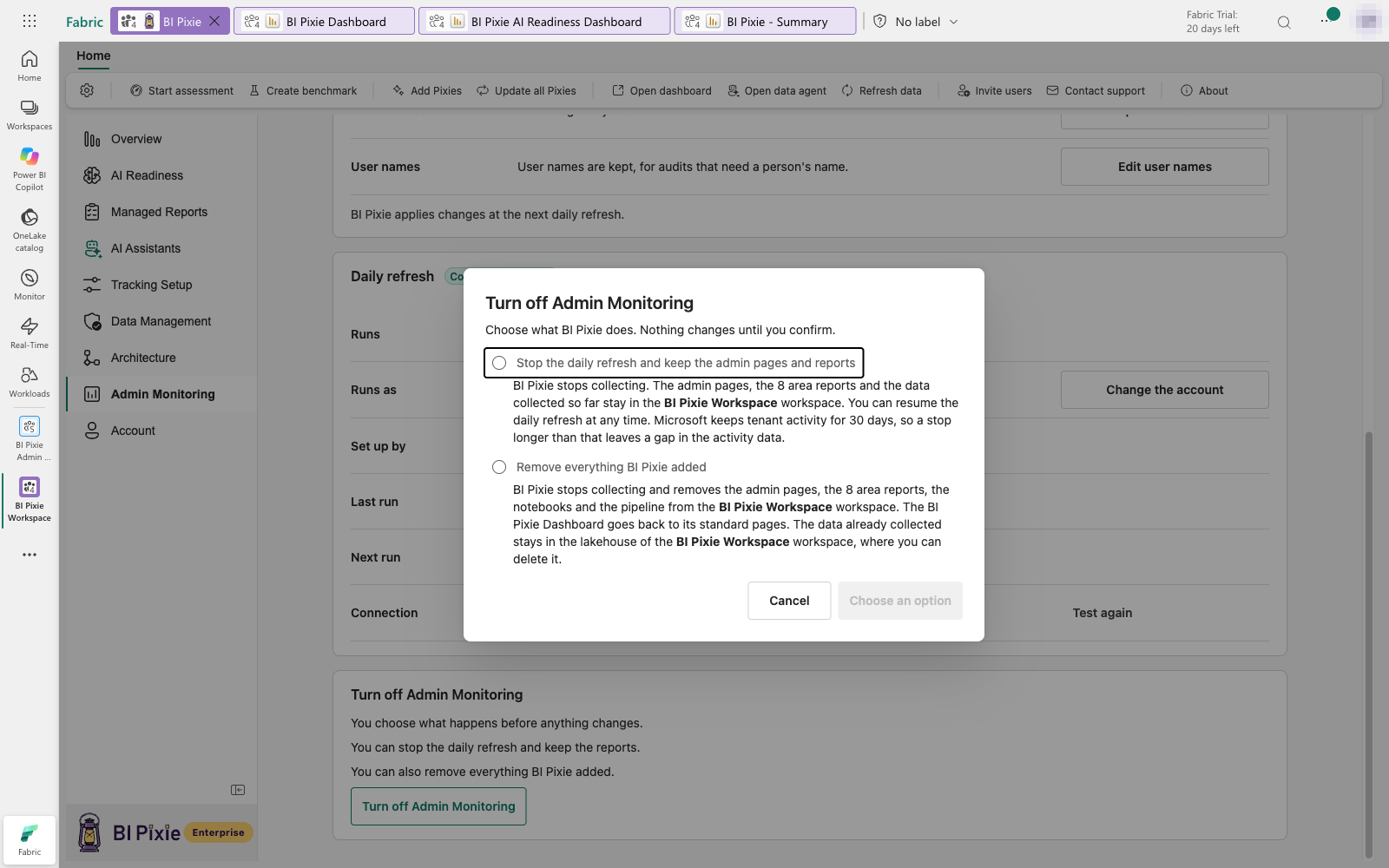
On the Admin Monitoring home, select Turn off Admin Monitoring in the Turn off Admin Monitoring section, last on the page. The dialog offers two options:
- Stop the daily refresh and keep the admin pages and reports.
- Remove everything BI Pixie added.
Each option explains what it changes before you confirm. Once you choose one, select Stop the daily refresh or Remove Admin Monitoring.
Stop the daily refresh
BI Pixie stops collecting. The admin pages, the 8 area reports and the data collected so far stay in the workspace. The home then shows "Daily refresh stopped" and the date it stopped. The BI Pixie Dashboard shows the data collected up to that day.
Microsoft keeps tenant activity for 30 days. If the daily refresh stays stopped for longer than that, the activity data has a gap.
Resume the daily refresh
Select Resume the daily refresh on the home. BI Pixie starts collecting again. The page says "BI Pixie is collecting new data." until the collection finishes. You can leave the page while it runs.
Resuming needs the Pro or Enterprise plan. On the Free and Standard plans, the page says "Admin Monitoring needs the Pro or Enterprise plan." and the daily refresh stays stopped.
After a stop of more than 30 days, the page warns you before you resume that activity from before a given date cannot be collected.
Remove Admin Monitoring
Choose Remove everything BI Pixie added in the Turn off dialog. While the daily refresh is stopped, you can also select Remove Admin Monitoring on the home.
- BI Pixie stops collecting and removes the admin pages, the 8 area reports, the notebooks and the pipeline from the workspace.
- The BI Pixie Dashboard goes back to its standard pages.
- The data already collected stays in the lakehouse of the workspace, where you can delete it.
You can set up Admin Monitoring again at any time on the Pro or Enterprise plan. See Set up Admin Monitoring.
If your plan no longer includes Admin Monitoring
When your BI Pixie account moves to the Free or Standard plan, BI Pixie removes Admin Monitoring the next time an administrator of your BI Pixie account opens the BI Pixie item. BI Pixie removes the admin pages, the 8 area reports, the notebooks and the pipeline, and the BI Pixie Dashboard goes back to its standard pages. The data already collected stays in the lakehouse of the workspace. Nothing changes when a member opens the item.
If the removal does not finish
If BI Pixie cannot remove everything, the page lists the items that are still in the workspace. Admin Monitoring no longer collects data, and the BI Pixie Dashboard keeps its admin pages until the removal is finished. Select Finish removing to try again.
Items left from an earlier setup
If Admin Monitoring is now set up in another workspace, a workspace that held an earlier setup may still hold its notebooks or reports. The Admin Monitoring page in that workspace says so. The current setup does not use them, and you can delete them in Fabric.