Run Admin Monitoring with a service principal
A service principal is an app identity your organization creates in Microsoft Entra. When the daily refresh runs as a service principal, it does not depend on anyone being a Fabric administrator. Once a Fabric administrator authorizes the service principal, any administrator of your BI Pixie account can set up Admin Monitoring and own its daily refresh.
What a Fabric administrator does
A Fabric administrator turns on these tenant settings in the Fabric admin portal:
- Turn on "Service principals can access read-only admin APIs" for a security group that includes the service principal.
- Turn on "Enhance admin APIs responses with detailed metadata" and "Enhance admin APIs responses with DAX and mashup expressions".
For Azure Log Analytics, the service principal also needs the "Log Analytics Data Reader" role on the Log Analytics workspace. Whoever manages that workspace in Azure can grant it.
To send this list to your Fabric administrator, open What a Fabric administrator does for a service principal on the Admin Monitoring page before setup, and select Copy these steps. The Connect a service principal dialog has no copy button: its link See the steps in the user guide opens this page in a new browser tab.
Store the secret in Azure Key Vault
BI Pixie never sees or stores the service principal's secret. Save it in an Azure Key Vault that your organization owns. The daily refresh reads it each time it runs, with the sign-in of the person who sets up Admin Monitoring, so that person needs permission to read secrets in this Key Vault. If that permission is removed, the daily refresh can no longer sign in as the service principal.
Connect the service principal
The Connect a service principal dialog opens over the Admin Monitoring page from three places:
- Before setup, if you are not a Fabric administrator, select Use a service principal.
- In setup step 3, with Azure Log Analytics chosen, select Connect a service principal.
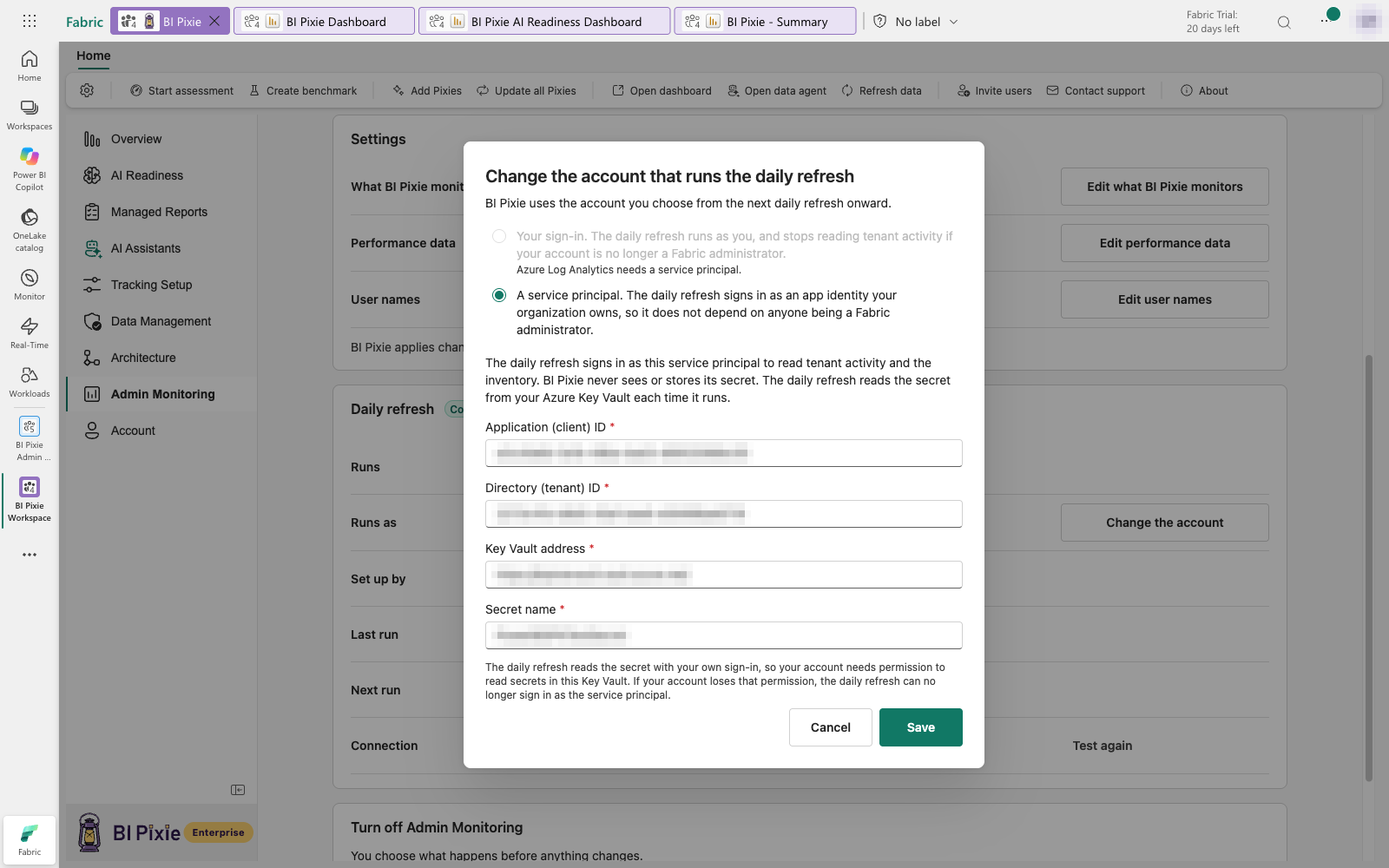
- In setup step 4, select Change on the Daily refresh row and choose A service principal.
The dialog says that the daily refresh signs in as this service principal, and that BI Pixie never sees its secret, which stays in your Azure Key Vault. It asks for four details:
- Application (client) ID: the service principal's app ID in Microsoft Entra, in the form 00000000-0000-0000-0000-000000000000.
- Directory (tenant) ID: your organization's tenant ID, in the same form.
- Key Vault address: the vault's own address, for example https://your-vault.vault.azure.net, with nothing after it.
- Secret name: the name of the secret in that Key Vault. A secret name has up to 127 letters, numbers and hyphens.
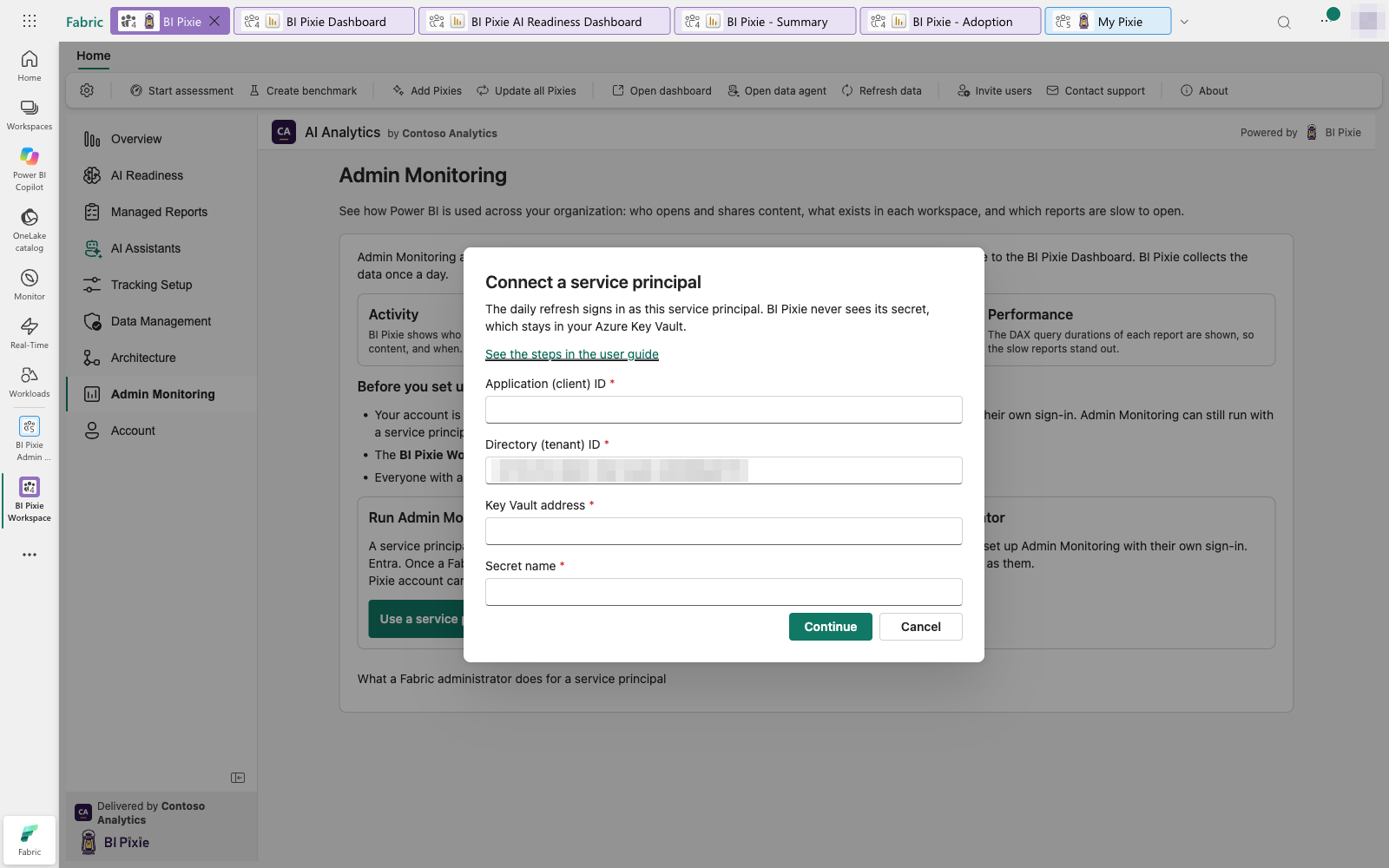
Select Continue to go on to setup. Cancel or the Escape key closes the dialog. See Set up Admin Monitoring.
Test the connection
After setup, the Admin Monitoring page can test whether the service principal can read everything the daily refresh needs. The test usually takes about a minute, and it checks three things: Key Vault, Tenant activity and Semantic model details. The result shows in the Connection row of Daily refresh. See Test the connection.
Switch an existing setup to a service principal
On the Admin Monitoring page, select Change the account beside Runs as. BI Pixie uses the account you choose from the next daily refresh onward. See The daily refresh.