
Admin Monitoring settings and the daily refresh
After setup, select Admin Monitoring in the sidebar of the BI Pixie item to open the Admin Monitoring home. Select Open the BI Pixie Dashboard to see the admin pages. The home also shows whether the data is current, and holds the settings.
A note on the page names the workspace that holds the data and, when BI Pixie can count them, how many people have access to it. Everyone with access to that workspace can see the data. You can change who has access in the workspace settings in Fabric. You can dismiss the note with its close button, "Dismiss the note about who can see this data".
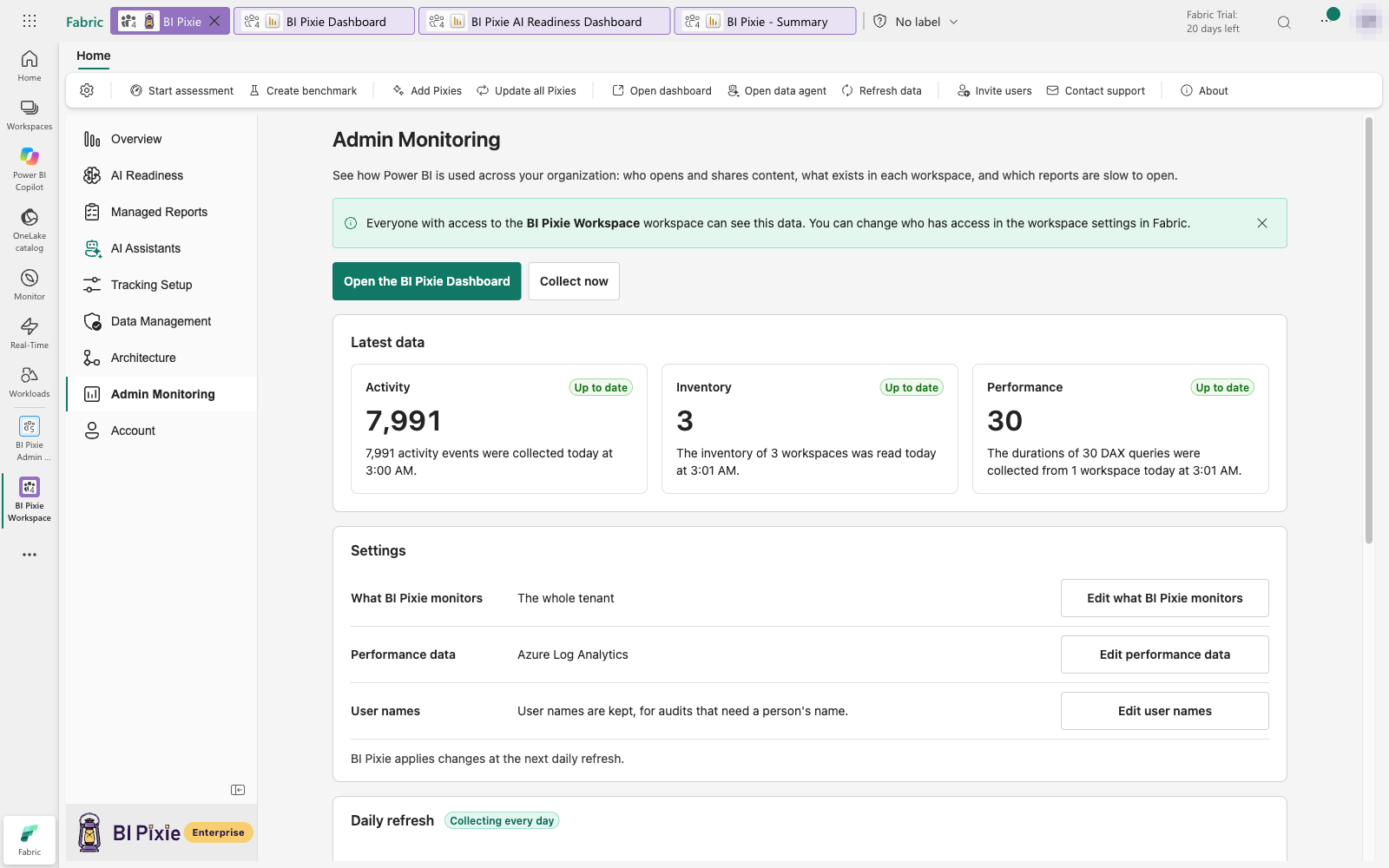
Latest data
Latest data has a card for each source: Activity, Inventory and Performance. Each card has a status and a sentence that says what was collected and when. The Activity card also shows the number of activity events collected, the Inventory card the number of workspaces read, and the Performance card the number of DAX query durations collected.
- Up to date: BI Pixie collected this source today.
- Nothing found: BI Pixie looked today and found nothing new, for example no activity events.
- Not collected today: the last collection was before today.
- Not collected yet: BI Pixie has not collected this source yet.
- Not set up: performance data is not set up, so DAX query durations are not collected.
- Needs attention: the last collection failed. The card says why and when BI Pixie last tried.
When a card needs attention, it offers a fix where one exists: Use my sign-in, Use a service principal or Check the connection. Common causes are a daily refresh that runs as someone who is no longer a Fabric administrator, a tenant setting that was turned off, or a paused capacity. When the capacity is paused, BI Pixie collects again once the capacity is active.
Collect now
Select Collect now to start a collection outside the daily schedule. You see the new data in the BI Pixie Dashboard when the collection finishes. A collection runs on the workspace's capacity, like the daily refresh.
The daily refresh
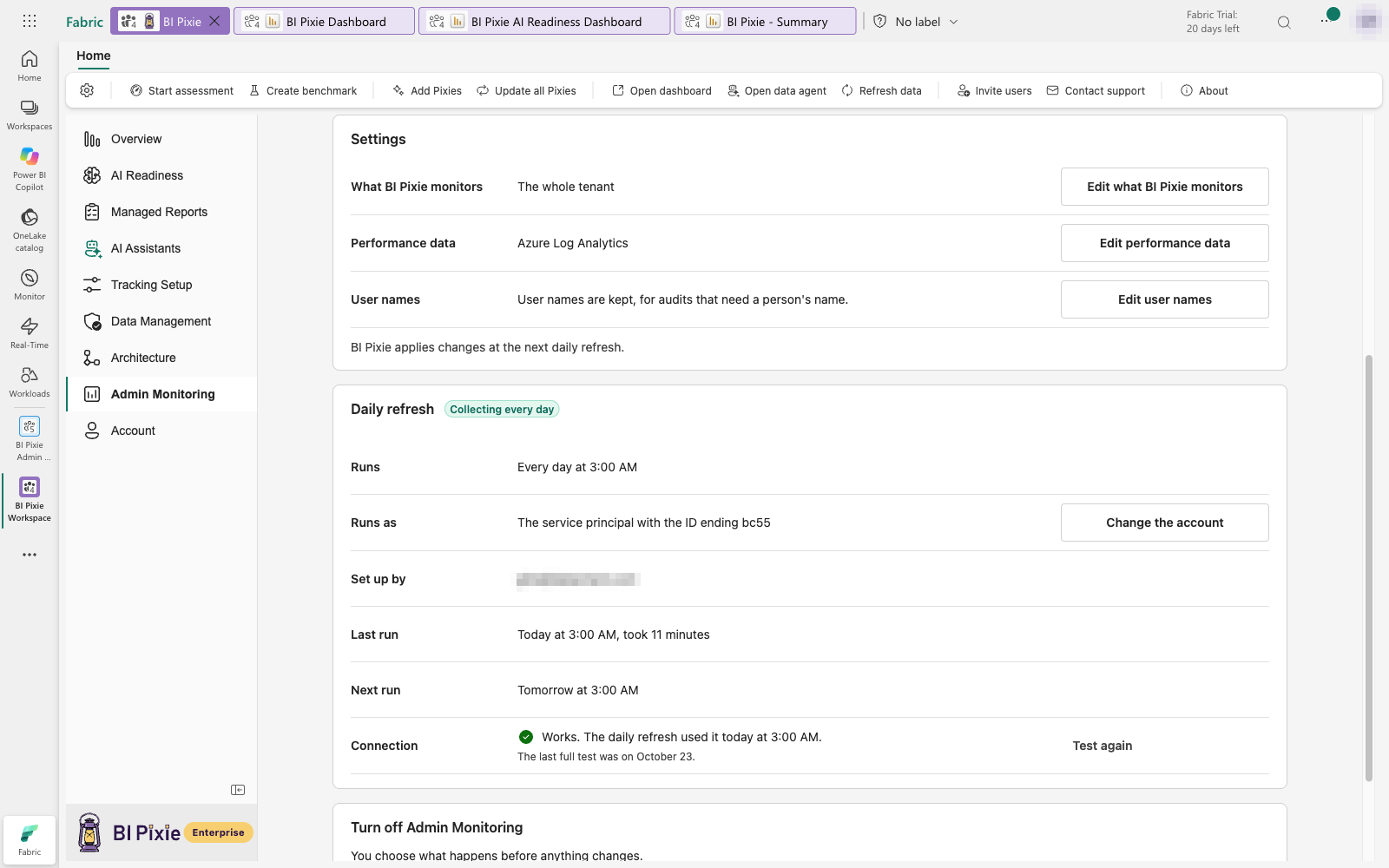
The Daily refresh section shows a status, "Collecting every day", "Daily refresh stopped" or "Daily refresh not scheduled", and these rows:
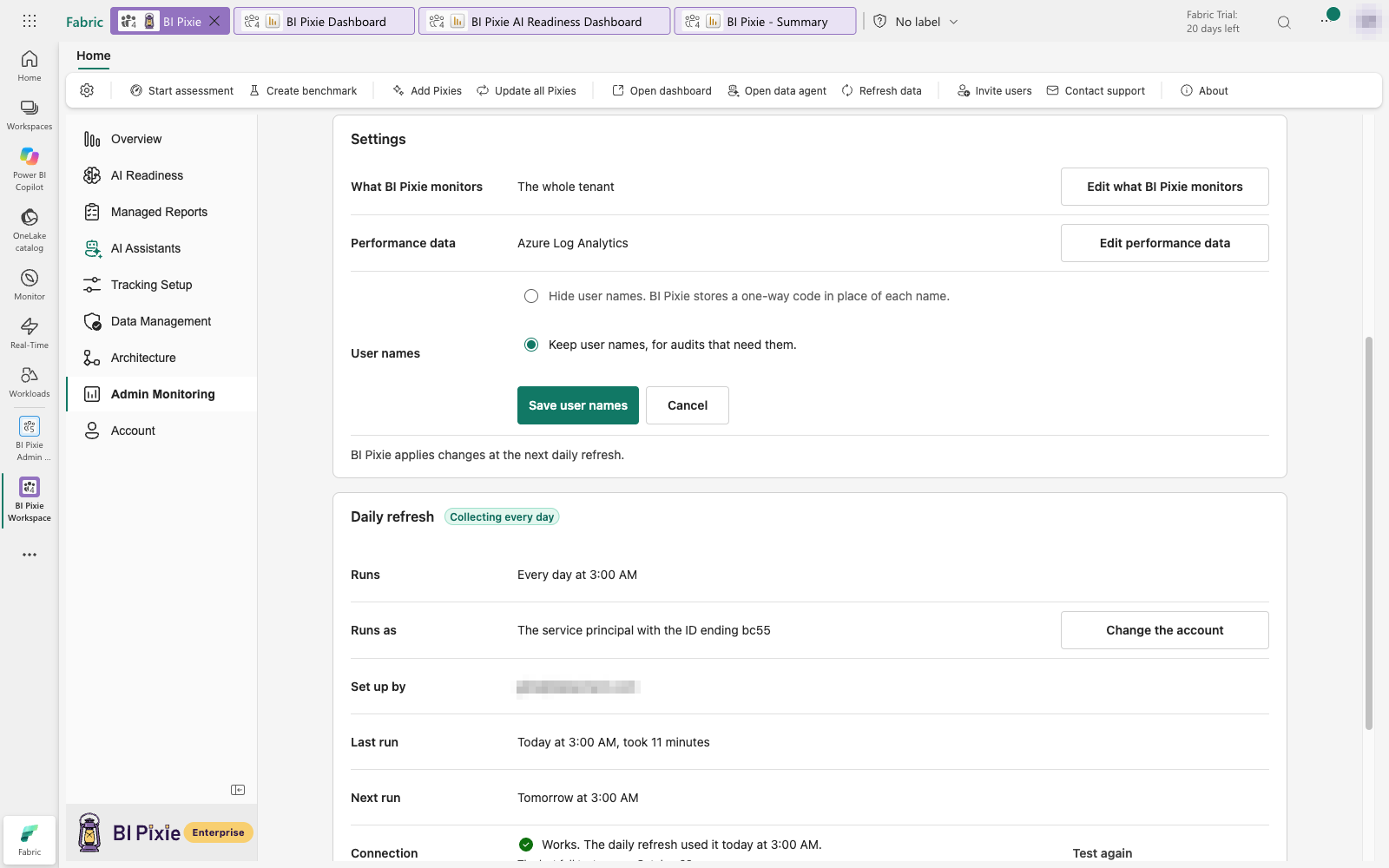
- Runs: the time of day, in your time zone. If the schedule was changed in Fabric, the row says so.
- Runs as: the sign-in of a person, or a service principal named by the last four characters of its ID.
- Set up by: the person who set up Admin Monitoring.
- Last run and Next run: when the daily refresh last finished, how long it took, and when it runs next.
- Connection: whether the service principal can read everything the daily refresh needs, and when that was last known. This row appears when the daily refresh runs as a service principal. See Test the connection.
"Daily refresh not scheduled" means BI Pixie could not schedule the daily refresh, or Fabric has no schedule for it. The admin pages and reports are in place, but no new data arrives. Select Schedule the daily refresh to try again.
Change the account that runs the daily refresh
Select Change the account beside Runs as. The dialog opens on the account the daily refresh uses now. Choose your own sign-in, if you are a Fabric administrator, or a service principal, and select Save. BI Pixie uses the account you choose from the next daily refresh onward. If the change fails, the daily refresh still runs as before.
While performance data comes from Azure Log Analytics, your own sign-in is not available, and the dialog says "Azure Log Analytics needs a service principal."
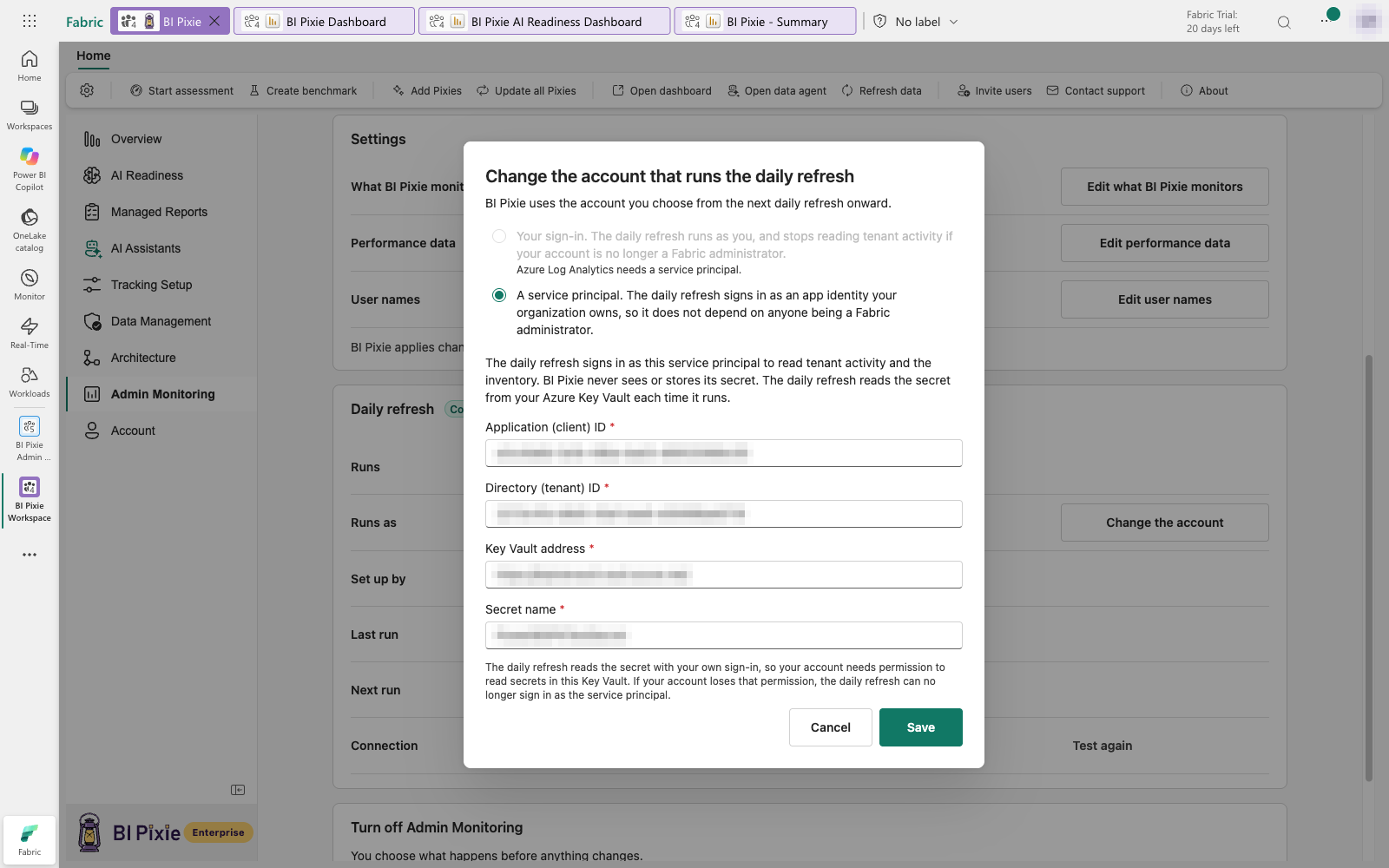
A service principal needs four details: the application ID, the tenant ID, the Key Vault address and the secret name. See Use a service principal.
Settings
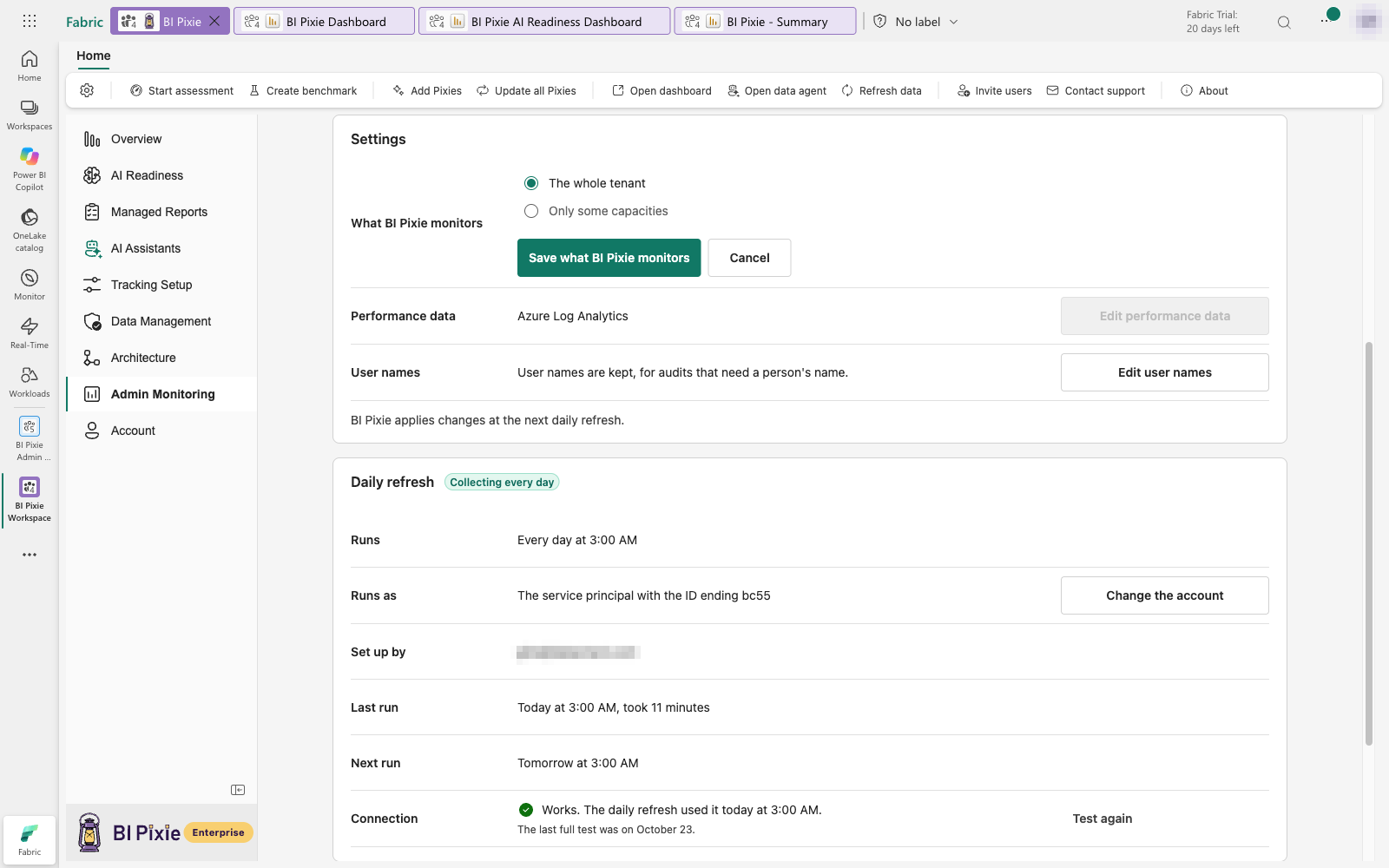
Each setting has its own Edit and Save buttons. BI Pixie applies changes at the next daily refresh.
- What BI Pixie monitors: the whole tenant, or the capacities and workspaces you choose. Select Edit what BI Pixie monitors. With Only some capacities, choose at least one capacity or workspace before you save.
- Performance data: Workspace Monitoring, Azure Log Analytics or none. Select Edit performance data. When you switch from one source to the other, BI Pixie stops reading the old source from the next daily refresh. The DAX query durations already collected stay in the BI Pixie Dashboard.
- User names: hidden or kept. Select Edit user names. When names are hidden, BI Pixie stores a one-way code in place of each name. If this setting differs from how your licenses identify report viewers, the page says so, and BI Pixie hides user names where the two differ.
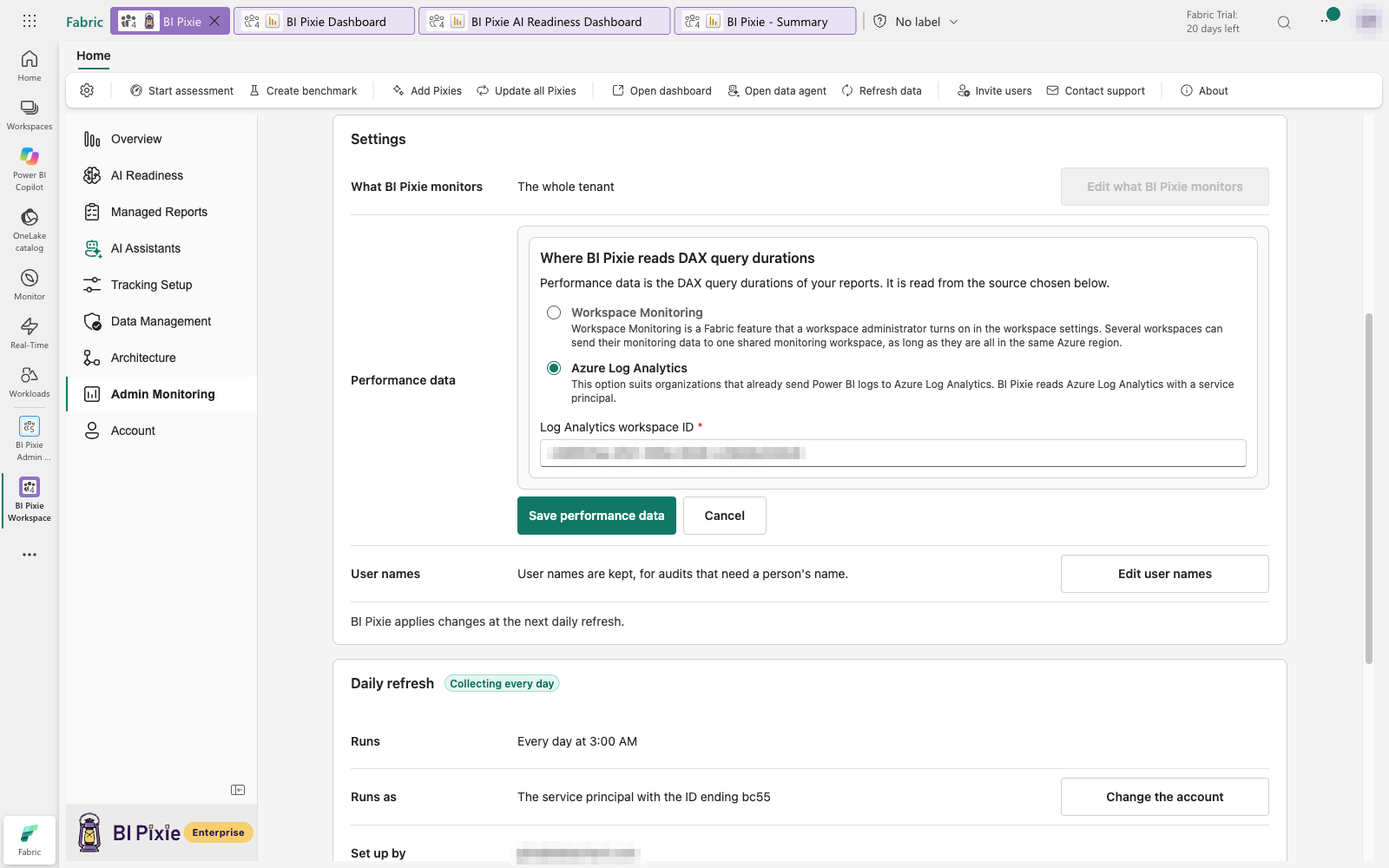
Azure Log Analytics needs the daily refresh to run as a service principal with the "Log Analytics Data Reader" role. If the daily refresh runs with the sign-in of a person, change Runs as to a service principal first, and then choose Azure Log Analytics.
Test the connection
When the daily refresh runs as a service principal, the Connection row in Daily refresh says whether the service principal can read everything the daily refresh needs. BI Pixie runs a short test in the Admin Monitoring workspace, which usually takes about a minute. The test checks three things:
- Key Vault: whether the secret can be read from the Key Vault.
- Tenant activity: whether Microsoft lets the service principal read tenant activity.
- Semantic model details: whether Microsoft returns the details of semantic models to the service principal.
Before the first test, the row says "Not tested yet." Select Test the connection to run it. Once there is a result, the row shows one of these:
- Works: every check passed. When the daily refresh used the connection after the last test, the row says so, and gives the date of the last full test below it.
- Works, with one gap: no details about semantic models are returned. The inventory lists each semantic model without its tables and measures. A Fabric administrator can turn on two tenant settings, and Learn which settings names them.
- Does not work: a check failed. A box below the row gives one line for each cause, and the technical details. When the service principal could not sign in, the box offers Change the account. When an earlier check fails, the checks after it are not run.
Select Test again beside the result after you fix a cause. While a test runs, the row says "Testing now. This usually takes about a minute." and still shows the last result. If no result arrives within 15 minutes, the row says "The last test did not finish."
Updates
When a newer version of the admin pages and reports is available, the home shows an Updates section. Select Update the admin pages and reports to install the new content and fixes.
Next steps
To pause the daily refresh or remove what BI Pixie added, see Stop or remove.