
AI Readiness in Microsoft Fabric
With AI Readiness in BI Pixie, you can achieve the following:
- Assess the AI Readiness of semantic models and data agents, and find how you can improve them.
- Optimize semantic models and data agents so that Copilot and data agents answer more accurately.
- Run benchmarks and A/B tests to measure the accuracy of Copilot and data agents.
Prerequisites
To use AI Readiness, you need the following:
- A BI Pixie item in a Fabric workspace. See Create a BI Pixie item.
- To optimize semantic models and data agents, and to generate benchmarks, your AI. See Set up your AI.
Open AI Readiness
- Open your BI Pixie item in Microsoft Fabric.
- In the left sidebar, select AI Readiness. You can also select Open AI Readiness on the AI Readiness card of the item's Overview.
- Before your first assessment, you see three steps: Assess, Optimize, and Benchmark. Select Assess your first semantic model, or select Create a benchmark when benchmarks are available to you. You can also use Start assessment and New benchmark in the page header.
Optimize becomes available after your first assessment, and from then on you see your semantic models and data agents on the page.
The page header carries a Preview badge, because some optimizations rely on Microsoft's Prep data for AI, which is still in preview.
Choose what to do next
- To learn how BI Pixie checks your semantic models against Microsoft's guidance for Copilot and data agents, see Semantic model assessments.
- To apply the fixes you approve to the semantic model, see Optimize a semantic model.
- To assess on a schedule you set, see Schedule assessments.
- To assess a Fabric data agent and its sources, see Data agent assessments.
- To ask an AI real business questions and score its answers against correct answers computed from your own data, see Benchmarks.
- To prove that a change to your semantic model, or to the AI that answers from it, made more answers correct, see A/B tests.
- To follow the AI Readiness history of your semantic models in a Power BI report, see AI Readiness dashboard.
Find a semantic model or data agent
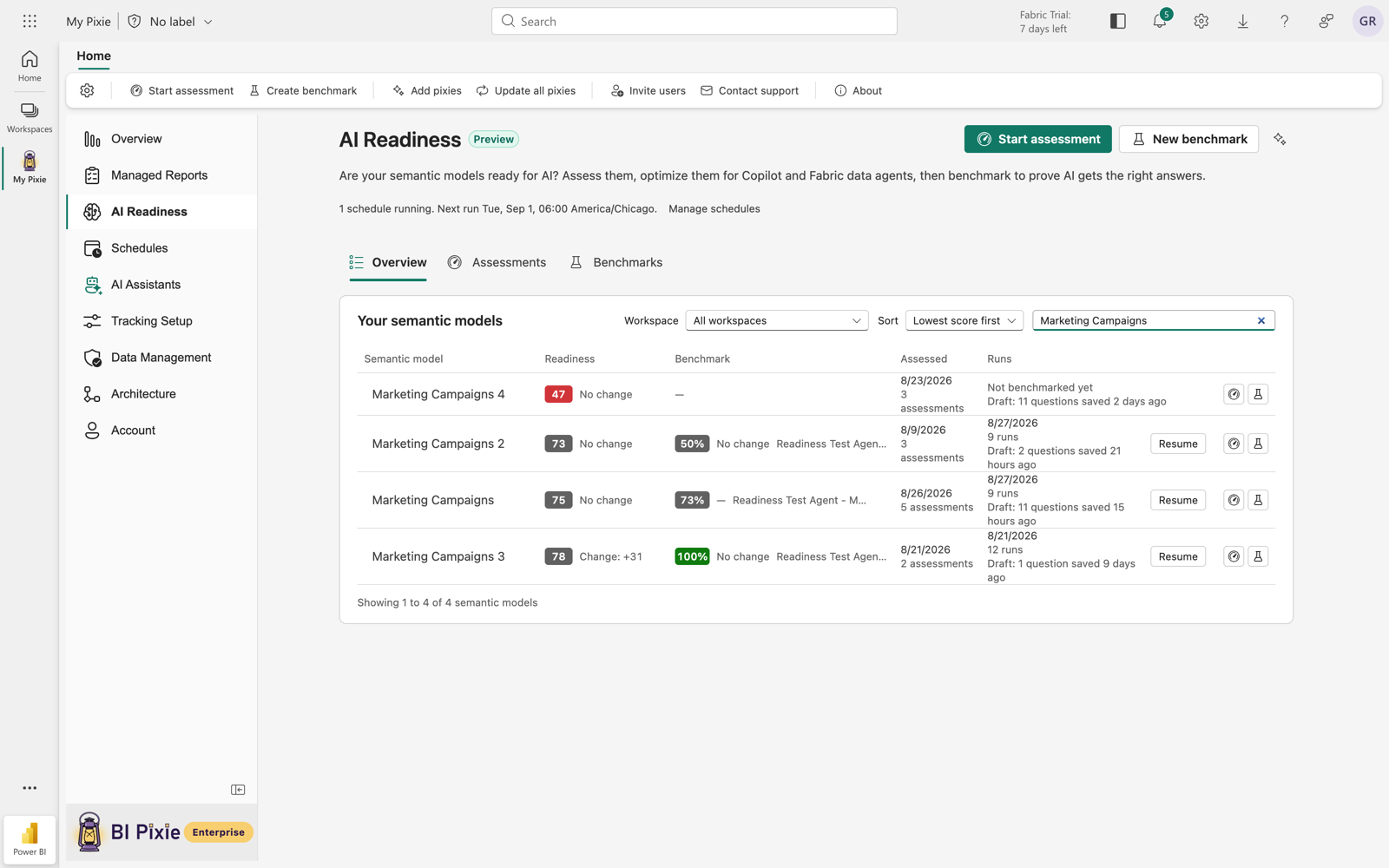
Under Your semantic models, you see one row for each semantic model that you assessed or benchmarked, 25 rows a page. When your account also has Fabric data agents, you see a Your data agents card below it, and you can collapse either card.
- To search, enter a semantic model or workspace name in the search box. When you have data agents too, use the Search semantic models, data agents or workspaces box.
- To see one workspace only, choose it in the Workspace dropdown. It appears when the list spans more than one workspace.
- To sort, select a column header: the semantic model's name, a score column, or a date column. The first selection puts what most needs attention on top, which is the lowest score or the newest date. The second reverses the order, and the third returns to the order of the first selection. The Sort control above the list names the order in effect. On a phone, where the list shows as cards, use the Sort control to change the order.
On the Benchmarks tab and on the Overview tab, the benchmark button is labeled with what you can do next:
- Run benchmark, when there's a run to repeat.
- New benchmark, when there's no run yet.
- Resume benchmark, when you saved questions without running them.
- View progress, while a run is underway.
Open a semantic model's page
- On the Overview tab, select the semantic model's row. On the other tabs, open the row menu and select View activities, which opens the semantic model's page.
- Select New assessment, the benchmark button, or Open semantic model. Open semantic model opens the semantic model in Microsoft Fabric and keeps your BI Pixie item open in Fabric's multitasking rail.
- To reach the other benchmark actions, start an A/B test, schedule assessments, or delete results, open the More actions menu beside the buttons, and select the action you need, such as Create A/B test, Assessment schedules on the Enterprise plan, or Delete all results.
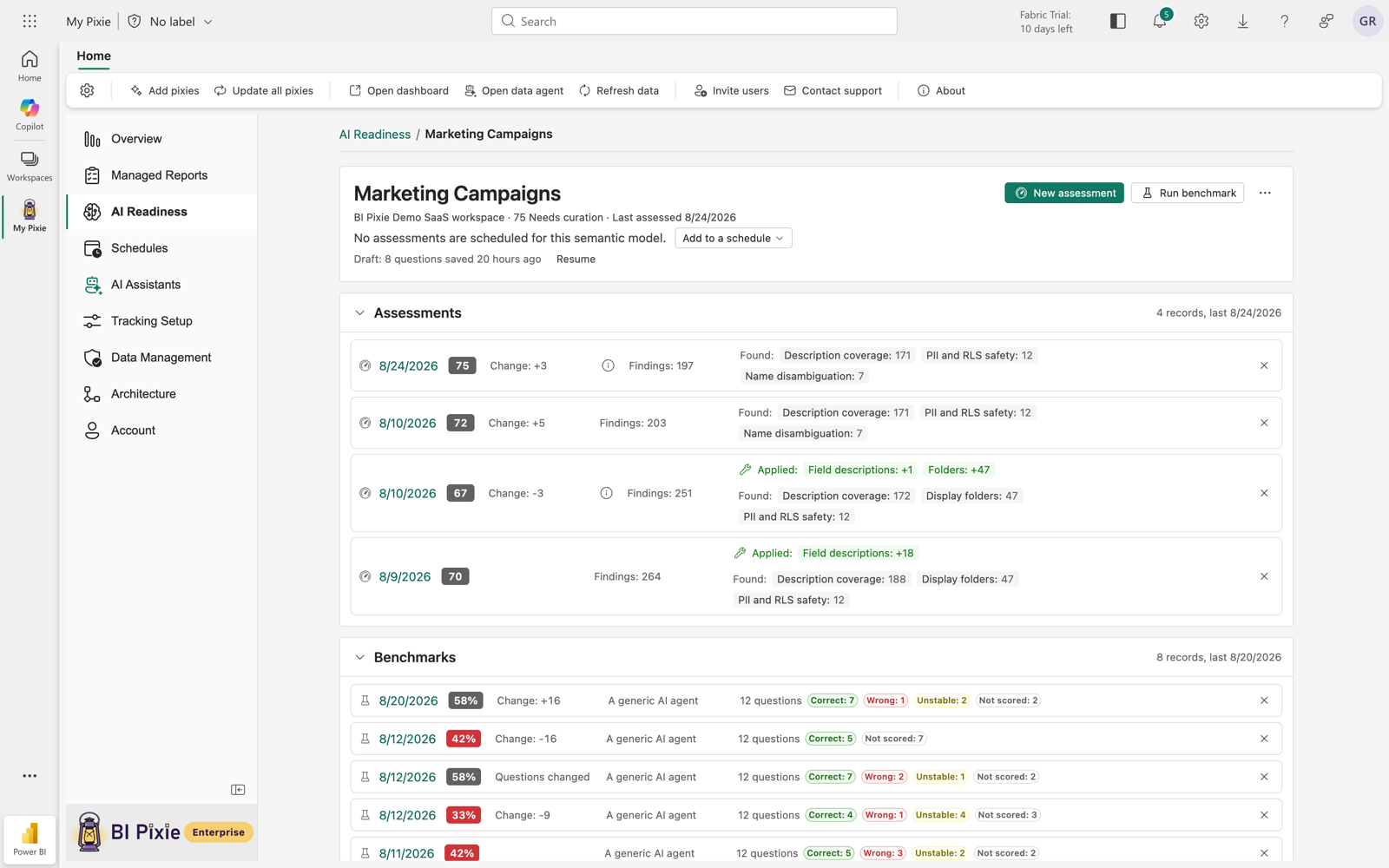
At the top of the page, you see the semantic model's name and workspace, its current score and band, a trend line of its recent assessments, and when it was last assessed.
On the page, you can also:
- Select Resume to continue benchmark questions that you saved without running them.
- Open the Assessments, Benchmarks, and A/B tests sections to see every record, newest first. Each section shows its five latest records, and Show all lists the rest 25 at a time. An empty section starts closed, and when you open it, you see a button that starts that kind of work.
- Select a record to open its full result. To go back, use the breadcrumb above the result, AI Readiness / the semantic model / the date.
- See the score of each Fabric data agent grounded on the semantic model, in the Data agents on this semantic model card.
Related content
- Semantic model assessments
- Data agent assessments
- Benchmarks
- AI Readiness dashboard
- Set up your AI
- Add Pixies to your reports, so that scores and benchmark questions reflect real usage
- AI Assistants, to create the BI Pixie data agent, which can also serve as your AI