
BI Pixie Notebooks
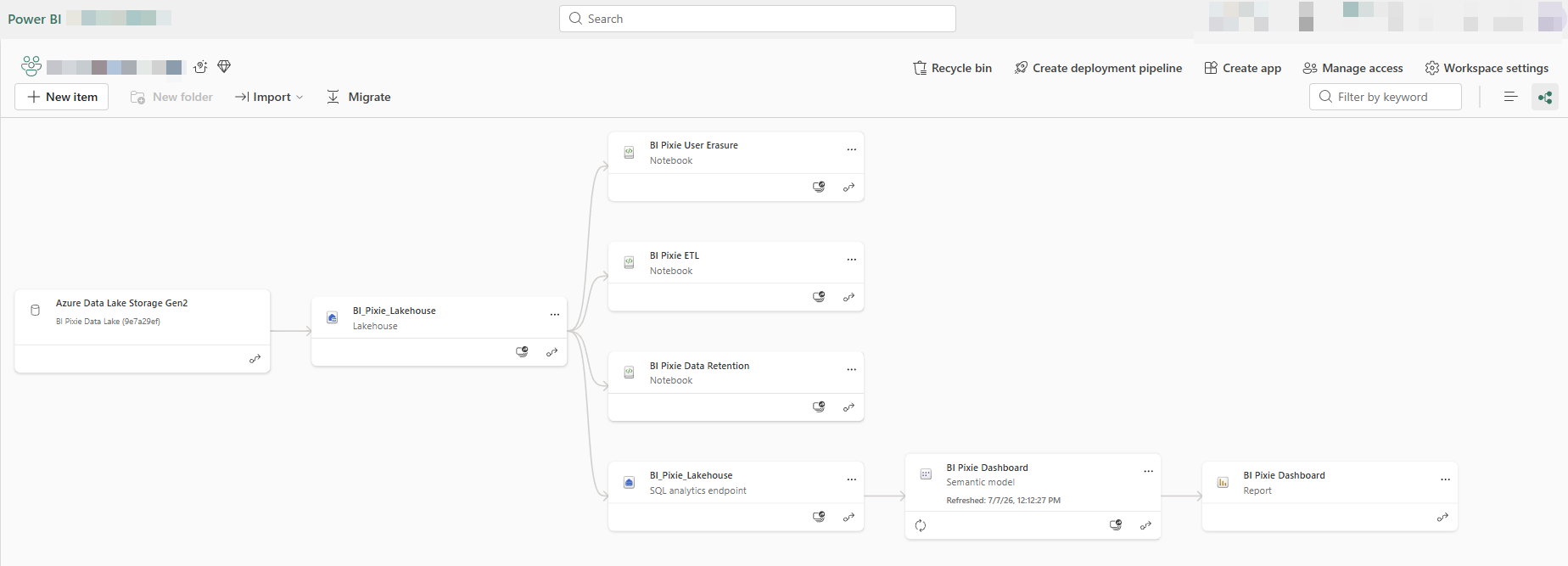
BI Pixie ships a set of customer-run Fabric notebooks that run on your own capacity, under your own identity, and only touch data in your workspace. One notebook turns your raw telemetry into the data behind your BI Pixie Dashboard; two more carry out data retention and GDPR erasure across every layer that holds a copy of your data. This page covers all of them.
- BI Pixie ETL: process your raw engagement events into the tables that power your dashboard, incrementally and on your own capacity.
- BI Pixie Data Retention: delete telemetry older than a window you choose, then reclaim storage and refresh your dashboard.
- BI Pixie User Erasure: erase one end user's telemetry for a right-to-be-forgotten / GDPR request, then refresh your dashboard.
BI Pixie installs the BI Pixie ETL notebook alongside your dashboard and model, and installs the two data-lifecycle notebooks into a Maintenance folder under your BI Pixie workspace folder. You open and run any of them yourself, or schedule them with Fabric.
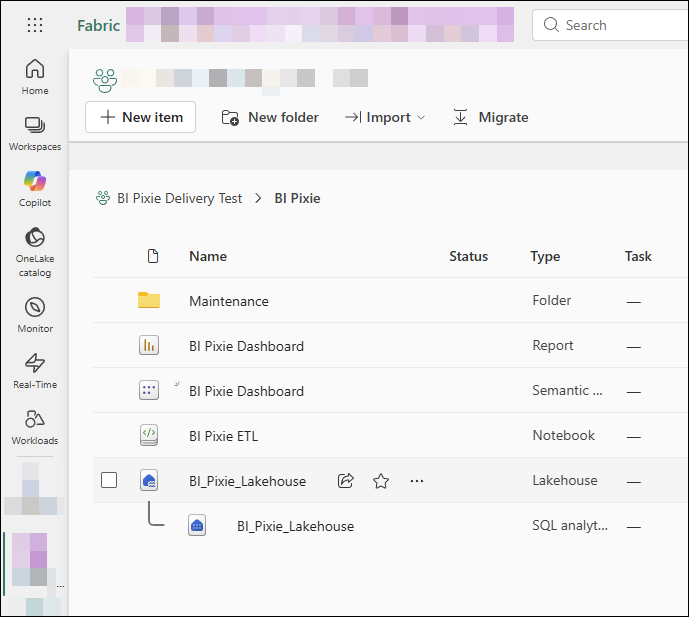
BI Pixie ETL
The BI Pixie ETL notebook is what turns your raw engagement events into the data behind your BI Pixie Dashboard. It reads the events your instrumented reports emit, shapes them into the tables the dashboard reads, and refreshes the BI Pixie semantic model so your numbers are up to date. It runs on your own Fabric capacity, so your telemetry is processed inside your tenant and never leaves it.
It is built to scale. Rather than reprocessing everything on every run, the ETL is incremental: it tracks how far it has processed and, on each run, handles only the new events since then. That keeps refreshes fast and cost-effective even as your telemetry grows into high volumes, which is what makes it a better fit than the import-mode refresh used in earlier releases.
You do not have to configure it. BI Pixie sets it up when you set up your dashboard and schedules it to run once a day by default, using Fabric's built-in job scheduler, so your dashboard picks up new events every day with nothing for you to manage. You can also open the notebook to see exactly how your data is processed, or run it on demand from the ribbon for an immediate refresh.
A daily refresh suits most teams, but the schedule is yours to change. If you want the dashboard to update more often (for example, hourly for a high-traffic report) or less often, edit the notebook's schedule in Fabric: open the BI Pixie ETL notebook's contextual menu, select Schedule, and set the recurrence and times you want. See Microsoft's guide to the Fabric job scheduler for the full set of options. Editing a schedule requires the Contributor role (or Write permission) on the workspace.
Data-lifecycle notebooks
The other two notebooks handle deletion. Your BI Pixie telemetry lives across three layers that you own: the raw event files, the tables the ETL builds from them, and the Direct Lake semantic model. To delete data for real, every layer that holds a copy must be cleared. The BI Pixie Data Retention and BI Pixie User Erasure notebooks do exactly that, across all three layers, under your own identity. BI Pixie never runs them for you.
These notebooks are the only way to clear the Lakehouse and model layers, so they are required for complete deletion, not an optional extra. The Data Management page handles retention settings and event search; the notebooks carry out the deletion across every layer.
Why both notebooks exist
When you reduce retention or delete a user from the Data Management UI, that records your intent and clears the layer BI Pixie can reach directly. But the Lakehouse Delta tables and the Direct Lake model keep their own copies of the same telemetry, and those copies sit on your capacity, under your identity. BI Pixie cannot run code on your compute to delete them without becoming the processor of your data. The notebooks close that gap: you run them, so the deletion reaches every layer and the request is genuinely complete.
Safety: preview first
Both notebooks run in preview mode by default. They report how many rows (and raw files) would be removed and change nothing. To actually delete, set the DELETE parameter to True and run again. Nothing is removed until you do.
BI Pixie Data Retention
Removes telemetry older than a chosen window, then runs Delta maintenance and reframes the model. Open the BI Pixie Data Retention notebook from the Maintenance folder, set the parameters, and run.
| Parameter | What it does |
|---|---|
RETENTION_DAYS | Keep this many days of telemetry. Rows older than this are removed. Default 365. |
DELETE | False (default) previews counts only. True performs the deletion. |
OPTIMIZE_TABLES / VACUUM_TABLES | Run Delta OPTIMIZE (compaction) and VACUUM (reclaim storage) after a real delete. Default on. |
VACUUM_RETAIN_HOURS | File history VACUUM keeps. Default 168 (the 7-day Delta safety window). |
REFRESH_SEMANTIC_MODEL | Reframe the BI Pixie Dashboard model after changes so it reflects the deletes. Default on. |
The dashboard's summary tables are rebuilt in full on each ETL run, so they drop aged-out data on their own; the notebook focuses on the accumulating event and session tables.
BI Pixie User Erasure
Removes one end user's telemetry across every table that holds their rows, for a GDPR right-to-be-forgotten request. Open the BI Pixie User Erasure notebook, set the parameters, and run.
A user deleted on the Data Management page does not need this notebook: the BI Pixie ETL removes their rows the next time it runs, provided the dashboard is on its latest version. Use it for anyone else, for example on an account whose data is kept in your own OneLake, where Data Management cannot delete, or to remove a user at once instead of at the next refresh.
| Parameter | What it does |
|---|---|
USER | The user to erase, given as their email address (the User Key BI Pixie stores for signed-in users). You can find it in the Users table or on the dashboard. |
DELETE | False (default) previews matching rows only. True performs the erasure. |
REFRESH_SEMANTIC_MODEL | Reframe the model after the erasure so it shows immediately. Default on. |
The erasure covers the accumulating telemetry tables plus the rolled-up snapshots (feedback, survey, users, the user-to-IP map), so the request is complete when the notebook finishes. You do not need to run the BI Pixie ETL afterward. BI Pixie never stores a raw IP address: anonymous activity is keyed on a non-identifying hash, so a named request is keyed on the email address.
What each notebook deletes by backend mode
The notebooks always clear the Lakehouse Delta tables and the Direct Lake model (the layers no other tool touches) in every mode. What handles the raw event files depends on where your events are stored:
| Backend mode | Lakehouse + model | Raw event files |
|---|---|---|
| BI Pixie cloud (default) | The notebook | BI Pixie handles it (the raw events sit in BI Pixie's storage) |
| OneLake delivery | The notebook | The notebook (your events are a writable folder in your own lakehouse) |
| Bring Your Own Storage | The notebook | You remove them in your own storage account, using your own tools |
In every mode the notebook is what clears the Lakehouse and model. The raw-file step differs only because of where those files live and who can write to them.
Who can run them
The notebooks run under your own identity, on your own capacity, and only touch data in your workspace. Anyone with the workspace access to run a Fabric notebook can run them. Because you own the data and the action, BI Pixie is not the processor: BI Pixie ships the logic, you run it. See Team & Workspace Access for how Fabric workspace roles govern this.
What's Next
- BI Pixie Dashboard: The dashboard the BI Pixie ETL notebook builds your data for.
- Data Management: Retention settings, event search, and user activity in the BI Pixie item.
- Data Residency (OneLake): Keep your raw events in your own OneLake.
- Bring Your Own Storage: Keep your telemetry in storage you own.
- BI Pixie Semantic Model: The Direct Lake model the notebooks reframe.