
Add Pixies to Your Reports
The Add Pixies action in the BI Pixie item is where you select reports from your Fabric workspace and add tracking Pixies to them. This guide also covers Update Pixies and Remove Pixies, which you can invoke from the Managed Reports view after Pixies have been added.
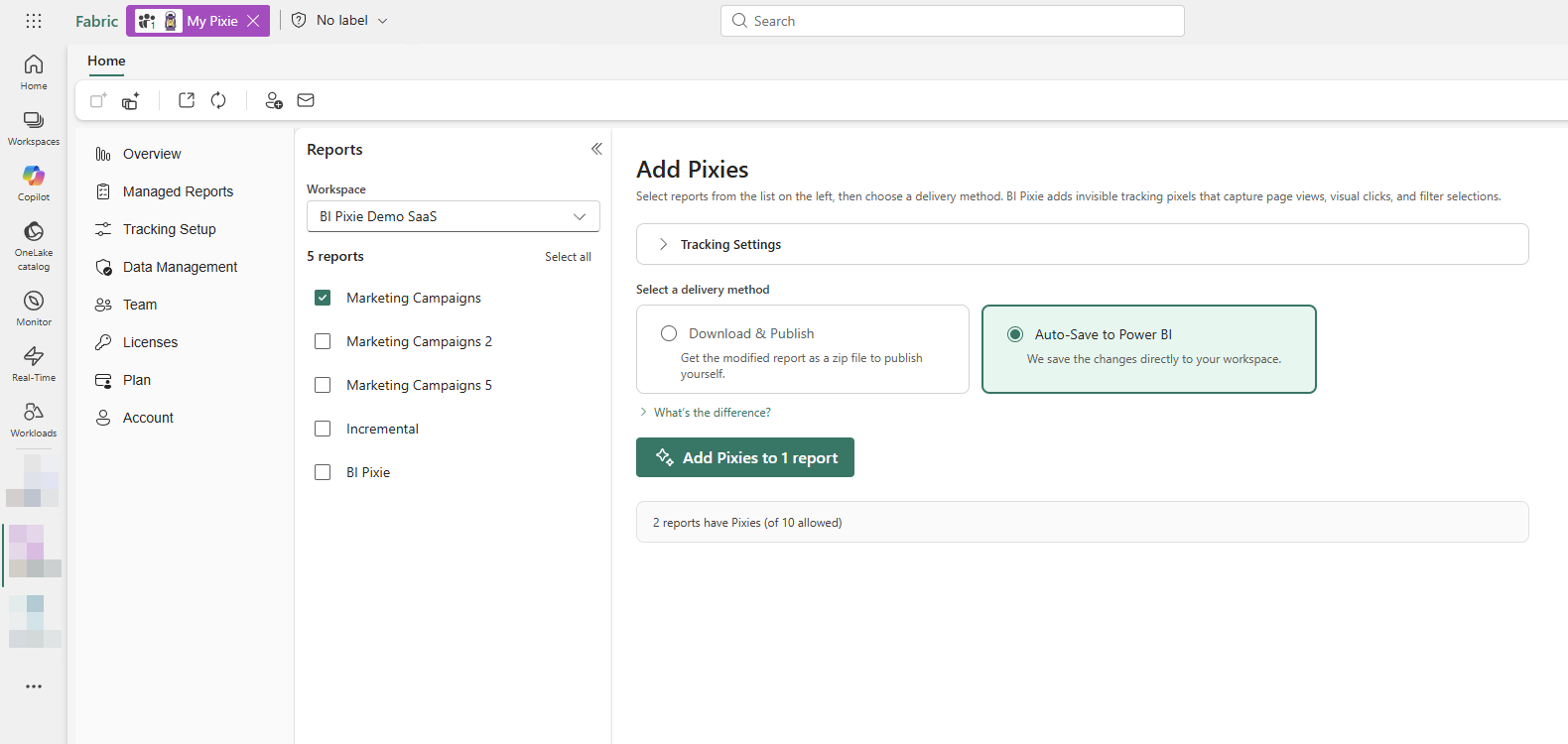
Choosing Which Reports to Track
For your first report, a report that is not in production is the safest start. It lets you explore how the Pixies work and confirm that events are being captured before tracking your live reports.
Once you know how Pixies work, you can add them in your pre-production workspace before you promote reports to production. If you use Power BI Deployment Pipelines or separate workspaces for dev/test/prod, you add Pixies in the test stage and then deploy to production. If you don't use deployment pipelines and your reports are already in production, you can add Pixies directly to the production workspace.
A backup lets you revert. With a copy of your report saved before you add Pixies, you can go back to it if you need to. In emergencies, you can always remove the Pixies even without a backup. The Remove Pixies action is available from the Managed Reports view.
For mission-critical reports, you can use the Download & Publish method to preview the changes before publishing them back to your workspace.
Step 1: Open the Add Pixies Flow
- Open the BI Pixie item from your Fabric workspace.
- Open the Managed Reports view from the sidebar and select Add Pixies.
- BI Pixie lists the reports in the current Fabric workspace. To track reports in another workspace where you have Contributor, Member, or Admin role, select that workspace in the Workspace dropdown.
Tip: Pixies are invisible to your report consumers. To learn what a Pixie adds to a report page, see the FAQ. Because BI Pixie runs natively inside Microsoft Fabric, your identity and the workspace context come from Fabric, so there is no separate connection to set up.
Step 2: Choose an Action
The action is automatically determined based on the reports you select. When you select reports without Pixies, the action is Add Pixies. When you select reports that already have Pixies, the action switches to Update Pixies.
| Action | Purpose |
|---|---|
| Add Pixies | Add tracking Pixies to reports that do not yet have them. This is the default action. |
| Update Pixies | Refresh Pixies on reports that already have them, after you change report layouts or tracking settings. |
To remove Pixies from a report, use the Remove Pixies action from the Managed Reports view.
Step 3: Select Reports
- Use the checkboxes to select the reports you want to track.
- Each report shows its current status (whether Pixies have been added or not).
- A counter at the bottom shows how many of your plan's tracked items are in use.
Note: If you have used all of your plan's tracked items, you will see a message indicating the plan is fully used.
Step 4: Choose a Delivery Method
Choose how the updated reports are delivered:
| Method | How It Works |
|---|---|
| Auto-Save to Power BI | BI Pixie writes the reports with Pixies directly back to your Fabric workspace. This is the simplest option. Your reports are updated in place. |
| Download & Publish | BI Pixie prepares the report files with Pixies for download. You then publish them manually to your workspace. This gives you full control over when and where the changes appear. |
You can expand "What's the difference?" to see a side-by-side comparison of both methods.
Step 5: Add Pixies
- After selecting your reports and delivery method, select the action button (e.g., Add Pixies or Update Pixies).
- A progress bar appears showing the progress for each report.
- A real-time log shows details about each step (loading definitions, scanning, adding Pixies, saving).
- When the process completes, open the Managed Reports view to see your newly tracked reports.
If you chose the Download & Publish method, a download panel appears with instructions on how to publish the files to your workspace.
Tracking Settings
Before adding Pixies, the Add Pixies flow shows a Tracking Settings card that displays the effective tracking settings for the selected reports. These settings come from the Tracking Setup view. If you want to change what gets tracked (e.g., enable feedback or surveys), configure those settings first.
How It Works
When you add Pixies, BI Pixie performs these steps:
- Load definitions: BI Pixie reads the definitions of your selected reports and semantic models from your Fabric workspace. Only the structural definitions are read. BI Pixie never reads the data in your semantic model and cannot import it.
- Scan and analyze: BI Pixie scans the definition of the selected report, pages, and visuals to identify hyperlinks, filters, slicers, bookmarks, tooltips, and drill-through configurations. If a semantic model with the same name exists in the same workspace, BI Pixie also reads its definition to get broader context for features like link click tracking and RLS auditing.
- Add Pixies: BI Pixie adds invisible Pixies (tiny native Power BI table visuals and hidden measures) to your reports. If feedback controls or surveys are enabled and a semantic model with the same name exists in the same workspace, BI Pixie also adds helper tables to the semantic model to support these features.
- Save: BI Pixie writes the updated definitions back to your workspace, or prepares them for download.
What the Pixies Look Like
The Pixies are designed to be invisible to your report consumers while remaining organized and auditable for your BI team:
- Table visuals: Tiny (1x1 pixel) table visuals placed in one corner of each report page, grouped together under a
{ BI Pixie }group in the Selection pane. - Hidden measures: Dynamic measures added at the report level, grouped in a
{ BI Pixie }folder and marked as hidden.
To inspect the Pixies in Power BI Desktop:
- Open a report with Pixies in Power BI Desktop.
- Select the View tab and open the Selection pane.
- Find and expand the { BI Pixie } group at the bottom of the pane to see the Pixie visuals.
- In the Data pane, select the ellipsis on any table and select View hidden. Then search for "pixie" in the measures search box to find the table where all the hidden measures are stored. They will be grouped under a
{ BI Pixie }folder.
Reports with Phone Layouts
When a report page has a phone layout, BI Pixie adds that page's Pixies to the phone layout as well. BI Pixie then records how people use the page when they open the report in the Power BI mobile app on a phone. On a page without a phone layout, the mobile app shows the desktop layout, and BI Pixie records usage there through the desktop Pixies. BI Pixie leaves such a page as it is.
If you collect user feedback, BI Pixie places the feedback control at its desktop size in the top-right corner of each phone layout, the same corner it occupies in the desktop layout. BI Pixie places both kinds of feedback control this way: the feedback slicer and the feedback bookmark navigator. When you run Update Pixies, BI Pixie places the feedback control there again.
In the mobile layout view of Power BI Desktop or the Power BI service, you see the Pixies by name in the Page visuals pane, and BI Pixie places them on the phone canvas as 1x1 pixel items in the top-right corner. BI Pixie records phone usage while the Pixies stay where BI Pixie placed them.
If Power BI's Auto-create had already placed Pixies on a phone layout, BI Pixie moves those Pixies to the top-right corner, and your own visuals stay where Auto-create put them. The phone layout then has an empty band where the Pixies used to be. You can close it by running Optimize page for mobile on that page again, or by moving your visuals up by hand.
To record usage on a phone layout that you create or change after adding Pixies, run Update Pixies on the report. BI Pixie adds Pixies to the phone layouts that exist when Add Pixies or Update Pixies runs.
BI Pixie records link clicks on a phone when the link is set on the visual in the report itself. When a link is set only in a visual's phone layout, Power BI uses that link on phones instead of the visual's link, and BI Pixie does not record clicks on it.
Update Pixies
Every time you update Pixies on a report, BI Pixie will:
- Remove all previous Pixies from the report.
- Re-scan the report definitions to detect any changes (new pages, visuals, slicers, etc.).
- Add fresh Pixies based on the current report definitions and your latest tracking settings.
You should update Pixies after any change to the report definition that goes to production, or when you change tracking settings. This includes adding or removing pages, visuals, slicers, bookmarks, or drill-through links, and creating or changing a phone layout. If visual-level tracking is enabled, even moving or resizing a visual requires an update so the heatmap positions stay accurate. You do not need to update Pixies after a data refresh. Refreshes only update the data, not the report definition.
Note: Updating Pixies is not automatic. When a report definition changes, open the Managed Reports view, open the action menu for the report that has changed, and select Update Pixies. If you would like to automate this process, contact us to discuss automation options.
Using Deployment Pipelines
If you use Power BI Deployment Pipelines, we recommend this workflow:
- Keep your original reports in the Development stage.
- Deploy to the Test stage using the Deployment Pipeline.
- Open the BI Pixie item in the Test workspace and add Pixies there.
- Verify the tracked reports in the Test workspace.
- Deploy the tracked reports from Test to Production using the Deployment Pipeline.
Expired Plan
If your plan has expired, adding and updating Pixies is not available. During the grace period, you can still use the Remove Pixies action to clean Pixies from your reports. Admins will see a "Renew your plan" button to restore access. After the grace period ends, BI Pixie suspends the account and tracking stops. A suspended or canceled account can still open the BI Pixie item and remove Pixies from its reports, so you can stop tracking before you leave. Everything else stays unavailable until the plan is reactivated. For how long BI Pixie keeps your data, see our Privacy Policy.
What's Next
- Managed Reports: View and manage your tracked reports.
- Test Events: Verify that events are flowing from your reports, in the Events pane of the Managed Reports view.
- Tracking Setup: Customize tracking settings before adding or updating Pixies.
- AI Readiness: Score your semantic models for Copilot and data agents; usage from your tracked reports sharpens the analysis.