
Set up Admin Monitoring
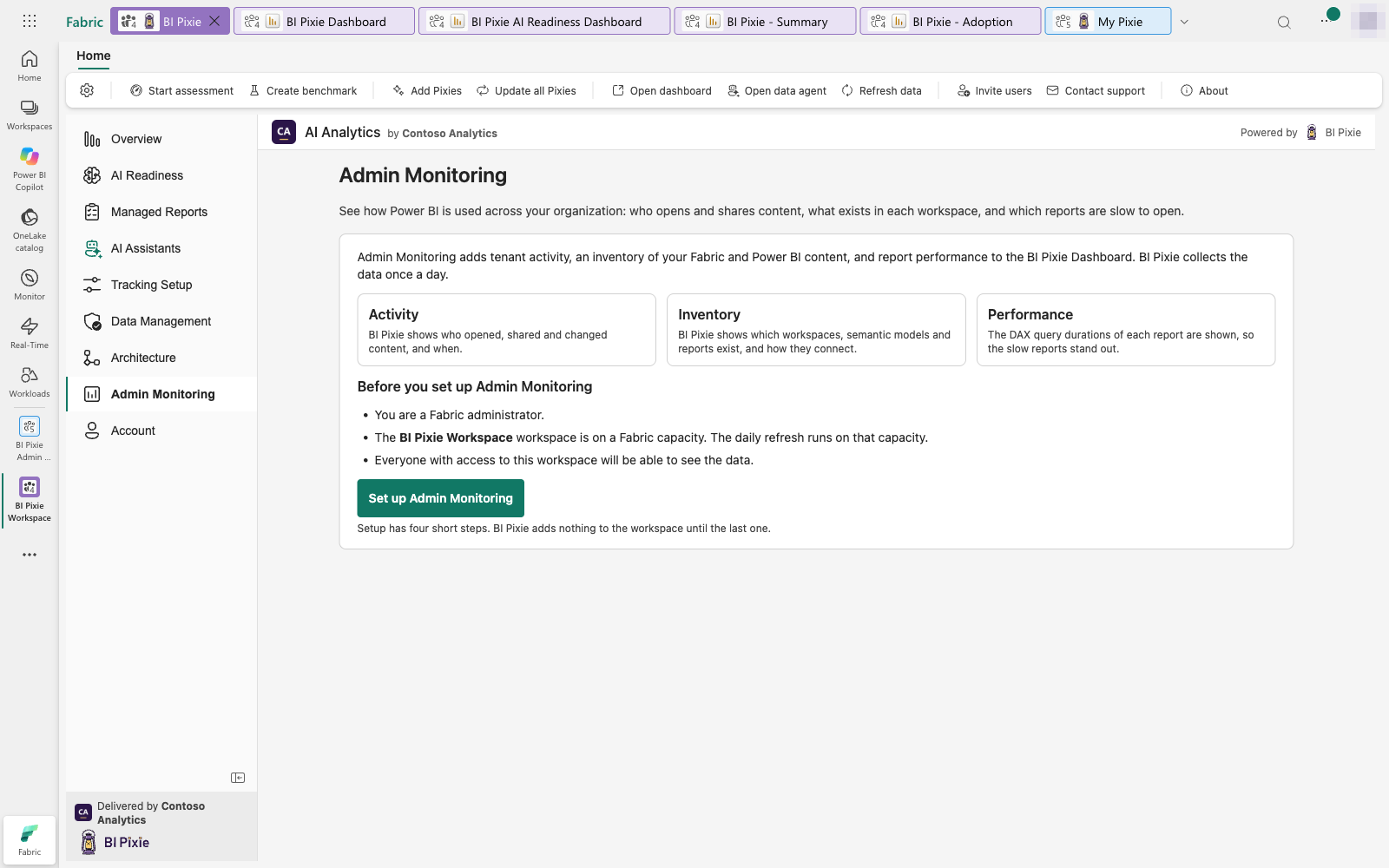
Setup has four short steps. BI Pixie adds nothing to the workspace until the last one, so you can go back and change any answer before you start.
To begin, open the BI Pixie item, select Admin Monitoring in the sidebar and select Set up Admin Monitoring. If you are not a Fabric administrator, the page offers Use a service principal in its place. That button opens the Connect a service principal dialog. Fill in the dialog and select Continue to go to step 1. See Use a service principal.
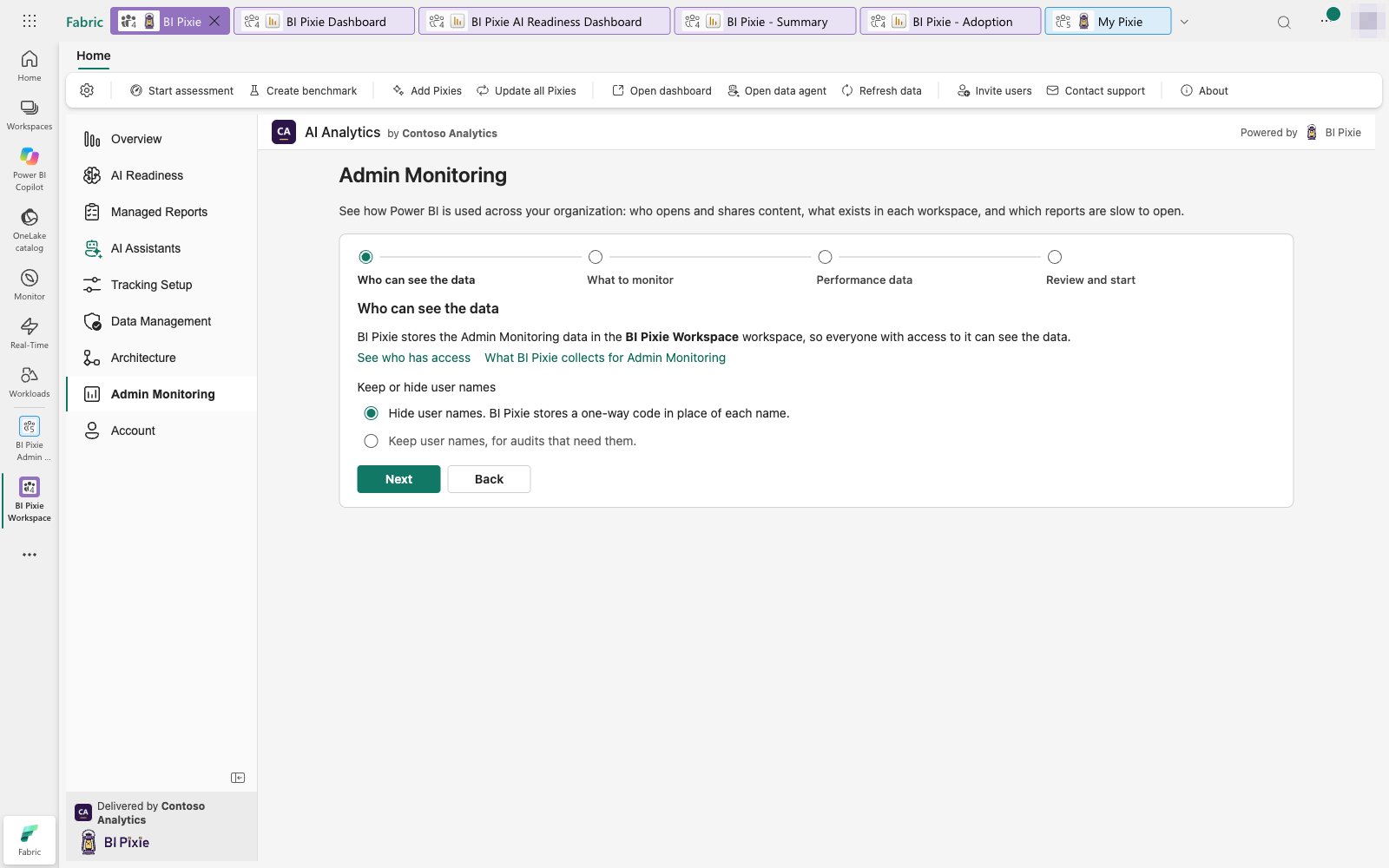
Step 1: Who can see the data
BI Pixie stores the Admin Monitoring data in the workspace that holds BI Pixie, so everyone with access to that workspace can see tenant activity, the inventory, DAX query durations and, if you keep them, user names. The step tells you how many people have access to the workspace today, when BI Pixie can count them.
- To check who they are, select See who has access. The workspace opens in Fabric, where Manage access lists everyone who can open it.
- Under Keep or hide user names, choose Hide user names or Keep user names. When names are hidden, BI Pixie stores a one-way code in place of each name and does not keep client IP addresses. Keep user names only for audits that need them.
- The link What BI Pixie collects for Admin Monitoring opens What Admin Monitoring collects in a new browser tab.
Step 2: What to monitor
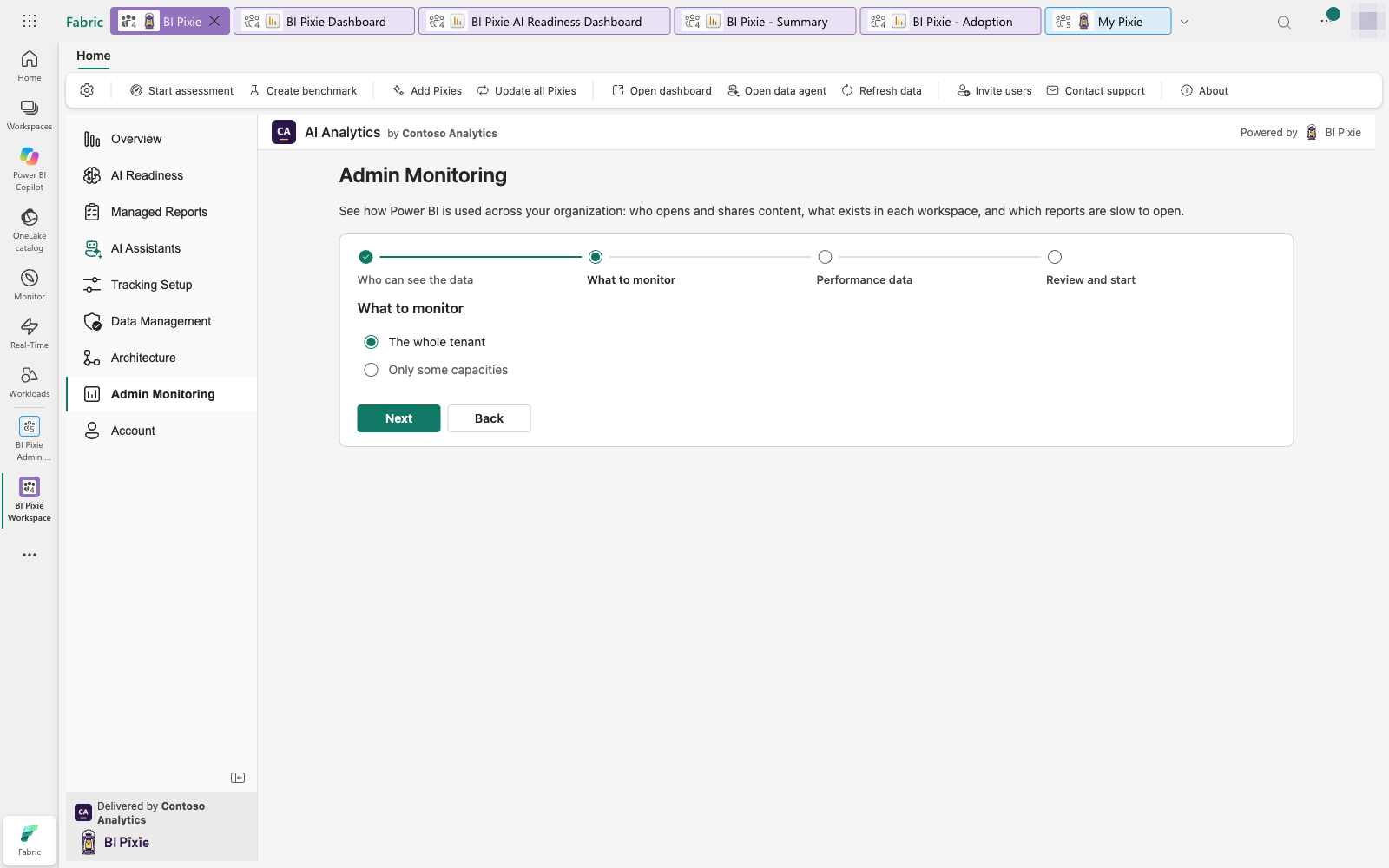
Choose The whole tenant or Only some capacities.
- To list capacities, select Allow BI Pixie to list capacities. Microsoft asks you to let BI Pixie read the capacities that your account has access to. BI Pixie only reads their names and their workspaces.
- Each capacity is a card. When you choose a capacity, BI Pixie monitors every workspace on it. To choose single workspaces instead, expand Monitor only some workspaces on under that capacity's name.
- For workspaces on shared capacity, or on a capacity that your account cannot list, expand Monitor workspaces that are not on a listed capacity.
The list shows only the capacities and workspaces that your account has access to. A workspace that is not in the list is still monitored when you choose The whole tenant.
If BI Pixie cannot list capacities, for example because you declined Microsoft's prompt, BI Pixie monitors the whole tenant. You can narrow the choice later in Settings.
Step 3: Performance data
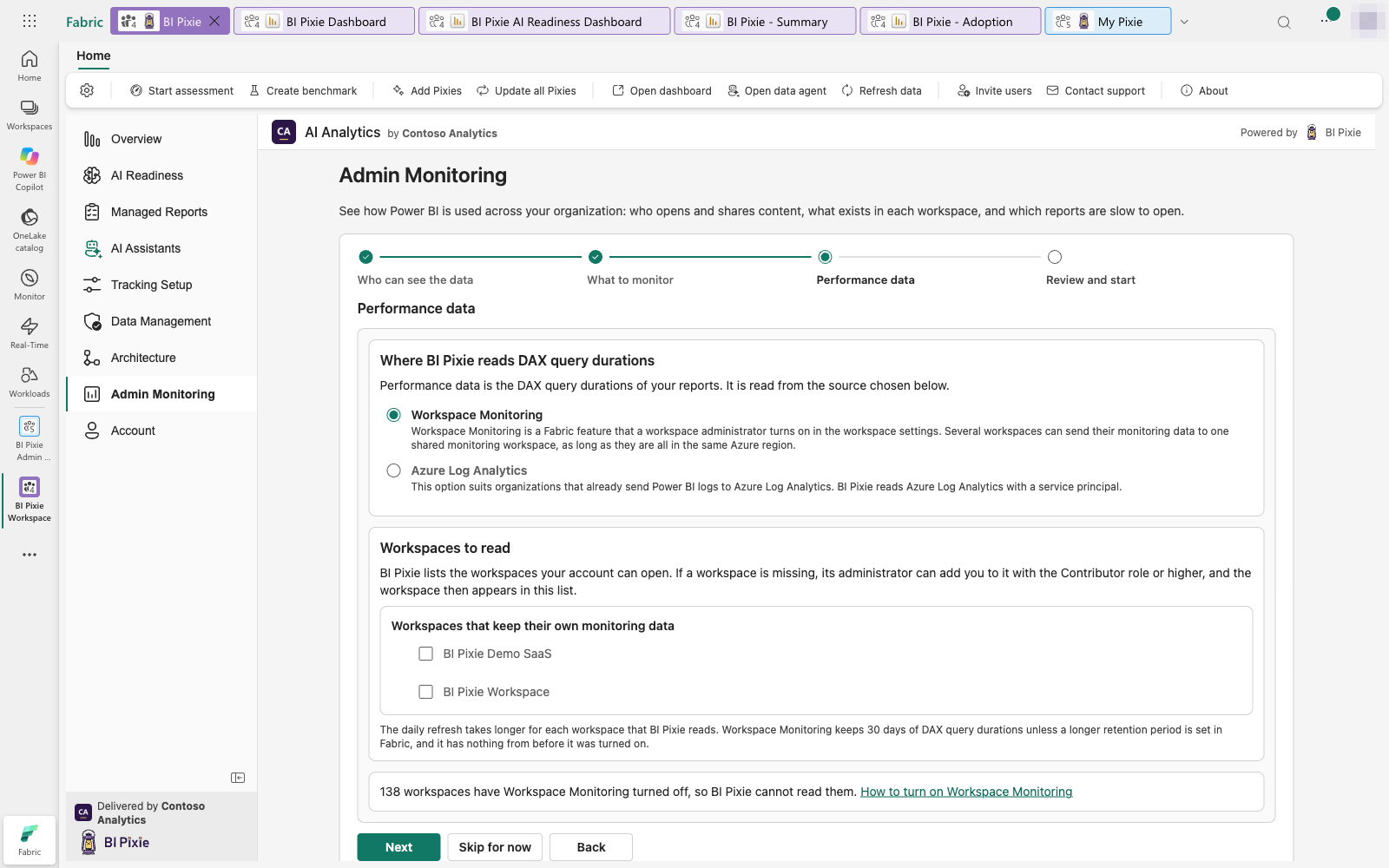
Performance data is the DAX query durations of your reports: how long each query that a report sends to its semantic model takes to answer. It is optional. You can select Skip for now and add it later in Settings.
Under Where BI Pixie reads DAX query durations, choose one source. BI Pixie never reads both.
Workspace Monitoring (the default)
Workspace Monitoring is a Fabric feature that a workspace administrator turns on in the workspace settings. Several workspaces can send their monitoring data to one shared monitoring workspace, as long as they are all in the same Azure region.
- Under Workspaces to read, BI Pixie groups the workspaces by the monitoring workspace they send data to. Workspaces that keep their own monitoring data are listed separately.
- BI Pixie lists the workspaces your account can open. If a workspace is missing, its administrator can add you to it with the Contributor role or higher, and the workspace then appears in the list.
- A line counts the workspaces that have Workspace Monitoring turned off, because BI Pixie cannot read them. The link How to turn on Workspace Monitoring opens the instructions in a new browser tab.
- Workspace Monitoring keeps 30 days of DAX query durations unless a longer retention period is set in Fabric, and it has nothing from before it was turned on.
Azure Log Analytics
This option suits organizations that already send Power BI logs to Azure Log Analytics. Enter the Log Analytics workspace ID. BI Pixie reads Azure Log Analytics with a service principal, so the daily refresh must run as a service principal that holds the "Log Analytics Data Reader" role on that workspace. If no service principal is connected yet, the step offers Connect a service principal, which opens the same dialog as before step 1.
The daily refresh takes longer for each workspace that BI Pixie reads. The Performance pages count every query, not a sample.
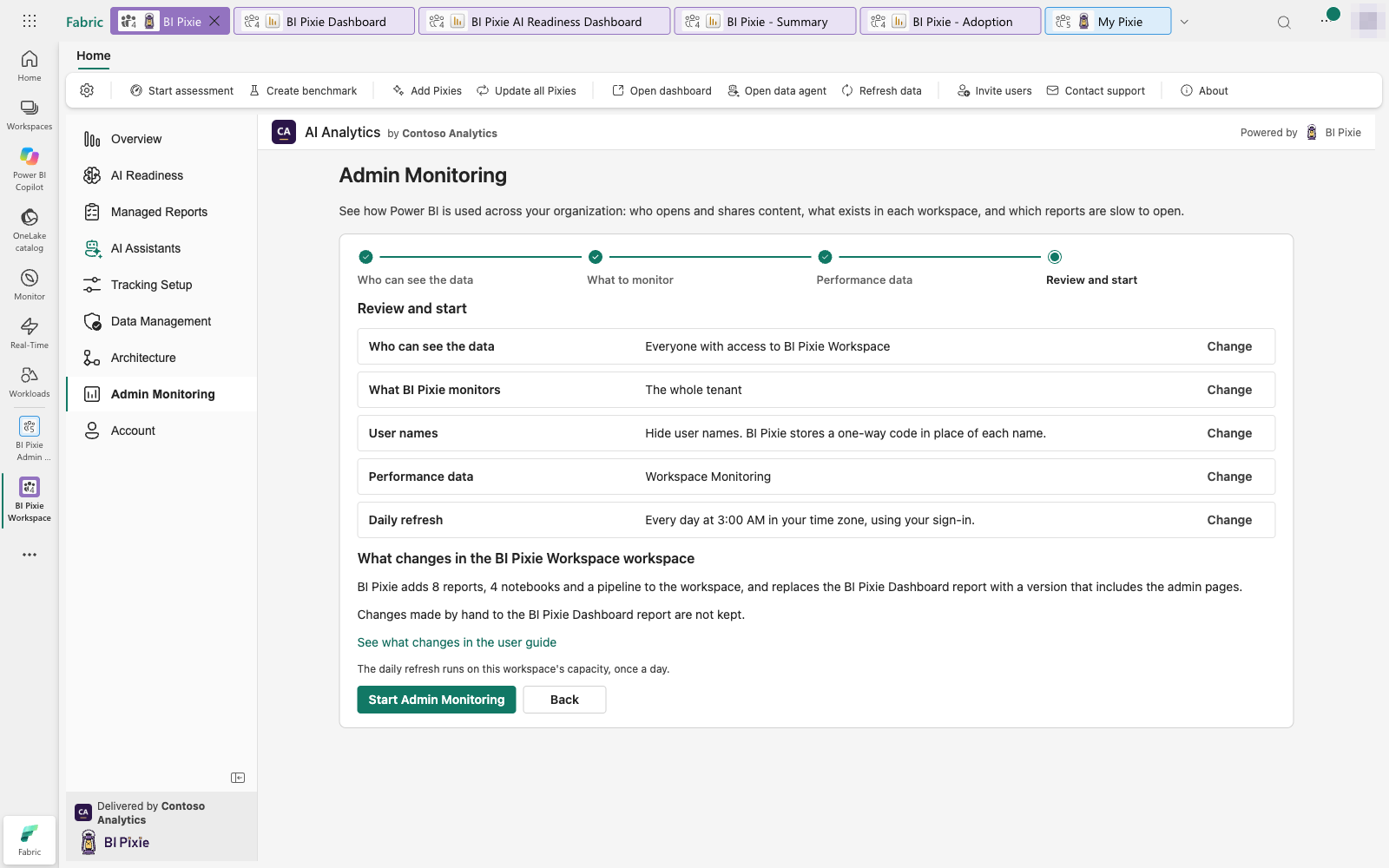
Step 4: Review and start
The review shows your answers, one card per row. Select Change beside a row to go back to its step.
- Who can see the data: everyone with access to the workspace.
- What BI Pixie monitors: the whole tenant, or the capacities and workspaces you chose.
- User names: hidden behind a one-way code, or kept.
- Performance data: Workspace Monitoring and the number of workspaces BI Pixie reads, Azure Log Analytics, or Not set up.
- Daily refresh: every day at 3:00 AM in your time zone, and the account it runs as.
To choose the account, select Change on the Daily refresh row. Under Which account runs the daily refresh, choose one:
- Your sign-in. The daily refresh runs as you, and stops reading tenant activity if your account is no longer a Fabric administrator. This option is available only to a Fabric administrator, and not with Azure Log Analytics.
- A service principal. The daily refresh signs in as an app identity your organization owns, so it does not depend on anyone being a Fabric administrator. Choosing it opens the Connect a service principal dialog.
Below the review, a section headed What changes in the workspace, followed by the workspace's name, sums up what BI Pixie does when you start: it adds 8 reports, 4 notebooks and a pipeline to the workspace, and replaces the BI Pixie Dashboard report with a version that includes the admin pages. Changes made by hand to the BI Pixie Dashboard report are not kept. The link See what changes in the user guide opens this list:
- The BI Pixie Dashboard report is replaced with a version that includes the admin pages. Changes made by hand to that report are not kept, so make a copy first if you edited it.
- 8 reports are added, one for each area: Summary, Adoption, Engagement, Business Outcomes, User Satisfaction, Performance, Security & Governance and Metrics.
- 4 notebooks and a pipeline are added. They collect the data every day.
- The daily refresh is scheduled on the workspace's capacity, once a day, at 3:00 AM in your time zone.
When you are ready, select Start Admin Monitoring.
After you start
The page shows "Adding Admin Monitoring" and its progress: the notebooks, the admin pages, the 8 reports, scheduling the daily refresh, and collecting the first data. When it finishes, the page becomes the Admin Monitoring home. See Settings and the daily refresh.
If BI Pixie cannot start Admin Monitoring, nothing is added to the workspace. If BI Pixie cannot finish adding the admin pages and reports, select Try again.