
Schedule AI Readiness Assessments in Microsoft Fabric Enterprise
A score stays current only until the next change to the semantic model. When you schedule assessments, BI Pixie assesses the semantic models and data agents you choose on a rhythm you set, so you see a score trend without anyone having to remember to start a run. A scheduled result is saved in the same history as one you start yourself.
Prerequisites
- The Enterprise plan. On other plans, you don't see the schedules button, and assessments run only when you start them.
- To manage a license's schedules, the account admin role, or assignment to that license. You can read the schedules of other licenses.
- To schedule a data agent, at least one assessment of it. A schedule keeps a score current, so a data agent without a score can't join one.
Open Schedules
- In your BI Pixie item, select AI Readiness in the left sidebar.
- In the page header, select Schedules. The button shows how many schedules you have, and when you point to it, you see when the next one runs.
You see your schedules in a panel over the page. Until you create a schedule, the panel is empty and nothing runs. BI Pixie never creates a schedule for you.
Create a schedule
- In Schedules, select Add schedule.
- Enter a Schedule name that you'll recognize in the list, such as Critical semantic models, daily.
- Under Which semantic models, choose Selected semantic models and select them, or choose All tracked semantic models, including those added later. Beside a semantic model that another schedule already holds, you see that schedule's name, so that you know where to move it from.
- Optionally, under Data agents in this schedule, select the data agents to assess on the same schedule.
- Under How often, choose every day, every week, every two weeks, or every month, and then choose the day, the time, and the time zone. The time zone starts as yours. Check the sentence that reads your choice back, such as "Runs every Monday at 06:00, Europe/London."
- Select Save.
A schedule works best when it holds the semantic models whose scores you watch, rather than everything you have. A semantic model belongs to one schedule at a time, so it's never assessed twice in one day by two schedules. If you choose a semantic model that another schedule already holds, you're told which schedule, both in the picker and when you save.
The All tracked semantic models scope covers every tracked semantic model in the license, including the ones added later, except those that another schedule names. When you name a semantic model in another schedule, it leaves the catch-all schedule. You can always name a semantic model in another schedule, even while a catch-all schedule covers it. With two schedules, you can assess your three critical semantic models every day and everything else every week.
Schedule a semantic model or data agent from its page
- On the semantic model's or data agent's page, open the More actions menu and select Assessment schedules.
- In the Assessment schedules for dialog, read whether the semantic model or data agent is assessed on a schedule today, such as "No assessments are scheduled for this semantic model" or "Assessed by Critical semantic models, weekly", with the next run.
- Do one of the following:
- To add the semantic model or data agent to a schedule, choose the schedule in the list. Its current schedule is marked. If another schedule already names it, the choice is refused with a message naming that schedule.
- To remove the semantic model or data agent from its schedule, select Remove from followed by the schedule's name, read what that changes, and then select Remove from schedule.
- To start a new schedule with the semantic model or data agent already chosen, select Create a new schedule. Schedules opens over the page. Set the name, the cadence, and the time zone, and then save. Nothing runs until you save.
You can't take a semantic model off a schedule that covers all tracked semantic models from the Assessment schedules for dialog, because narrowing that schedule changes what happens to every other semantic model. To edit, pause, or delete a schedule, use Schedules.
Manage your schedules
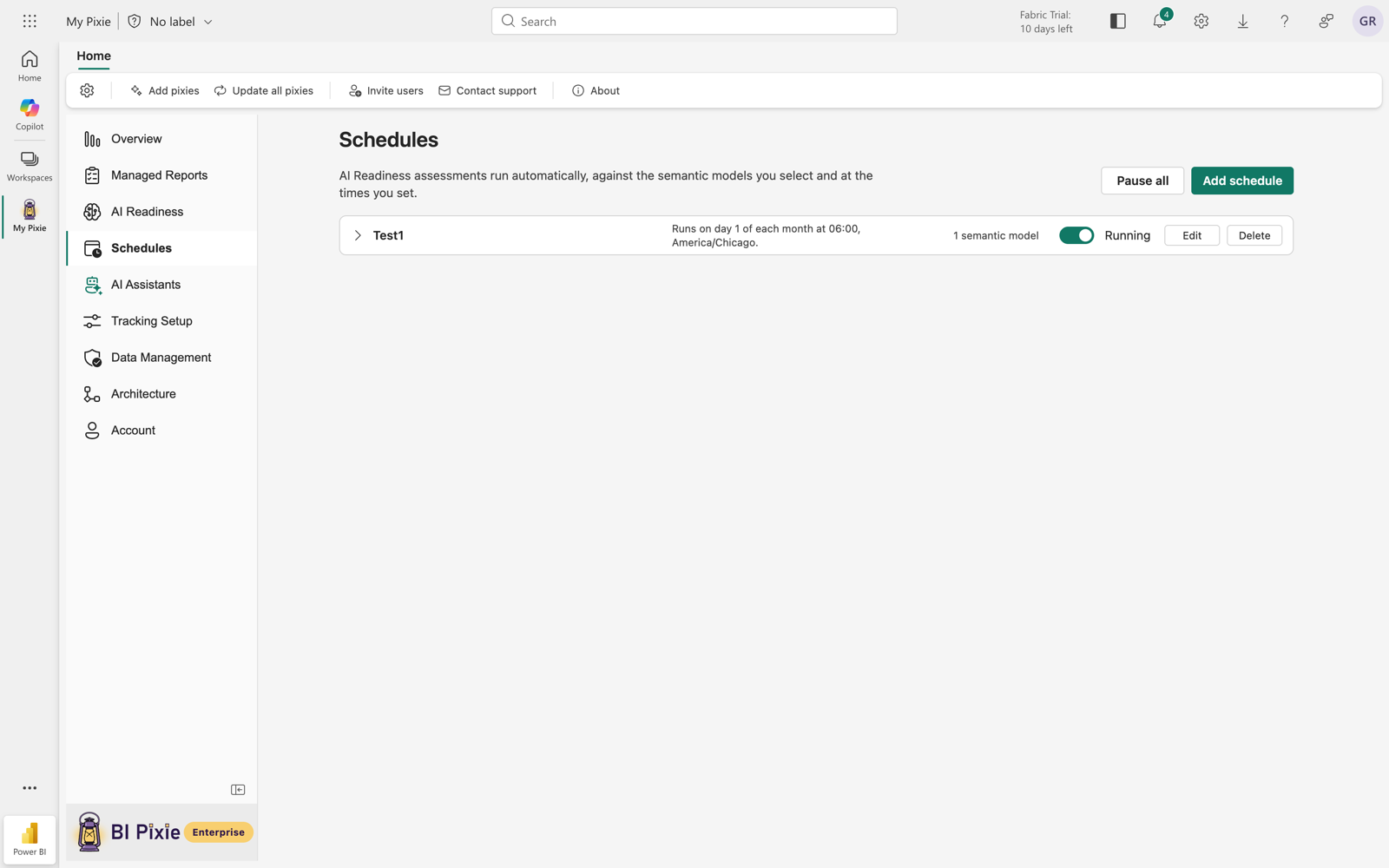
In Schedules, you see a card for each schedule, with its name, how many semantic models it covers, its cadence, and its pause control. To see its Next run, Last run, last result, Time zone, and the semantic models it covers, expand the card. When a schedule can't run something, you see why beside that semantic model. When your account holds more than one license, the cards are grouped by license.
- To pause one schedule, switch its control from Running to Paused. The card then shows "Paused" in place of its next run.
- To pause everything, select Pause all at the top of the panel. BI Pixie shows a banner saying that nothing runs, and each card reads "Paused for the whole account". Each schedule keeps its own setting, so Resume all restores exactly what was running before.
- To change a schedule's name, semantic models, data agents, or cadence, select Edit.
- To delete a schedule, select Delete. Before you confirm, you see what stops, such as "3 semantic models will no longer be assessed automatically." Results already saved stay in their history.
- When a last run failed, read the reason on the card and use the action beside it to fix it.
- When the panel can't load, select Try again.
Considerations and limitations
- Each schedule has its own time zone, and every time on its card is in that zone. When your own zone differs, your local time is added under the next run. A schedule set for 06:00 stays at 06:00 when daylight saving time changes.
- BI Pixie assesses the semantic models and data agents in one schedule together, on one cadence, at one time, in one time zone.
- A data agent is assessed on a schedule only when a schedule names it. All tracked semantic models never covers a data agent.
- A data agent belongs to one license, and only that license's schedules can name it. Belonging to a license doesn't make it a tracked item and costs nothing.
- Only assessments run on a schedule. In a benchmark, BI Pixie asks a live AI real questions, so you always start a benchmark yourself. See Benchmarks.
- Schedules work the same way in the BI Pixie Portal.
Related content
- Assess a semantic model
- Data agent assessments
- Licenses, to see which license a member is assigned to