AI Readiness Assessments for Fabric Data Agents in Microsoft Fabric
When you assess a Fabric data agent, BI Pixie reads the data agent's definition read-only, checks it against Microsoft's published guidance for data agents, and gives the data agent one AI Readiness score from 0 to 100, shown beside the scores of the semantic models it is grounded on. This guide covers starting an assessment, reading the result, applying the fixes BI Pixie proposes, asking your AI provider about the checks BI Pixie cannot answer on its own, and granting the one extra permission some data sources need. A data agent carries instructions, data sources, example queries and a runtime of its own, and any of them can be set up in a way Microsoft Fabric ignores, so a data agent can answer badly even when its semantic model is well prepared.
Assessing involves no AI unless you ask for it. The checks are fixed rules over the data agent's own configuration, so a data agent that has not changed always receives the same score, and a second assessment is a reliable before-and-after check on any change you make. A few checks are about wording rather than structure, and BI Pixie offers to ask your AI provider about those separately, from a button on the result. This guide calls that step the AI round. An assessment runs in BI Pixie's service in your own Fabric region, not on your Fabric capacity, and it writes nothing to the data agent.
- Ready to answer. A score of 80 or higher. This data agent can answer reliably from your data.
- Needs attention. A score of 50 to 79. This data agent will answer, but it is likely to get things wrong.
- Not ready to answer. A score below 50. This data agent cannot be trusted to answer yet.
Start an Assessment
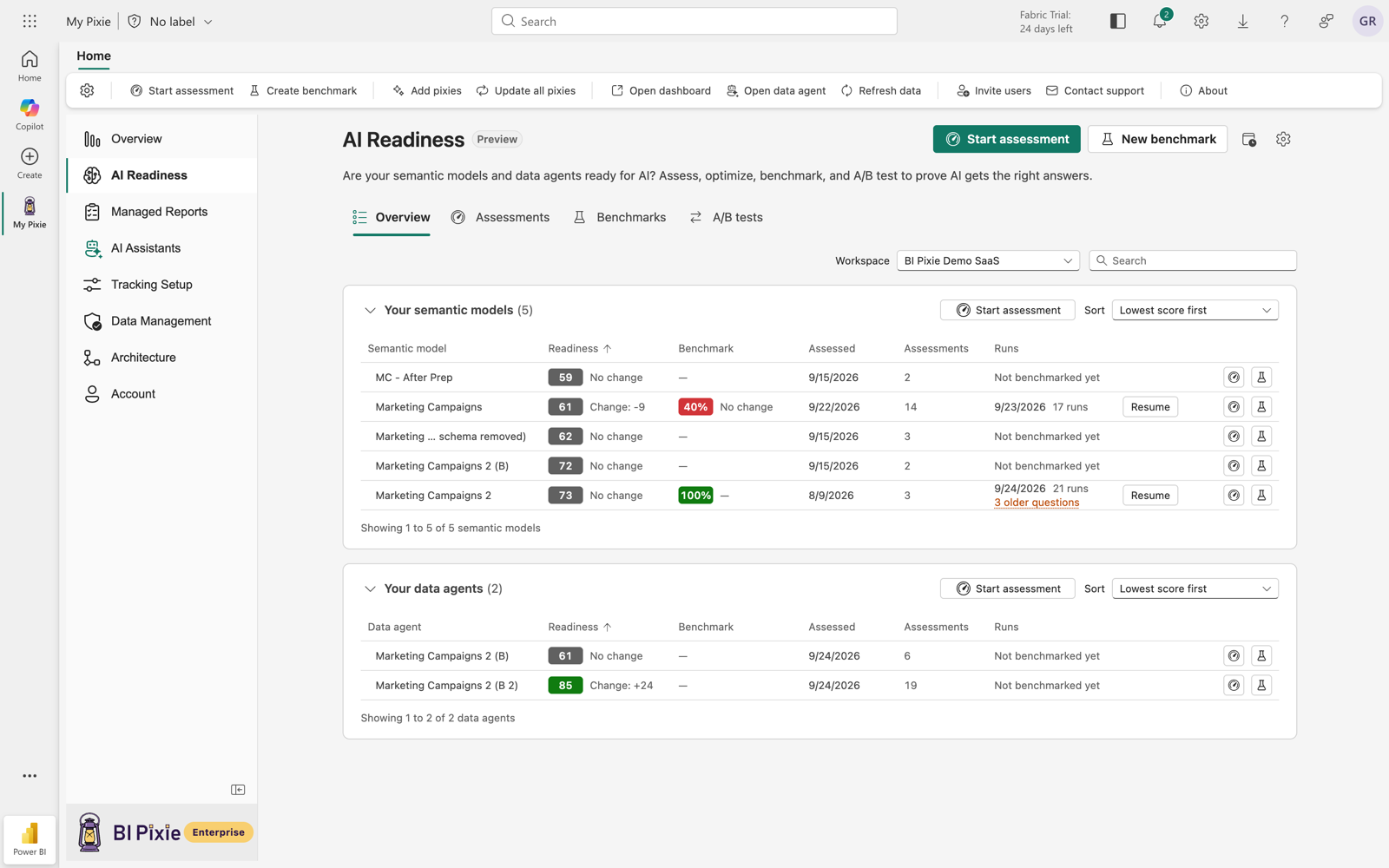
- Open AI Readiness from the left sidebar of your BI Pixie item. Data agents you have assessed are listed in the Your data agents card, below Your semantic models. Select Assess a data agent in that card's header.
- Choose the Fabric workspace, then one or more data agents in it. Select all selects every data agent in the workspace. BI Pixie lists only workspaces where you hold a Contributor role or higher, because reading a data agent and changing it use the same Fabric permission. To assess data agents in another workspace, choose that workspace and assess again.
- Select Assess data agent, or the button naming how many you chose. BI Pixie reads each data agent's definition and analyzes it. When you chose one data agent, its result opens as soon as it finishes. When you chose several, a progress view shows each data agent as Pending, Assessing, Done or Failed, and each finished data agent is listed in Your data agents, where its row opens its result.
To assess a data agent again, select New assessment on its page.
Microsoft's Rules Behind the Checks
Most of what an assessment finds comes down to five rules from Microsoft's documentation. BI Pixie quotes each one on the result page beside the finding it explains, with a link to the page it comes from. The five are reproduced here from Data agent configurations, Semantic model best practices for data agent, Data agent configuration best practices and Add schema object descriptions.
- What belongs in a data agent's instructions. "Data agent instructions should only include guidance that applies across all data sources configured in the agent, such as general response formatting preferences, cross-source routing rules, common abbreviations, tone, and so on."
- What a data agent's instructions cannot do for a semantic model. "The DAX generation tool only refers to the AI instructions configured in Prep for AI of the semantic model. Data agent instructions aren't passed to the tool and are ignored when querying semantic models. For this reason, don't add semantic model specific instructions at the data agent level." And: "Unlike other data sources, data agent doesn't support data source instructions or descriptions for semantic models."
- What a data source description is for. "A description should summarize what the data source contains, the types of questions it can answer, and any business-specific nuances that help distinguish it from other sources."
- Where a definition belongs. "Place a definition in the schema object description when it applies to one object. Place it in data source instructions when it applies across the data source or affects multi-object query logic."
- What editing an inherited description does. "By default, the data agent inherits available descriptions from the data source and updates them automatically. When you edit an inherited description in the data agent, the change applies only to the data agent. It doesn't overwrite the description in the source, and that object no longer receives description updates from the source."
What BI Pixie Looks At
BI Pixie groups its checks into the dimensions below. The middle columns separate the checks BI Pixie runs on its own from the ones it asks your AI provider about in the AI round. A dimension that does not apply to a data agent, such as example queries on a data agent grounded only on semantic models, is left out of its score rather than counted as passed, and so is any check BI Pixie could not run.
| Dimension | What BI Pixie checks on its own | What your AI provider is asked | Applies to |
|---|---|---|---|
| Data agent instructions |
| Whether a sentence that names no table, column or measure is still about one semantic model's data. | Every data agent |
| Recommended format |
| Nothing | Every data agent |
| Grounding matches the AI data schema | The tables the data agent uses from a semantic model are the tables that semantic model's AI data schema defines. | Nothing | Semantic model sources |
| Table selection | Every table the data agent selected still exists in the source. | Nothing | Semantic model, lakehouse, warehouse and mirrored database sources |
| Semantic model settings | A semantic model source carries no data source instructions and no data source description, because Microsoft Fabric does not read either for a semantic model. | Nothing | Semantic model sources |
| Published description | The data agent carries a published description. An AI that decides which data agent should answer a question reads that description to choose. | Nothing | Every data agent |
| Runtime | The data agent runs on Microsoft's preview runtime, which carries Microsoft's advanced query generation for semantic models and is the only runtime that reads schema object descriptions. | Nothing | Every data agent |
| Data source setup |
|
| Lakehouse, warehouse, KQL database and mirrored database sources |
| Example queries |
|
| Lakehouse, warehouse and KQL database sources |
| Schema object descriptions |
|
| Lakehouse, warehouse and mirrored database sources |
| Data sources a semantic model already covers | The data agent is grounded on both a semantic model and the lakehouse, warehouse or mirrored database that semantic model reads through Direct Lake. The two hold the same data, and only the semantic model carries the measures, relationships and descriptions, so a question about that data can be routed to the weaker copy. | Nothing | Data agents grounded on both |
| Tables report viewers never use | Which of the tables the data agent selects from a lakehouse, warehouse or mirrored database no report viewer touches, beside the tables used heavily. BI Pixie reads that use from the Pixies on the reports over the Direct Lake semantic model built on the source. BI Pixie reports this and never scores it, because a table no report uses may still be one the data agent needs for a join, or for a question no report answers. | Nothing | Lakehouse, warehouse and mirrored database sources that a Direct Lake semantic model with tracked reports is built on |
Read the Result
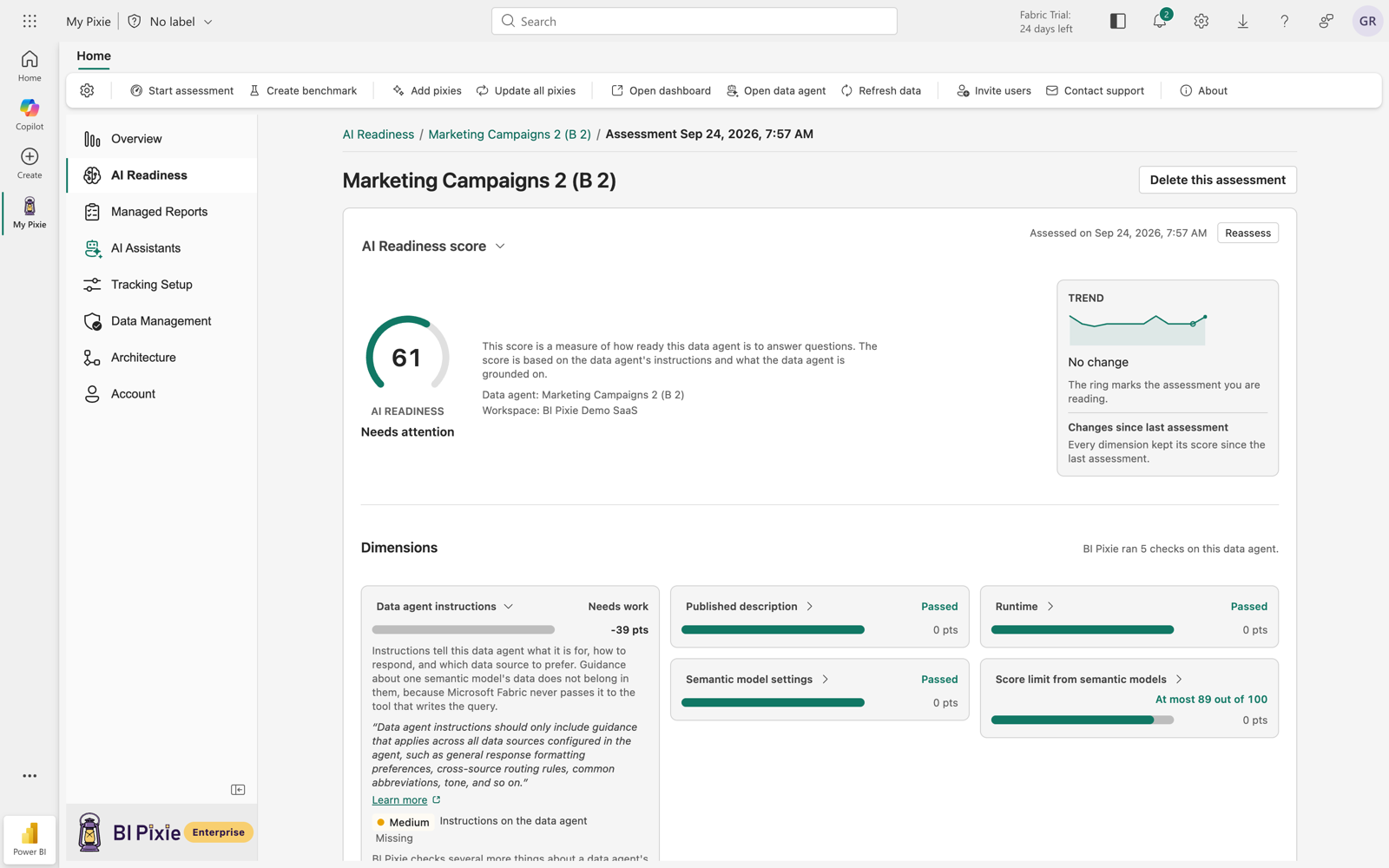
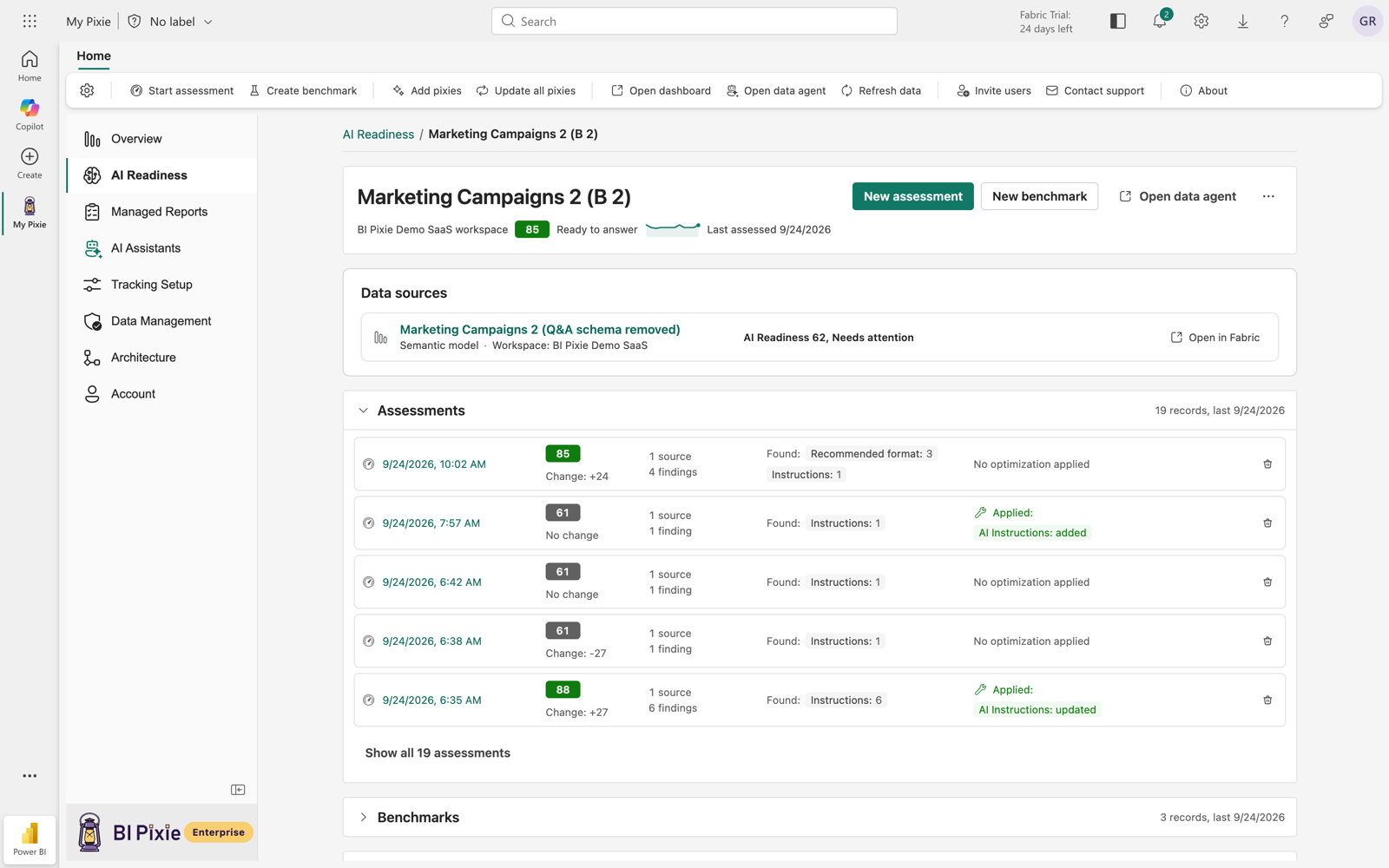
Every data agent has a page of its own, reached from its row in Your data agents. The header states the data agent's name, its workspace, its current score with the band in words, and when it was last assessed, and carries New assessment, the benchmark button and Delete results. On the Enterprise plan the header also says whether BI Pixie assesses this data agent on a schedule, with a control to add it to one. Below the header, the page holds:
- The score card. The score, its band, the date, and one tile per dimension reading Passed, Needs work, or a count such as 3 of 5 checks. Each tile opens to a sentence saying what it measures. What do these scores mean? opens the band legend. Why this score? lists the points each dimension deducted, largest first, with the semantic model cap as its own row when it is what holds the score down. Once the data agent has two assessments, the change against the previous one appears beside the score.
- Optimize data agent. One card holding everything BI Pixie can change for you. It opens with What lowers this data agent's readiness: the findings, grouped by the dimension that was checked. Each group states the dimension's explanation and Microsoft's words once, then a table of what was checked and what was found. Under the findings sit the row where BI Pixie offers the AI round, the count of Checks that could not run, and the five action cards described under Optimize a Data Agent. Copy findings in the findings header puts every finding on the clipboard as plain text, headed with the data agent, its workspace and the assessment date, so you can forward a finding to whoever will act on it.
- Fix on your own. The findings BI Pixie cannot act on, grouped the same way. You make those changes in Microsoft Fabric, or on the semantic model the data agent uses.
- Grounded on. Each data source with its kind and its workspace. A semantic model's row carries its own AI Readiness score, or says that the semantic model has not been assessed yet, with Assess this semantic model beside it. A lakehouse, a warehouse or a mirrored database is listed with how many of its tables the data agent uses. A source BI Pixie could not open is listed with the reason, and where a permission is what is missing, BI Pixie offers Grant access on that row.
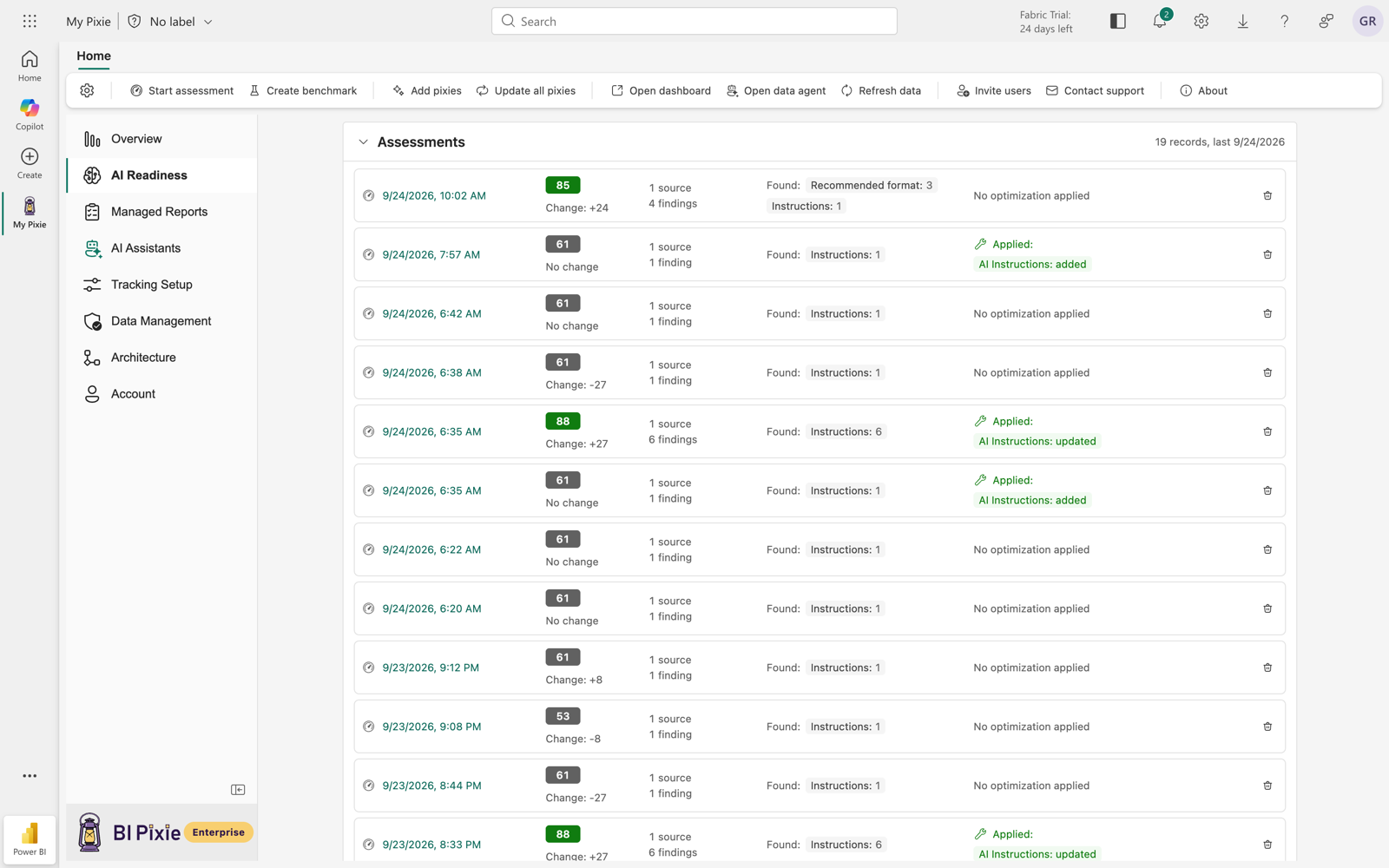
- Assessments and Benchmarks. Two folded lists, each headed with how many records it holds and the date of the most recent. A record states its score and its change against the record before it.
The score describes the published configuration of the data agent, which is the one its answers come from. When changes have been saved in Microsoft Fabric and not yet published, a notice above the score says they are not included until the data agent is published again.
How the Semantic Models Cap the Score
A data agent cannot answer better than the semantic models it is grounded on, so BI Pixie caps its score by their readiness. The cap is 70 plus 30 times the average score of the semantic models BI Pixie has assessed, taken as a fraction of 100. Grounded on one semantic model that scored 90, a data agent can reach 70 + 30 x 0.9 = 97. Grounded on one that scored 40, it can reach 82. BI Pixie applies the cap after weighing the dimensions, so the dimension tiles still explain the score before the cap, and Why this score? shows the cap as its own row, Semantic model readiness, whenever it is what holds the score down.
A semantic model nobody has assessed takes no part in the cap, because nothing about it has been measured. BI Pixie says so on the score card, states how many of the data agent's semantic models are unassessed, lists every one with its score under Semantic models, and offers to assess the unassessed ones where you have access to their workspaces. Assessing them can move the data agent's score either way: down when a semantic model turns out to be poorly prepared, up when it scores above the ones already assessed and raises the average. A data agent grounded on no semantic model has no cap.
Ask Your AI Provider (the AI Round)
Some checks are questions about wording rather than structure: whether a sentence that names no table is still about one semantic model's data, whether a description says what its source contains, whether an example question is clear, whether two examples conflict. BI Pixie cannot answer them on its own, so the Optimize data agent card carries a row named What your AI provider can add, with a button that names how many checks it will ask about: Ask your AI provider about N checks. BI Pixie sends nothing until you select it. A data agent grounded only on semantic models has one such check, about its instructions, when it carries any. Each lakehouse, warehouse, KQL database or mirrored database source adds up to ten more: about its data source description, and about its example queries and its schema object descriptions where its kind carries them.
When you select the button, BI Pixie asks your AI provider one narrow question per check, passing Microsoft's rule as quoted text, and takes back a verdict and a one-line reason, never a score. BI Pixie scores the answered checks with the rest, so the score can move up or down, and each finding then shows the text your provider judged, the reason it gave, which provider answered and when. A check your provider did not answer is listed under Checks that could not run and left out of the score, never counted as passed. Because a round answers questions the checks BI Pixie runs on its own could not, BI Pixie shows no change figure between an assessment that asked your provider and one that did not. A scheduled assessment never runs the round, because the round needs you signed in.
BI Pixie keeps every verdict and asks about a check again only when the text your provider judged has changed. A round on an unchanged data agent asks about no check again. It still makes the calls in which your provider drafts text for BI Pixie, one for the data agent's instructions and up to two per lakehouse, warehouse, KQL database or mirrored database source, so repeating it costs about that many calls rather than nothing.
Your provider receives the data agent's instructions, the instructions and descriptions of its data sources, its example queries, its schema object descriptions, and the names of the tables, columns and measures they refer to. It never receives the data in your tables. What the Provider Sees states the full list. When your AI provider is the BI Pixie data agent, BI Pixie needs a separate permission to ask it questions on your behalf, and offers Grant access in place of the Ask button on that row until you have given it once. That permission is not the storage permission described under Grant Access to Read a Source.
What the AI round costs on your capacity
Where your AI provider is Azure AI Foundry, OpenAI or Anthropic, the round runs against that account and nothing runs on your Fabric capacity. Where your AI provider is the BI Pixie data agent in your workspace, which is the Workload's default, every call in the round is a question that data agent answers, and Microsoft charges it to the capacity behind that workspace, at Microsoft's published rate for a data agent question: 100 CU seconds per 1,000 input tokens, 10 per 1,000 cached input tokens, and 400 per 1,000 output tokens. Microsoft states that these rates are subject to change at any time.
BI Pixie does not read your capacity's consumption, so it cannot show you what a round cost, and the figures below are estimates rather than a reading of your capacity. They come from our own measurements on a capacity we control, against the BI Pixie data agent on Microsoft's preview runtime, read from the Fabric Capacity Metrics app. They are not a customer benchmark and not a Microsoft statement. The method is published in How to Measure What a Fabric Data Agent Costs Per Question, so you can measure your own data agent before you plan on a figure.
- One call cost about 1,650 CU seconds in our measurements. Nearly all of it is the context the BI Pixie data agent carries into every question, its schema, its instructions and its example queries. The text BI Pixie sends barely moves the figure, so a round costs about its number of calls times that amount, whatever the calls contain.
- A round of twelve calls cost about 20,000 CU seconds, close to 3 percent of what an F8 capacity can spend in one day. That was a data agent grounded on a lakehouse. A round for a data agent grounded only on semantic models made two calls, about 3,400 CU seconds, half a percent of an F8 day.
- The Runtime card on the result changes what the data agent you assessed costs its own users, not what a round costs. Over a semantic model with a large Q&A linguistic schema, the standard runtime loads that schema into every question and the preview runtime does not, which in our own testing multiplied the cost of a question many times over. BI Pixie offers, on that card, to move the data agent to the preview runtime. The round itself is answered by the BI Pixie data agent, so that offer leaves the round's cost as it is.
Optimize a Data Agent
The Optimize data agent card holds five action cards, one per thing BI Pixie can change for you, in the same order of steps as optimizing a semantic model: you read the finding, you ask for a proposal, you review and edit it, and you approve it. BI Pixie proposes the instructions and the data source setup without your AI provider: it rearranges the text the data agent already carries and fills Microsoft's templates, following the rules above, and composes nothing of its own. The published description is yours to write. BI Pixie writes nothing to the data agent until you approve a change. After every change you apply, BI Pixie publishes the data agent again so its answers use the change, then assesses it again so the score is current. Publishing again publishes everything saved on the data agent, including changes you saved in Microsoft Fabric and had not published yet, so publish or discard those first if they are not ready. Every card is on the screen for every data agent, closed, with one line saying whether BI Pixie found nothing wrong, found something wrong, or could not tell. A card with work in it opens.
| Card | What it checks | What you can apply |
|---|---|---|
| Data agent instructions | Whether the data agent holds guidance that does nothing where it is written. | A proposal for the data agent's instructions, which you edit and apply. Guidance that turned out to be about one semantic model's data is offered to that semantic model instead. |
| Grounding | Whether the data agent uses tables that a semantic model's AI data schema leaves out. | Align with the AI data schema, which removes every table the AI data schema leaves out from what the data agent uses. BI Pixie names the differing tables before you apply it, and aligning is all or nothing. |
| Data source setup | Whether each data source is set up the way Microsoft Fabric reads it. | Data source instructions and a data source description for each lakehouse, warehouse, KQL database or mirrored database source, in Microsoft's template. On a semantic model source, where Microsoft Fabric ignores both, BI Pixie offers to clear them instead. |
| Published description | Whether an AI that routes questions between data agents can tell what this one answers. | A published description you write or edit in the card, starting from the one the data agent holds, saved with Save description. |
| Runtime | Whether the data agent is on Microsoft's preview runtime. | Use the preview runtime. |
Data agent instructions, and the guidance that belongs on a semantic model
The Data agent instructions card opens with the finding and your current instructions, folded. BI Pixie proposes nothing until you select Suggest instructions, or Edit instructions when nothing is wrong. The proposal shows your current instructions, an editable box of proposed instructions holding the guidance that applies to every data source, and one editable block per semantic model holding the sentences that turned out to be about that semantic model's data. BI Pixie decides where a sentence belongs by the tables, columns and measures it names, so the split can be wrong, and that is why every block is editable. A sentence that names objects in more than one semantic model stays on the data agent, with a line saying why. A sentence about one semantic model's data that names nothing also stays on the data agent, until your AI provider has read it in the AI round, which is why this card points to that round rather than carrying a button of its own.
For each block of guidance for a semantic model, BI Pixie offers Review the AI Instructions for that semantic model, or Write AI Instructions when it has none yet. Either opens that semantic model's own AI Instructions review with the guidance filled in. BI Pixie merges the guidance with what the semantic model already says, lists any line of the semantic model's current AI Instructions that the merged text would leave out so nothing disappears unnoticed, and writes nothing until you select Apply to semantic model. BI Pixie writes to the semantic model's own workspace, which can differ from the data agent's. BI Pixie offers the review only where you can change that semantic model, where your plan includes writing AI Instructions, where the semantic model belongs to a license you manage, and where your plan has a tracked item free for it. Where any of those is missing, one sentence says so and no button is offered.
Apply to data agent is the finishing step, and it is what takes the guidance BI Pixie moved to a semantic model off the data agent. Where guidance has not yet been written to a semantic model, BI Pixie asks once before applying, names each semantic model whose guidance would be dropped, shows the guidance, and offers to copy it. When every sentence turns out to be about one semantic model's data, the proposal is empty, and BI Pixie confirms once before it clears the data agent's instructions.
Grounding when the semantic model has no AI data schema
When a semantic model the data agent uses has no AI data schema, nothing limits which of its tables the data agent can use, and no change to the data agent fixes that. BI Pixie says so on the Grounding card and, where it has confirmed you can change that semantic model, offers to prepare its AI data schema, which opens that semantic model's AI data schema page. Otherwise the card says what is missing and what it would take.
What BI Pixie Reads, by Source Kind
Microsoft Fabric reads a different part of a data agent's setup for each kind of data source, and BI Pixie can open some kinds of source and not others. Which checks a data agent gets follows from both, and the table states them together.
| Source kind | What Microsoft Fabric reads from the data agent's setup for it | What BI Pixie opens |
|---|---|---|
| Semantic model | The selected tables, and the data agent's instructions for choosing between sources. Data source instructions, a data source description and example queries are not supported. The AI Instructions in Prep data for AI are what Microsoft Fabric reads when it writes a DAX query. | BI Pixie opens the semantic model's definition in full, and shows its own AI Readiness score where it has been assessed. |
| Lakehouse | The selected tables, views and functions, data source instructions, a data source description, example queries, and schema object descriptions on the preview runtime. | BI Pixie reads the names of its tables on the Fabric permission you already hold. It reads the descriptions on its tables and columns once you have given the storage permission described under Grant Access to Read a Source. |
| Warehouse, mirrored database | Everything a lakehouse's setup carries: the selected tables, data source instructions, a data source description, example queries, and schema object descriptions on the preview runtime. | BI Pixie reads the names of its tables and the descriptions on them once you have given the storage permission. Without it, the checks that compare the setup with the tables the source holds do not run, and the source's row says so. |
| KQL database. The Grounded on row lists it as an eventhouse, the item that holds it. | The selected tables, data source instructions, a data source description and example queries. Schema object descriptions are not supported. | BI Pixie does not open a KQL database yet. It checks the setup as written in the data agent, so the checks that compare the setup with the tables the database holds do not run. The source's row says so, and that is a limit of BI Pixie rather than a fault in your setup. |
A source BI Pixie could not open neither raises nor lowers the score. Every check that needed it is left out rather than counted against the data agent.
Grant Access to Read a Source
To read the tables a warehouse or a mirrored database holds, or the descriptions on a lakehouse's tables and columns, BI Pixie needs one permission that assessing a semantic model does not: permission to read OneLake storage as you. Benchmarks and data residency use the same permission, so anyone who has run a benchmark or set up data residency holds it already and never sees this. BI Pixie asks for it only when a data agent needs it, and only when you choose. For a warehouse or a mirrored database the last assessment could not open, and for a lakehouse whose tables were read and whose descriptions were not, BI Pixie says so on the source's Grounded on row:
BI Pixie needs your permission to read the tables this warehouse holds. It reads the names of the tables, never the data in them.
Under each such sentence BI Pixie offers Grant access. When you select it, BI Pixie asks Microsoft for the storage permission by name, only then and never when the page opens. Once you have given it, BI Pixie starts a new assessment at once with the source read, on the same page. That assessment counts like any other for your plan, and can be the second assessment that makes the data agent a tracked item. Closing the dialog leaves the row as it was and starts nothing. The permission is yours rather than the account's, so each teammate is asked on their own first visit. A data agent grounded only on semantic models never needs it.
What the permission is used for. BI Pixie reads the names of the tables a source holds, and the descriptions on its tables and columns. It never reads the data in the tables, and no row of your data reaches BI Pixie or your AI provider. If your organization's consent policy refuses the request, BI Pixie removes the button, links the page that lists every permission it asks for, and gives you text to send your own administrator asking for your own access.
Who Can Assess and Change a Data Agent
One Fabric permission covers reading and changing a data agent, so BI Pixie offers a data agent for assessment only in a workspace where you hold a Contributor role or higher. Access to the workspace holding your BI Pixie item grants nothing on any other workspace. BI Pixie acts as you, and can never reach a data agent you cannot.
A stored result stays readable by anyone on your BI Pixie account, including someone who has since lost write access to that workspace, because the result is a record of what was found. What such a person cannot do is run the assessment again or apply a change. Either attempt fails with a sentence naming the workspace and the access needed, with the result still on screen, and Copy findings is written for that case: the copied text names the data agent, its workspace and the date, so a finding still reads correctly when a colleague who can act on it receives it.
Assessments and Your Plan
The first assessment of a data agent is free on every plan, exactly as the first assessment of a semantic model is. A data agent whose semantic models are all already tracked items counts nothing further against your plan. Any other data agent becomes a tracked item on its second assessment or its first applied change, and BI Pixie says so in a short disclosure before the work starts. From then on its assessments count toward the same daily allowance as your semantic models. See Plan Allowances. Writing guidance into a semantic model's AI Instructions from a data agent's page follows that semantic model's own rules for plans and tracked items.
What's Next
- Semantic Model Assessments, to measure the semantic models a data agent is grounded on, which cap its score.
- AI Provider, to connect the AI that answers the AI round.
- AI to Test, to benchmark the data agent's answers against correct answers computed from your own data.
- Add Pixies to Your Reports, so that the checks on descriptions and table use are grounded in what your report viewers actually open.