
Performance and exports
With Admin Monitoring on, BI Pixie measures the queries behind your reports: how much CPU time each visual uses, and how much CPU time each data export uses. Six pages are built on those measurements. They answer the question: which reports slow people down or use the most CPU time, and why?
- Performance Trends follows CPU time over time, by page, visual and report.
- Performance Heatmap draws a report's pages with each visual colored by how heavy it is.
- Performance Impact sets performance against the use a report gets.
- Performance by Users shows whose activity uses the most CPU time.
- Export Activities lists the data exports, who made them, and how much CPU time they used.
- Export Heatmap draws where on a report the exports come from.
Performance Heatmap, Performance Impact and Performance by Users have no tab of their own. They open from the page navigator on Performance Trends.
To turn Admin Monitoring on, see Admin Monitoring. The pages are in the installed BI Pixie Dashboard report, and in the Performance and Security & Governance reports in the dashboard's Reports folder. Until BI Pixie has measured anything, each table and chart carries a line that says why it is empty.
The performance cards
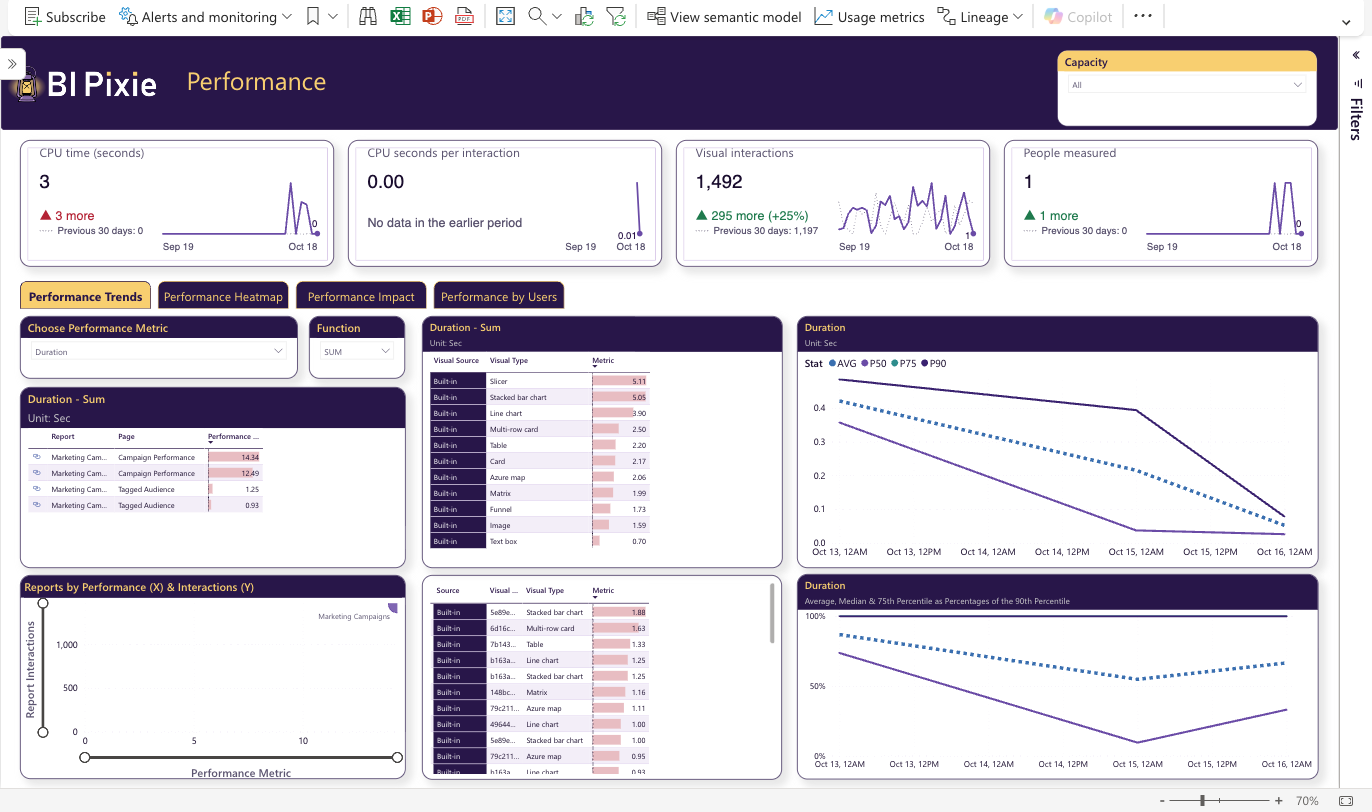
Performance Trends, Performance Impact and Performance by Users open with the same four cards, in a different order on each page. The cards cover the last 30 days and compare them with the 30 days before.
- CPU time (seconds) is the total CPU time that the queries behind the visuals used.
- CPU seconds per interaction divides the CPU time by the visual interactions. It tells you how heavy an average interaction is.
- Visual interactions counts the times a visual was drawn again because someone selected something in another visual or drilled into it.
- People measured counts the people whose report queries BI Pixie measured.
Less CPU time is better, so a rise in either CPU figure is drawn in red. The cards fix their own measure, so the Choose Performance Metric and Function slicers on the page do not move them.
Performance Trends
With Choose Performance Metric, you choose what to measure, and with Function the statistic to take of it. The tables rank visual types, pages and single visuals by that measure. One line chart follows it day by day, and another compares it with its own 90th percentile. The scatter chart places each report by its performance and its interactions, so a heavy report that many people use stands out at the top right.
Performance Heatmap
Performance Heatmap draws a page as a map of its visuals, each one colored by the chosen measure, beside a table of the pages. Hover over a visual to see its figure and the measures and columns its query uses. The page has no headline cards. Its color scale shows what each color stands for.
Performance Impact
The scatter chart places each page by its performance and the business measure you choose with the slicer of business measures, such as interactive sessions. It shows whether slow pages get less use. The tables beside it list the heaviest visuals with a sample of the DAX query each one sent, and the measures and columns that query uses.
Performance by Users
The tables list the reports with the most CPU time and the people they reached, the 20 visuals and the 20 people with the most CPU time, and the measures and columns their queries use. A line chart follows the CPU time as a 7-day running total.
Export Activities
Export Activities answers the question: what data leaves your reports, and who takes it? Admin Monitoring collects the exports itself, so a report needs no Pixies to appear here.
- Data exports counts the times people exported data from a visual.
- Rows exported counts the rows those exports held.
- People who exported data counts the people who made at least one export.
- Export CPU time (seconds) is the CPU time the exports' queries used. A rise is drawn in red.
With Select Export Metric, you choose what the tables and the chart show. The tables rank reports, people and visuals, with the last export date and the DAX query behind each export, and the chart follows the chosen figure over time.
Export Heatmap
Export Heatmap draws a page with each visual colored by its exports, so you see which visuals people export from. Narrow it by the rows exported or the export type. Like the Performance Heatmap, it has no headline cards. Its color scale, above the grid, runs from purple for the visuals with the fewest exports to red for the visuals with the most.
What to do with it
- Start with the reports at the top right of the Performance Trends scatter chart: heavy and widely used. Improving one of them helps the most people.
- In the heaviest visuals, the measures and columns tables point at the DAX to improve. A measure that appears in many heavy visuals is worth rewriting once.
- When CPU seconds per interaction rises while interactions hold, the reports themselves got heavier. Look for a recent change to the semantic model or the report.
- Many large exports from one visual suggest that people need the data in another form. A table built for them, or Analyze in Excel, may serve them better.
- Exports of many rows by one person are worth a look for data governance, especially from reports with sensitive data.