
Endorsement and data sources
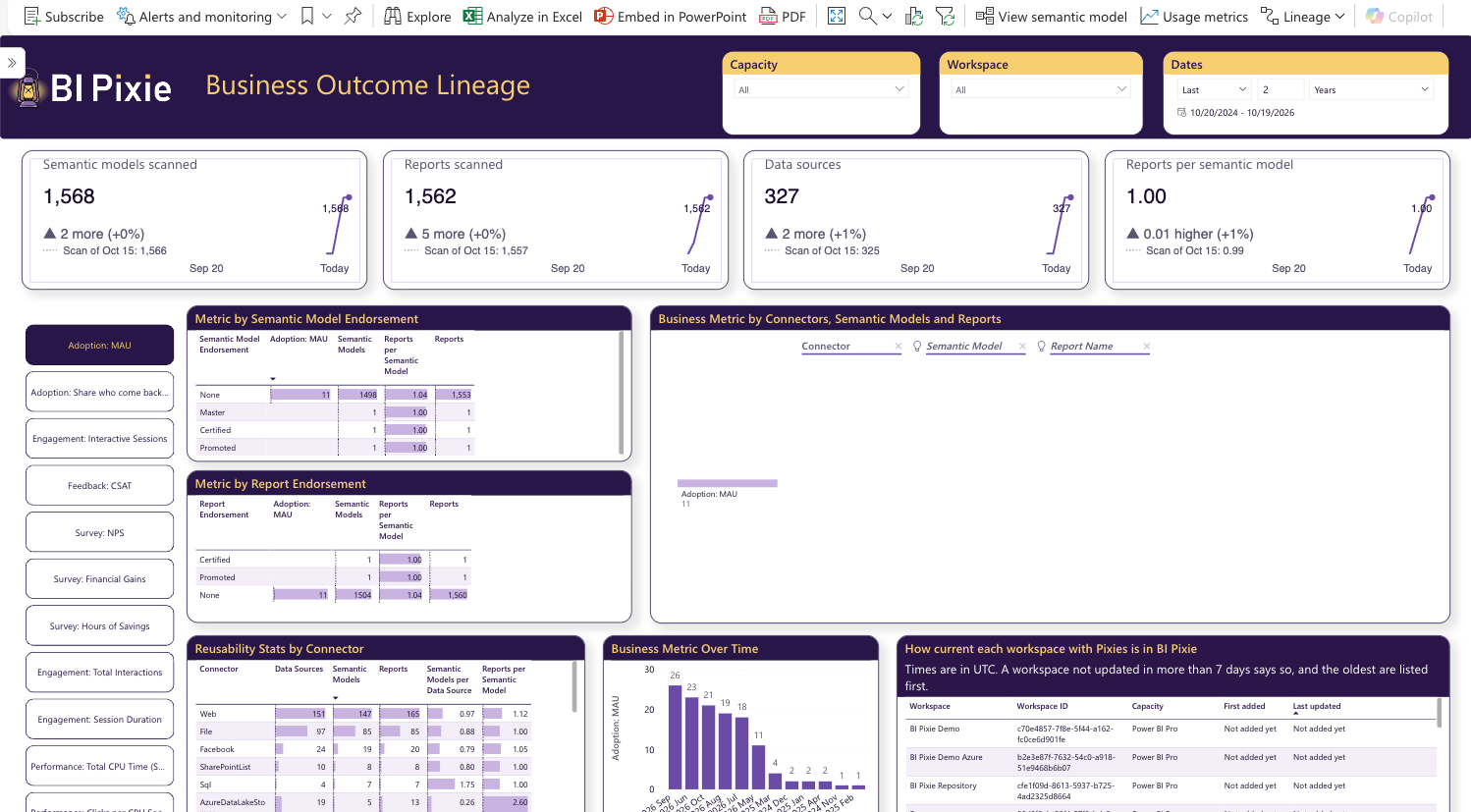
With Admin Monitoring on, BI Pixie scans your Power BI tenant to learn what the estate holds: its semantic models, its reports, the data sources behind them and their endorsement. The Endorsement & Data Sources page is built on those scans. It answers the question: is the estate built on trusted, shared semantic models, or on many copies?
To turn Admin Monitoring on, see Admin Monitoring. The page is in the installed BI Pixie Dashboard report, and in the Business Outcomes report in the dashboard's Reports folder.
The cards
The four cards describe the estate as of the latest scan. Each card compares it with the scan nearest to 30 days earlier and names that scan, for example "Latest scan · scan of Sep 13: 1.00". While the scans cover less than 30 days, the card compares with the first scan. The change is drawn in grey whichever way it goes, because a larger or a smaller estate is neither good nor bad in itself. The trend line follows the scans across the 30 days.
- Semantic models scanned counts the semantic models in the tenant.
- Reports scanned counts the reports in the tenant.
- Data sources counts the data sources those semantic models connect to.
- Reports per semantic model is the average number of reports built on one semantic model. The higher it is, the more your semantic models are shared.
Until the first scan has run, each card reads No scan has run yet, and the tables and charts read No tenant scan has run yet.
Endorsement
Metric by Semantic Model Endorsement and Metric by Report Endorsement group the estate by its endorsement in Power BI: certified, promoted, master data, or none. Each row shows how many semantic models or reports carry that endorsement, how many reports are built on each semantic model, and the business measure you choose with the slicer of business measures, such as monthly active users.
Data sources and reuse
- The decomposition tree starts at the connector, such as SQL Server or SharePoint, and opens into the semantic models that use it and the reports built on each one. Select a node to go a level deeper.
- Reusability Stats by Connector lists each connector with its data sources, the semantic models for each data source and the reports for each semantic model.
- Business Metric Over Time follows the chosen business measure month by month.
How current each workspace with Pixies is
The table How current each workspace is in BI Pixie tells you whether the figures for each workspace are up to date. It lists every workspace with Pixies, with a link to the workspace in Power BI and the capacity it is on:
- First added is the date of the earliest record BI Pixie holds for the workspace.
- Last updated is the date and time of its newest record, in UTC.
- Status reads, for example, "Not updated in 11 days." on an amber fill for a workspace last updated more than 7 days ago, and is empty otherwise. The table lists the oldest first.
- A workspace BI Pixie has not read yet reads Not added yet.
The table always shows the latest state, so the Dates slicer does not filter it. The Capacity and Workspace slicers do.
What to do with it
- When Reports per semantic model falls, people are building new semantic models instead of reusing the ones that exist. Find the connector with the most semantic models per data source, and look for semantic models that could be merged.
- When most use falls on reports with no endorsement, the semantic models people rely on are not the ones you have certified. Consider promoting or certifying the semantic models that carry the most use.
- A workspace whose Status reads "Not updated" has figures that stop at its Last updated date. Its numbers on the other pages are as old as that date.