
Test a Change with an A/B Test in Microsoft Fabric
You can use an A/B test to find out whether a change to your semantic model, or to the AI that answers from it, made more answers correct. You compare the version you have today with the version you changed, using the same questions, and you see every answer on both sides scored against the correct answer computed from your own data. With A/B tests, every optimization your team keeps is one that measurably made your AI more accurate.
In an A/B test, side A is the version you have today, and side B is the version you want to compare: a copy of the semantic model that your team is optimizing, or the same semantic model answered by a different AI, such as a second data agent or Copilot.
Side B runs a copy of side A's benchmark. Both sides are asked the same questions, and both are scored against the same correct answers. Side B's semantic model needs no benchmark of its own.
Prerequisites
- A benchmark with questions on side A's semantic model. The benchmark doesn't need to have run yet. Side B's semantic model doesn't need an assessment. To create a benchmark, see Benchmarks.
- An AI for each side, with what that AI needs to run a benchmark: a paid Fabric capacity for a Fabric data agent, a Fabric capacity behind the semantic model's workspace for Copilot, or a generic AI agent saved in AI setup. See Choose the AI to test.
- Benchmark runs. On the Pro and Enterprise plans, each side of the test uses one benchmark run, so a full A/B test uses two. The Free and Standard plans include one A/B test run in total.
- Room for one more tracked item on your plan, for side B's semantic model.
Create and run an A/B test
- Open your BI Pixie item in Microsoft Fabric, select AI Readiness, and then select the A/B tests tab.
- Select New A/B test. To have side A filled in for you, select Create A/B test on a benchmark result, a semantic model's row menu, or a semantic model's page, or Start A/B test on a data agent's page.
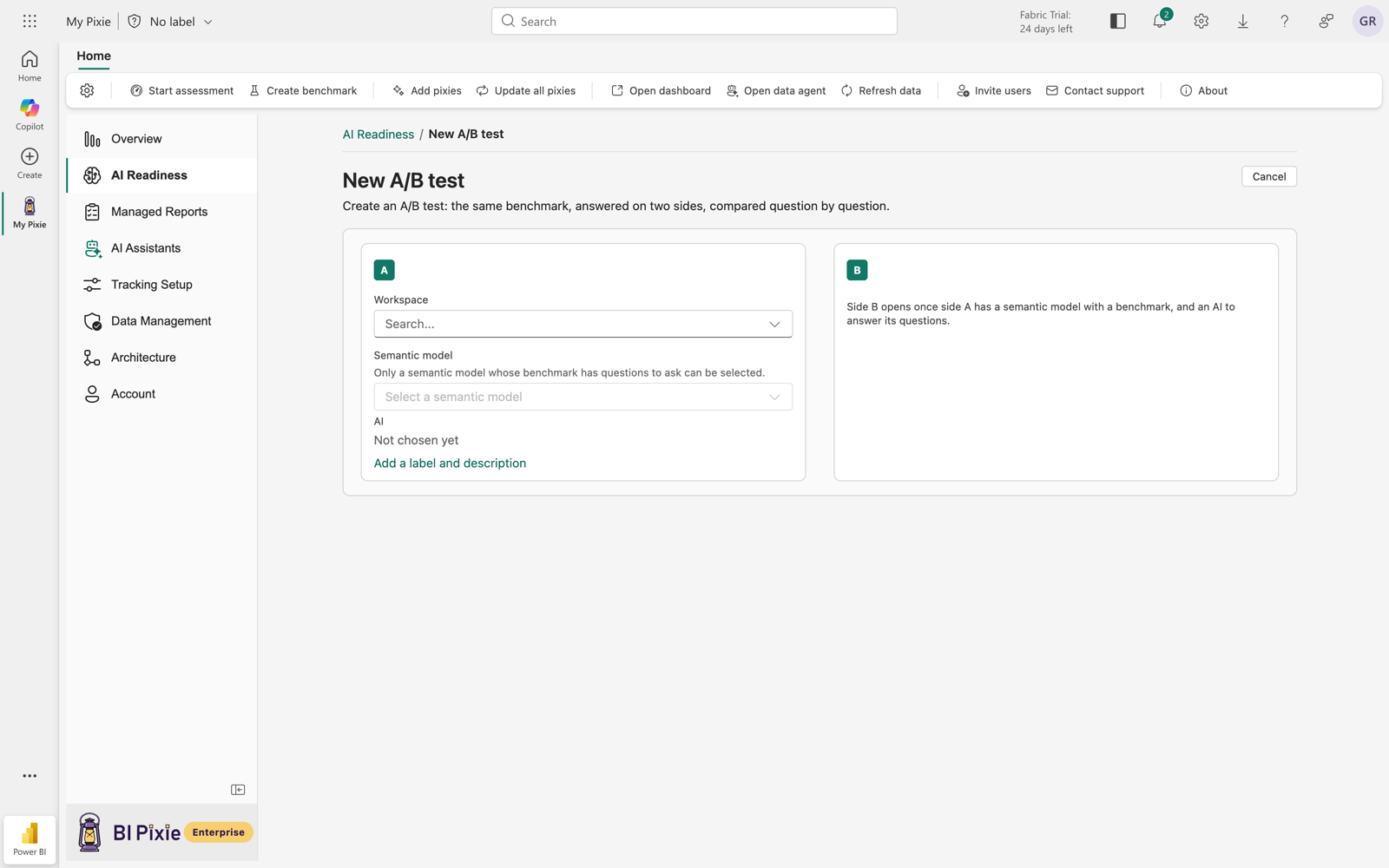
- Under Side A, choose the workspace, the semantic model, and the AI that answers. You can select only a semantic model whose benchmark has questions to ask. To see the questions that both sides will be asked, select Review the questions.
- Under Side B, choose what you want to compare, and then choose side B's semantic model and AI. For the choices, see Choose what side B compares.
- Under Hypothesis, state what you expect:
- To expect side B to do better, keep Side B will answer more questions correctly than side A.
- To expect side A to do better, or both to do the same, select Suggested hypotheses, and choose one.
- To state it in your own words, edit the text. You then judge the result yourself, instead of seeing whether the hypothesis held.
- Enter a name for the test. Optionally, give each side a label, such as Production or Curated copy, to use in the result in place of A and B.
- Review what the test will do: the questions and how many times each is asked, where each side is answered, whose Fabric capacity and AI each side needs, and how many benchmark runs the test uses. To run side B only, select Reuse side A's run from an earlier date and run side B only, instead of Run both sides. The test then uses one benchmark run instead of two.
- Select Run A/B test, or Run side B and compare if you reused side A's benchmark run.
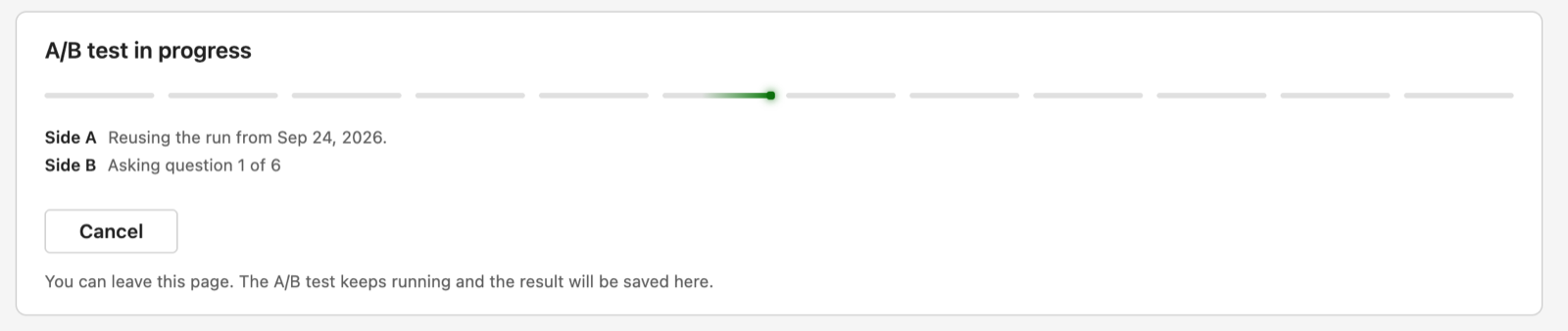
Side A is asked first, and side B follows. You can leave the page while the test is underway, and open it again from the A/B tests tab to see the result. You also find each side's benchmark run in its semantic model's benchmark history.
Choose what side B compares
When a Fabric data agent answers for side A, you can compare it with:
- A different semantic model, with a copy of side A's data agent. This is the default. Select Create the copy to copy side A's data agent, with its instructions and settings, onto side B's semantic model and publish it.
- A different semantic model, with its own data agent. Both the semantic model and the data agent differ from side A.
- A different data agent on the same semantic model. Choose one of the other data agents that use side A's semantic model, or create a test agent or a copy of side A's data agent.
To compare with a different kind of AI, select Compare with Copilot or a generic AI agent instead. When Copilot or a generic AI agent answers for side A, you can compare a different semantic model with the same AI, or the same semantic model with a different AI.
To check that side B holds the same data as side A, read the Agreement row under side B after you choose both sides, for the number of questions whose correct answer is the same on both sides. If the two sides hold different data, see Understand the result.
Stop a running A/B test
- On the A/B test in progress card, select Cancel.
- Read what stopping will cost, and then confirm. The test stops between questions, so a question that is already being asked finishes and is recorded.
What the stop costs depends on when you stop:
- Before the first question: nothing is spent, and your benchmark runs, or the included A/B test run, come back.
- While side A is being asked: the test counts, has no score, and side B doesn't start. On the Pro and Enterprise plans, side B's benchmark run comes back. On the Free and Standard plans, the included A/B test run is spent.
- While side B is being asked: both sides are spent, and nothing comes back.
A stopped test shows as Cancelled, has no score, and adds nothing to either semantic model's benchmark trend.
Read the result
Open the A/B test from the A/B tests tab. On the result, you can:
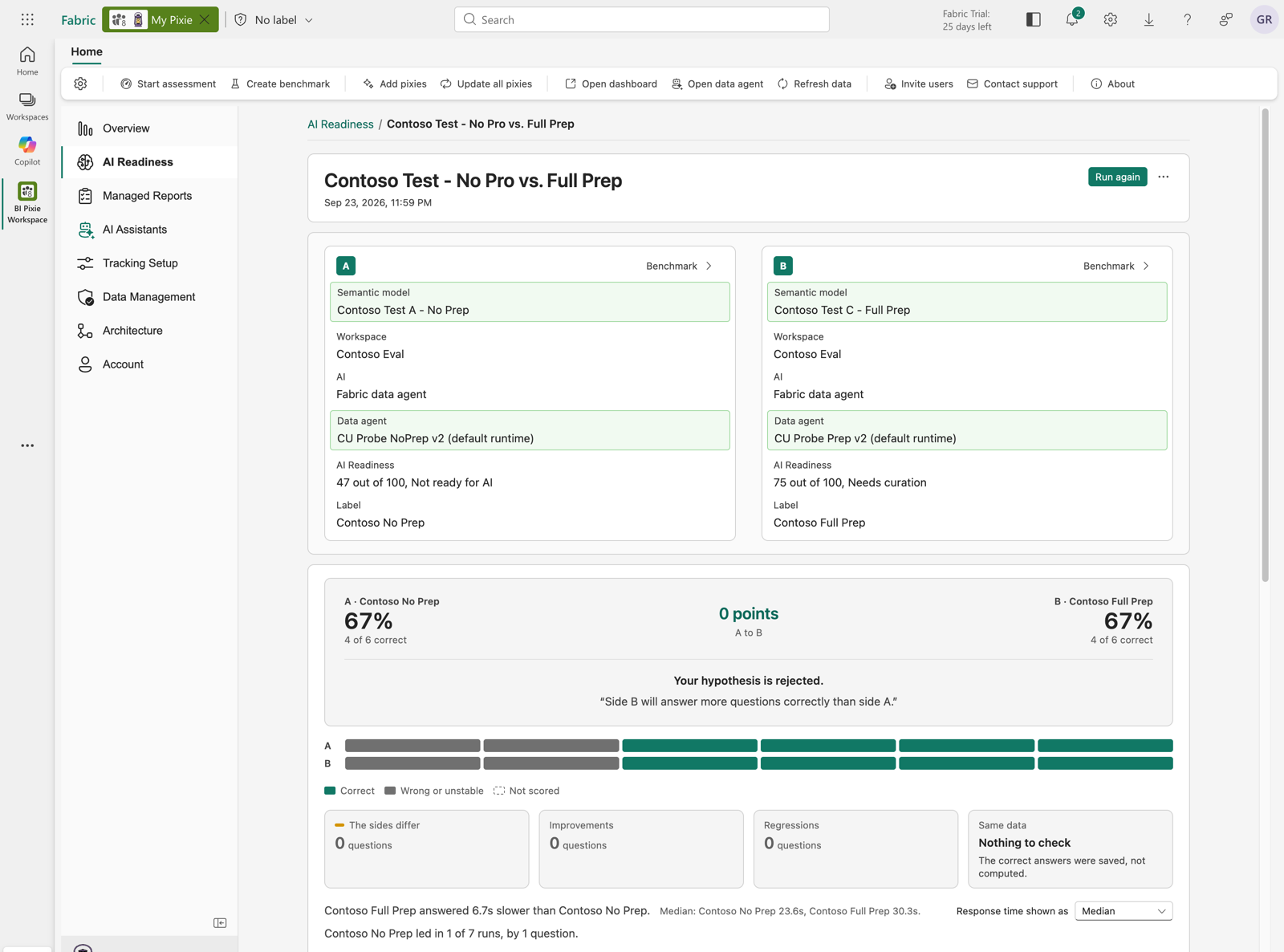
- Check your hypothesis first. For a suggested hypothesis, you see whether it's confirmed, rejected, or inconclusive, with the reason when it's inconclusive, such as too few questions scored.
- Compare each side's score, the correct answers out of every question, and the difference in points from side A to side B. To open one side's own benchmark result, select it on that side.
- Scan the two answer strips to see whether each question was Correct, Wrong or unstable, or Not scored on each side. To read one question, select its column.
- Select The sides differ, Improvements (wrong on side A, correct on side B), or Regressions (the reverse) to filter the question table. Select Show all questions to clear the filter.
- Open a question in the table to see each side's answer beside the correct answer. Each question is tagged Improvement, Regression, Both correct, Neither correct, or Not compared when neither side scored it.
- When both sides give the same answer and both are marked wrong, select Review this answer to check the correct answer on side A's benchmark. The correct answer itself may be the problem.
- Compare how long each side took to answer, and open About this A/B run for the details of this result.
- Open an earlier result of the same test from Past A/B runs.
Understand the result
Both sides are scored against the correct answers computed from side A's semantic model. Keep these points in mind when you read a result:
- Different data. If side B holds different data, a correct answer from side B's own data would be marked wrong. To catch this, side A's correct-answer queries are also run against side B's semantic model, at no cost to your benchmark runs. In the Same data tile, you see how many questions agreed, and a question whose data differs is tagged Different data.
- No verdict. If every question's data differs, you see a comparison of the data instead of a verdict.
- Unscored questions. Each side is scored as correct answers out of every question, so a question that a side didn't score counts against that side.
- Hidden fields. If side B's AI data schema excludes a field that a question uses, the question is tagged for side B's AI, for example Hidden from Curated copy's AI, and you see the fields listed so that you can include them.
Run again, edit, or delete an A/B test
- To repeat the test with the same two sides, select Run again. If the benchmark's questions changed since, choose whether to use the current questions or the ones the test used before.
- To change the name, the labels, the descriptions, or the hypothesis, select Edit A/B test. To compare a different semantic model or a different AI, create a new A/B test.
- To delete the test and its results, select Delete A/B test. The benchmark runs on both semantic models are kept.
- To delete one result of the test, select Delete result on its row in Past A/B runs.
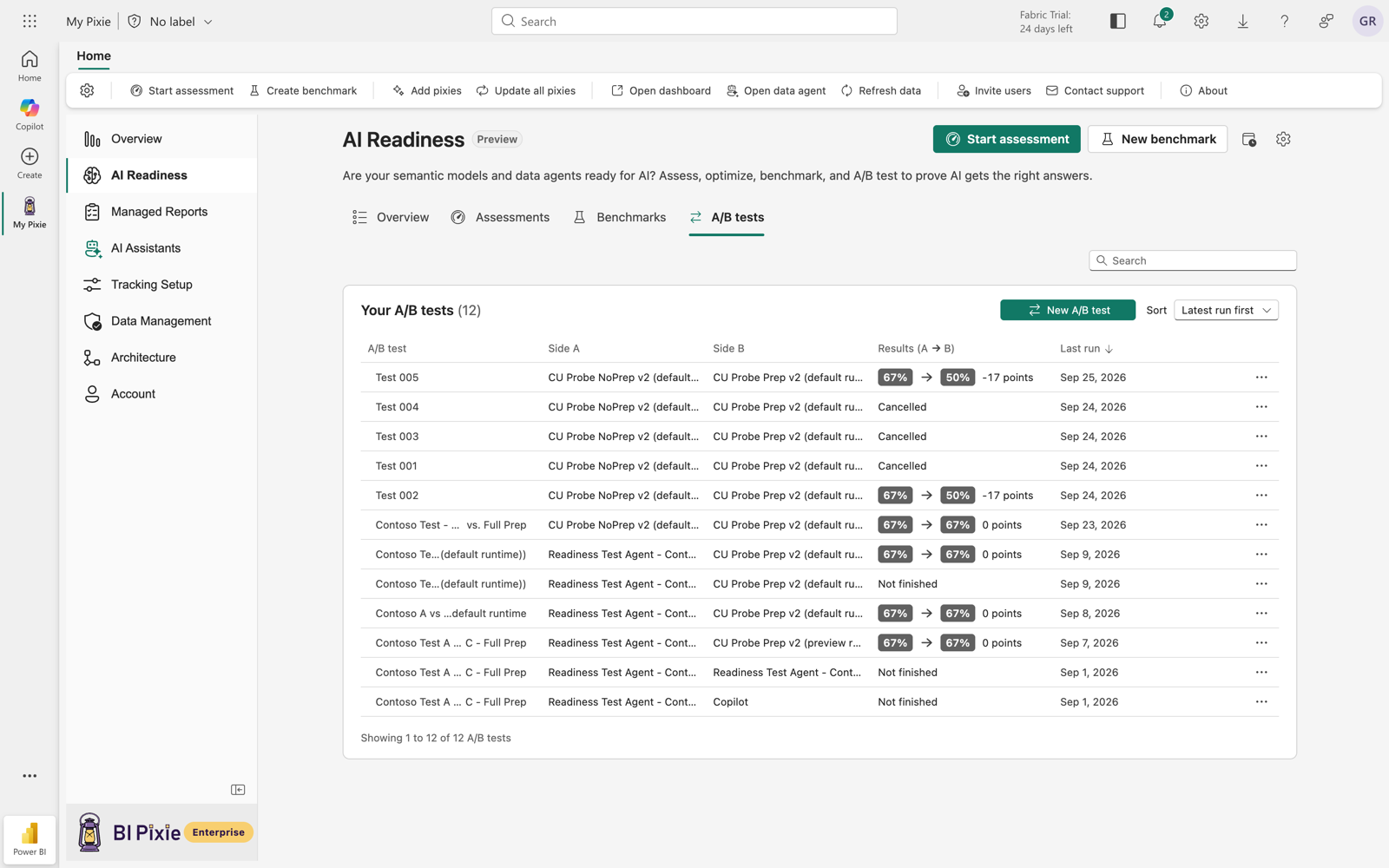
On the A/B tests tab, you can:
- Search by A/B test, semantic model, or data agent, and filter by workspace.
- Open, edit, delete, or run a test again from its row menu.
- Before your first test, select See a sample A/B result to see what a result looks like.
Considerations and limitations
- Both sides are tested with the same questions. When you run the test again, it asks the same questions as the first time, unless you choose the benchmark's current questions.
- A question with no correct answer to check against is set aside before it's asked. You can see on the progress card how many questions each side set aside. Side B can set aside more or fewer than side A, for example when its AI data schema excludes a field.
- If side A can't finish, side B isn't asked. A test that asked no questions doesn't count against your benchmark runs.
- Each side of the test is an ordinary benchmark run. You find it in its semantic model's benchmark history, marked with the A/B test it belongs to.