AI Readiness at Scale: the BI Pixie API and Your AI Agents
You can now run AI Readiness from your own scripts and from the AI agents you work with, signed in as you, through the new BI Pixie API. And you can show everyone following AI Readiness where it stands, in the new AI Readiness Dashboard.
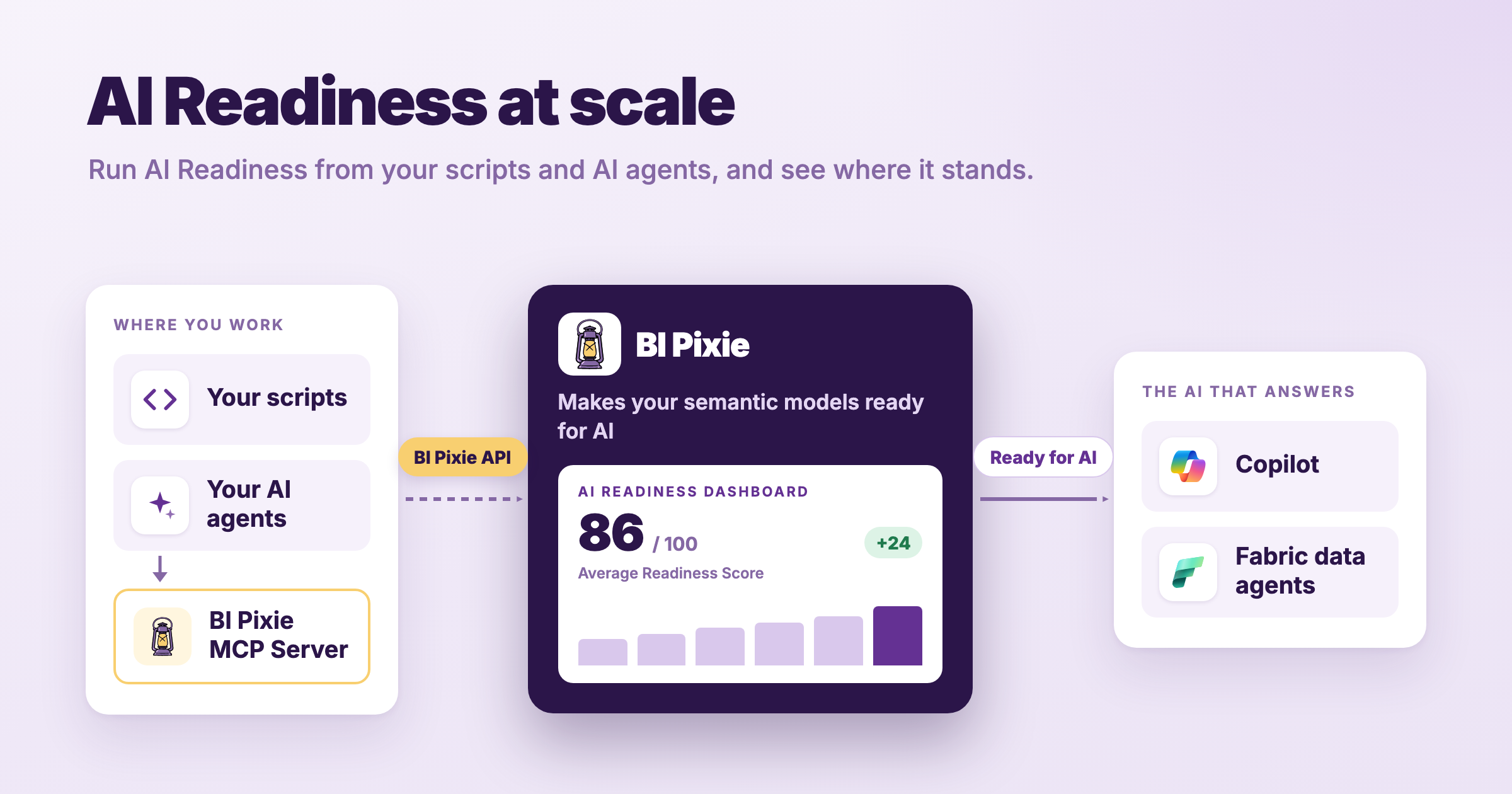
How do you get AI Readiness at scale?
Optimizing one semantic model takes many iterations and tests, and you need a way to do that across the mission-critical ones. Your Power BI semantic models already carry the business context AI needs, but it was written for people rather than for AI agents. An AI agent that lacks that context does not report an error. It returns a confident answer that may be wrong, and you find out in an executive review.
In the BI Pixie portal and in the BI Pixie workload in Fabric you already work through the AI Readiness loop: you assess the AI Readiness of a semantic model, fix what holds AI back, and prove the result with a benchmark, one semantic model at a time or a whole workspace in one batch.
With this release you can run the AI Readiness loop in two more places. With the BI Pixie API you run the loop from your own scripts and from the AI agents you work with, signed in as you. With the AI Readiness Dashboard you show everyone following AI Readiness how far it has come.
Run AI Readiness from your scripts and your AI agents
The person who knows a semantic model is the one who prepares it for AI, and your mission-critical semantic models have many such owners. You can now reach every step of AI Readiness from wherever you already work: a script you run after a deployment, a notebook you keep beside a semantic model, or an AI assistant you ask in your own words.
What you can do through the API
- Assess a semantic model or a data agent. You get an AI Readiness score and the findings behind it, measured the same way every time, so you can compare one assessment with the next.
- Preview an AI optimization, apply it, revert it. You see what BI Pixie proposes beside what the semantic model holds today, and nothing is written until you apply it. BI Pixie records every value it replaced, so one call puts them all back.
- Generate a benchmark, save it, and run it. BI Pixie writes the questions and the DAX that calculates each correct answer from your own data, then puts the questions to the AI you are preparing and scores what comes back.
- Read what a run produced. You get the accuracy, the response times, and each question with its verdict beside the answer and the correct one.
- Add Pixies to your Power BI reports, remove them, and read your tracked items. When you add Pixies, BI Pixie applies the tracking setup you saved for the workspace, including the feedback controls and surveys you set up in the BI Pixie portal.
What your AI agents can do with the BI Pixie API
You can ask an AI assistant such as Claude to assess a semantic model, show you what it would improve, and benchmark the result. Your assistant reaches the BI Pixie API through the BI Pixie MCP server on your own machine, and every call it makes is signed in as you. Before a tool changes anything, BI Pixie shows you the change and waits for your decision. Only when you agree does BI Pixie write.
These tools arrived in bipixie-mcp 0.6.0. You run the server on your own machine, where uvx bipixie-mcp starts it from PyPI without a permanent install. You sign in with az login, which covers the usage tools and these tools together, with nothing to register and nothing for an administrator to consent to. You turn these tools on by setting BIPIXIE_MCP_API_APP_ID to the BI Pixie application ID, 114a7e20-3796-4ddd-ab99-568a78b7759b. Without it the server carries the usage tools alone. The BI Pixie MCP Server guide covers the rest.
There are two reasons to run AI Readiness through an assistant.
Business context that no general assistant has. Through Pixies, BI Pixie measures which fields and visuals people actually open in your reports. BI Pixie collects viewer user names only when you turn on Capture user identity, and until then it counts viewers by a masked IP address. BI Pixie weights the AI Readiness score toward what your audience asks for. It also draws benchmark questions from that usage, so you test the AI on the data your business actually asks about. The correct answers come from DAX that BI Pixie runs against your own semantic model, never from the AI being tested.
One standard across many data owners. BI Pixie runs the same checks whichever semantic model it assesses, checks each benchmark answer the same way, and previews each change before anyone applies it. So one person’s semantic model and another’s are measured on the same scale, and you can rank your mission-critical semantic models and data agents against each other.
How you sign in
You sign in with your own Microsoft account, for example with the Azure CLI, and every call you make reaches what you reach in BI Pixie. There is no API key to create, store or rotate, and BI Pixie keeps no credential that can read your data. BI Pixie uses your sign-in for the length of the call and then discards it.
The BI Pixie API is a REST API at api.bipixie.com/v1, and it follows the conventions of the Microsoft Fabric REST API. It is available on every BI Pixie plan, the Free plan among them.
The BI Pixie API reference
The API documentation covers signing in, the conventions every call follows, and every route with its fields and errors.
Read the BI Pixie API documentationShow everyone how far AI Readiness has come
AI Readiness has an audience beyond the people doing the work. Your team, your data owners and your leadership want to know how it is going. How many of your semantic models are ready for AI? Did the optimizations you applied raise the scores? Are the AI answers getting more accurate? Which A/B test variant won?
You answer those questions from the BI Pixie AI Readiness Dashboard, one Power BI report you share like any other report. BI Pixie installs it next to the BI Pixie Dashboard in your Fabric workspace, builds it on the same BI Pixie semantic model, and fills it with the same Refresh data you already use. In it you see:
- How ready your semantic models are, and how their scores moved over time.
- The findings that affect the most semantic models, so you can fix a pattern once.
- The optimizations you applied, and what the next assessment measured.
- Benchmark accuracy over time.
- Each A/B test, with its hypothesis and its outcome.
- Each data agent’s score and the checks it does not pass.
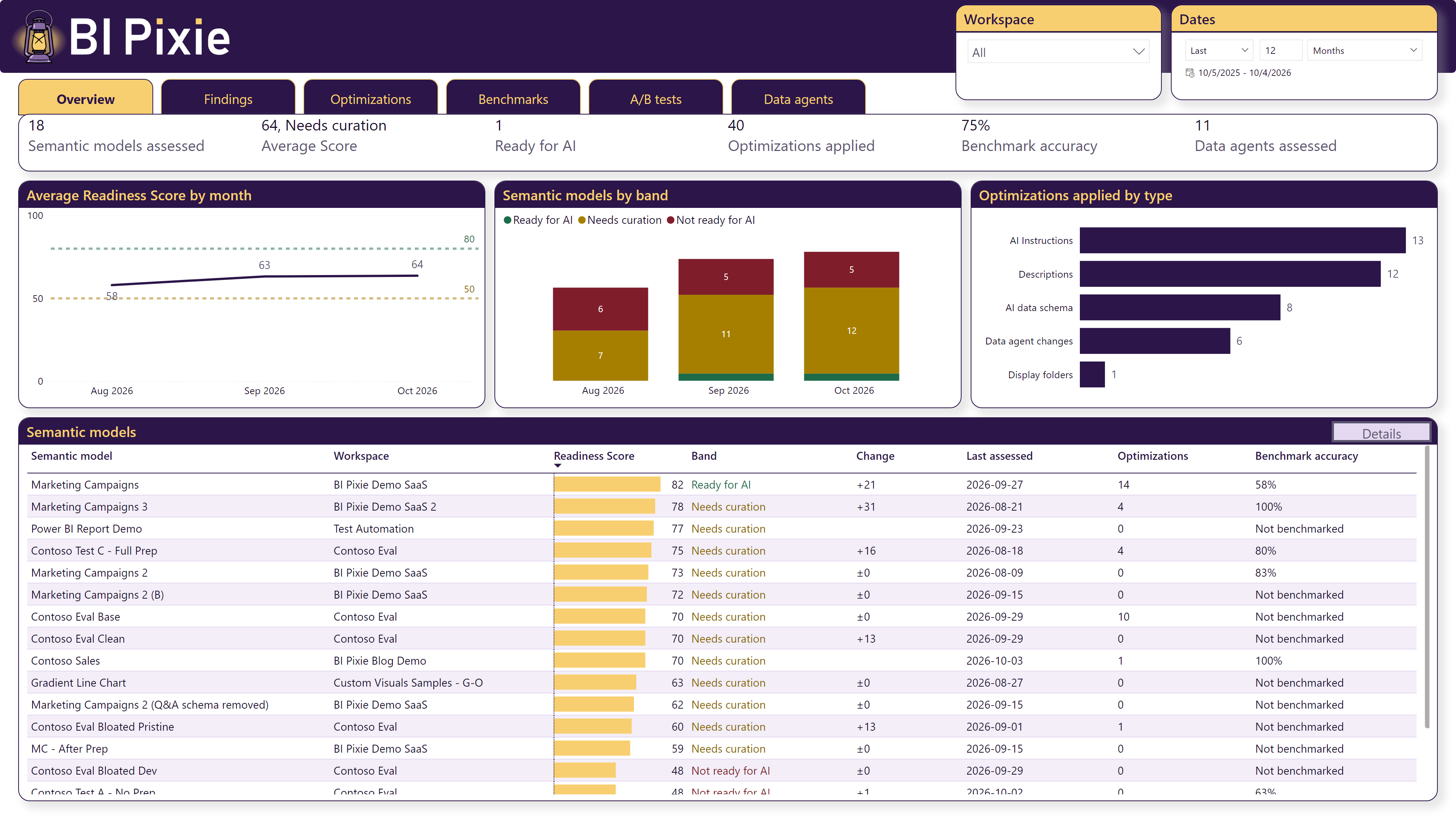
You see the semantic models and data agents you are preparing for AI. On an Enterprise plan, where tracked items are unlimited, the report has no limit on how many it holds.
From the Semantic models table you open a page for one semantic model, where the work on it reads as a single story.
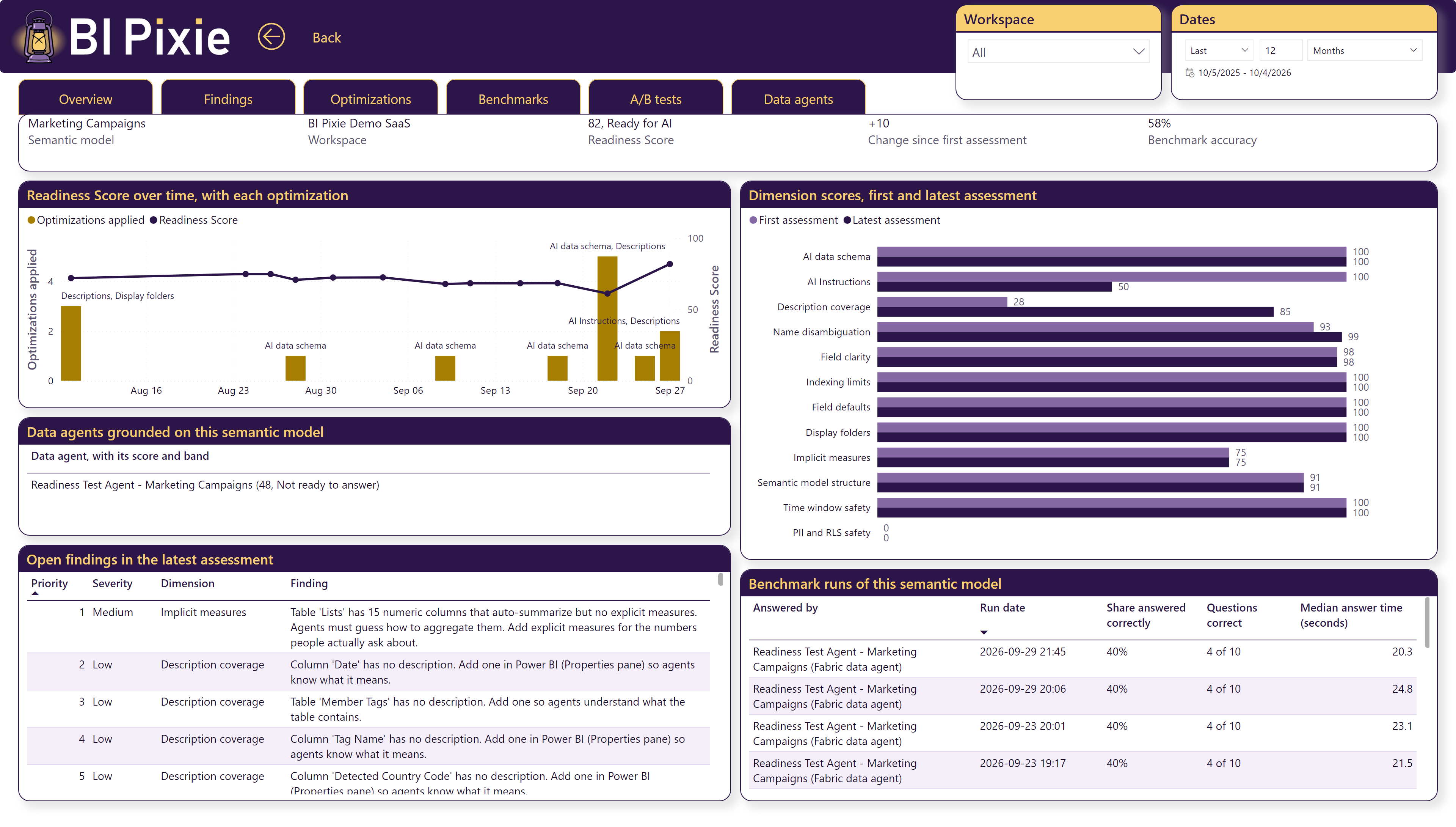
To open the report, select Open AI Readiness dashboard on the AI Readiness page, in the BI Pixie portal or in the BI Pixie workload in Fabric. If you installed the BI Pixie Dashboard before this report existed, the update is offered on the BI Pixie Dashboard card on the Overview page, and the report arrives with it.
Read the AI Readiness Dashboard guideWhere to start
You can start with one mission-critical semantic model. You assess it from a script, or you ask your AI assistant to assess it for you, and its score reaches the AI Readiness Dashboard with the next Refresh data. If you have questions about the BI Pixie API or the AI Readiness Dashboard, contact us.