How to Prepare a Power BI Semantic Model for Copilot: a Practical Checklist
A concrete checklist for making a Power BI semantic model readable by Copilot and Fabric data agents: relationships and grain, descriptions, names, clean columns, the AI data schema, AI Instructions, reviewed measures, calculation groups, refresh timing, the safety checks worth running before you widen AI agent access, and how to find out why an answer is wrong.
Preparing a semantic model for AI comes down to a short list of properties on the semantic model itself. Most of what you change is metadata, which no report depends on, so the work carries little risk to the reports your people already use.
You turned on Copilot, or built a Fabric data agent over a semantic model, and now someone has asked whether the answers can be trusted. That question comes down to a handful of properties inside the semantic model, the ones Copilot and Fabric data agents depend on when they answer. We have put them here in the order we would fix them.
AI agents answer from what the semantic model says about itself. On every item of this checklist you move meaning out of your team’s heads and into the semantic model, where Copilot and Fabric data agents can read it.
A wrong answer by AI looks like a right one. An AI agent with no description to read does not report an error. It answers fluently from a guess, and the number it returns reads exactly like the number you were hoping for. That is why this checklist is worth working through before your rollout widens rather than after it.
The checklist starts with the structure of the semantic model, because no description or instruction can repair a missing relationship or a wrong aggregation. It then covers what the semantic model says about itself and what AI agents are allowed to see, two safety checks worth running before you widen AI agent access, a way to find out why an answer is wrong, and a loop at the end that keeps the result true as your team keeps changing the semantic model.
Download the Copilot-Ready Semantic Model Checklist as a two-page PDF, with every item marked Start here, Next or When you can.
1. Get the structure right first
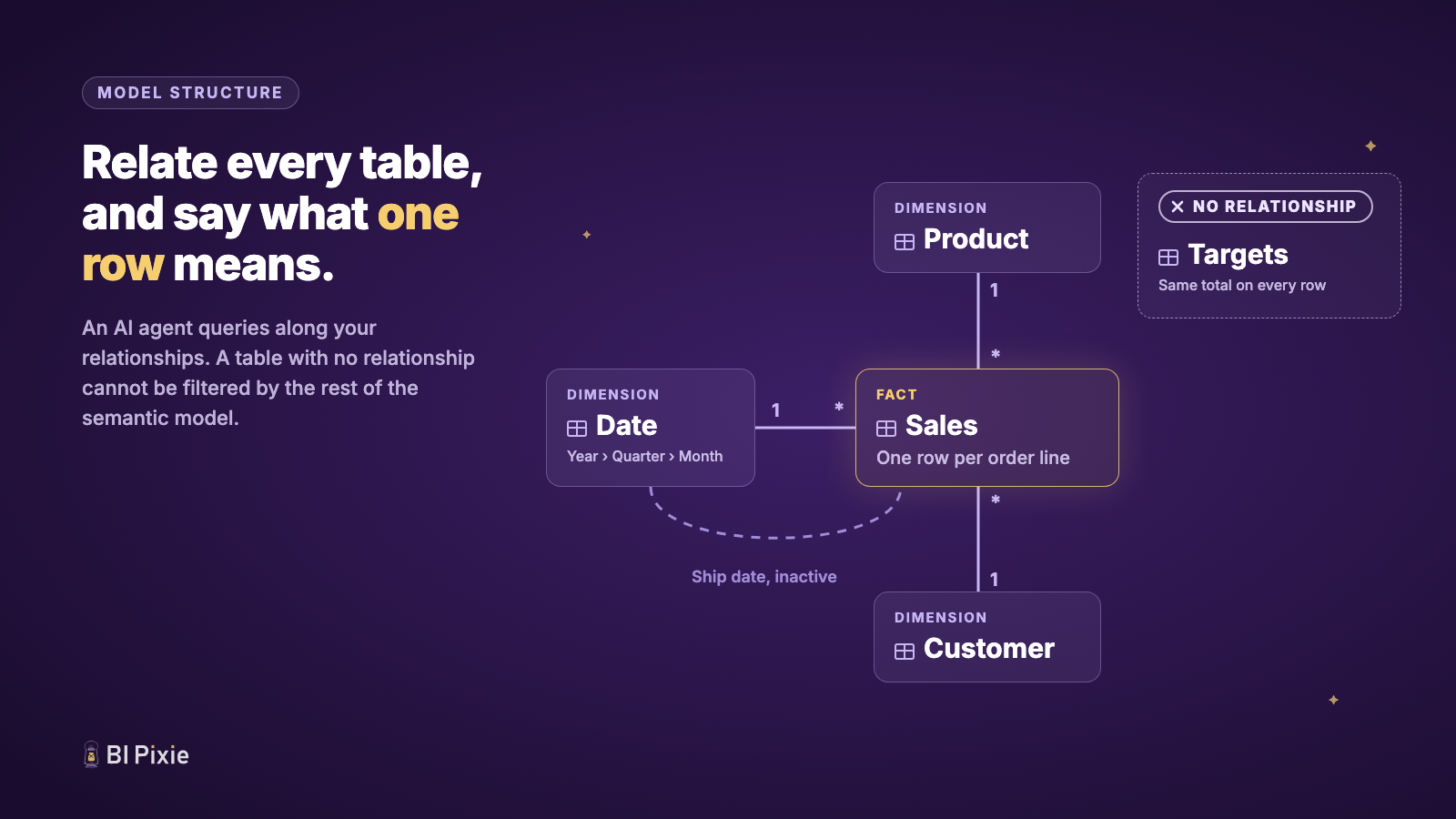
If you build or maintain the semantic model, its relationships and the grain of its fact tables come before every other item on this checklist, and you set them in the model view of Power BI Desktop. Microsoft’s own guidance for evaluating data for Copilot starts here, and for a good reason: “additional instructions can’t correct inaccurate relationships or inappropriate aggregations.” An AI agent writes its query along the relationships in your semantic model, so the relationships have to say what the business means.
- Relate every table. A table with no relationship to the rest of the semantic model cannot be filtered by it. Ask for targets by region, and a Targets table with no relationship returns the same total on every row.
- Say what one row means. State the grain of each fact table in its description, such as “One row per order line.” Without it, an AI agent cannot tell whether to count rows or sum a column to answer “how many orders?”
- Keep descriptive attributes in dimension tables, such as Product, Customer and Date, and keep the numbers you add up in fact tables.
- Use one active relationship per pair of tables. Where a fact table has several dates, such as an order date and a ship date, keep one relationship to the Date table active and leave the others inactive, then write measures that use the inactive ones on purpose.
- Build the hierarchies people think in, such as Year, Quarter, Month and Day, so that “by quarter” has an obvious path.
2. Descriptions: the highest-leverage metadata fix
If you build or maintain the semantic model, the Description property of each table, column and measure is the cheapest place to tell Copilot what a field means. Power BI Desktop shows it in the Properties pane of the model view. Copilot reads table, column, and measure descriptions when it answers, and Microsoft recommends them for Fabric data agents for the same reason. A one-sentence description turns Amount from a guess into a fact: “Net revenue in USD after returns, excluding internal orders.” Copilot reads only the first 200 characters of a description, so put the meaning first: what the field means to the business, its unit, and what it leaves out.
Prioritize descriptions for your measures first, because that is where your business logic lives, then for the columns people actually filter and group by, then for the tables. On day one, the fields that hold business meaning are the ones that need it written down, and the rest can follow.
3. Disambiguate names
If you build or maintain the semantic model, the names of its tables, columns and measures are worth checking for near-duplicates, such as two Date columns, Total next to Total Amount, or Users in three tables. A person resolves a collision like that from context, because they know which table drives the report. An AI agent picks one of the fields silently. Renaming a field removes the collision where a rename is possible, a description resolves it where a rename is not, and the clearest names say their grain and unit: Revenue (USD), Sessions per Week.
4. Clean up the columns
If you build or maintain the semantic model, the values in its columns matter as much as their names and descriptions, and most of them are fixed in Power Query or at the source. The columns people filter and group by come first:
- Use the right data type. An amount stored as text cannot be added up, and a date stored as text sorts alphabetically, so April comes before January.
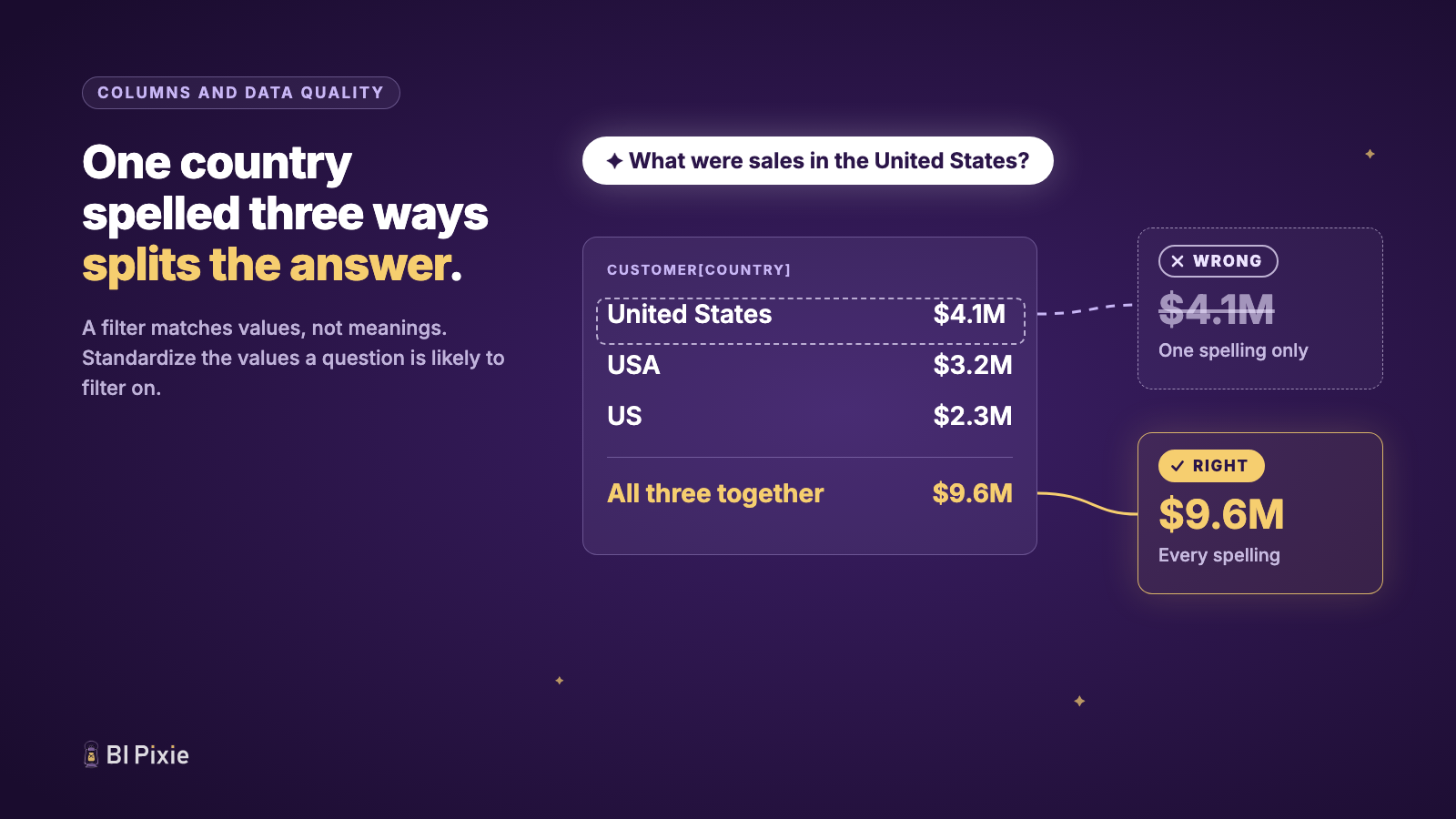
- Standardize the values. When one country is spelled “United States”, “USA” and “US”, a question about the United States filters on one spelling and quietly misses the other two.
- Make every date column say which date it is. “Order Date” and “Ship Date” answer different questions. If your organization uses a fiscal year, say so, and say the month it starts, in the description of the Date table or in the AI Instructions.
- Spell out abbreviations.
ProdIDis clear to the person who wrote it.Product IDis clear to everyone. - Keep keys complete and unique. A blank or duplicated key on the one side of a relationship drops rows or counts them twice, and the answer looks just as confident.
5. Curate the AI data schema
If you build or maintain the semantic model, the AI data schema is the setting in Prep data for AI, in Power BI, that decides which tables, columns and measures of the semantic model Copilot can see. An AI agent that can see every field has more chances to pick the wrong one. Trim what AI agents can see down to what matters: exclude key columns, helper tables, deprecated measures, and technical scaffolding from the AI data schema. Excluding a field is the fastest way to cut ambiguity, because an AI agent cannot pick a field it cannot see.
Copilot also indexes a limited number of fields in a semantic model. In a large semantic model, past that limit, Copilot sees only part of it and gives no sign that anything is missing. When you trim the AI data schema, you keep the fields that matter inside what Copilot sees.
6. Write AI Instructions
If you build or maintain the semantic model, AI Instructions are a setting in Prep data for AI, in Power BI, where you state what an AI agent cannot infer from the semantic model: fiscal calendar quirks, which measure is canonical for revenue, what “active user” means in your organization, which table to prefer for questions about sessions. The AI Instructions are the onboarding paragraph you would give a new analyst, addressed to the AI agent instead.
7. Define the measures your business depends on
If you build or maintain the semantic model, every number your organization reports, such as revenue, margin, customer count or churn, is worth defining as a measure in the semantic model that your team has reviewed, rather than something an AI agent works out from raw columns each time it is asked.
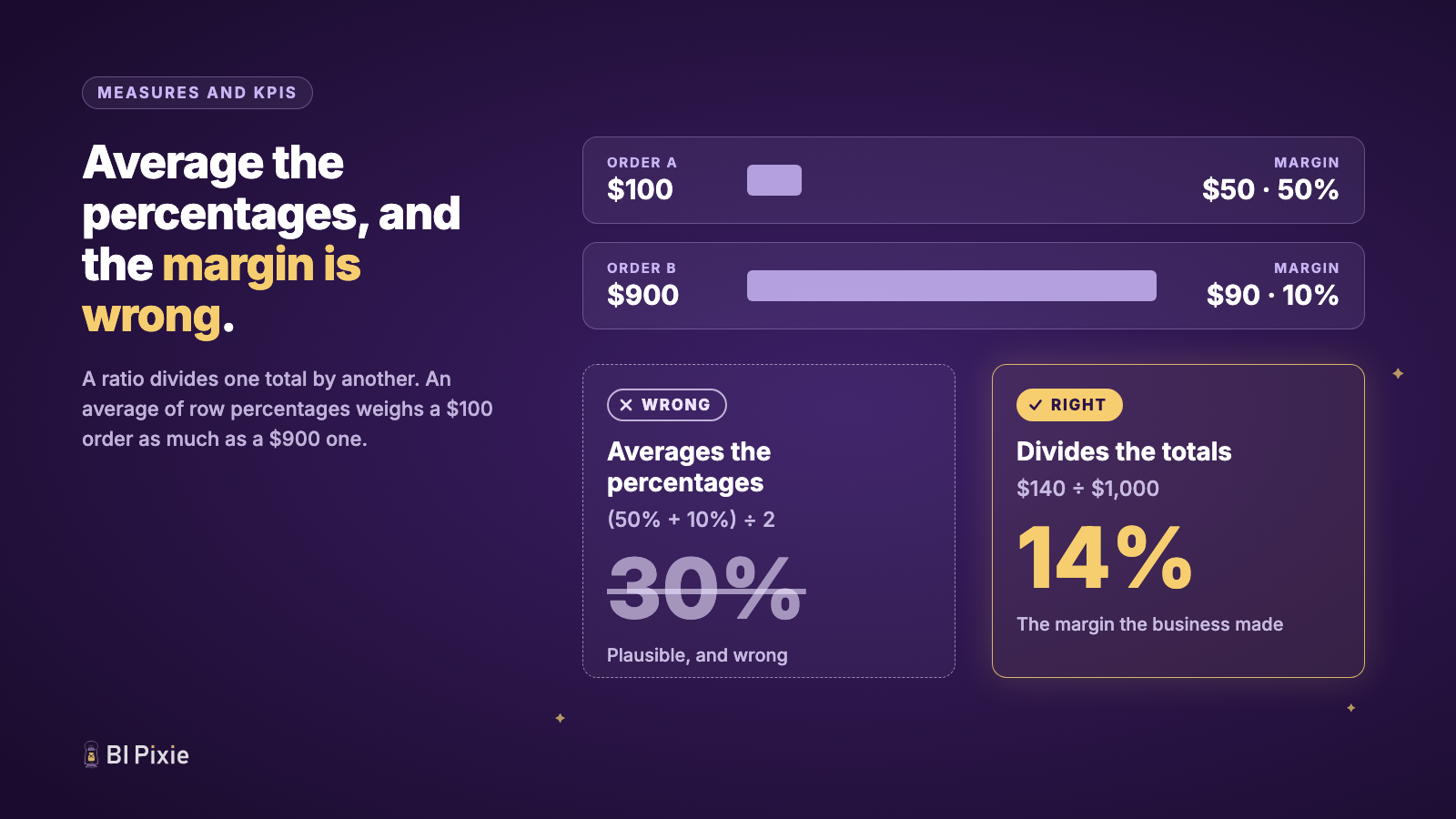
- Divide totals for a ratio. A margin percentage is total margin divided by total revenue. An average of the percentage on each row weighs a $100 order the same as a $900 one, and returns a number that is plausible and wrong.
- Count each thing separately. Order Count and Order Line Count are different numbers, and a measure called Orders that counts lines will be used to answer questions about orders.
- Do not add up balances. Inventory on hand and account balances are snapshots. Summing a daily snapshot across a month gives thirty times the stock, so write a measure that takes the balance at the end of the period.
- Name and format measures for the reader.
Average Customer Ratingwith one decimal reads correctly in an answer.AvgRatingwith a raw float does not.
8. Defuse context-dependent measures
If you build or maintain the semantic model, some of its measures may return different things at different filter grains. On a dashboard that behavior is good design, because the same measure serves a card and a trend chart at once. An AI agent, though, often writes its query without the filters a report would have applied, and then it lands in whichever branch the missing filters imply.
We hit a context-dependent measure of our own in the lab: a [WAU] measure that averaged per week when someone sliced a date range, and returned the latest week when nobody did. Rewriting that measure would break the dashboards built on it. Adding grain-explicit siblings such as [Avg Weekly Active Users] keeps the dashboards intact, and the name tells the AI agent exactly what it gets.
9. Replace implicit measures with explicit ones
If you build or maintain the semantic model, a numeric column with no explicit measure leaves the aggregation to the AI agent, which picks one of its own. An explicit measure fixes the aggregation for anything that should be added up or averaged a particular way, and excluding the raw column from the AI data schema stops the AI agent from reaching past the measure to the column.
10. Set field defaults and display folders
If you build or maintain the semantic model, three properties of its columns and measures are set in the Properties pane of Power BI Desktop: default summarization, the format string, and the display folder. They look cosmetic, yet an AI agent depends on the first two when it answers. Copilot reads format strings when it presents a number. Microsoft recommends setting the right default summarization so that an AI agent does not add up a column nobody meant to add up, such as a unit price or a year. Display folders group related measures, so that the people who maintain the semantic model can find the right measure and notice one filed in the wrong place.
11. List what a calculation group contains
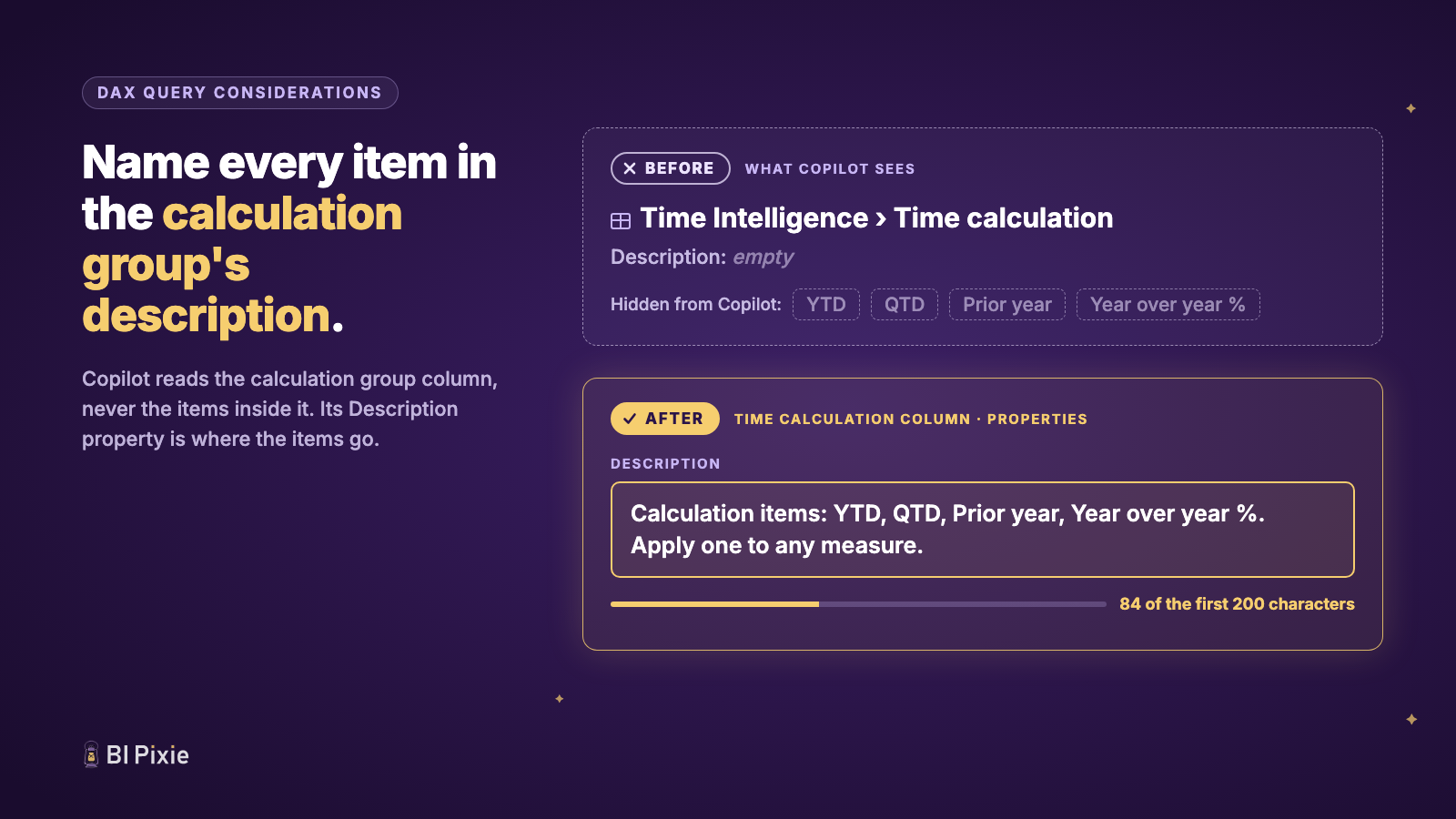
If you build or maintain a semantic model that has a calculation group, the Description property of the calculation group column is where Copilot learns which calculation items exist. A calculation group, such as one for time intelligence, holds calculation items like month to date, year to date and prior year. According to Microsoft’s guidance, Copilot sees the calculation group column but not the items inside it, because the items are not in the semantic model metadata it reads. List the items, and what each one does, in the description of the calculation group column, and keep the list inside the first 200 characters. That is the Description property of the column itself, not the description of a measure, and not the AI Instructions.
12. Say how fresh the data is
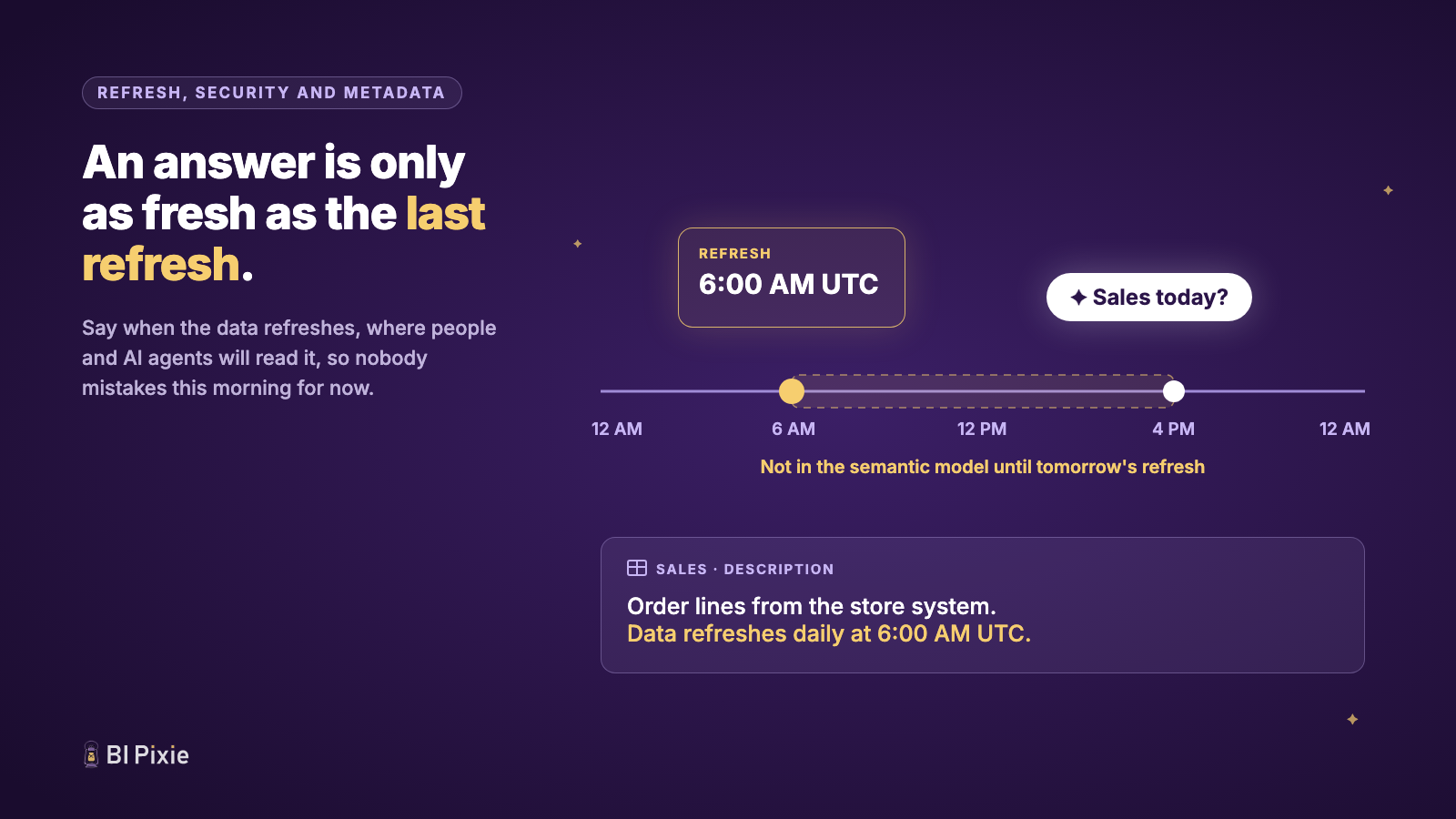
If you build or maintain the semantic model, the description of its fact table is the place to state the refresh schedule, so that Copilot can tell people how current its answers are. An answer is only as current as the last refresh, and the answer does not necessarily say when that was. Someone who asks for today’s sales at four in the afternoon, from a semantic model that refreshed at six in the morning, can take the number for the whole day. The description of the Sales table, for example, can end with “Data refreshes daily at 6:00 AM UTC.”
13. Two safety checks before you widen AI agent access
If you build or maintain the semantic model, two safety checks are worth running on it before more people can ask Copilot or a Fabric data agent about it. The other items on this checklist make answers better. These two checks answer a different question: whether AI agents should be allowed near the semantic model at all.
- PII and row-level security. Where a column holds what looks like personal data and the semantic model has no row-level security, anyone who asks an AI agent about that semantic model can read the column. Hiding the column does not remove access, because anyone who can read the semantic model can still query a hidden column. Row-level security and object-level security are what remove access, and Fabric data agents respect both. Add row-level security, secure the column with object-level security, or remove it before more people start asking questions.
- Time window safety. Where a measure hard-codes a fixed date range, an AI agent asked about a different period still gets the hard-coded one, and it presents that number as the answer to the question you asked. Anchor the range to your data, or explain the range in the measure description.
Both checks describe a risk that grows with every extra person asking questions, which makes them worth settling while the audience is still small. Once the fixes and both of these checks are done, the question becomes how you can tell that any of it worked.
14. When an answer is wrong, find out why before you change the instructions
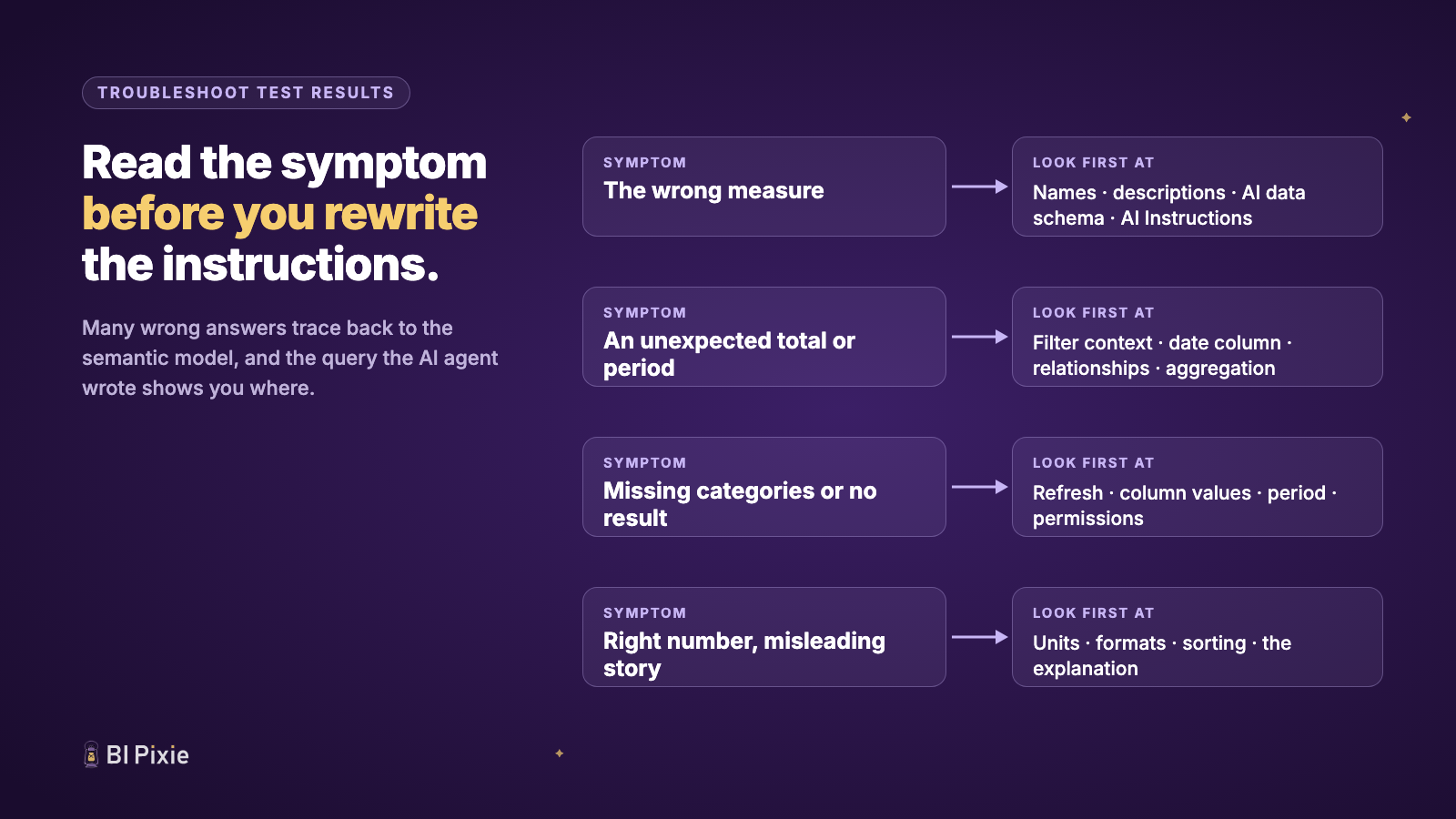
This section is for whoever tests Copilot with real questions, whether you ask the questions or maintain the semantic model. When an answer is wrong, the tempting fix is another line in the AI Instructions, but the query Copilot generated is worth reading first. Many wrong answers trace back to one of the semantic model properties on this checklist, and the symptom tells you where to look. Microsoft lists the same checks by symptom.
- It used the wrong measure. Check the names, the descriptions, what the AI data schema includes, and the AI Instructions.
- The total or the period is not what you expected. Check which filters the query applied, which date column it used, the relationships, and how the measure aggregates.
- Categories are missing, or there is no result. Check the refresh, the values in the column, the period asked about, and whether row-level security limits what the person can see. No result is not the same as zero.
- The number is right, but the answer misleads. Check the units, the format string, the sort order and the explanation that comes with the number.
- The answer is slow or fails. Compare the generated query with a query you know returns the right result, and look at the performance of the measures involved.
- A change you made in Prep data for AI does not show. Confirm you changed the semantic model Copilot is using, give the change a little time, and close and reopen the Copilot pane.
A short list of real questions with the answers you expect, run after every change, shows whether a fix worked. Section 15 turns that list into evidence.
15. Reassess, and prove that Copilot answers better
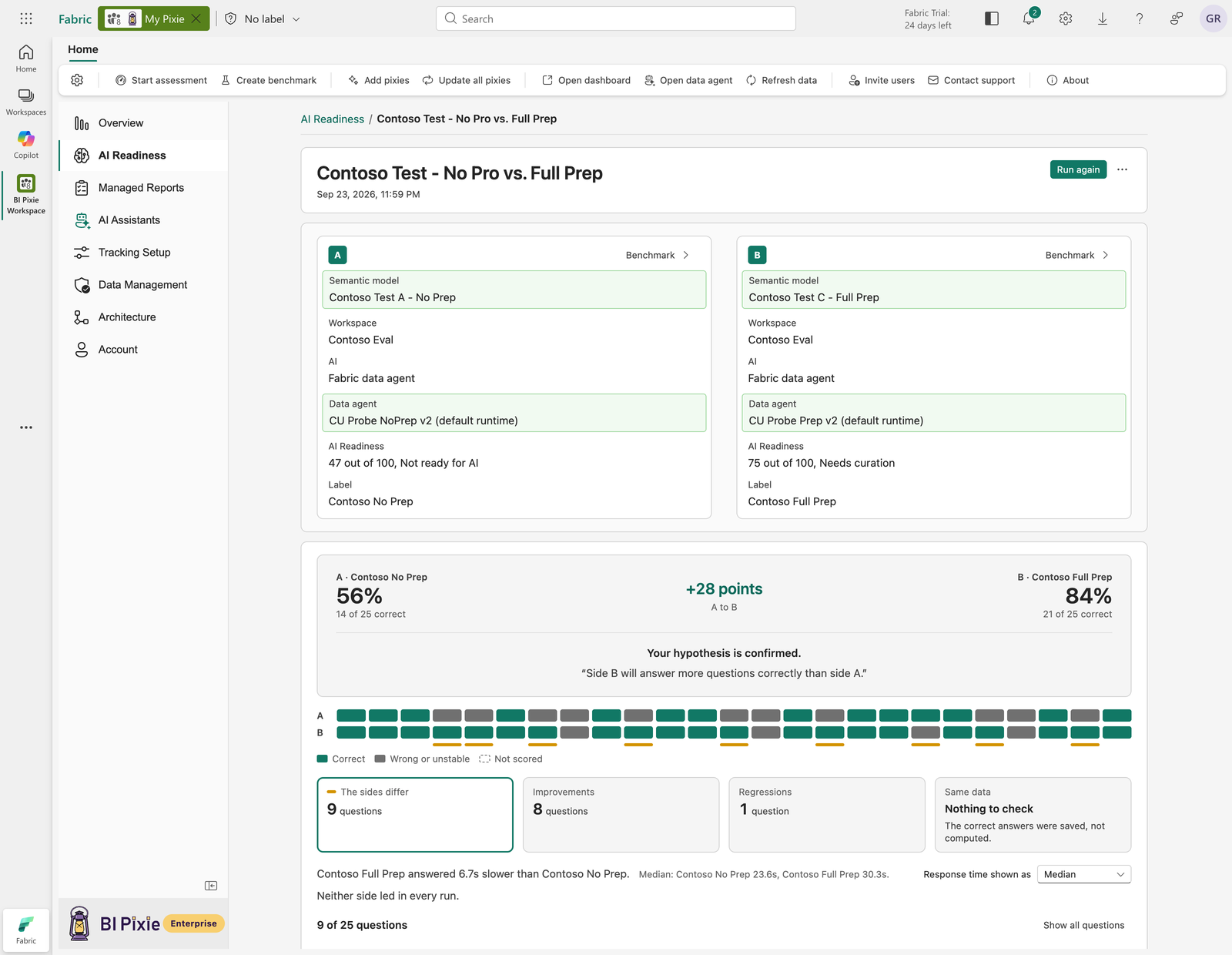
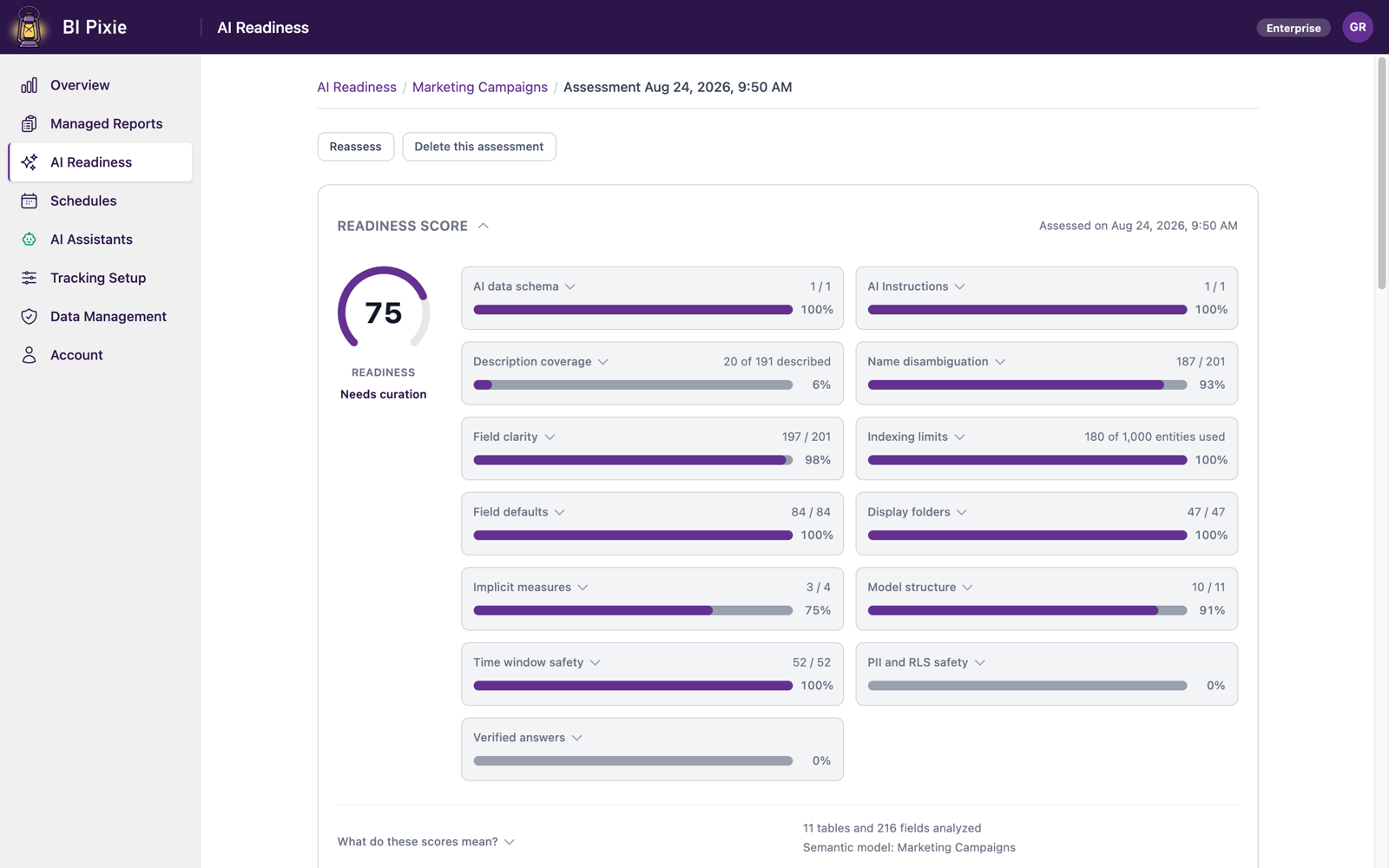
If you own the semantic model, or the Copilot rollout it serves, a second assessment and a benchmark show whether the changes on this checklist made Copilot’s answers better. After the changes, an assessment of the semantic model can be set against the one you started from. An AI Readiness assessment gives you one score and the findings behind it, so the score should move up and the list of findings should get shorter.
An assessment measures the semantic model. A benchmark measures the answers that Copilot or a data agent gives back, which is what your stakeholders judge when they decide whether to trust it. A benchmark is a set of questions with correct answers calculated from your own data: you ask those questions of the AI your people will actually use, and every answer is compared with the correct one. You run the benchmark once before you change anything and again after, and the two results together are the evidence for the “is Copilot actually better now?” conversation.
Every later change to the semantic model can move the answers again, which makes reassessing a loop rather than a one-time project. Where you make these changes matters too, because Microsoft has built a feature that covers two of the items on this checklist.
Where this checklist fits with Microsoft’s own tooling
In Power BI’s Prep data for AI feature you curate three things: the AI data schema and the AI Instructions from this checklist, and verified answers. You can author all three in Power BI Desktop or in the Power BI service, and Copilot and Fabric data agents both use them. You write descriptions on the tables, columns and measures themselves, outside Prep data for AI, and AI agents read them from there.
Verified answers are approved visuals linked to the questions your users ask most. They help Copilot and data agents answer those questions consistently, so they are worth adding for the handful of questions your stakeholders ask every week.
Power BI also carries an Approved for Copilot mark on each semantic model. The standalone Copilot, the one people open on its own rather than inside a report, can be limited by an admin to approved content. Where it is, a semantic model without the mark does not appear in its results, however well prepared it is. You set the mark in the semantic model’s settings in the Power BI service, and the end of this checklist is a natural moment to set it.
Checking many semantic models against this checklist at once
Working through this checklist by hand takes time for one semantic model, and longer for each one your Copilot rollout depends on. BI Pixie helps you take Copilot and Fabric data agents to production: it makes semantic models and data agents ready for AI, and proves AI accuracy against your own data.
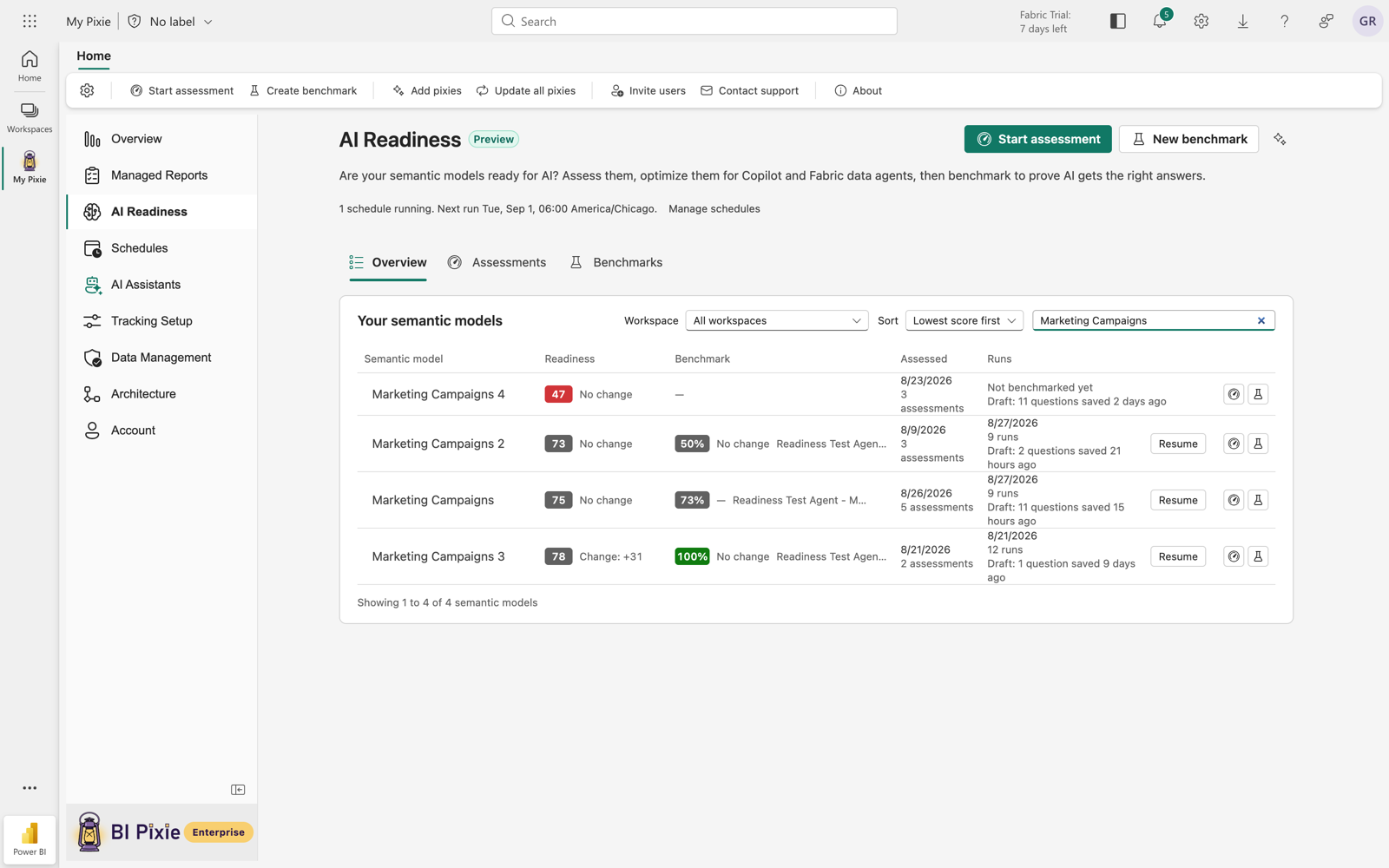
You can assess many semantic models at once against much of this checklist: descriptions, name collisions, the AI data schema and the AI Instructions, field defaults, display folders, implicit measures, tables with no relationship, PII and time window safety. The assessment uses fixed rules and is read-only, so a second assessment is a reliable before-and-after check.
You choose which findings to fix, and AI drafts the descriptions, the AI Instructions, the AI data schema, display folders and field defaults. You review and edit each suggested change before it is written. The AI data schema and the AI Instructions you approve are the same ones Prep data for AI keeps, so your changes appear there too.
If your reports have Pixies, invisible tracking pixels native to Power BI, the findings are ranked by how much your people use each field, so you can fix the fields they actually use first. After each round of changes, you can run a benchmark in which a Fabric data agent, the query engine behind Copilot or a generic AI agent answers your questions, and each answer is graded against a correct answer calculated from your own data.
You can read more on the AI Readiness page.
Where to start
Your first AI Readiness assessment is free, for up to 500 semantic models and data agents. Open AI Readiness in the BI Pixie Portal, assess the semantic model your Copilot rollout depends on, and read the top three findings, which BI Pixie ranks as the ones to fix first. If your organization works in Microsoft Fabric, ask your Power BI admin to approve the BI Pixie workload, and AI Readiness runs inside your Fabric workspace too.
Download the Copilot-Ready Semantic Model Checklist as a two-page PDF, with every item marked Start here, Next or When you can.