
Create a benchmark to test your AI
You can use a benchmark to measure how accurately AI answers questions about your semantic model. You ask business questions through the AI you choose, and you get a score for how many answers match the correct answers computed from your own data.
You can run a benchmark to:
- Set a baseline before you turn on Copilot or share a data agent.
- Confirm that a round of curation made more answers correct.
- Compare a generic AI agent with Copilot or with your own data agent.
- Find the parts of a semantic model that produce unreliable answers.
With an AI Readiness assessment, you learn how well a semantic model is prepared for AI. With a benchmark, you learn what AI actually answers from it.
Prerequisites
- A Contributor role or higher on the semantic model's workspace. BI Pixie queries the semantic model with your identity.
- A Fabric capacity, if you test Copilot or a Fabric data agent. A generic AI agent needs no Fabric capacity. See Choose the AI to test.
- Optionally, your AI, set up in AI setup: the BI Pixie data agent, Azure AI Foundry, OpenAI, or Anthropic. With your AI, you get:
- Questions worded the way people ask them, and question variations.
- Business domains detected from your AI Instructions.
- A second opinion on every answer.
- The BI Pixie Dashboard, only if you test a Fabric data agent or your account has data residency turned on. See Set up BI Pixie Dashboard.
For the number of benchmark runs on each plan, see Benchmark runs by plan.
Create a benchmark
To create a benchmark for a semantic model:
- Open the BI Pixie Portal, and then select AI Readiness.
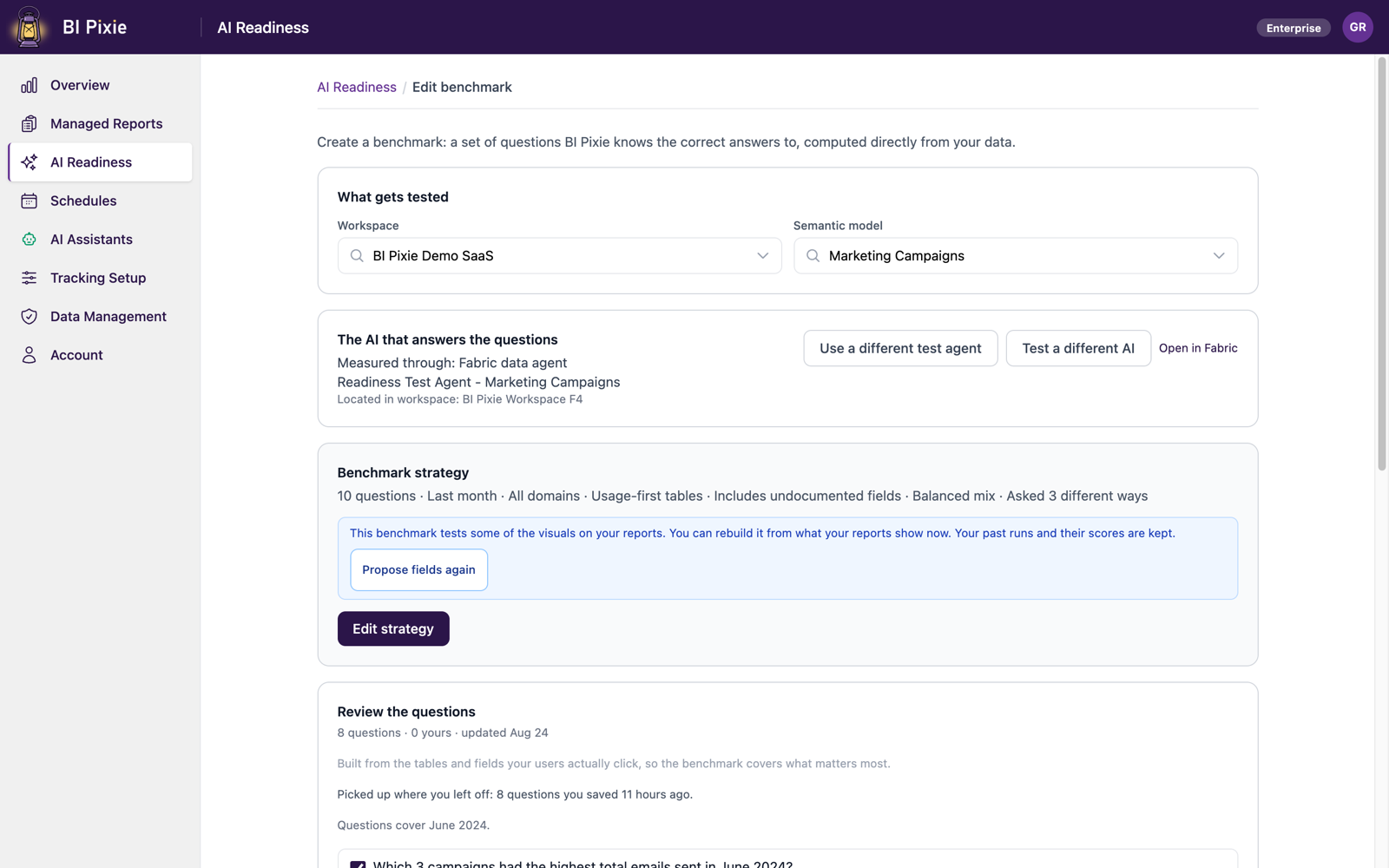
- Select New benchmark, and then choose the workspace and the semantic model. To have the semantic model chosen for you, select New benchmark from the menu on the semantic model's row in Your semantic models, or on the semantic model's own page.
- Choose the AI that answers the questions. See Choose the AI to test.
- Optionally, change the strategy: how many questions, which period, and how demanding. See Set the benchmark strategy.
- Select Propose fields, and review the fields and report visuals the questions will be built from. See Review the proposed fields.
- Select Generate questions, and review each question and its correct answer. See Review the questions and answers.
- Select Run benchmark, and read the result. See Run a benchmark and read the results.
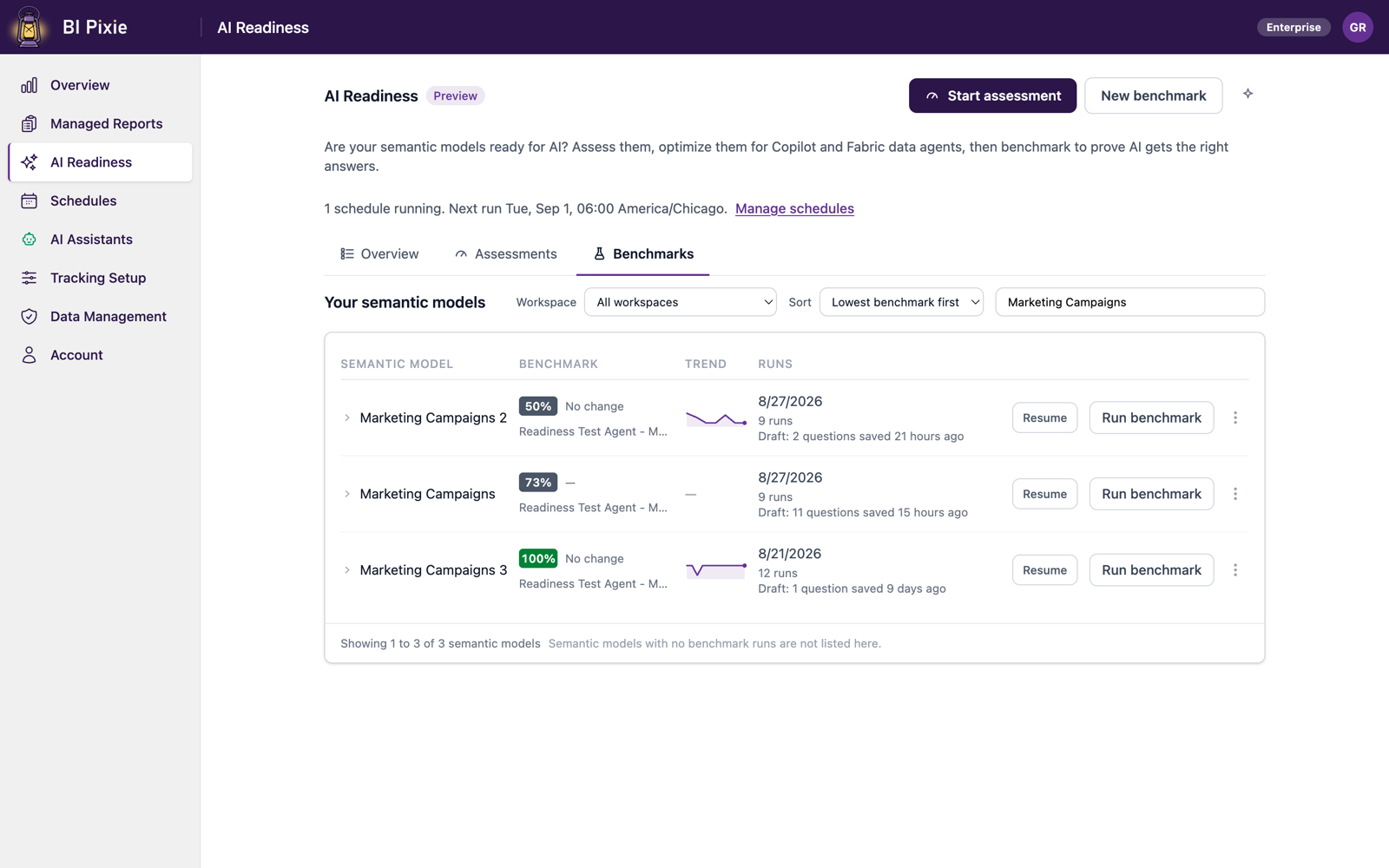
Your work is saved as you go. If you leave before you run the benchmark, you see a draft line on the semantic model's row, such as Draft: 14 questions saved 3 days ago, and a Resume button.
Open a saved benchmark
Each semantic model has one saved benchmark. On the semantic model's row in Your semantic models, or on its page:
- To repeat the benchmark with the same questions, select Run benchmark on the row. You see what will run, and you can start it with Run benchmark.
- To change the questions of a benchmark that has run, select Run benchmark on the row, and then select Change the questions.
- To continue a benchmark you saved and haven't run, select Resume benchmark, or Resume if the semantic model also has runs. Your saved questions open with the strategy and the proposed fields closed above them.
- To build a different benchmark, select New benchmark or Start over. You start from BI Pixie's default strategy. Your saved benchmark is replaced only when you generate new questions, and you're asked to confirm first. To go back to it, select Open the saved benchmark.
- To follow a run that's underway, select View progress.
Considerations and limitations
- You can run one benchmark on a semantic model at a time.
- You start every benchmark run yourself, because BI Pixie asks a live AI real questions during each run. On the Enterprise plan, you can schedule AI Readiness assessments. See Schedules.
- With data residency turned on, results are written to your own Fabric lakehouse, so the BI Pixie Dashboard must be installed before any benchmark can run. See Data Residency.
- You can run the same benchmark, with the same settings and results, in the BI Pixie Workload for Microsoft Fabric.