
Assess a Power BI Semantic Model for AI Readiness
Copilot and Fabric data agents answer from what your semantic model contains: its table and field names, descriptions, relationships, and AI Instructions. Where that metadata is thin or unclear, Copilot or a data agent can return a plausible number that is wrong. When you assess a semantic model, BI Pixie checks it against Microsoft's guidance for Copilot and data agents, and BI Pixie can write the fixes for you. BI Pixie changes nothing in the semantic model when it assesses it.
To assess the data agents that answer from your semantic models, and their other sources, see Data agent assessments.
Prerequisites
- A BI Pixie account on any plan, including the Free plan.
- The Contributor role or higher on the workspace that holds the semantic model. BI Pixie reads the semantic model as you, so it can never reach a semantic model that you can't.
You can assess a semantic model that has no report with Pixies built on it.
Assess a semantic model
- In the BI Pixie Portal, select AI Readiness in the left sidebar, and then select Start assessment.
- Choose a Workspace. You need the Contributor role or higher on the workspace, because BI Pixie acts as you and can never reach a semantic model that you can't.
- Under Semantic model, choose one or more semantic models, or select Select all to choose every semantic model in the workspace.
- Select Assess AI Readiness. When you choose several semantic models, the button names how many, such as Assess 6 semantic models.
When you choose one semantic model, the result opens when the assessment finishes. When you choose several, you follow each one as Pending, Assessing, Done, or Failed, and you can open a finished row to see its result. Each result is also saved in its semantic model's history.
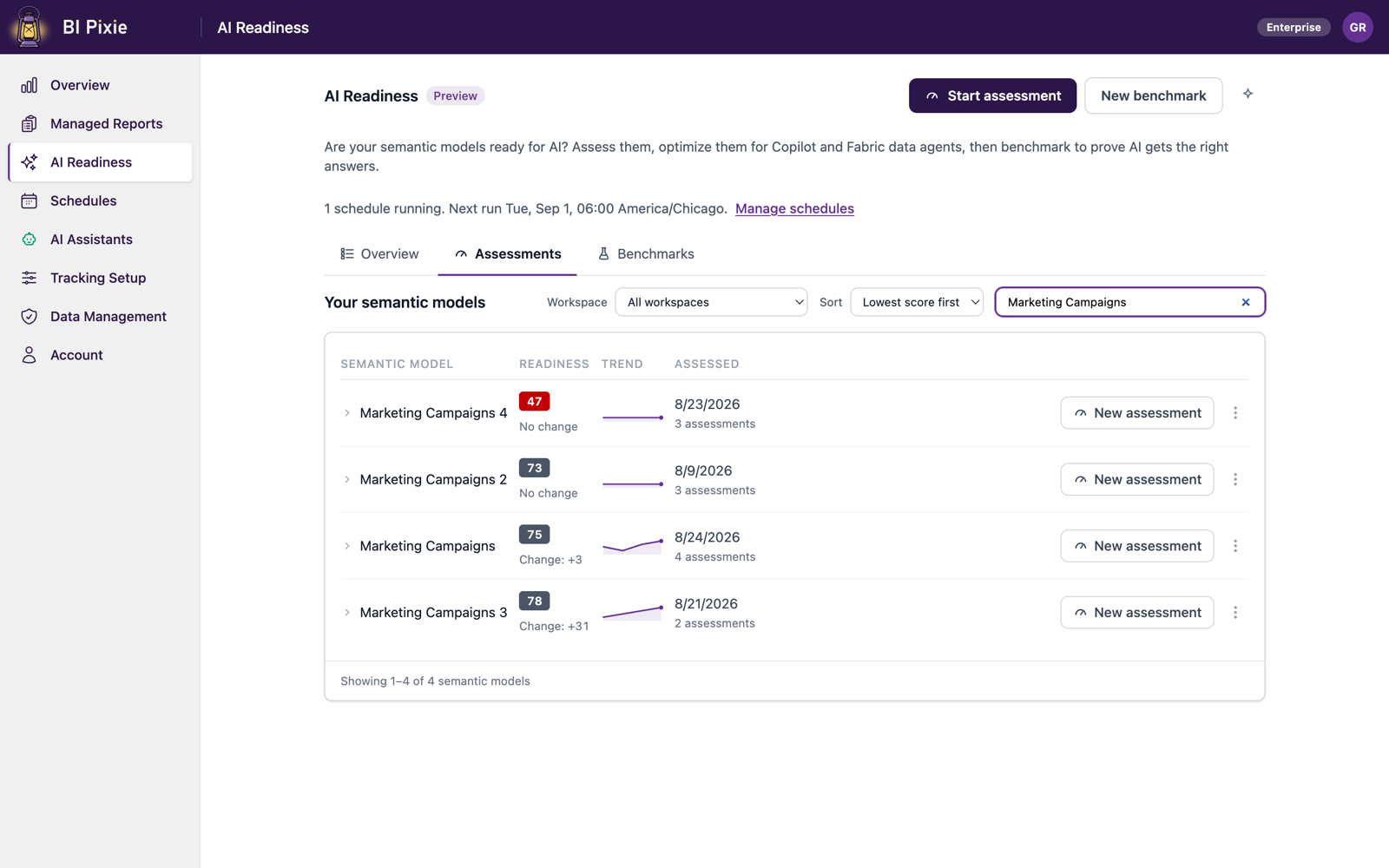
To assess a semantic model again, select New assessment on its page or on its row in Your semantic models, or select Reassess on an opened result.
Read the result
At the top of the result, you see the AI Readiness score and its band:
- Ready for AI: 80 or higher. An AI agent can answer reliably from this semantic model.
- Needs curation: 50 to 79. An AI agent answers, but it's likely to get some answers wrong.
- Not ready for AI: below 50. An AI agent's answers from this semantic model can't be trusted yet.
On the result, you can:
- Read one tile for each of the twelve score dimensions. Each tile states a count, such as 12 of 40 described. Select a tile's label to learn what the dimension measures and why an AI agent needs it, with Microsoft's own sentence where Microsoft publishes guidance for it. See Score dimensions.
- Follow the Trend of the semantic model's recent scores, and see which dimensions moved, and by how much, under Changes since last assessment.
- Select What do these scores mean? to see the three bands, or Why this score? to see the points BI Pixie deducted for each dimension, largest first.
- Fold the score card. A folded card still shows the score, the trend, and a compact bar for every dimension.
- Review the fixes BI Pixie can write for you, on the Optimize semantic model card. See Optimize a semantic model.
- Read the findings you fix yourself, with guidance on each, under Fix on your own.
Ground the assessment in real usage
When the reports built on the semantic model have Pixies, BI Pixie grounds the assessment in what people actually select. It puts the fields people use first in the score, in the severity and order of the findings, and in the recommendations.
BI Pixie uses usage data in an assessment once there are roughly 30 interactions across at least 3 distinct fields, within your account's usage window. The window is the trailing 90 days, unless you chose another one on the Data Management page. You see one of three states on the result:
- Grounded: a gold Pixies inside badge on the score card and a "Based on usage through" date. Findings carry usage badges, such as Heavily used, On reports, Never clicked, and Not on any report.
- Collecting: the reports have Pixies, but there isn't enough activity yet. You're advised to assess again in a few days.
- Not tracked: the result rests on the semantic model's structure alone, with a link to add Pixies.
BI Pixie collects viewer user names only when you turn on Capture user identity. When you turn it on, you choose whether BI Pixie keeps each viewer's email address, a masked ID or nothing. Until then, BI Pixie counts viewers by a masked IP address. For what a Pixie records, see Permissions and data access.
Track the score over time
- On the AI Readiness page, select the semantic model's row on the Overview tab to open its page.
- Open the Assessments section to see every assessment, newest first.
Each record shows:
- Its score, and the change from the assessment before it.
- Its top two findings, and how many more there are.
- What was applied to the semantic model, or No optimization applied.
The same records appear when you expand the semantic model's row on the Assessments tab. Reading down them, you see whether your changes moved the score. Sometimes BI Pixie scores two assessments in a row differently, most often because only the later one could see usage data from reports with Pixies. You still see the change, with a note that part of it comes from the change in scoring rather than from the semantic model.
Assess on a schedule
On the Enterprise plan, you can have your semantic models assessed on a rhythm you choose, so that their scores stay current without you starting each run. A scheduled result is saved in the same history as one you start yourself. See Schedule assessments.
Delete results
- To delete one result, select the delete button on its record or beside Reassess on the opened result.
- To delete a semantic model's assessments and keep its benchmark runs, select Delete assessments in its row menu on the Assessments tab.
- To delete its benchmark runs and keep its assessments, select Delete benchmark runs in its row menu on the Benchmarks tab.
- To delete both, select Delete all results in the More actions menu on the semantic model's page.
With data residency turned on, results are written to your own lakehouse rather than kept by BI Pixie. When a result can't be saved there, for example because the capacity is paused, the result screen is its only record, and you're reminded to open or save it before you leave that screen.
Considerations and limitations
- BI Pixie runs up to three assessments at once for each of your licenses, counting semantic models and data agents together. While three are running, BI Pixie tells you so under Assess AI Readiness.
- Your first assessment of a semantic model doesn't count toward your plan. When you assess the semantic model a second time, optimize it for the first time, or run its first benchmark, the semantic model becomes one of your plan's tracked items, and BI Pixie tells you so before the work starts. On the Free plan, once your one tracked semantic model or data agent is chosen, assessing or benchmarking another one doesn't track it, and optimizing another one uses one of your 10 included optimizations. See What counts toward your plan and Plan allowances.