
Run a Benchmark and Read the Results
When you run a benchmark, you get one score for how many answers were correct, and the reason behind every verdict.
Prerequisites
- A benchmark with reviewed questions. See Review the questions and answers.
- A benchmark run left in your plan's allowance. See Benchmark runs by plan.
- What the chosen AI needs to answer. See Choose the AI to test.
Run the benchmark
- Under the questions, expand the section headed Requires your Fabric capacity, Requires your AI, or Requires your AI and your Fabric capacity to see what the run needs: who answers your questions, who computes the correct answers, and who checks the answers.
- Select Run benchmark. On the first run on a semantic model, you're told that the run adds the semantic model to your tracked items.
- Follow the progress: Working out the correct answers, then Asking question 3 of 15, then Scoring the answers.
You can leave the page. The run continues, and the result is saved to the semantic model's history. To come back to a run in progress, select View progress on the semantic model's row. If a run takes unusually long, you can select Stop watching to leave without stopping it.
Before or during a run, you might see:
- A warning for Copilot without a Fabric capacity. The run will probably measure nothing. If Copilot refuses every question, the run doesn't count.
- A refusal for a data agent on a trial capacity. The run doesn't start, and you see the workspace named.
- A refusal with a reason. For example, if none of the questions can be answered, you're offered Generate a new set of questions.
- Questions set aside. A question with no correct answer to check against is set aside before it's asked, for example BI Pixie set aside 2 of your 15 questions before asking, so this run is 13 questions rather than 15. It still counts in the score as not answered correctly.
- A run that didn't start. It doesn't count against your benchmark runs, and you can try again.
On the Free plan, before you spend your run, select See a sample result to see what a scored benchmark looks like.
Stop a run
- Next to the progress, select Cancel.
- Read what stopping will cost, and then select Stop the run, or Keep running to continue.
- If no question has been asked yet, the run doesn't count against your benchmark runs.
- If questions have been asked, the run counts and has no score.
- The run stops between questions, so a question that's already being asked finishes.
- A stopped run shows as Canceled, has no score, and adds nothing to the semantic model's trend.
Read the result
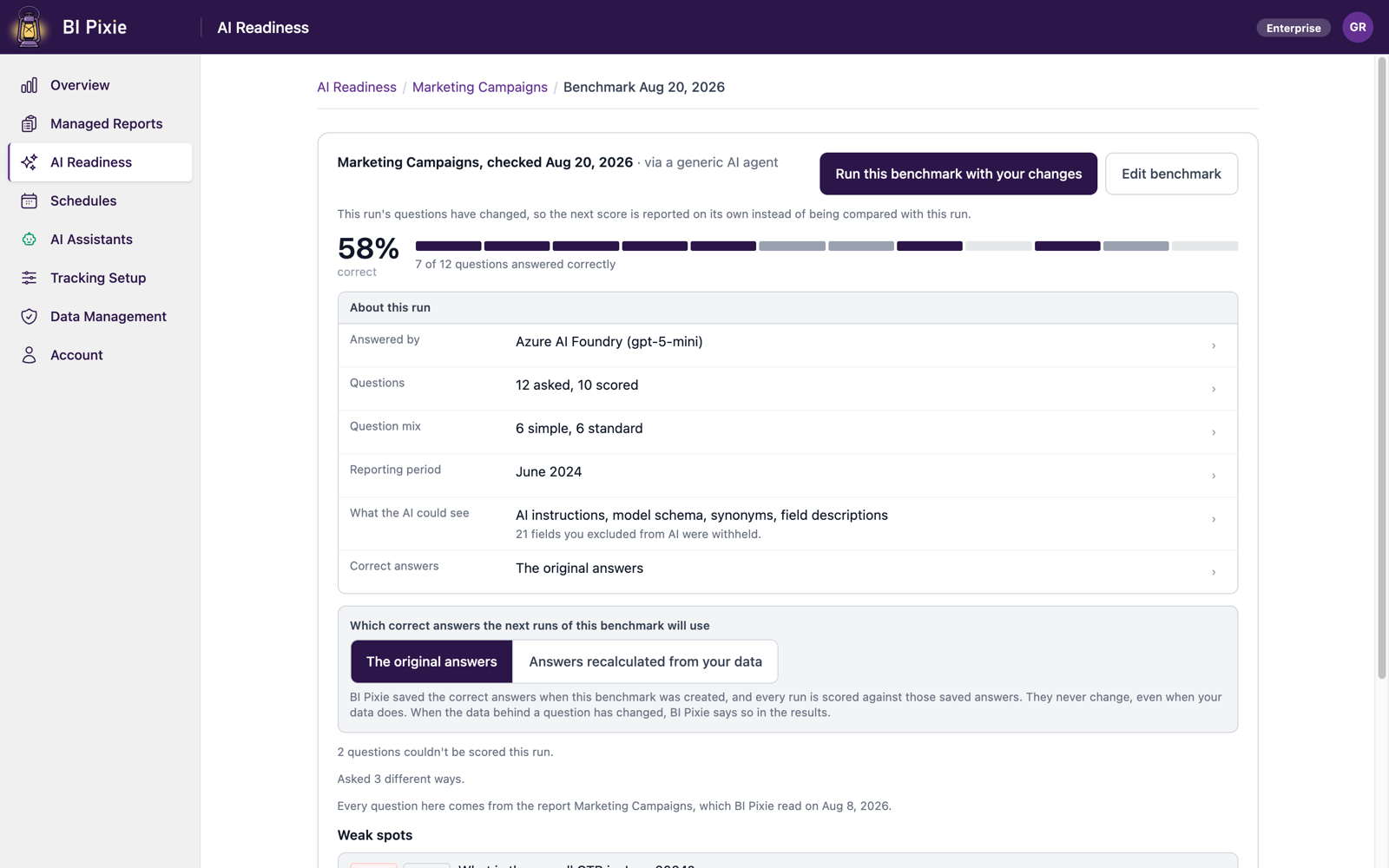
The score is the number of correct answers out of every question, for example 7 of 12 questions answered correctly. A question that couldn't be scored counts the same as a wrong one. On the result, you can:
- See which AI answered, in the heading, for example Sales Analytics, checked Aug 20, 2026 · via Copilot.
- Open a row under About this run to see what it means for the score: Answered by, Graded by, Questions, What it covers, Question mix, Reporting period, What the AI could see, and Correct answers.
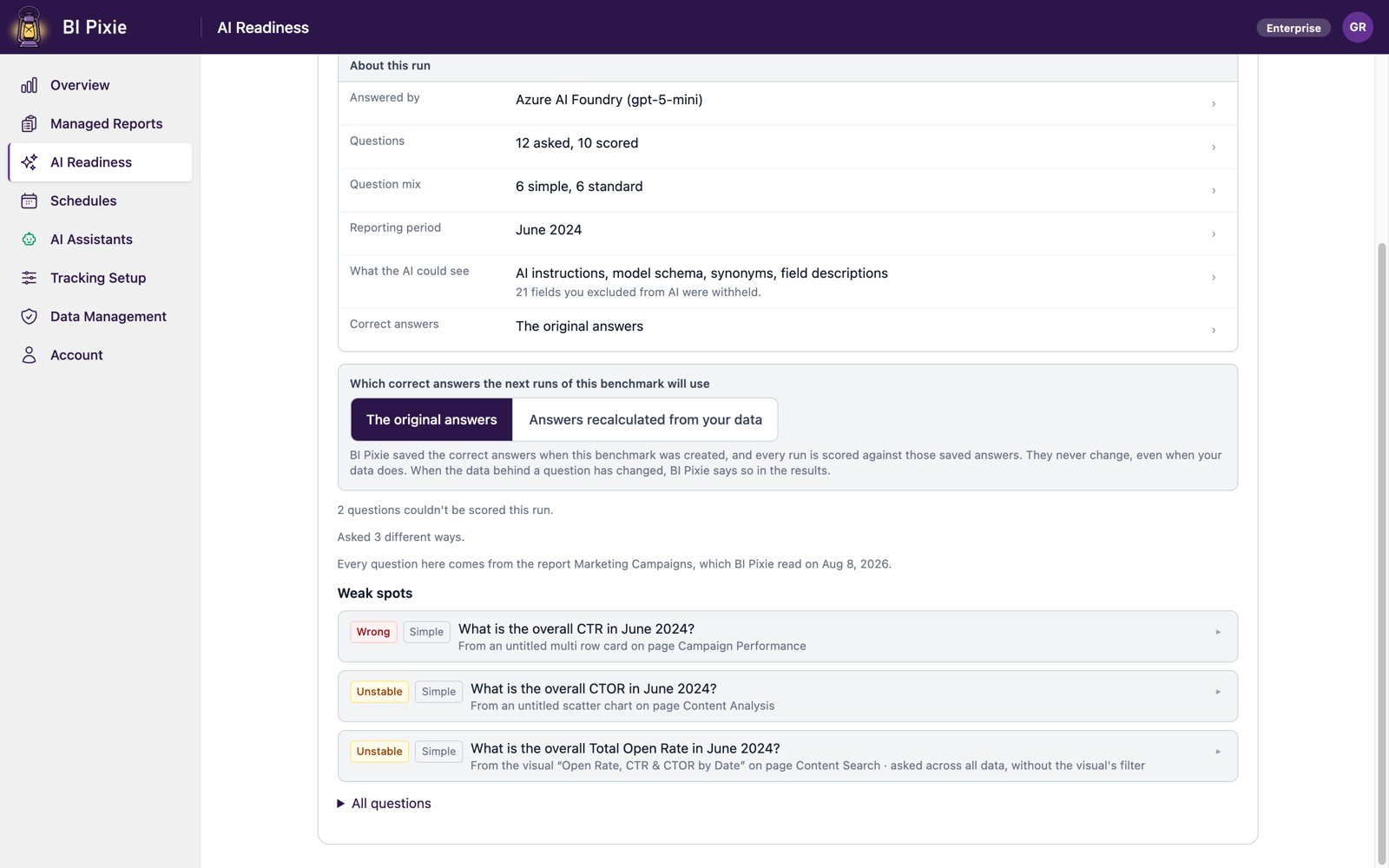
- Check each question's verdict: Correct, Unstable (right on some asks and wrong on others), Wrong, or Not scored with the reason.
- Expand a question to see The AI answered, The right answer from your data, How it was asked, and The queries behind this result. A Fabric data agent doesn't return its query, so for a data agent you see only BI Pixie's query.
- Compare response times: the median by default, with the average and the 95th percentile.
- Go to Weak spots to see the questions answered wrongly or unstably, and where each came from.
To raise the score, improve the semantic model with Optimizations, and then run the benchmark again. To change the questions, select Edit questions; editing doesn't start a run.
Repeat a benchmark
You can repeat a benchmark to catch regressions. When you run the same questions against the same semantic model with the same AI, you see on the new result whether answers that were correct have stopped being correct. To test a change that you make on purpose, use an A/B test.
To repeat a benchmark:
- On the semantic model's row, select Run benchmark. Or, on an opened result, select Run this benchmark again.
- Select Run benchmark.
On the result of a repeat, you see the change from the previous run, for example Up from 58% on Aug 1. The following also applies to repeats:
- If the data behind a question changed since the correct answers were saved, you see it on the result. To score against current data, select Update answers to current data.
- Runs from different AIs are never shown as one trend.
- If a run can't be repeated exactly, you're offered a new benchmark instead.
- If the benchmark's reporting period is no longer in your data, select Switch to the latest period to create new questions for the latest period, which starts a new baseline, or Set the period myself.
Find and delete past runs
- To see every semantic model's latest score, its AI, its change, and its run count, select the Benchmarks tab in Your semantic models. Expand a row to see all its runs.
- To see one semantic model's runs, go to the Benchmarks section of its page.
- To delete one run, select Delete this run, and confirm.
- To delete all of a semantic model's assessments and benchmark runs, select More actions on its page, and then select Delete all results.
Considerations and limitations
- Where the answers come from depends on the AI you test:
- A Fabric data agent answers on your Fabric capacity.
- Copilot answers on the capacity behind the semantic model.
- A generic AI agent answers through the account you saved it with.
- Each answer is compared with the correct value from your data, and then your AI gives a second opinion.
- An answer that your AI finds unclear is marked not scored rather than wrong.
- An answer scored correct stays correct, whatever the second opinion says.
- Without your AI, there's no second opinion.
- Questions that couldn't be scored are left out of the response time, and you see how many questions it covers.
- Deleting a run doesn't return it to your allowance, and deleting results doesn't reduce your tracked items.
- With data residency turned on, results are stored in your own lakehouse. See Data Residency.