
Review the Questions and Answers
You can review a benchmark's questions and their correct answers before you run it. You can check each correct answer against your data, reword a question, change the query that grades it, and add questions of your own.
Prerequisites
- Proposed fields for the benchmark. See Review the proposed fields.
- Your AI, set up in AI setup, if you want naturally worded questions. Without it, the questions follow fixed templates. See AI setup.
Review the questions
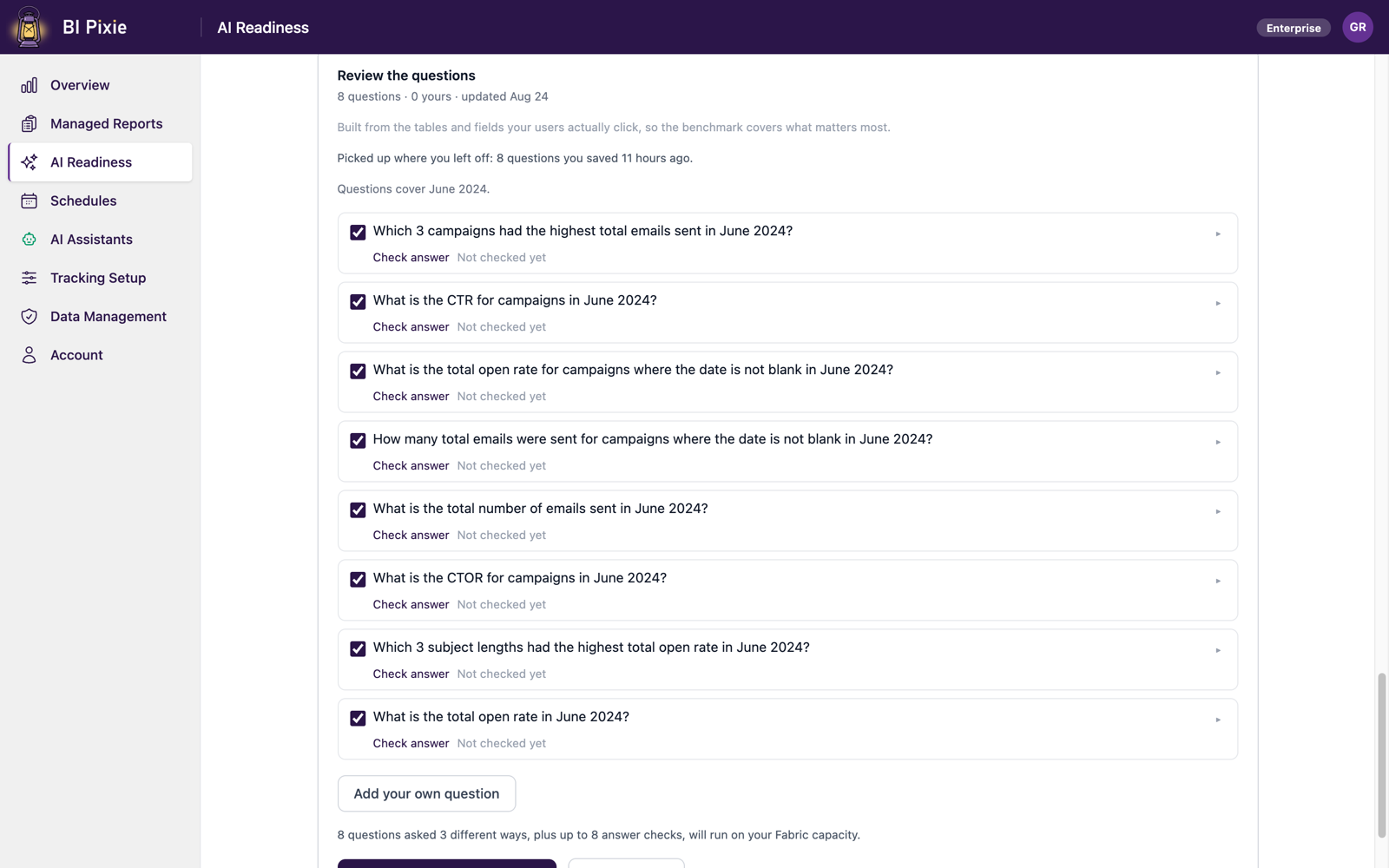
- Select Generate questions. The questions open in Review the questions, each with its complexity level and where it came from: a business domain, or the report visual it reproduces.
- Expand a question to see how it's graded.
- To see the correct answer from your data, select Check answer. The answer appears as the Correct answer.
- To leave a question out of the run, clear its checkbox.
Each question names the measure it's graded on, even when your AI Instructions use a business word for it. For example, if your AI Instructions say that revenue means Net Revenue, a question graded on Gross Revenue says Gross Revenue, so an AI that follows your AI Instructions isn't marked wrong.
Edit a question
- To change what the AI is asked, edit the wording. The correct answer doesn't change.
- To change how a question is graded, edit its DAX query. The question is marked Edited, and you need to check its answer again. To go back to the original, select Use BI Pixie's query again.
- To change how a question is asked again, edit its variations, which are listed under it when your strategy is set to Ask each question a different way.
- To leave a generated question out, clear its checkbox. To delete a question you wrote, select Remove question and confirm. Past results are kept.
Add your own question
- Select Add your own question.
- In Question, write the question. In DAX for the correct answer, write the DAX query that computes its correct answer.
- Select Check answer, and then select Keep question.
Your questions are marked Yours. When you generate new questions, your own questions are kept.
Save the benchmark for later
Your changes are saved as you make them. To confirm, select Save for later. To come back to the benchmark, select Resume on the semantic model's row in Your semantic models. If a save fails, you're told, and you can try again before you leave.
Considerations and limitations
- When you reopen a saved benchmark, a question that uses a field no longer in the semantic model says so, for example This question uses Sales[Margin], which is no longer in this semantic model. Edit it or leave it out before you run.
- Before the run starts, each question is checked to see whether it can be scored. A question that can't be is marked Answer can't be checked, with the reason in its tooltip, such as a busy capacity or no data in the chosen period. To start the run anyway, select Run anyway. Those questions count in the score as not answered correctly.
- A question written before BI Pixie improved how it writes questions is marked Written before BI Pixie improved how it writes questions. You can keep it, or build a new benchmark to get better questions.
- Your AI receives field names and the shape of each question, never the correct answer.
- Each semantic model has one saved benchmark. Generating new questions replaces it after you confirm.
- If your saved benchmark can't be opened, you're told that nothing was changed, and you can select Try again. If the saved questions are gone, your completed runs are kept, and you can select Set up a new benchmark.