
Choose the AI to Test
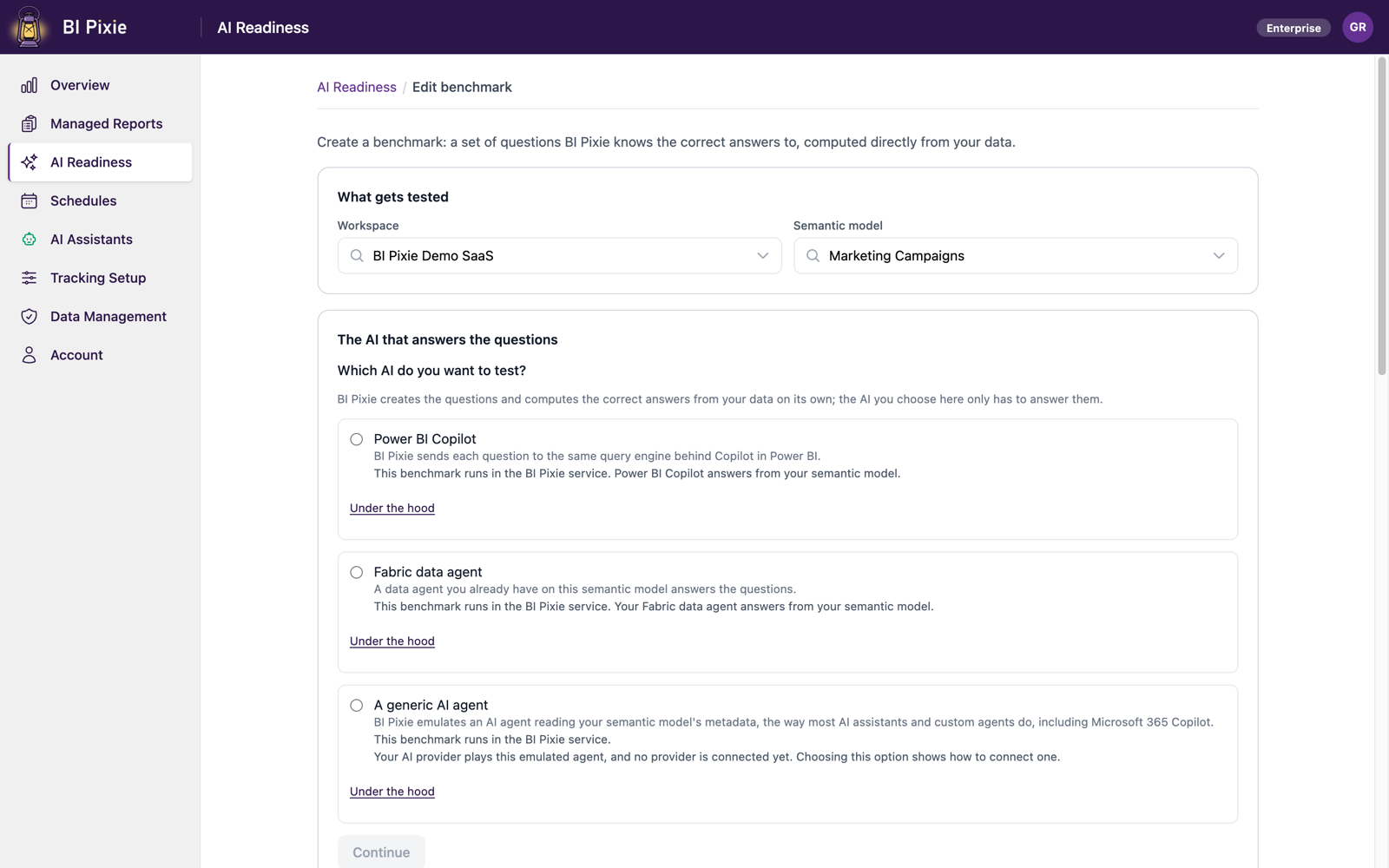
You can choose which AI answers a benchmark's questions, and that choice decides what you learn from the result. You can test:
- The Fabric data agent your team built, to learn what its users get.
- Copilot, to learn what people asking Copilot about this semantic model get.
- A generic AI agent, to learn what the semantic model's metadata is worth on its own, even in a workspace with no Fabric capacity.
Whichever AI you test, BI Pixie writes the questions and computes each correct answer from your data. The AI you test only answers. Your AI gives a second opinion on each answer, so a Fabric data agent or Copilot that you test never grades its own answers.
Prerequisites
- In the Fabric admin portal, under Tenant settings > Integration, the Dataset Execute Queries REST API setting turned on. Every benchmark needs it to compute the correct answers.
- For Copilot or a generic AI agent, the Users can use the Power BI Model Context Protocol server endpoint (preview) setting turned on, in the same place.
- The prerequisites of the AI you choose, listed under Compare the three AIs.
Choose the AI
- Open the BI Pixie Portal, select AI Readiness, and then select New benchmark.
- Under What gets tested, choose the workspace and the semantic model. You can type into both lists to find one quickly. If you started from a semantic model's row, skip this step.
- Under Which AI do you want to test?, select Copilot, Fabric data agent, or A generic AI agent. To see what each one uses, sends, and requires, select How your AI works for you under it.
- If you selected Fabric data agent, choose the data agent. If you selected A generic AI agent, choose which of your generic AI agents answers.
Your choice applies as soon as you select it, and it's remembered for the semantic model. To change it later, select Test a different AI. Runs from different AIs are kept apart and are never compared as one trend.
- Copilot appears first, because for most portal accounts Copilot is the AI your users meet.
- If an AI isn't ready to run, you see what it needs.
- On a semantic model that has never had an AI chosen, the first AI that is ready to run is marked Recommended. When Copilot and a generic AI agent are both ready, you're advised to Diagnose with a generic AI agent first, then confirm with Copilot.
Choose a data agent
When you select Fabric data agent, you see the data agents that use the semantic model as a data source, from any workspace. What you do next depends on how many data agents BI Pixie finds:
- If one data agent is found, select Use this data agent, or Choose a different one.
- If several are found, select one, and then select Use selected data agent.
- If none is found, select Create test agent to create a data agent on the semantic model.
- If the data agent shows Not published, select Publish it for me. Or select Open in Fabric, publish it there, and then select I published it, check again.
Compare the three AIs
Copilot
You can test Copilot to confirm what your users get. The score is based on the DAX query that Copilot's engine writes for each question, so it closely measures Copilot's answers rather than the full Copilot experience.
- Requires a Copilot license in your organization and a Fabric capacity behind the semantic model's workspace. Without a capacity, you see a warning above Run benchmark that the run will probably measure nothing. If Copilot then refuses every question, the run doesn't count against your benchmark runs.
- Microsoft charges Copilot's answers to the capacity as Copilot in Fabric usage. Your capacity administrator can see it in the Fabric Capacity Metrics app, on the Item history page.
- Microsoft decides what Copilot sees of the semantic model, so you can't trace a wrong answer the way you can with a generic AI agent.
Fabric data agent
You can test a Fabric data agent to measure the data agent your team built and published. The questions are asked in plain language, as your users ask them. Because a data agent runs its own query, you don't see that query in the result.
- Requires a workspace on a paid Fabric capacity (F2 or higher, or P1), and a published data agent on the semantic model, or a test data agent that BI Pixie creates for you.
- Requires the BI Pixie Dashboard in your Fabric workspace. Without it, select Install the dashboard. See Set up BI Pixie Dashboard.
- Requires your tenant's cross-geo AI settings to allow AI processing in your capacity's region, where that region needs them.
A generic AI agent
You can test a generic AI agent to diagnose the semantic model. You know exactly what the generic AI agent saw: your schema, descriptions, AI Instructions, and synonyms, without the fields you excluded from AI. Because you know what the generic AI agent was given, you can trace each wrong answer back to the metadata behind it.
- Requires a generic AI agent to test (OpenAI, Anthropic, or Azure AI Foundry), saved in AI setup. If you have none, select Add a generic AI agent.
- Needs no Fabric capacity to answer, so it works on Power BI Pro and Premium Per User workspaces.
- Its answers show what the semantic model's metadata supports, not what Copilot returns, which can differ.
- The BI Pixie data agent can't be tested as a generic AI agent.
- If the generic AI agent is also your AI, you see in the result that it graded its own answers.
Considerations and limitations
- The correct answers are computed the same way for every AI: a direct query against your own data.
- A run counts against your plan's allowance the same way whichever AI answers.
- Before every run, you see what the run needs, under Requires your Fabric capacity, Requires your AI, or Requires your AI and your Fabric capacity. See Run a benchmark and read the results.
- If a tenant setting is off, you're given a sentence to send your Fabric administrator, with Copy for your admin.