
Optimize a Fabric Data Agent
After you assess a data agent, you can fix most of what lowered its score without leaving BI Pixie. You review every change before it is written, and BI Pixie then publishes the data agent and assesses it again, so you see the effect on the score right away.
Prerequisites
- An assessment of the data agent.
- The Contributor role or higher on the data agent's workspace.
- Your AI set up in BI Pixie, if you want it to propose instructions. You can always edit the instructions by hand without it.
Find the changes you can apply
To see the changes you can apply:
- Open the data agent's assessment.
- Scroll to Optimize data agent.
- Open a card. In the first line of each card, you see whether something was found, nothing was found, or the check couldn't tell.
Under Optimize data agent, you can apply these changes:
| Card | Apply when | Select |
|---|---|---|
| Data agent instructions | The data agent has no instructions, or has guidance that does nothing where it is written. | Apply and publish |
| Grounding | The data agent uses tables that a semantic model's AI data schema leaves out. | Align tables and publish |
| Published description | An AI that routes questions between data agents can't tell what this data agent answers. | Save and publish |
| Runtime | The data agent isn't on Microsoft's preview runtime. | Use the preview runtime and publish |
- To see why a check couldn't run, open the line above the cards that reads checks could not run, so this score leaves them out.
- To publish changes saved in Microsoft Fabric that aren't published yet, select Publish data agent below the cards.
Rewrite the data agent's instructions
To have your AI write the instructions:
- On the Data agent instructions card, select Ask your AI.
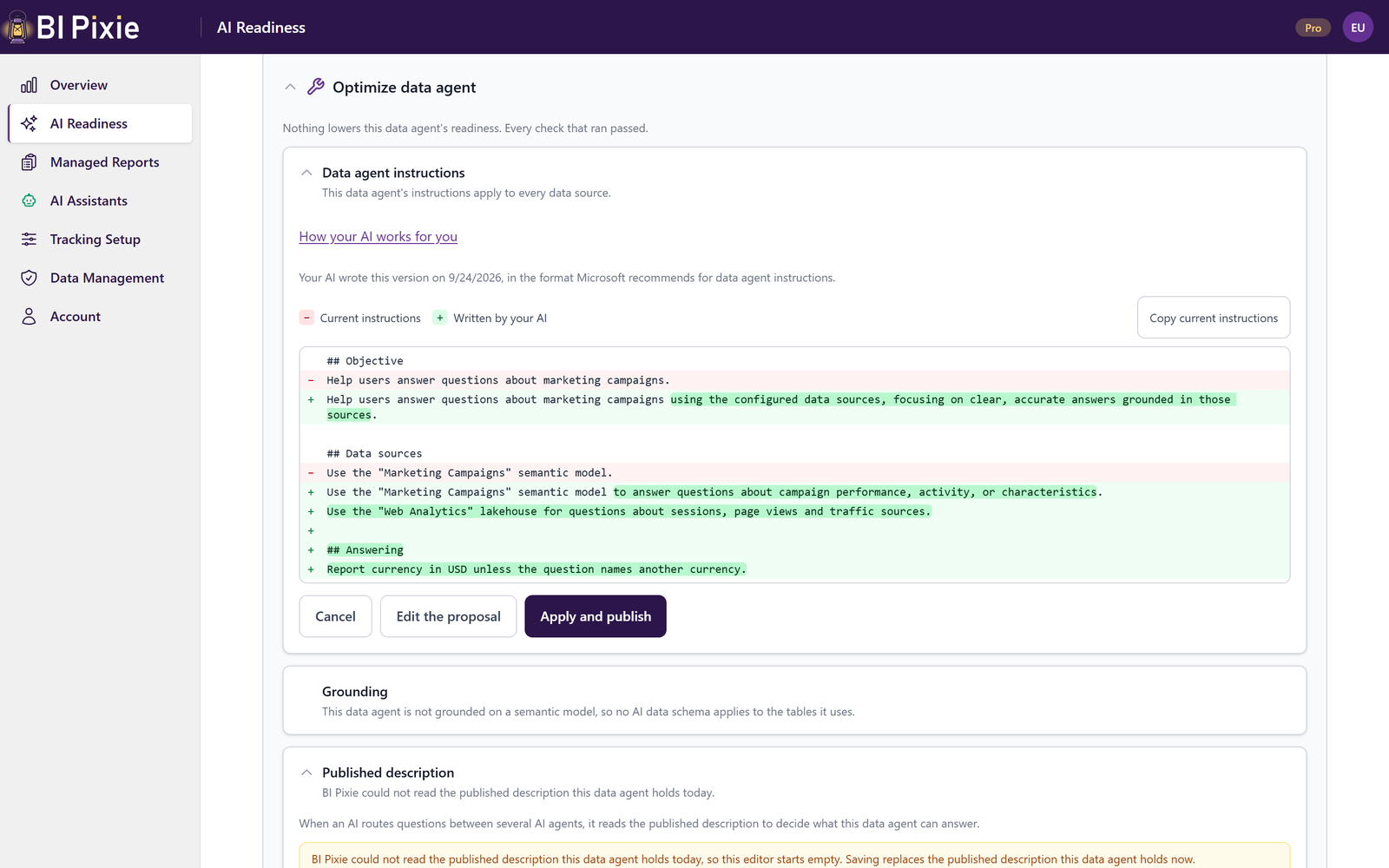
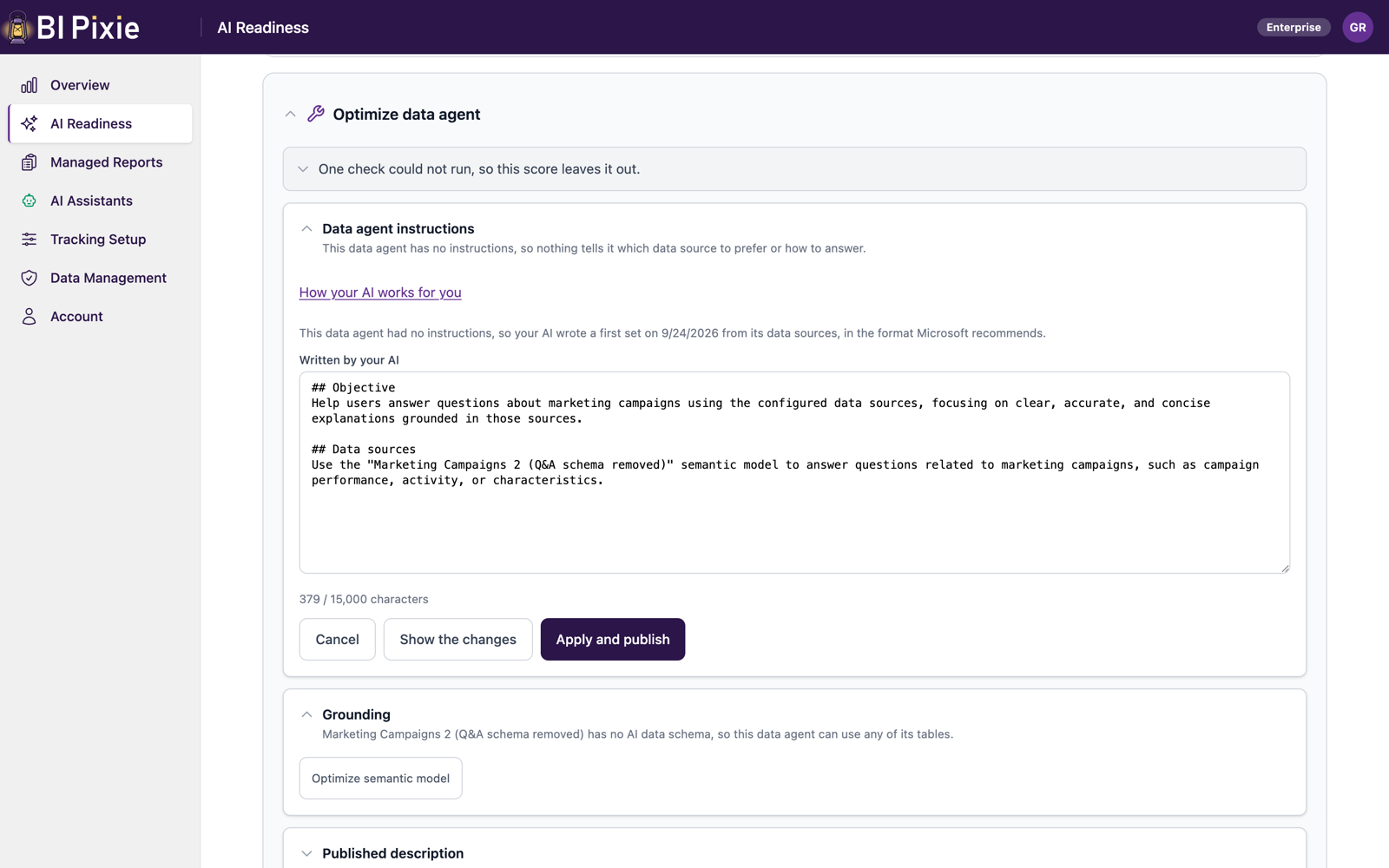
- Read what changes. Where the data agent already has instructions, BI Pixie opens on a single comparison: every line is shown in place, a line marked with a minus is one the instructions lose, a line marked with a plus is one the proposal adds, and inside a changed line only the words that differ are highlighted. Where the data agent has no instructions yet, there is nothing to compare, so the proposal opens in a text box and Show the changes is how you reach the comparison afterwards.
- To change the wording, select Edit the proposal. Show the changes returns to the comparison, rebuilt from whatever the box now holds.
- Select Apply and publish.
To write the instructions yourself:
- On the Data agent instructions card, select Edit instructions. You see the data agent's current instructions in the box.
- Edit the text. For guidance, open What works in a data agent's instructions.
- Select Apply and publish.
Your AI writes in the format Microsoft recommends. It keeps guidance that works on a data agent, such as answer formatting, your organization's abbreviations and which source answers which question. It leaves out guidance about a single semantic model's data. To keep guidance about one semantic model, move it into that semantic model's own AI Instructions before you apply the proposal. You can do that from the semantic model's assessment.
While you edit:
- Keep the text within 15,000 characters, the limit Microsoft Fabric enforces. If the text is too long, you see the character count under the box in red, and you can't apply the text until it fits.
- To close the box without writing anything, select Cancel.
- If you clear the box and the data agent has instructions, you are asked to confirm. Select Go back to keep editing, or Apply anyway to remove every instruction.
- If the current instructions couldn't be read, you see an empty box, with a note that applying replaces whatever the data agent has now.
- If the data agent is assessed again while your proposal is open, the proposal is marked out of date and can't be applied. Your edits stay on screen so you can copy them. Select Prepare again to start from the current instructions.
Align the grounding with the AI data schema
To remove from the data agent the tables that a semantic model's AI data schema leaves out:
- On the Grounding card, review the tables the AI data schema leaves out. If the list is too long to show in full, you see how many aren't named.
- Select Align tables and publish.
When you align, every listed table is removed from the data agent. You can't keep only some of them. To keep a table, add it to the semantic model's AI data schema first.
When the semantic model has no AI data schema
If a semantic model has no AI data schema, the data agent can use any of its tables, and no change to the data agent fixes that. To prepare the AI data schema:
- On the Grounding card, find the block for that semantic model.
- Select Optimize semantic model to open the semantic model's page.
If the semantic model belongs to a license you don't manage, you see the workspace and the access you need instead of the button.
Write the published description
To help an AI that routes questions between data agents choose this one, describe what the data agent answers:
- On the Published description card, edit the description. The box starts with the data agent's current description.
- Select Save and publish.
Switch to the preview runtime
To move the data agent to Microsoft's preview runtime, select Use the preview runtime and publish on the Runtime card. You see the button only while the data agent is on another runtime.
Fix the rest in Microsoft Fabric
To fix the findings BI Pixie can't change for you, open Fix on your own on the assessment. In each finding, you see where in Microsoft Fabric to make the change. The findings are grouped by dimension:
- Data source instructions
- Data source descriptions
- Example queries
- Schema object descriptions
When usage from Pixies is available, you also find there the selected tables no report viewer uses. They aren't scored.