
Benchmark Claude
A benchmark can test Claude itself. Claude answers the benchmark's questions with BI Pixie's tools, which let it read your semantic model and run queries as you. BI Pixie computes the correct answer to each question from your data. Your AI, set in AI setup, then grades Claude's answers against them, as for every AI that BI Pixie tests. Your AI is BI Pixie AI unless you chose another. See Set Up Your AI.
When you choose Claude as the AI to test, BI Pixie asks Where does Claude answer? There are two choices:
- In BI Pixie. The run starts in the BI Pixie Portal and runs on its own after you start it. BI Pixie gives each question to Claude through Anthropic's service, with BI Pixie's tools, so nothing is added to your own Claude app and nothing has to stay open in Claude. Your own Claude settings, instructions and other connectors are not part of the run. An Anthropic key saved on your account pays for Claude's answers.
- In the Claude app. When you select Run, BI Pixie gives you a sentence to copy into a new conversation in your own Claude app, with the BI Pixie connector added. Claude answers the questions one at a time in that conversation, within your Claude plan, and sends each answer back to BI Pixie. BI Pixie saves the score with your other benchmarks.
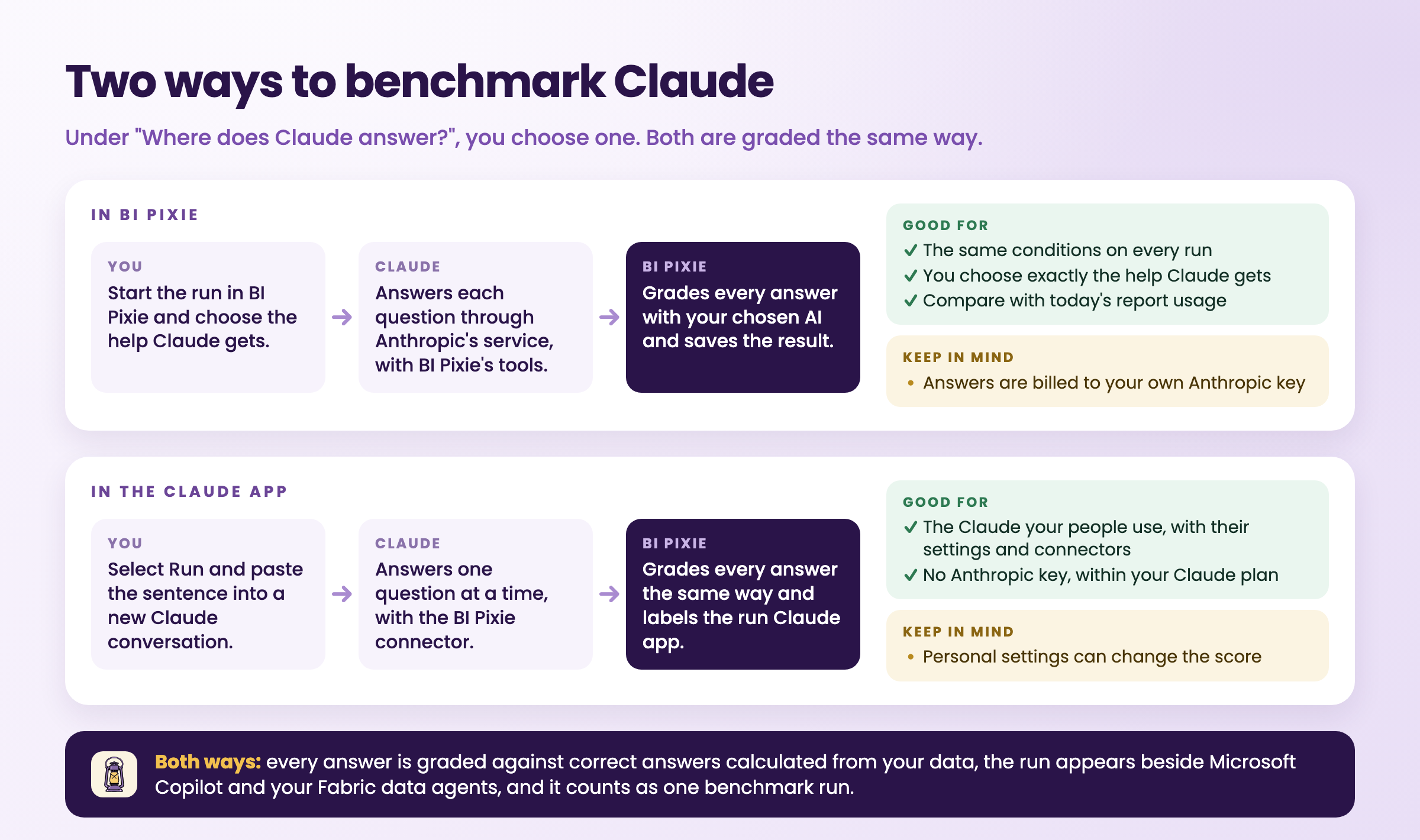
Both runs are named Claude. A run in the Claude app carries a Claude app label wherever the run is listed or shown, and a run in BI Pixie carries none.
Help from BI Pixie
Under Help from BI Pixie, you choose what BI Pixie gives Claude while it answers. A run starts from No help, in which Claude can find, read and query the semantic model and nothing more. You can add any of four kinds of help: AI data schema, AI instructions, Descriptions and Report usage. Report usage is which fields and values people use in the reports built on your semantic model. BI Pixie gives Claude exactly the help you chose, in both runs, even when your own connector in the Claude app has more turned on. The result names the help each run had, because two runs of Claude with different help are different tests.
Prerequisites
In BI Pixie
- An Anthropic key saved in AI setup, under Generic AI agents to test. See Set Up Your AI.
- Build permission on the semantic model you test.
- When AI instructions or AI data schema is part of the help, permission to edit the semantic model. With Read or Build permission only, Claude answers without them.
- When Report usage is part of the help, the BI Pixie Dashboard installed in a Fabric workspace. BI Pixie reads the report usage it shares with Claude from the dashboard.
- For the most useful report usage, Pixies on the reports built on that semantic model. Without them, BI Pixie has no report usage to share.
In the Claude app
- The BI Pixie connector added in your own Claude app. See Use BI Pixie in Claude.
- Build permission on the semantic model you test.
- When AI instructions or AI data schema is part of the help, permission to edit the semantic model. With Read or Build permission only, Claude answers without them.
Run Claude in BI Pixie
- Create a benchmark for the semantic model, as described in Benchmarks.
- Under Which AI do you want to test?, choose Claude. Under Where does Claude answer?, choose In BI Pixie.
- Under Help from BI Pixie, choose the help Claude gets, or leave it at No help.
- If more than one Anthropic key is saved in AI setup, BI Pixie lists them first, under Anthropic keys that can answer this benchmark. Choose the one that pays for Claude's answers, and select Use selected Anthropic key. If one Anthropic key is saved, BI Pixie uses it.
- Check the target. Under Answered by, you see the Claude version, such as Claude Sonnet 5.5, through Anthropic's service. Under Report usage, you see how many reports built on the semantic model carry Pixies.
- Select Run benchmark.
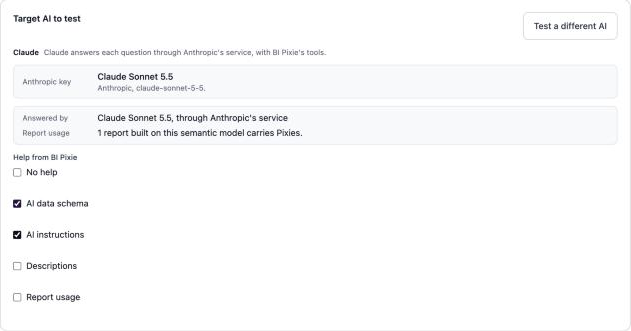
A run of Claude can take longer than a run of Copilot or a generic AI agent, because Claude may query the semantic model several times for each question. You can leave the page while it runs, and BI Pixie saves the result with your other benchmarks.
Run Claude in the Claude app
- Create a benchmark for the semantic model, as described in Benchmarks.
- Under Which AI do you want to test?, choose Claude. Under Where does Claude answer?, choose In the Claude app.
- Under Help from BI Pixie, choose the help Claude gets, or leave it at No help.
- Select Run. The Run in the Claude app dialog says what the run does and what it costs. Select Run in the dialog to agree.
- BI Pixie gives you a sentence such as "Use BI Pixie to answer my team's questions about Sales, code 4F7K". Select Copy the sentence, and paste it into a new conversation in your Claude app. The code works for one day, and only for this run.
- Claude does not ask you to confirm anything, because you started the run in BI Pixie. Claude answers one question at a time, and BI Pixie never gives Claude the correct answers.
- While Claude answers, the dialog shows how far it has got, for example "Claude has answered 3 of 10 questions." You can leave the page. To come back to the dialog, select Open the run in the list of recent benchmark runs.
- When the run is finished, select See the result. The run appears with your benchmarks as Claude, with the Claude app label.
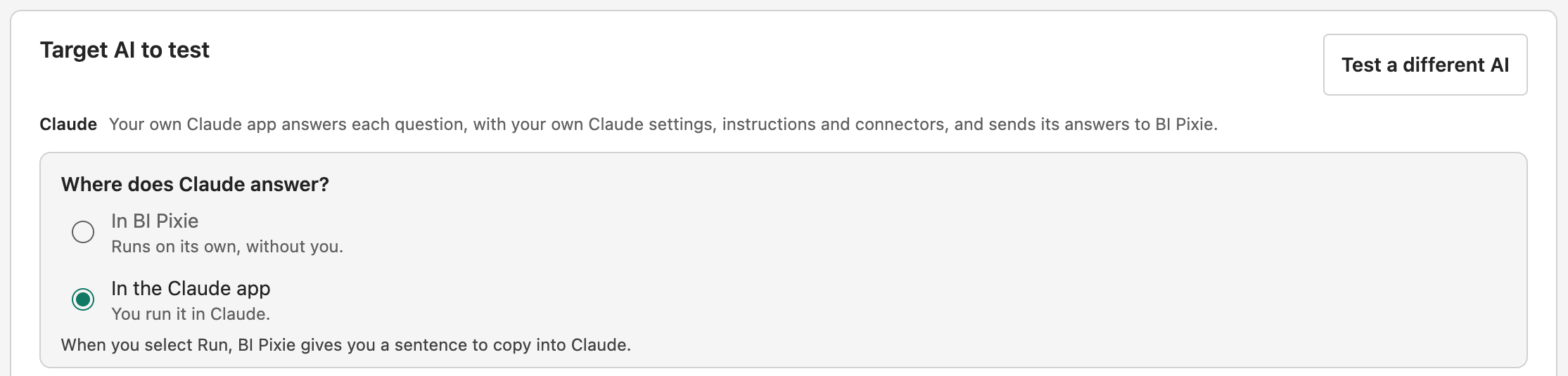
Under Answered by, a run in the Claude app reads, for example, "Claude in the Claude app (Claude Opus 5.5, as Claude reported it)". Claude answered with your own Claude settings, instructions and other connectors. BI Pixie shows the Claude version your Claude reported, and it cannot confirm that version.
Read the result
You read the result as you read any benchmark result, with the score, each question and its verdict. A result of Claude also shows the following.
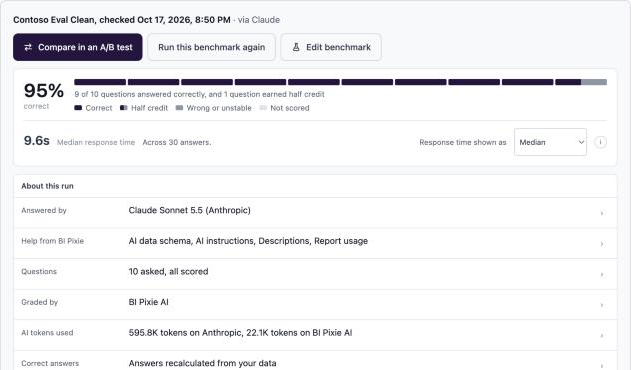
- Under Answered by, you see the Claude version and where Claude answered.
- On a run in BI Pixie, when you open a question, under What Claude did, you see the steps Claude took: the semantic model it read, the AI instructions it read, the terms it asked BI Pixie about, and the queries it ran. When the semantic model had no AI instructions to give, the step reads "No AI instructions were available." To see a query, select Show the query. Text values in the query are hidden. The names of tables, columns and measures, and numbers, stay visible.
- Before Claude reads the rows a query returns, BI Pixie replaces each value that looks like an email address with "(email address withheld)", with a note saying how many were withheld. That holds in both runs. The rest of each row, and the names of tables, columns and measures, reach Claude as they are.
- A question whose correct answer is an email address is not scored, with the reason Correct answer is an email address, because Claude cannot see that answer. It is never counted as wrong. Like every question that is not scored, it still counts in the number of questions the score is out of.
- To compare a run with another, select Compare in an A/B test. The run becomes side A, kept as it was, and side B is a new run. See A/B Tests.
Compare with today's report usage
As people use the reports built on your semantic model, BI Pixie learns more about how they read the fields and values, and shares that with Claude. A second run shows whether that knowledge helps Claude answer more questions correctly. On a run in BI Pixie, BI Pixie offers the second run after report usage has grown: after Pixies were added to more reports built on the semantic model, or after BI Pixie recorded more report sessions on them.
- Open the earlier result of Claude in BI Pixie.
- Select Compare with today's report usage. BI Pixie opens a new A/B test. Side A is the earlier run, kept as it was, and side B is Claude with today's report usage.
- Select Run A/B test. Only side B runs, so the test uses one benchmark run.
When Claude answers more questions correctly on side B, BI Pixie shows how many more under What report usage changed, for example "With today's report usage, Claude answered 2 more questions correctly than on Oct 15, 2026." When side A scored higher, BI Pixie does not show that section. To run side B again later, select Run side B again, which uses one benchmark run. When the two sides were answered by different Claude versions, the A/B test result says so above the verdict, because the difference can come from the version as well as from report usage. See A/B Tests.
Considerations and limitations
What a Claude benchmark costs
- Each Claude benchmark uses one benchmark run from your plan.
- In BI Pixie, every answer bills your Anthropic account. BI Pixie never pays Anthropic for these answers. The queries Claude runs while answering run on your semantic model, as any query you run does.
- In the Claude app, Claude answers within your own Claude plan, and no Anthropic key is needed. The run counts as one of your plan's benchmark runs only when Claude asks for the first question, so a sentence that is never pasted costs nothing.
- The queries Claude runs while answering run as you, within your own permissions.
- Your AI grades every answer. When your AI is also Claude, the result notes that Claude graded its own answers.
When BI Pixie does not start a run in BI Pixie
- No Anthropic key is saved. To add one, select Add an Anthropic key. AI setup opens, and after you save the key you return to the benchmark.
- Report usage is part of the help, and the BI Pixie Dashboard is not installed. To install it, select Install the BI Pixie dashboard. To test a different AI instead, select Change AI.
- The chosen Anthropic key is no longer saved. BI Pixie never uses a different Anthropic key in its place, so you choose another one.
A run in the Claude app
- The code in the sentence works for one day. When Claude does not open it within that day, the code expires and nothing is counted. To start again with a fresh code, select Run again.
- Claude has 30 minutes to answer each question. When no answer arrives within 30 minutes of a question, BI Pixie ends the run and grades the answers Claude already sent. Each question Claude did not reach reads "The run ended before this question was asked."
- When AI instructions are part of the help, Claude receives them only when you may edit the semantic model, as in any conversation with the BI Pixie connector. With Read or Build permission only, Claude answers without them. See Use BI Pixie in Claude.
- To end a run early, select Stop the run. A stopped run counts as one of your plan's benchmark runs only when Claude had already asked for the first question.