Use BI Pixie's Built-in AI Assistance to Optimize Your Data for AI
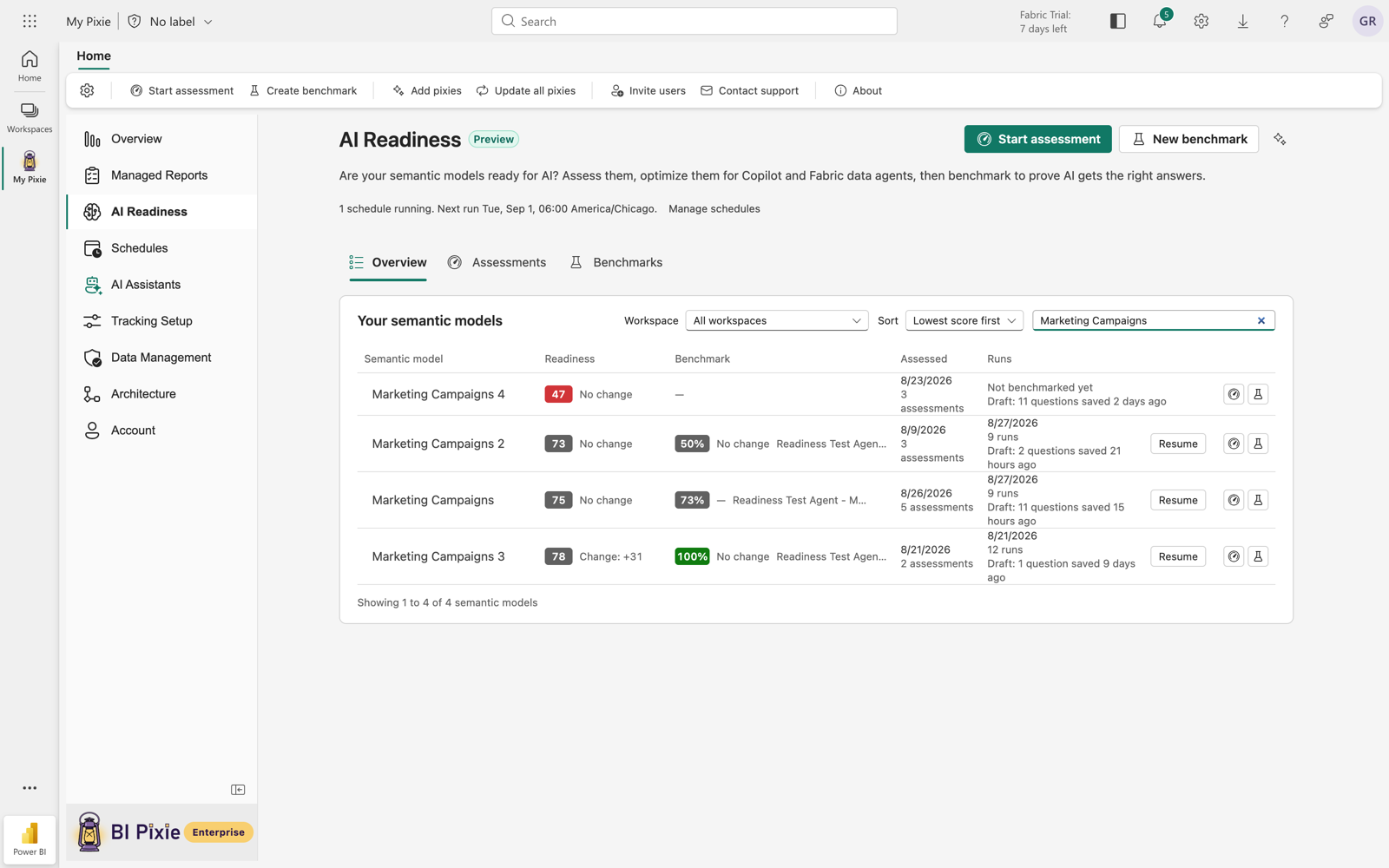
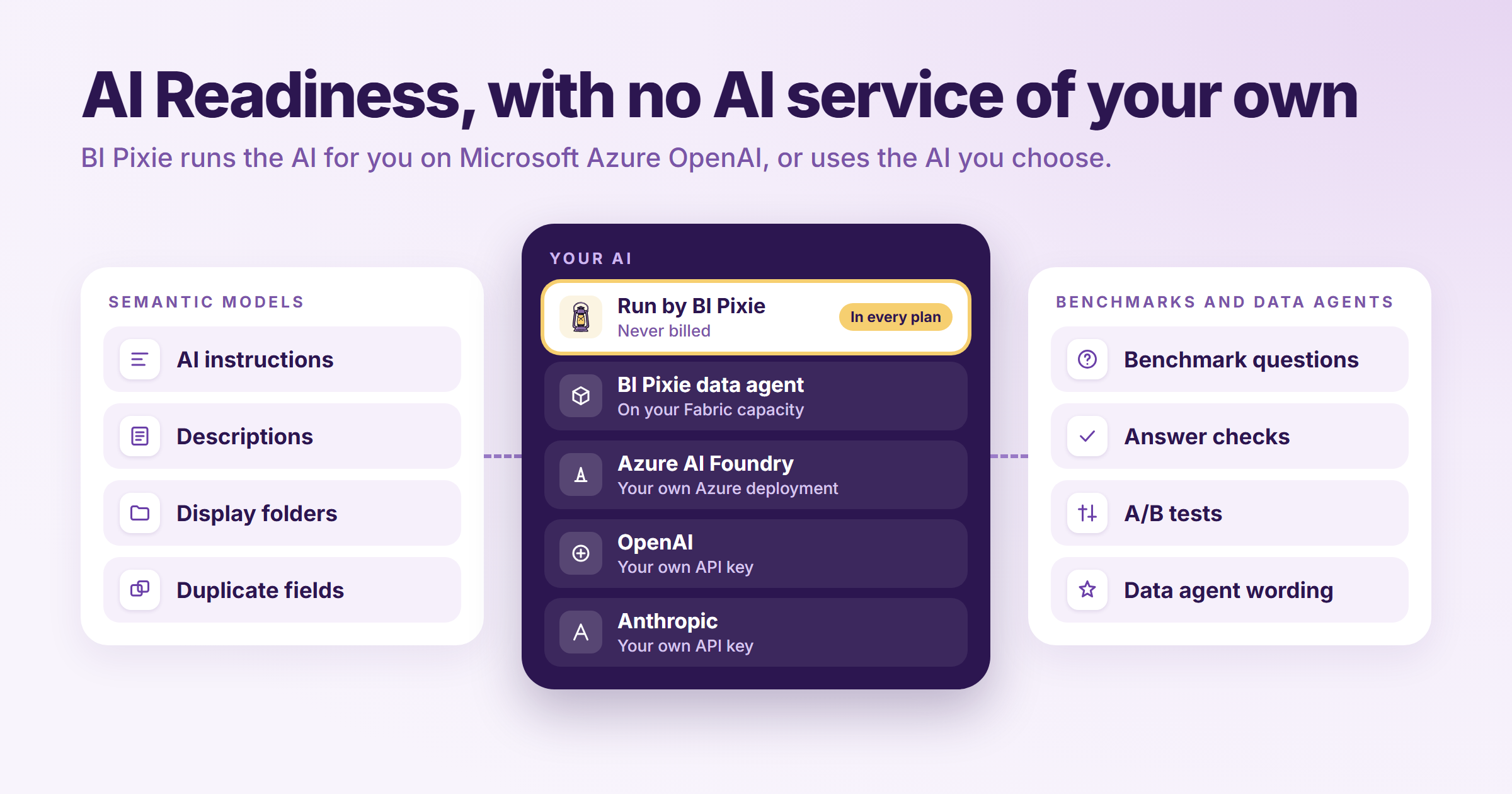
BI Pixie now runs the AI that AI Readiness needs, on Microsoft Azure OpenAI, so it can write descriptions, AI instructions and benchmark questions, and check benchmark answers, before you connect an AI service of your own. This post lists every task BI Pixie does with it, and what each plan includes.
Taking Copilot and Fabric data agents to production depends on the AI Readiness of the semantic models they answer from. An AI agent answering a question is like a new data analyst given access to an undocumented, complex semantic model for the first time, with nobody to ask what a field means. When it guesses wrong, it does not report an error. It returns a confident answer that looks right. Getting AI ready for production means giving it the context it is missing, and then proving that its answers improved.
That preparation can take a lot of time, and some of the optimizations needed can be delivered faster with the right use of AI. In our last blog post, How to Prepare a Power BI Semantic Model for Copilot, we shared a checklist of fifteen steps that make a semantic model ready for Copilot and Fabric data agents, from descriptions and the AI data schema to AI Instructions and safety checks. As the checklist shows, preparing a single semantic model can take many days, and your organization may have hundreds of semantic models that need the same effort. This is where AI can step in to support you. With the right harness, one that holds the AI to best practices, you can optimize your semantic models faster and better.
Until now, BI Pixie could do that work only if you provided the AI service: a language model in your Azure AI Foundry account, a Fabric data agent running on your own capacity, or an API key from an AI provider. In many organizations, getting the AI you need takes an approval, and the AI Readiness work cannot begin until it is granted.
We are happy to share that, starting today, you no longer need to wait for that approval. BI Pixie now runs the AI for you, and every BI Pixie plan, including the Free plan, comes with a monthly allowance of it. An account that has saved no AI of its own can start from the first visit, in the BI Pixie Portal and in the BI Pixie workload in Microsoft Fabric.
In this post, you learn about all the tasks BI Pixie does with the built-in AI, or with the AI you bring, and where the guide shows each step.
How AI helps you prepare a semantic model
With AI, you can write AI instructions and descriptions, group measures into display folders, and tell true duplicate fields from fields that only look alike.
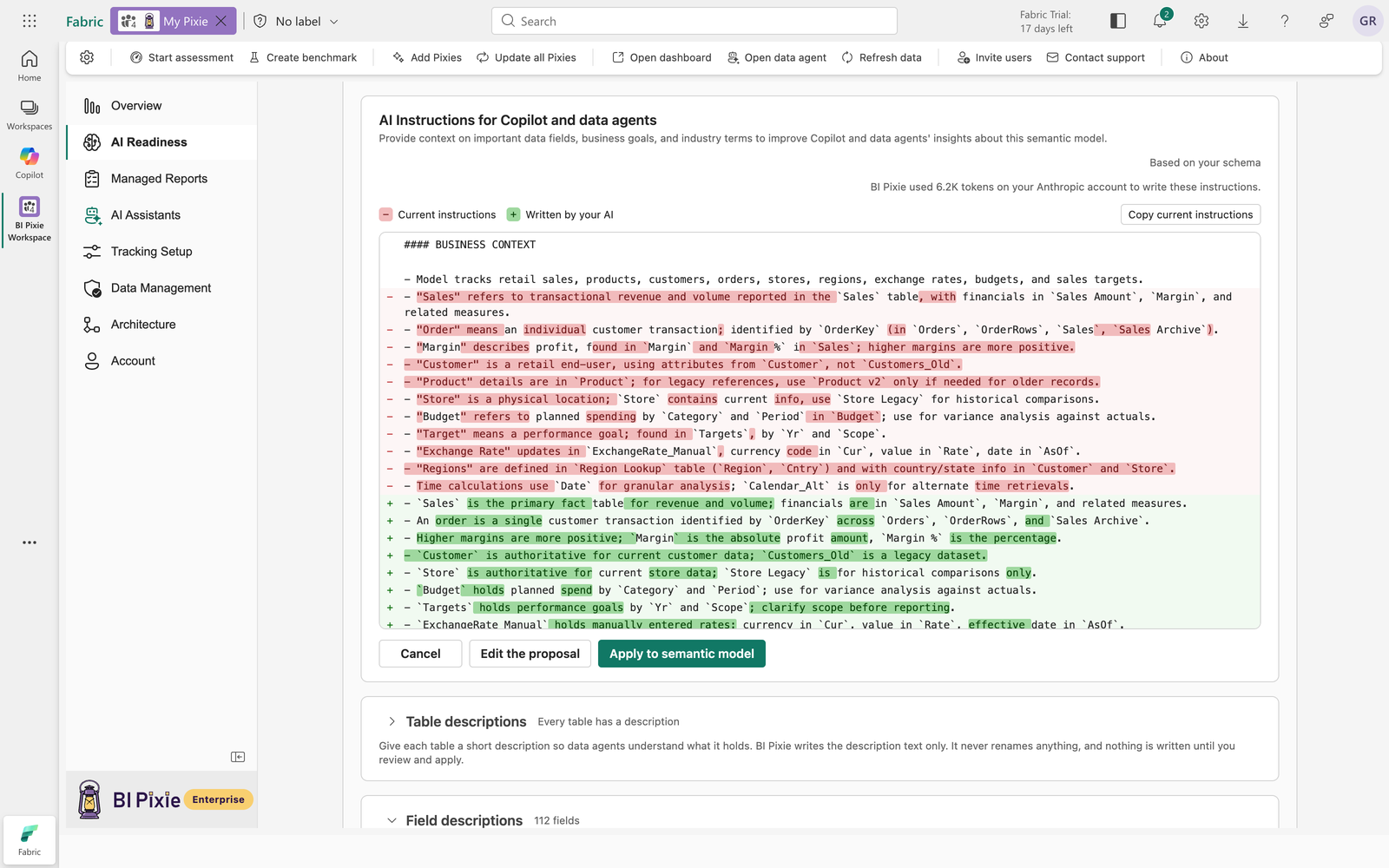
- Write AI instructions. Select Suggest AI Instructions to get instructions for a semantic model that has none, or an improved version of the instructions it has, and compare the proposal with the current instructions line by line. See Write AI instructions.
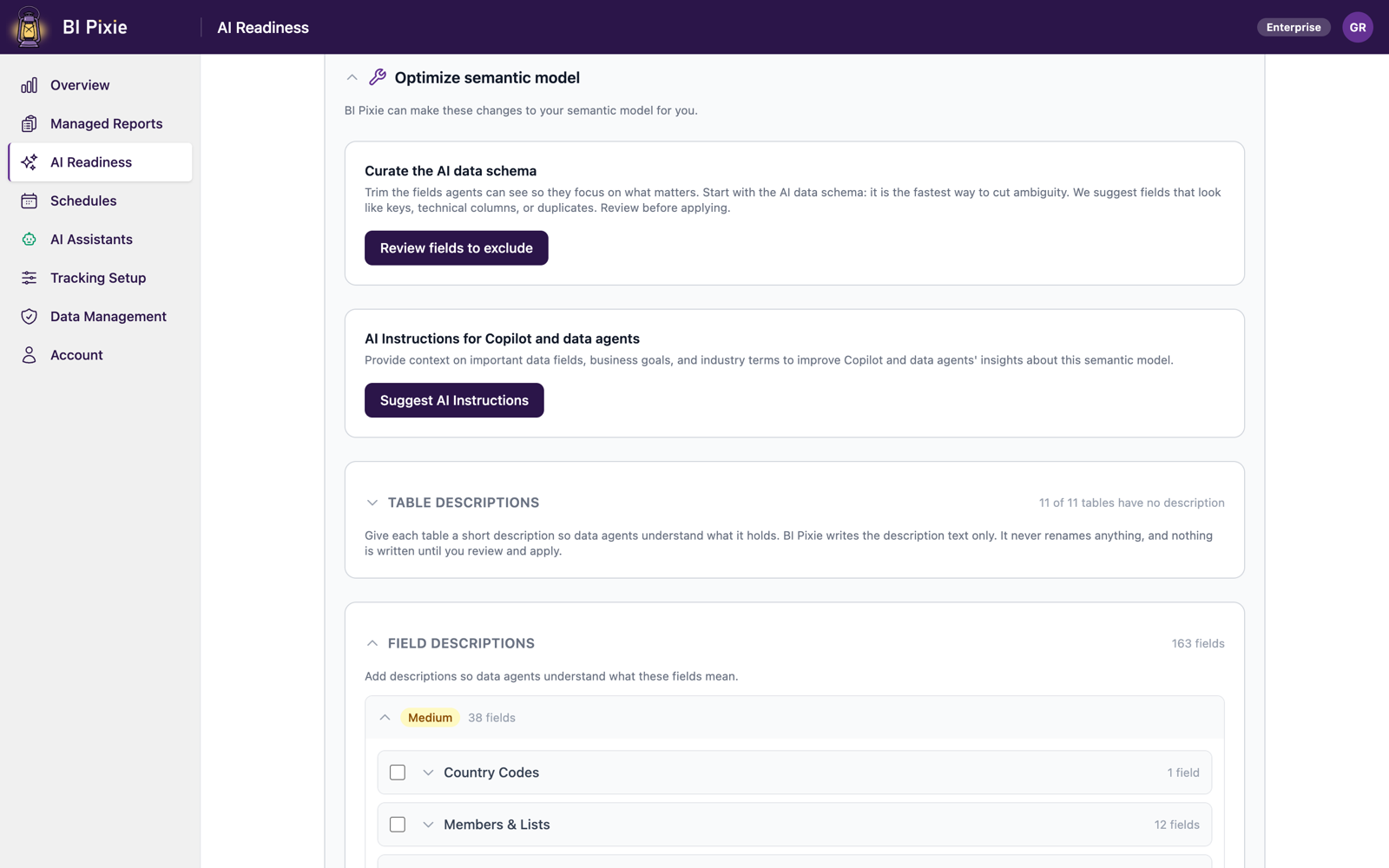
- Write table and field descriptions. Get the descriptions that are missing and refinements of the ones that exist, each shown beside the existing description. With the fields grouped by how much people use them, you can describe the most used fields first. See Write table and field descriptions.
- Group measures into display folders. Start from a proposed first set of folders, and select Ask AI to group the rest to get folders for the measures that are left. See Organize measures into folders.
- Curate the AI data schema. Get an AI data schema that leaves out true duplicates and keeps the fields that only look alike, because AI confirms each pair of fields that may hold the same thing. See Curate the AI data schema.
- Tell near-duplicate fields apart in an assessment. See only the field names an AI agent would actually confuse in an AI Readiness assessment, because AI checks whether each pair of similarly named fields are really duplicates. See Assess a semantic model.
When the reports built on a semantic model have Pixies, the AI also receives the report, page and visual titles people open and the values they filter to most, so the descriptions and AI instructions you get use the words your own people use. The same Pixie usage also shapes the AI data schema proposal, which keeps the fields people use and suggests leaving out the ones nobody has selected. That part needs no AI.
How AI helps you prepare a Fabric data agent
With AI, you can write a data agent’s instructions and check the wording of its descriptions and example questions.
- Write data agent instructions. On the Data agent instructions card, select Ask your AI to get instructions in the format Microsoft recommends, with the guidance that works on a data agent kept, such as answer formatting and your organization’s abbreviations. See Optimize a Fabric data agent.
- Judge the wording in a data agent assessment. Select Ask your AI to find out whether each description says what its source contains and whether each example question is clear. Those verdicts count toward the data agent’s AI Readiness Score, and when you ask again after a change, only the wording that changed is judged again. See Ask your AI about wording.
How AI helps you prove that answers improved
AI was not trained on your data. When someone in finance asks about revenue, they may mean something different from someone in sales, and the AI that answers your questions has to guess. A guess comes back as a confident answer rather than as an error, so you prove an improvement with a benchmark instead of trusting it. The correct answer to every benchmark question is computed from your own data, and with AI, you can write the questions and get a second opinion on each answer.
- Write benchmark questions in natural wording. Get each question phrased the way a person would ask it. The AI that writes the questions never receives the correct answers. See Review the questions and answers.
- Detect business domains and vary the wording. See the fields grouped into the business domains your semantic model covers, and get each question in different words when the benchmark asks it more than once, so the result does not depend on a single phrasing. See Set the benchmark strategy.
- Get a second opinion on every answer. See each answer compared with the correct answer, together with the AI’s second opinion on whether the two match. An answer the AI finds unclear counts as not scored rather than wrong. See Read the result.
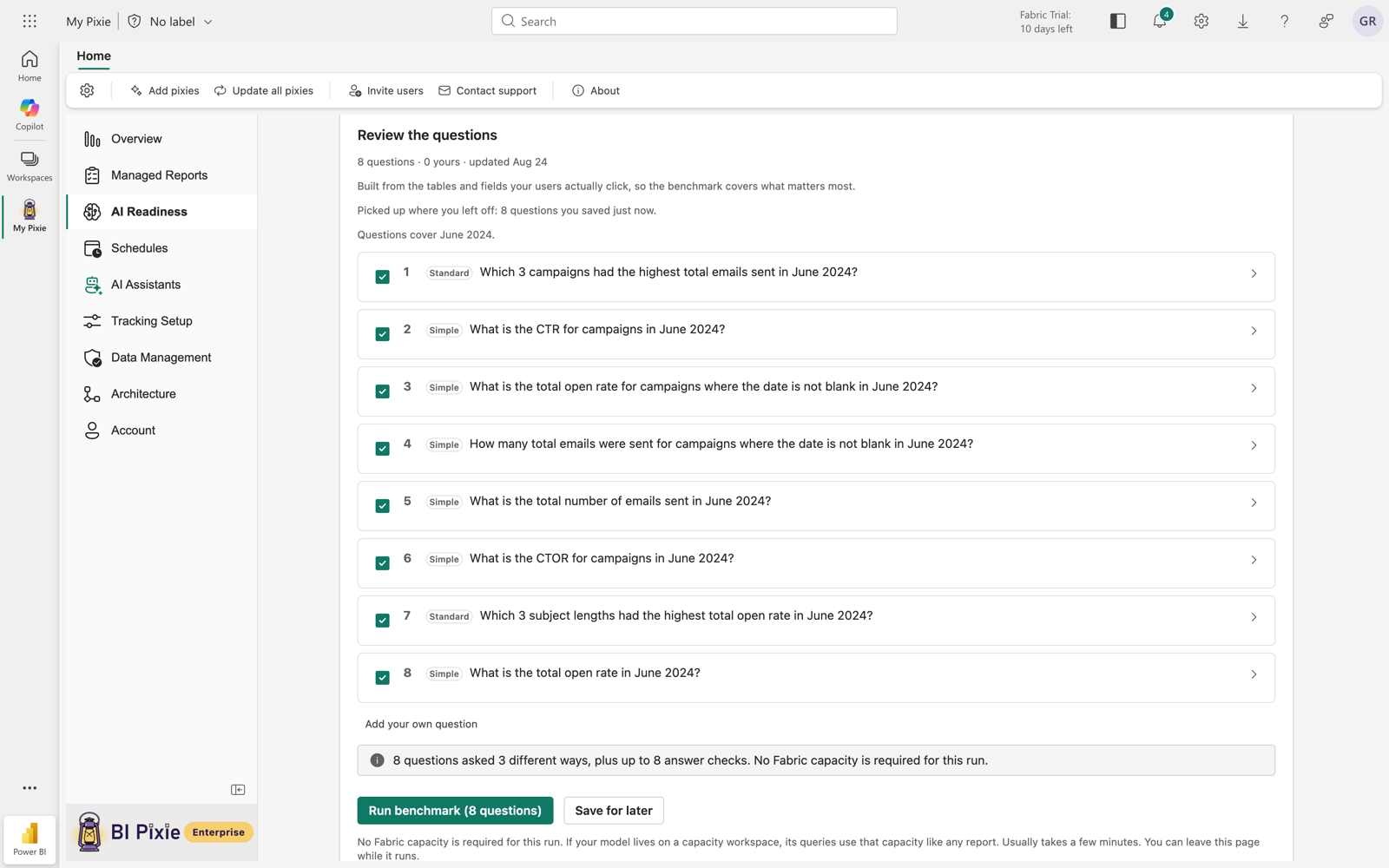
You can benchmark Copilot, a Fabric data agent your team built, or a generic AI agent, and get a second opinion on each of their answers. See Choose the AI to test.
Compare two versions of a semantic model, or two AIs, with an A/B test
In an A/B test, you run the same benchmark against two versions of a semantic model or two AIs, so you find out whether a change made more answers correct. The answers on both sides are checked the same way, so the difference between the two sides comes from the change you made. See Test a change with an A/B test.
What each BI Pixie plan includes
Every plan includes a monthly allowance of the AI that BI Pixie runs for you, shared by all the users in your organization who use BI Pixie:
- 300,000 tokens on the Free plan
- 1.5 million tokens on the Standard plan
- 6 million tokens on the Pro plan
- 25 million tokens on the Enterprise plan
Tokens are the units an AI service counts text in.
When the allowance runs out, new runs wait until the first day of the next month. A run that has already started always finishes. BI Pixie never bills you for the AI it runs. To keep using AI sooner, an administrator can switch to your own AI or upgrade your BI Pixie plan.
In AI setup, on the Account page and on the AI Assistants page, a meter labeled BI Pixie AI shows how much of this month's allowance your organization has used, and the date the allowance returns. See See how much of the allowance is used.

For what the built-in AI receives and where it runs, see What is sent to AI run by BI Pixie, and where in the user guide.
Try the built-in AI on your next semantic model
The built-in AI is ready the next time you open AI Readiness, in the BI Pixie Portal or in the BI Pixie workload in Microsoft Fabric. Pick the semantic model that matters most, and BI Pixie writes the descriptions and AI instructions it is missing, for you to review before anything changes.
Read more in the user guide: