
Copilot gives wrong answers when your semantic model is not ready for it.
You enabled Copilot, or created a Fabric data agent, and pointed it at a semantic model your team has maintained for years. The reports built on that semantic model are fine. People trust them.
When you ask Copilot or your Fabric data agent for last quarter's revenue by region, it picks the wrong measure, invents a column, or answers with a number nobody recognizes. The semantic model looks healthy in every way you know how to check.
Why a semantic model that looks healthy still answers wrong
Your report authors and an AI agent use the same semantic model in completely different ways. A report author knows that Amount means net revenue because they built the visual and labeled the axis. An agent has only the semantic model's metadata: table and column names, descriptions, relationships, and whatever instructions you left it. Everything the author carried in their head is invisible to the agent.
A semantic model can serve your reports perfectly and still be unreadable to an agent. The same semantic model can hold two columns called Date in different tables, a measure named Total with no description, a hidden helper table that looks like a fact table, and an implicit measure whose name suggests something different from what it means. None of that breaks a report, but all of it can break an answer.
Nothing warns you when an agent guesses. There is no error message and no failed query, so the only way to know an answer was wrong is for somebody who already knew the right number to read it.
What an AI Readiness assessment tells you
BI Pixie reads your semantic model definition, writes nothing, and assesses it the way an agent would read it. The scoring rules are fixed and no AI model judges your semantic model, so a second assessment is a reliable before-and-after check on the changes your team made.
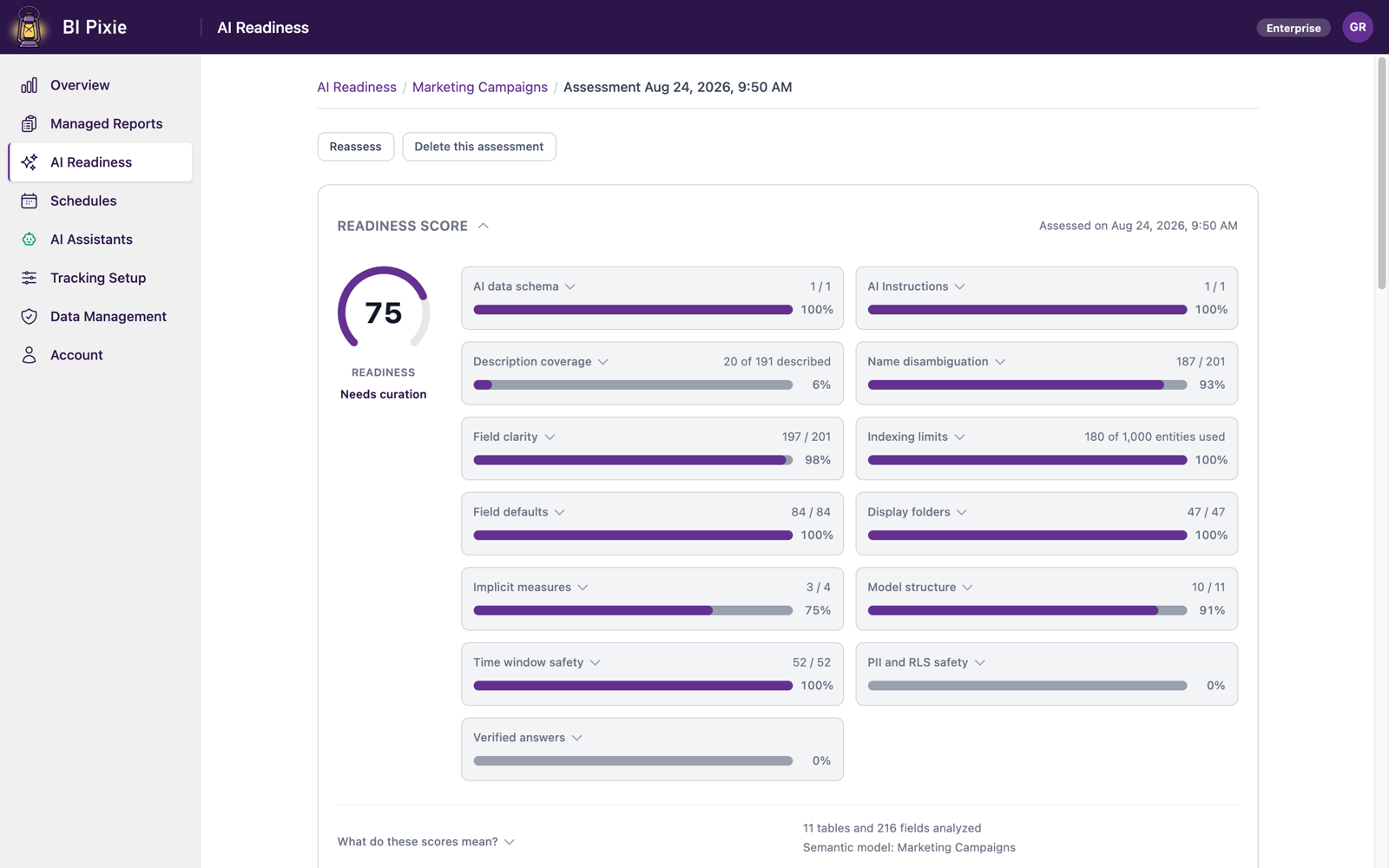
- One AI Readiness score
- One AI Readiness score tells you how ready the semantic model is for Copilot and for Fabric data agents. BI Pixie weighs descriptions, AI Instructions, and a curated AI data schema, because AI assistants read them when generating answers.
- What is holding the AI Readiness score back
- BI Pixie shows you which gaps cost the score the most, whether that is missing descriptions, ambiguous names, or unsafe defaults, so your team fixes what raises answer accuracy first. The AI Readiness guide describes everything BI Pixie checks.
- The AI Readiness of your Fabric data agent
- BI Pixie also assesses the Fabric data agent itself, based on Microsoft's published guidance: its instructions, its example queries, and the data sources it is grounded on, whether those are semantic models, lakehouses, warehouses, KQL databases, SQL databases or mirrored databases. When a semantic model underneath is what limits the data agent, you see that too, so the work goes to the right place.
- Fixes ranked by real usage
- When BI Pixie tracks the reports built on your semantic model and has recorded enough interactions, it orders the findings by what your people actually click, so your team's time goes to the improvements your users will notice.
- Proof, not just a score
- BI Pixie benchmarks your AI through a generic AI agent, through the same query engine behind Copilot, or through your own Fabric data agent, against questions whose correct answers are computed live in DAX from your own data. You see each answer the AI gave beside the correct answer. Through the generic AI agent and through the query engine behind Copilot you also see the query the AI wrote. A Fabric data agent writes and runs its own query inside Fabric and hands back only its answer, so when you benchmark through your own Fabric data agent, you see the answers alone.
- Your AI Readiness score stays current
- Semantic models drift as your team adds measures and renames columns. Reassessing takes one click, and on the Enterprise plan you can put assessments on a schedule, so the score trend stays current without anyone remembering to start a run.
Download the AI Readiness one-pager (PDF, one page, no form.)
What it takes to set up
- 1 Connect your Power BI workspace and open AI Readiness.
- 2 Assess a semantic model. Nothing is written to it, and the analysis runs on BI Pixie's infrastructure, not on your Fabric capacity.
- 3 Review the findings and apply the fixes you agree with.
- 4 Run a benchmark to confirm that your AI's answers actually improved.
Worth knowing: Assessment needs Contributor or higher on the workspace. AI-authored text (descriptions, AI Instructions) needs an AI you connect yourself, such as Microsoft Foundry, OpenAI, or Anthropic, and so does the generic AI agent benchmark, because your AI plays the agent that answers the questions. Measuring through a generic AI agent works for semantic models in workspaces with no Fabric capacity at all. The other two options need one: benchmarking through the query engine behind Copilot needs the workspace on a Fabric capacity, and your own Fabric data agent needs a paid capacity. When BI Pixie ranks findings by usage, it reads engagement counts only. BI Pixie collects viewer user names only when you turn on Capture user identity, and until then it counts viewers by a masked IP address.
Related reading
Other use cases
- Build your AI plan for Power BI from how people use each report today.
- A Copilot that answered correctly last quarter can answer wrongly today.
- Plan a migration to Microsoft Fabric, and prove that it worked.
- Power BI usage metrics record that a report was opened, not what happened next.
- Show the return on your Power BI investment with how people use and value each report.
- Power BI usage metrics do not cover your embedded reports.
- Collect satisfaction scores from Power BI users inside the report, not in a separate survey tool.
- Check whether row-level security in Power BI let anyone see data it should have hidden.
- Find the slow Power BI reports that people depend on, and fix those first.
See the data from your own reports
Add Pixies to a report and watch real interaction data arrive. BI Pixie starts free, and the Free plan does not expire.