
Check whether row-level security in Power BI let anyone see data it should have hidden.
Your reports carry data that not everyone may see, so the semantic models behind them use row-level security. The roles were tested when they were built. Since then, people have joined and changed teams, roles have been edited, and the data has grown.
Now someone asks you to show that nobody has seen data they should not have, perhaps after a misconfiguration, perhaps for an audit. You can show how the roles are defined. You cannot easily show what each person actually saw.
Why testing the roles cannot show what people saw
Row-level security in Power BI filters data by role, and Microsoft gives you the tools to define roles and to test them by viewing a report as a role. Those tools check the design. They do not record, for each real view of a report, which role applied and which secured values the reader saw.
Many row-level security flaws come from the combination of roles, membership, and data rather than from one wrong rule. A user who belongs to two roles sees the rows of both. A user whose mapping is missing sees nothing. A change to a role or a table can widen what someone sees without anyone noticing. None of that shows until you look at what people saw.
What BI Pixie records each time someone views a secured report
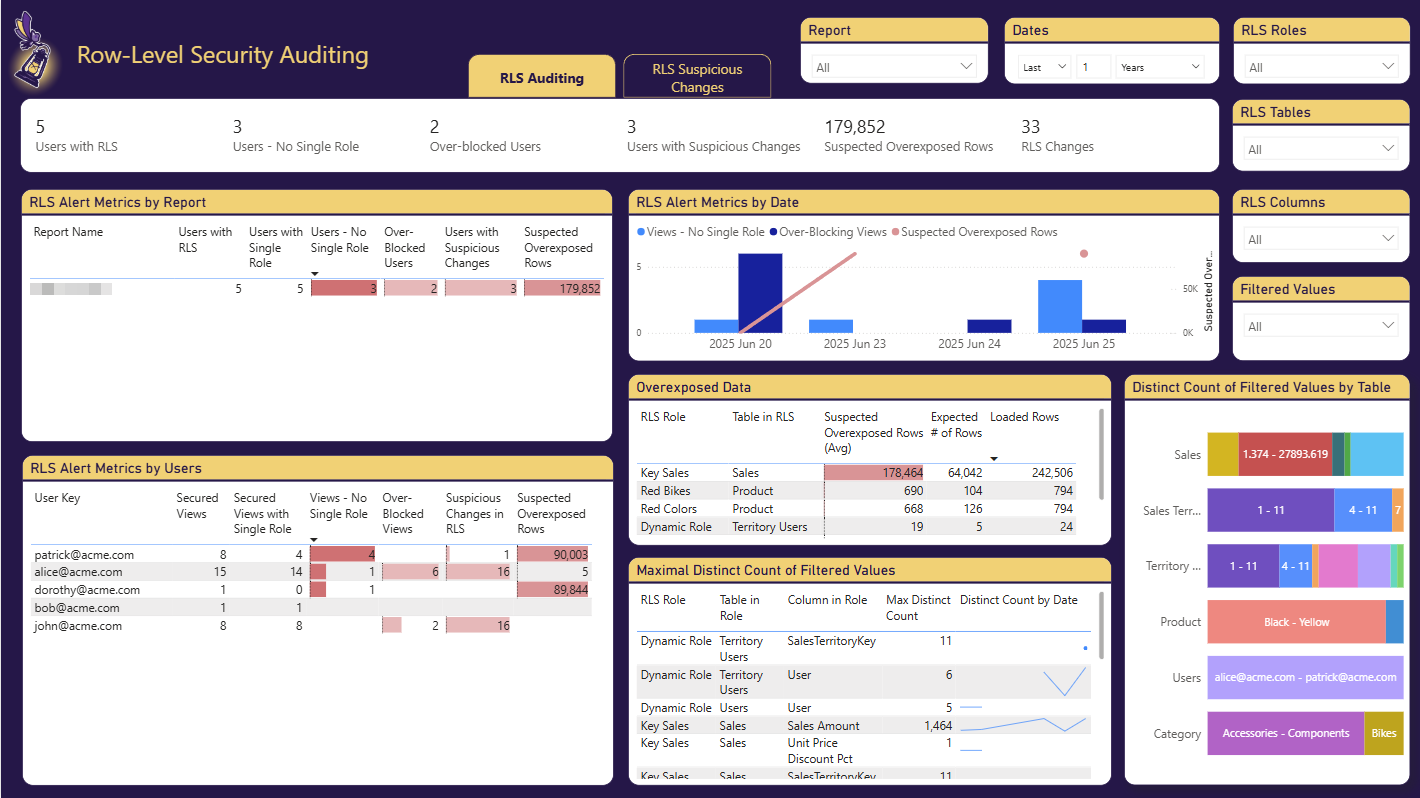
BI Pixie adds Pixies, invisible tracking pixels native to Power BI, to the reports you choose. With RLS auditing turned on, the Pixies record the role that applied and the secured values each reader saw, and the Row-Level Security Auditing page of the BI Pixie Dashboard breaks the findings down by report, user, role, and date.
- Users with no single role
- BI Pixie counts the users who viewed a report with more than one role or with no role at all, and the views they made, so you can find role membership that is ambiguous or incomplete.
- Suspected overexposed rows
- BI Pixie compares the rows a reader loaded with the rows their role is expected to return, and estimates how many rows may have been visible that should have been hidden, per role and secured table.
- Over-blocked users
- BI Pixie shows the users whose role left them with little or no data, which often points to a missing mapping rather than a deliberate restriction.
- Suspicious changes
- When the values a user can see change unexpectedly, BI Pixie flags the change. A decomposition tree takes you from a report to a role, a user, a secured table and column, and the values that changed.
- Which values people selected
- The Data Auditing page shows which values people selected in slicers, filters, and visuals, and on which report and page, so you can answer who looked at what.
What it takes to set up
- 1 Turn on Enable Row-Level Security (RLS) auditing in Tracking Setup. It also turns on tracking of data selections and of table and column names.
- 2 Add Pixies to the reports built on semantic models with row-level security. For reports that already have Pixies, select Update Pixies in Managed Reports.
- 3 Let people read the reports as they normally do.
- 4 Review the Row-Level Security Auditing page of the BI Pixie Dashboard after its next refresh.
Worth knowing: RLS auditing is available from the Pro plan. Adding Pixies needs the Contributor, Member, or Admin role on the workspace. RLS auditing records secured data values, so the first time you turn it on, BI Pixie asks you to confirm consent for sensitive data collection. BI Pixie collects viewer user names only when you turn on Capture user identity in Tracking Setup, so to see which person each finding belongs to, you turn that on as well. Until then, BI Pixie tells readers apart by a masked IP address. Findings appear after the next refresh of the BI Pixie Dashboard, not at the moment a report is read.
Related reading
- RLS Auditing in the BI Pixie Dashboard
- Tracking Setup
- Detect data leakage due to flaws in RLS implementation
- Data auditing in Power BI
Other use cases
- Build your AI plan for Power BI from how people use each report today.
- Copilot gives wrong answers when your semantic model is not ready for it.
- A Copilot that answered correctly last quarter can answer wrongly today.
- Plan a migration to Microsoft Fabric, and prove that it worked.
- Power BI usage metrics record that a report was opened, not what happened next.
- Show the return on your Power BI investment with how people use and value each report.
- Power BI usage metrics do not cover your embedded reports.
- Collect satisfaction scores from Power BI users inside the report, not in a separate survey tool.
- Find the slow Power BI reports that people depend on, and fix those first.
See the data from your own reports
Add Pixies to a report and watch real interaction data arrive. BI Pixie starts free, and the Free plan does not expire.