
Find the slow Power BI reports that people depend on, and fix those first.
Some of your Power BI reports are slow, and there are more of them than your team has time to fix. Each one means finding the visuals and DAX queries behind the wait, rewriting them, and testing the result.
A team that cannot fix every slow report has to choose among them. The slowest report may be one nobody opens, and a report that is only a little slow may be the one hundreds of people wait for every morning. You need to know which slow reports people actually depend on.
Which edition: Performance analysis is available only in BI Pixie on Azure, the self-hosted edition you deploy in your own Azure subscription. It needs your Power BI workspaces connected to Azure Log Analytics. It is not part of BI Pixie Cloud or the BI Pixie Workload in Microsoft Fabric.
Why query logs alone cannot tell you which slow report matters
Power BI can send the query activity of the semantic models in a workspace to Azure Log Analytics, where each query arrives with its duration and its CPU time. Those logs describe the query. They do not say whether the people who ran it kept using the report, and turning raw query events into a view by report, page, and visual takes queries that someone has to write and maintain.
The Microsoft Fabric Capacity Metrics app shows which items use the most of your capacity, and it is the right place to find what costs the most. It is organized by item and operation, not by the pages and visuals people read, so it cannot tell you which slow page your readers rely on.
Log Analytics keeps query events only as long as its retention is set to. A comparison before and after a change, or across a whole year, needs history that is often gone by the time someone asks.
What BI Pixie on Azure shows for each slow report
BI Pixie adds Pixies, invisible tracking pixels native to Power BI, to the reports you choose, and records how people use them. In BI Pixie on Azure, BI Pixie also reads query events from your Log Analytics workspace on a schedule, keeps them in your own storage account, and puts them beside that engagement on the Performance page of the BI Pixie Dashboard (Azure).
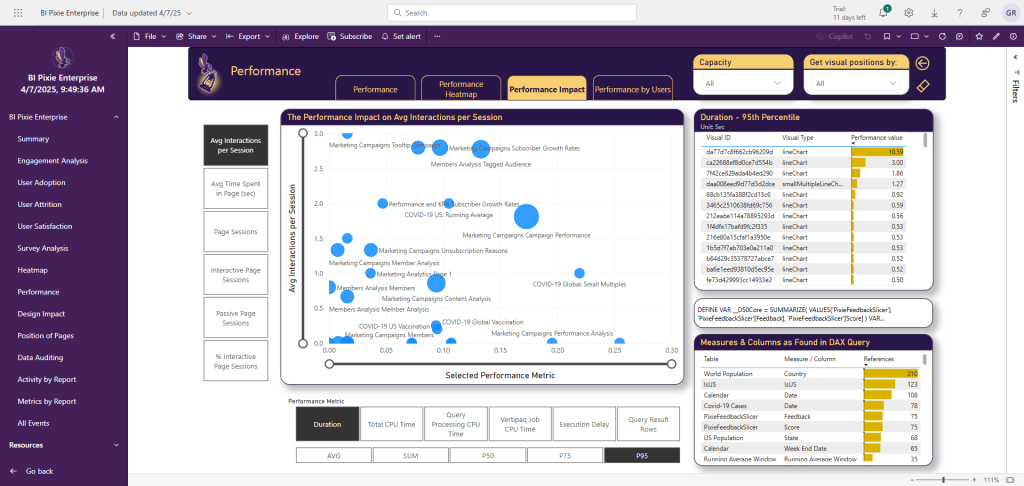
- Load time and CPU time for each visual
- You see duration, total CPU time, query processing CPU time, VertiPaq job CPU time, execution delay, and query result rows for each visual, as a sum, an average, a median, or a higher percentile, by day and by week. A tooltip shows the DAX query behind a visual and the measures and columns it uses.
- A heatmap of each report page
- Each visual on a page is colored by the metric you choose, so the slow visuals stand out where your readers see them.
- Slow pages beside how people use them
- The Performance Impact tab plots report pages by a performance metric against an engagement metric, such as average interactions per session, with the number of users as the size of each bubble. A slow page that many people work in is the one to fix first. A page with high CPU time and little engagement is one worth reviewing.
- The reports that affect the most people
- The Performance by Users tab lists the reports with the highest CPU time, how many users each one affects, the 20 users most affected, and the visuals with the highest CPU time.
- History longer than your Log Analytics retention
- BI Pixie keeps the performance data in your own storage account, so you can compare a report before and after a change without raising the retention of your Log Analytics workspace. The first collection reads up to 180 days back, when Log Analytics still holds that data.
What it takes to set up
- 1 Deploy BI Pixie on Azure into your own Azure subscription.
- 2 Connect the Power BI workspaces that hold your reports to an Azure Log Analytics workspace, if they are not connected already.
- 3 Give the BI Pixie function app the Log Analytics Data Reader role on the resource group of that Log Analytics workspace, and enter the workspace ID in the function app's settings.
- 4 Add Pixies to the reports, and review the Performance page of the BI Pixie Dashboard (Azure). BI Pixie collects new query events every hour by default.
Worth knowing: Performance analysis is available only in BI Pixie on Azure, the self-hosted edition. It is not part of BI Pixie Cloud or the BI Pixie Workload in Microsoft Fabric. It needs your Power BI workspaces connected to Azure Log Analytics, and Microsoft sets its own requirements for that connection. Connecting Log Analytics is optional, and every other feature of BI Pixie on Azure works without it. Log Analytics records which user ran each query, so the Performance by Users tab can name the people a slow report affects. That data, like the rest of the performance data, stays in your own Azure subscription and storage account.
Related reading
- Performance analysis in BI Pixie on Azure
- Deploy BI Pixie on Azure
- Analyze custom visuals' engagement, performance and risks
- Measuring the effectiveness of your Power BI dashboards
Other use cases
- Build your AI plan for Power BI from how people use each report today.
- Copilot gives wrong answers when your semantic model is not ready for it.
- A Copilot that answered correctly last quarter can answer wrongly today.
- Plan a migration to Microsoft Fabric, and prove that it worked.
- Power BI usage metrics record that a report was opened, not what happened next.
- Show the return on your Power BI investment with how people use and value each report.
- Power BI usage metrics do not cover your embedded reports.
- Collect satisfaction scores from Power BI users inside the report, not in a separate survey tool.
- Check whether row-level security in Power BI let anyone see data it should have hidden.
Find the slow reports worth fixing in your own Azure subscription
BI Pixie on Azure runs in your Azure subscription and reads performance data from your own Log Analytics workspace. Tell us about your reports, and the BI Pixie team will reply.