
Collect satisfaction scores from Power BI users inside the report, not in a separate survey tool.
You want to know whether your Power BI reports help the people who read them. Usage numbers tell you who opened a report. They do not tell you whether it answered the question the reader came with.
So you send a survey. It arrives by email weeks after anyone last opened the report, a handful of people answer, and the answers cannot be tied to a report or a page.
Why a survey outside the report falls short
Power BI does not include a control for asking the readers of a report whether it is useful. A separate survey tool can collect the answers, but it runs outside the report. The reader has to leave what they were doing to answer, and someone has to match each response to a report by hand.
A satisfaction score on its own is also hard to act on. A low score tells you that something is wrong. It does not tell you whether the report is ignored, misunderstood, or missing data. To decide what to fix, you need what people said beside what they did in the report.
What your readers can tell you from inside the report
BI Pixie adds Pixies, invisible tracking pixels native to Power BI, to the reports you choose. When you turn on feedback controls and the embedded survey, the same update adds them to the report, and every response arrives in the BI Pixie Dashboard beside the usage of that report.
- One-click feedback on every page
- A feedback control with thumbs up and down, or smile and frown, sits in the top-right corner of each report page, or on a single page if you prefer. Readers answer with one click without leaving the report, and you can compare satisfaction page by page.
- A survey page inside the report
- BI Pixie adds a native Power BI survey page to the end of the report, and can add a button on every page that leads to it. The default questions cover NPS, issues, time saved, decision making, and financial benefit, and you can change the wording and the answer options of each question.
- NPS and the value a report delivers
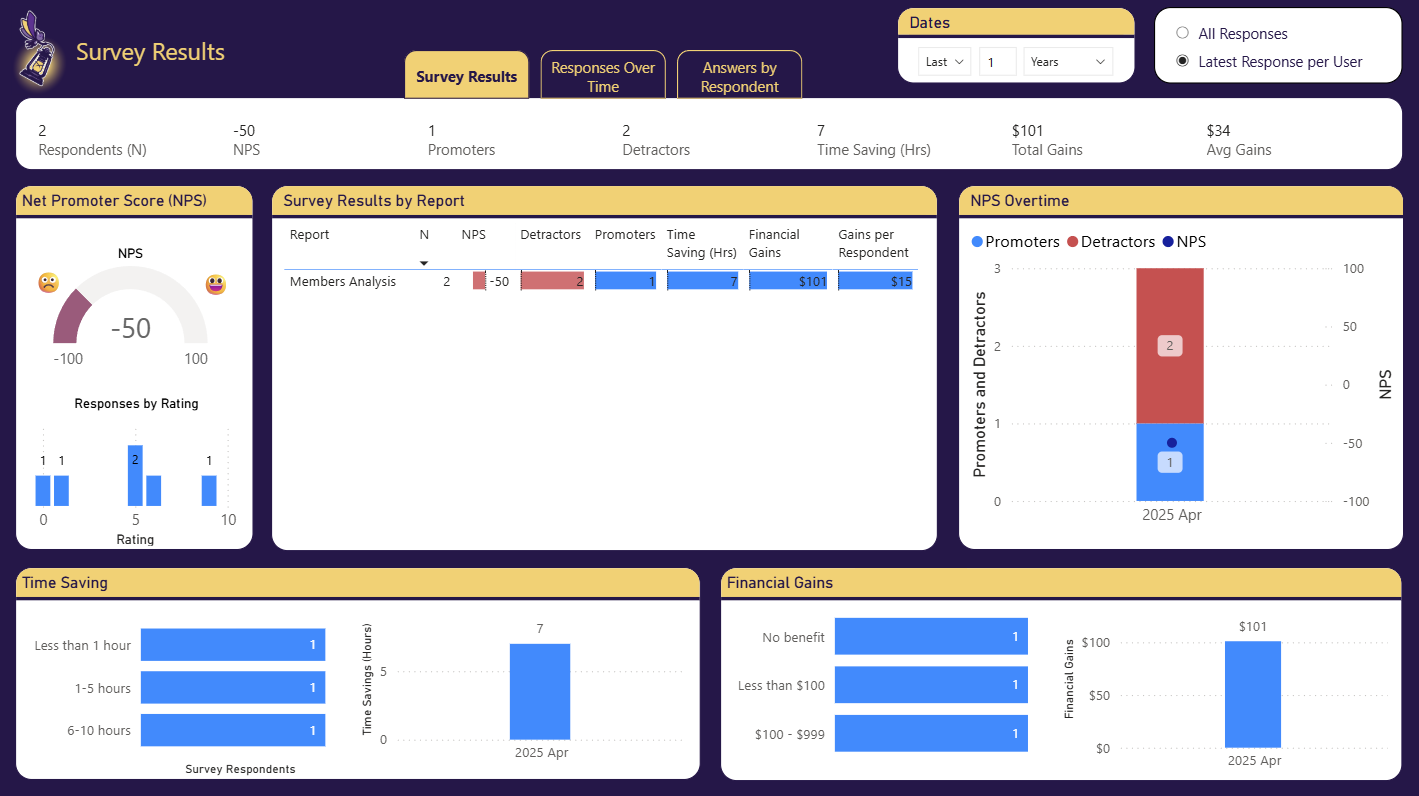
- The Survey Results page calculates the Net Promoter Score from promoters, passives, and detractors, and totals the hours saved and the financial gains respondents report, per report and over time.
- Satisfaction beside behavior
- The User Satisfaction page shows feedback by report and page, and satisfaction trends over time. The same Pixies record engagement, so you can compare what people said with how they used the report.
- Respondents choose whether to be named
- The email question in the survey lets each respondent choose between including their email address and staying anonymous.
What it takes to set up
- 1 Turn on Add feedback controls, Add survey, or both in Tracking Setup, for the whole account, a workspace, or a single report.
- 2 Choose the icons, the tooltip text, and the survey questions and answer options.
- 3 Add Pixies to the reports. For reports that already have Pixies, select Update Pixies in Managed Reports.
- 4 Review feedback on the User Satisfaction page and survey answers on the Survey Results page of the BI Pixie Dashboard.
Worth knowing: Feedback controls and embedded surveys are included with the Free, Pro and Enterprise plans. Adding Pixies needs the Contributor, Member, or Admin role on the workspace. Feedback on every page adds a hidden table to the semantic model, and so does the survey, so you refresh the schema of the semantic model after the first update. The survey also needs a semantic model with the same name as the report, in the same workspace. When a report uses a live connection to a shared semantic model, feedback appears on one page instead, and the survey cannot be added. BI Pixie collects viewer user names only when you turn on Capture user identity in Tracking Setup, and until then it tells readers apart by a masked IP address.
Related reading
- Collect user feedback
- Embed user surveys
- Collect user feedback in your Power BI reports
- Embedded surveys in Power BI
Other use cases
- Build your AI plan for Power BI from how people use each report today.
- Copilot gives wrong answers when your semantic model is not ready for it.
- A Copilot that answered correctly last quarter can answer wrongly today.
- Plan a migration to Microsoft Fabric, and prove that it worked.
- Power BI usage metrics record that a report was opened, not what happened next.
- Show the return on your Power BI investment with how people use and value each report.
- Power BI usage metrics do not cover your embedded reports.
- Check whether row-level security in Power BI let anyone see data it should have hidden.
- Find the slow Power BI reports that people depend on, and fix those first.
See the data from your own reports
Add Pixies to a report and watch real interaction data arrive. BI Pixie starts free, and the Free plan does not expire.