
Assessments
When you run an assessment, BI Pixie downloads the semantic model's definition read-only through the Fabric API, analyzes it, and produces one AI Readiness score from 0 to 100, measuring how well the semantic model is prepared to answer questions asked by Copilot in Power BI and Fabric data agents. A curated AI data schema, AI Instructions, and table, column, and measure descriptions all move the score, because AI assistants read them when generating answers. Scoring writes nothing to your semantic model.
No AI model is involved in scoring. The scoring rules are fixed: a semantic model whose definition and recorded usage have not changed always receives the same score, so a second assessment is a reliable before-and-after check on any change you make. See Grounded in Real Usage below for how recorded usage enters the score. The assessment runs in BI Pixie's service rather than on your Fabric capacity, and where regional processing applies to your account, the analysis runs in your own Fabric region.
- Agent ready. A score of 80 or higher.
- Needs curation. A score of 50 to 79.
- Not agent ready. A score below 50.
Start an Assessment
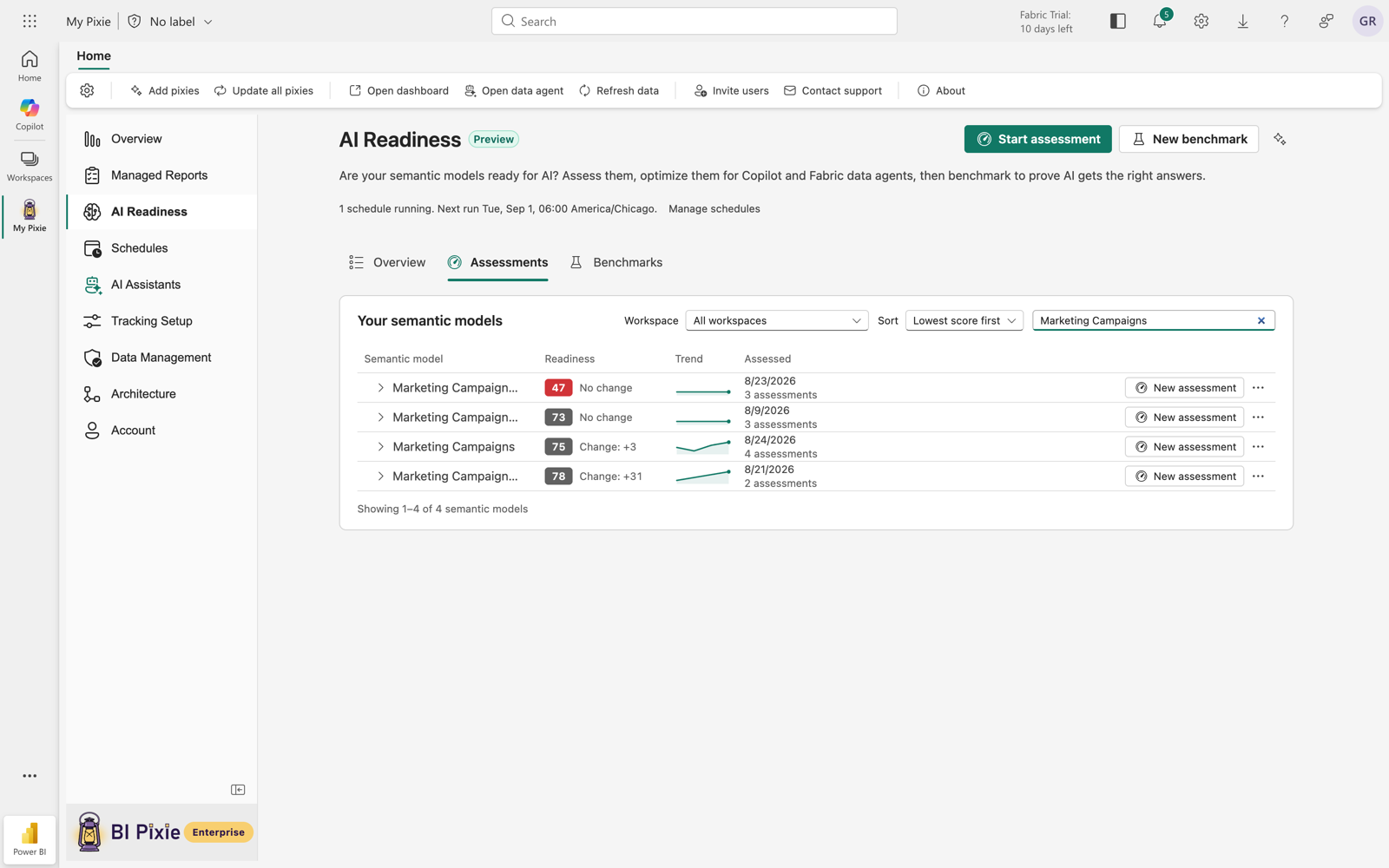
- Open AI Readiness from the left sidebar of your BI Pixie item and select Start assessment.
- Choose the Fabric workspace, then the semantic model. Any semantic model your own account can reach is eligible; it does not need to be the semantic model behind a tracked report. The BI Pixie Dashboard semantic model is not offered, because BI Pixie rewrites it on every dashboard update.
- BI Pixie downloads the definition, analyzes it, and opens the result.
To assess a semantic model you have assessed before, select New assessment on its page, or Reassess from its row's actions menu in Your semantic models.
Assess many semantic models at once
Select several semantic models in Your semantic models and use the Assess button, which names how many you selected. A progress view shows each semantic model as Pending, Assessing, Done, or Failed while the run works through the list, and a finished row opens to its result. Past bulk runs are kept under Past bulk runs, and every assessment they produced also appears in its semantic model's own history.
Read the Result
A result opens under the breadcrumb AI Readiness / the semantic model / the date, and states when the assessment was made. From top to bottom it holds:
- The score card. The score, its band, the date, and one tile per dimension, each stating its count, such as 12 of 40 described, and opening to an explanation of what it measures and what moved it. What do these scores mean? opens the band legend, and Why this score? opens the points each dimension deducted, largest first. The thirteen dimensions are described on Score Dimensions.
- Optimize semantic model. One card holding every fix BI Pixie can write into the semantic model for you, each reviewed before it is applied. See Optimizations.
- Fix on your own. The findings BI Pixie deliberately does not change automatically, with guidance on each.
Grounded in Real Usage
When the semantic model's reports are tracked with Pixies and enough usage has been recorded within your account's usage window, roughly 30 interactions across at least 3 distinct fields, the analysis moves from structure-only to usage-grounded. The window is the trailing 90 days unless you have chosen a different one on the Data Management page. The score, the severity and order of findings, and the recommendations then reflect what people actually select.
- Grounded. A gold Pixies inside pill appears on the score card and the result carries a "Based on usage through" date. Findings gain usage badges such as Heavily used, On reports, Never clicked, and Not on any report.
- Collecting. The reports are tracked but there is not yet enough activity. A note suggests assessing again in a few days.
- Not tracked. The result is based on structure alone, with a pointer to Add Pixies.
History
Every assessment is stored per semantic model. On the semantic model's page, and on the Assessments tab of Your semantic models, each record states its score, its Change against the previous assessment, and summary chips for findings and available optimizations, so you can watch the score respond to your fixes. Where two consecutive scores were produced under different scoring rules, the change is still shown with a note saying that part of the movement reflects the rules rather than the semantic model. The usual case is a semantic model whose earlier assessment could not see usage data and whose later one could.
You can delete a single result from its record, or remove everything stored for a semantic model with Delete all results in the actions menu on its page, which removes its assessments and benchmark runs together. With OneLake data residency, results are written to your own lakehouse rather than retained by BI Pixie, and the page reminds you to save what you need before leaving.
Assessments and Your Plan
The first assessment of a semantic model is free on every plan and claims nothing, for up to 500 distinct semantic models per account. The second assessment of a semantic model adds it to your plan's tracked items, stated in a short disclosure before the assessment starts, and from then on you can reassess it as often as your plan's daily pace allows: 10 a day on the Free plan, 100 on Standard, 250 on Pro, and 1,000 on Enterprise. See Plan Allowances.
What's Next
- Score Dimensions, to understand what each part of the score measures.
- Optimizations, to act on the findings.
- Schedules, to assess on a rhythm without starting each run yourself.
- Benchmarks, to prove the score with real questions.