
Schedules Enterprise
An AI Readiness score is only current until the next change to the semantic model. On the Schedules page you set a rhythm, and BI Pixie runs AI Readiness assessments on that rhythm, so a score trend builds without anyone remembering to start a run.
Open Schedules from the left sidebar of your BI Pixie item. The AI Readiness page carries a one-line summary of what is scheduled, which links here, and every semantic model's own page says whether it is on a schedule.
Nothing Runs Until You Create a Schedule
A new account has an empty Schedules page. BI Pixie creates no schedule on your behalf, and a newly tracked semantic model joins a schedule only if you selected it or chose the scope that covers everything. A semantic model that is in no schedule is a normal state, not a warning. Schedule the semantic models whose scores you actually watch, rather than everything you have.
What a Schedule Is
Select Add schedule at the top right of the page and set four things:
| Field | What to set |
|---|---|
| Schedule name | A name you will recognize in the list, such as "Critical semantic models, daily". |
| Which semantic models | Selected semantic models, or All tracked semantic models, including those added later. The picker names the schedule that already holds a semantic model, so you know where to move it from. The BI Pixie Dashboard semantic model is not offered. |
| How often | Every day, every week, every two weeks, or every month, with the day, the time, and the time zone. The editor reads the result back in a sentence: "Runs every Monday at 06:00, Europe/London." |
| Running or paused | Set on the row after the schedule is saved. |
One schedule per semantic model
A semantic model belongs to one schedule at a time, so it is never assessed twice on the same day by two schedules pulling in different directions. A conflict is refused with a message naming the schedule that already holds the semantic model, and the picker shows the same name before you press Save.
The All tracked semantic models scope covers every tracked semantic model in the license, including semantic models added later. A semantic model named in another schedule stays with that schedule, so "the critical three daily, everything else weekly" is expressible with two schedules.
Times Are in the Schedule's Own Time Zone
- Each schedule carries a time zone, which defaults to yours when you create it. The day and the time are entered in that zone.
- A schedule set for 06:00 stays at 06:00 when daylight saving changes.
- Every time on the page is shown in the schedule's zone, stated once per schedule as its own fact: Next run, Last run, and Time zone.
- When your own zone differs, your local time is added under the next run.
Read and Manage the List
Each schedule is one card: its name, how many semantic models it covers, its cadence, and its pause control, with Edit and Delete at the right edge. Expand a card to see its next run, last run, last result, and time zone as labeled facts, and the semantic models in scope, with anything the schedule cannot run annotated on the semantic model it concerns. When an account holds more than one license, cards are grouped under the license they belong to.
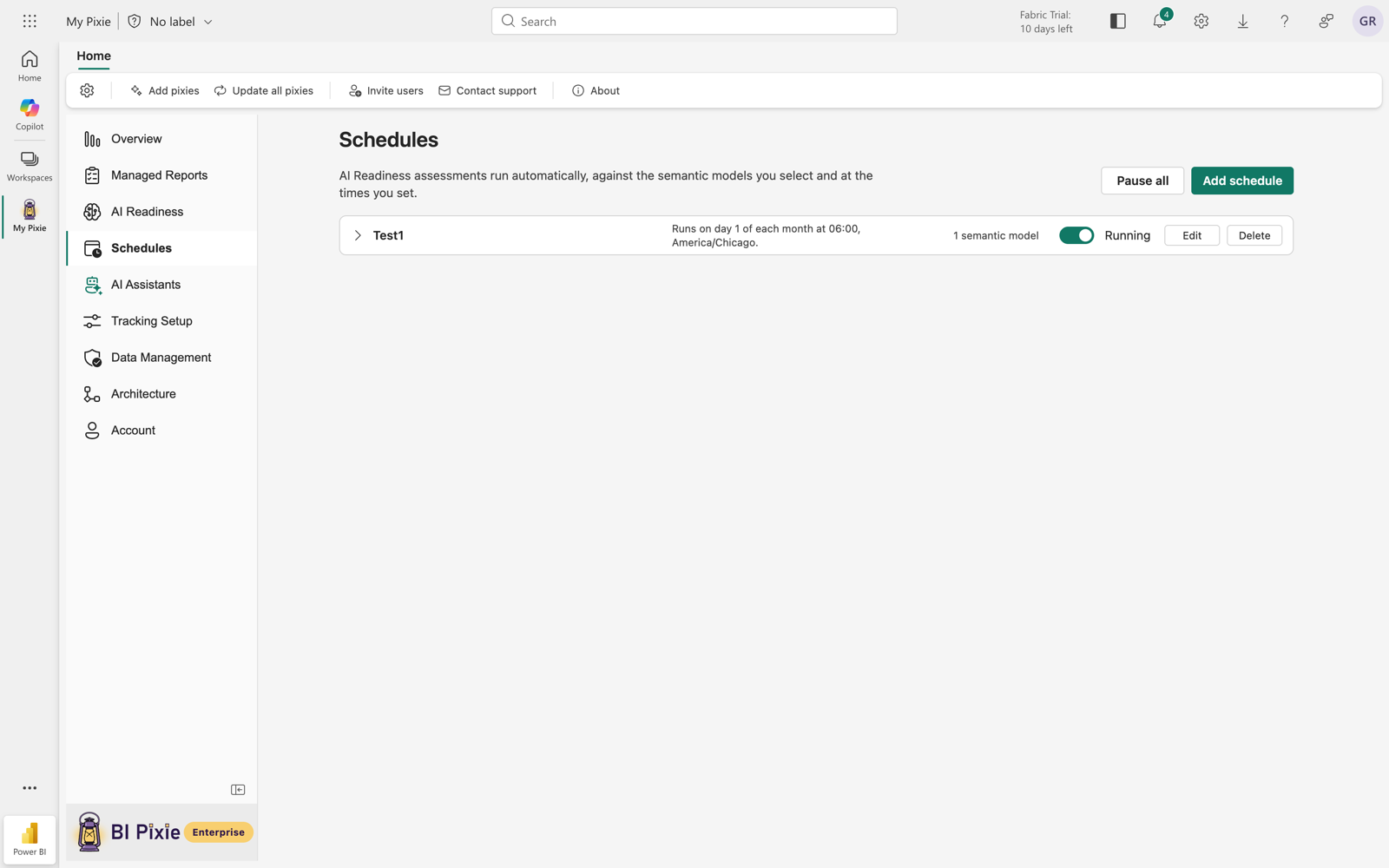
- Pause one schedule. The card's control carries the word Running or Paused. A paused schedule shows "Paused" in place of its next run.
- Pause all. The page header pauses everything. While it is on, a banner states that nothing runs, and each schedule keeps its own setting, so Resume all restores exactly what was running before.
- Edit. Change any part of a schedule, including its name, its semantic models, and its cadence.
- Delete. The confirmation states the consequence in semantic models: "3 semantic models will no longer be assessed automatically." Results already recorded stay in their history.
Who can change what
An administrator manages every license's schedules. A member manages the schedules of the license they are assigned to, with the same controls. Schedules on another license are readable, with a line saying that the people assigned to it manage them.
Schedule From a Semantic Model's Page
The header of every semantic model's page in AI Readiness states whether assessments run for it on a schedule: "No assessments are scheduled for this semantic model", or "Assessed by Critical semantic models, weekly" with the next run, or, where a catch-all covers it, the schedule's name and the fact that it covers every tracked semantic model. Beside the line, one control offers the schedules of the semantic model's license, each with its cadence:
- Add to a schedule, where nothing is scheduled yet. Choosing a schedule adds the semantic model to it where you stand, and says so.
- Change the schedule, where something already is. The current schedule is marked and cannot be chosen again, and a semantic model named in a schedule can be taken off it from here, with the consequence stated first.
- Create a new schedule, last in the menu, which opens the Schedules page with a new schedule already started and this semantic model already chosen. The name, the cadence, and the time zone are still yours to set, and nothing runs until you save.
A semantic model covered by a catch-all schedule cannot be taken off it from its own page, because narrowing a schedule that covers everything changes what happens to every other semantic model. That change belongs on the Schedules page, where its breadth is visible.
Benchmarks Are Not Scheduled
Only AI Readiness assessments run on a schedule. A benchmark asks real questions of a live AI, so it is always something you start yourself from Benchmarks. Its results stay in the semantic model's benchmark history either way.
States You May See
| State | What the page shows |
|---|---|
| Nothing scheduled | An explanation of what a schedule does, and the Add schedule button. |
| Last run failed | The failure on the card in plain terms, with the action that fixes it. |
| Everything paused | A banner at the top of the page, and "Paused for the whole account" on every card. |
| Could not load | One line saying so and a Try again button. |
What's Next
- Assessments, what a scheduled run produces.
- Benchmarks, to measure how well an AI answers questions about a semantic model.
- Licenses, to see which license a member is assigned to.