
Use BI Pixie in Copilot
With BI Pixie in Copilot, you ask Copilot about your Power BI data in Teams or the Copilot app, and Copilot works with it as you. Copilot can find and read the semantic models you can open, ask BI Pixie which fields and values people use in the reports built on them, and run queries as you. In Copilot, BI Pixie appears as BI Pixie for Power BI semantic models.
What BI Pixie adds to Copilot
Ask questions about your data
Copilot finds your semantic models and answers questions about them, signed in as you. Because Copilot's queries run as you, Power BI returns only the rows it would show you, including any row-level security that applies to you. BI Pixie adds no filter of its own.
Answer the way your reports do
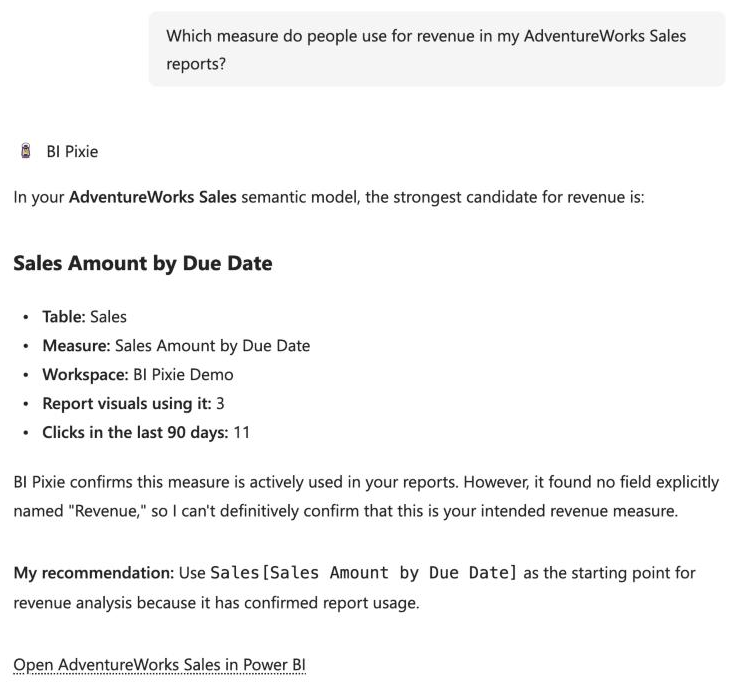
BI Pixie tells Copilot which fields and values people use in the reports built on each semantic model. When several measures could mean "revenue", Copilot uses the one people use in their reports, and its answer names the measure it used and why.
See how your reports are used
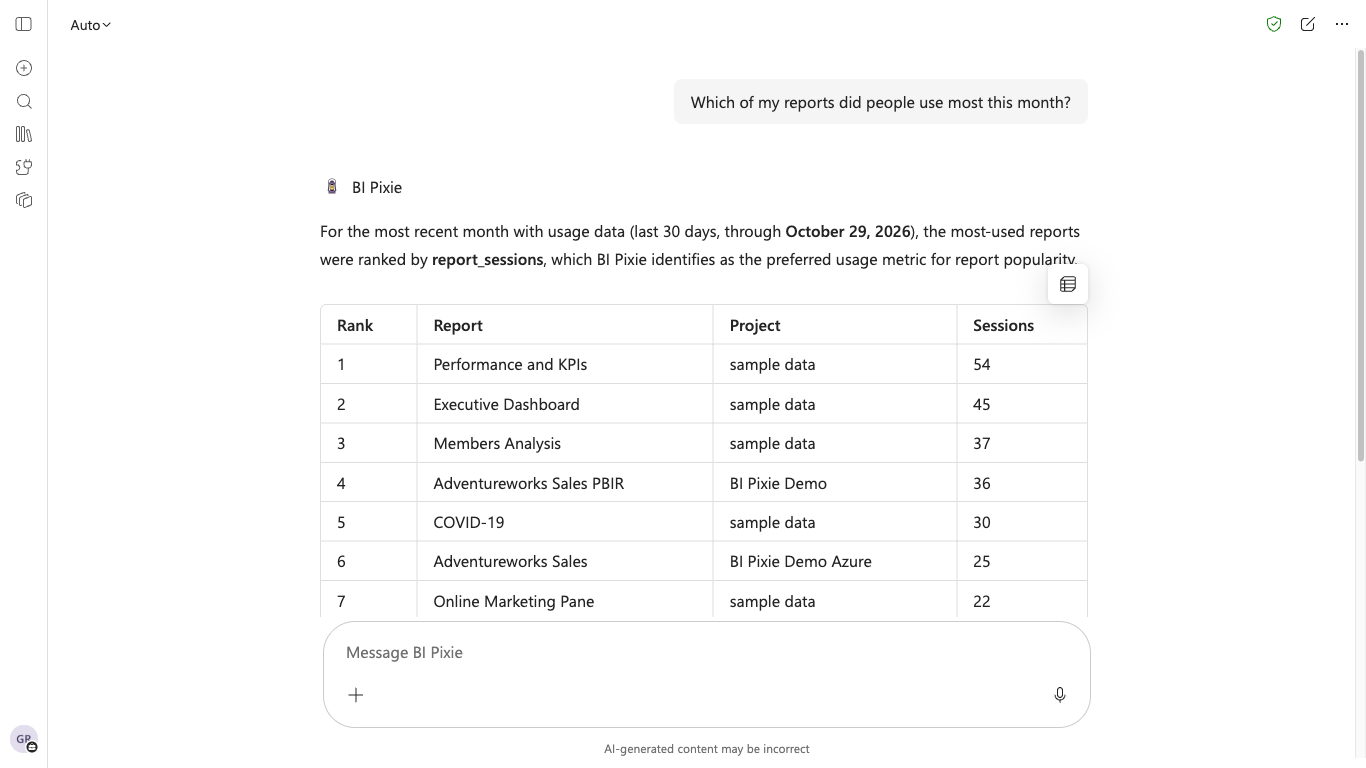
Copilot can tell you which of your reports people use most, and which fields in your semantic models nobody uses in reports.
When your BI Pixie admin turns on ratings, you can rate each answer on a BI Pixie card and ask for it to be validated. See Rate and validate AI answers. To assess a semantic model, run a benchmark or change a setting, use BI Pixie itself.
Prerequisites
- A BI Pixie account, on any plan. If your team already uses BI Pixie, the person who manages it can invite you. Otherwise, you can create an account at bipixie.com.
- Copilot in Teams or the Copilot app, with BI Pixie added for your organization by a Microsoft 365 administrator. See Add BI Pixie to Copilot.
- Read or Build permission on the semantic models you ask about.
- For answers that follow how your organization reads its data, Pixies on the reports built on those semantic models, and the BI Pixie Dashboard installed in a Fabric workspace.
Add BI Pixie to Copilot
A Microsoft 365 administrator adds BI Pixie for the organization by uploading the BI Pixie agent package. People in the organization then add BI Pixie in Copilot. Once Microsoft approves BI Pixie for the Agent Store, people can also add it there themselves, wherever their organization allows agents from other publishers.
Upload BI Pixie, as a Microsoft 365 administrator
- Download the BI Pixie agent package, bipixie-copilot-agent.zip. Upload the file as it is, without unpacking it, because Microsoft checks the package when it is uploaded.
- In the Microsoft 365 admin center, select Agents, and then Upload custom agent. Microsoft describes each step in Upload Microsoft Copilot custom agents (opens in a new tab).
- Choose the downloaded file. Microsoft checks it and shows BI Pixie for Power BI semantic models with its icon.
- Choose who can use BI Pixie: everyone, a group, or only yourself to try it first. Review its permissions, and then select Finish deployment.
BI Pixie can take a few hours to appear for people. In the Teams admin center, the same file can be uploaded instead under Teams apps, Manage apps, Upload new app.
Add BI Pixie in Copilot
- In Teams or the Copilot app, open the Agent Store and search for BI Pixie. An agent your administrator added appears with your organization's agents. Microsoft explains where to find the Agent Store in the Agent Store guide (opens in a new tab).
- Select BI Pixie for Power BI semantic models, then Add. If your administrator installed BI Pixie for you, it is already in your list of agents.
In BI Pixie, the Use BI Pixie in Copilot card on the AI Assistants page shows what BI Pixie adds to Copilot and links to this guide. Once your Copilot has used BI Pixie, the card shows the date your Copilot first connected.
People whose BI Pixie account is served from Europe use the same BI Pixie agent, and BI Pixie answers their questions from Europe.
Sign in the first time
- Ask BI Pixie a question, or select one of its conversation starters.
- Copilot asks you to sign in to BI Pixie. Select Sign in, and sign in with your Microsoft work account.
- If Microsoft shows an approval screen, approve BI Pixie's access. On that screen, the app is named BI Pixie AI connector. If your organization has already approved the app, Microsoft skips this screen.
- If Copilot asks whether to let BI Pixie receive data from the conversation, select Allow.
- The first time BI Pixie reads Power BI for you, its answer asks you to approve one more permission, reading Power BI, and includes a sign-in link. Open the link, approve the permission for yourself, and then ask your question again. BI Pixie asks for this permission only once.
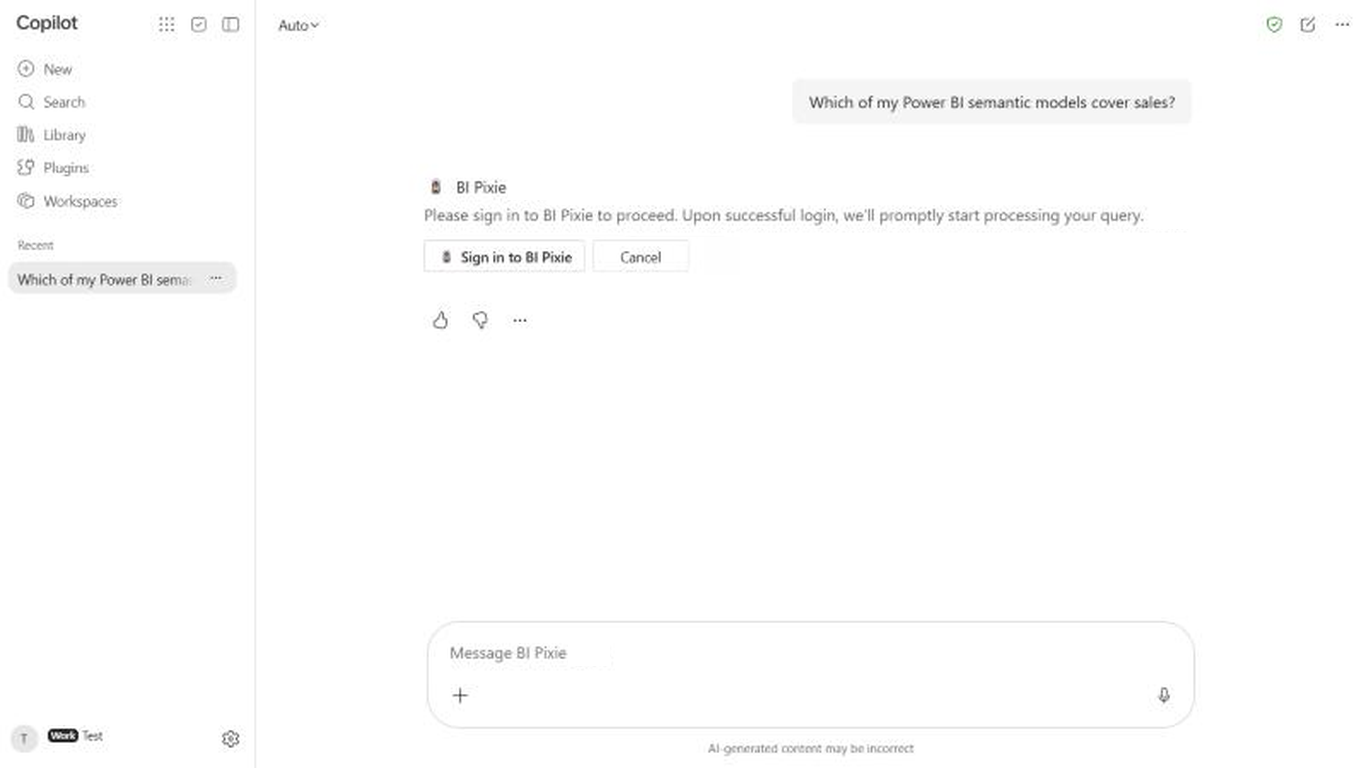
To sign out of BI Pixie, open Copilot's Settings, select Agents, select BI Pixie, and then select Sign out.
Ask Copilot about your data
BI Pixie offers five conversation starters:
- Find a semantic model: Which of my Power BI semantic models cover sales?
- What a term means here: Which measure do people use for revenue in my reports?
- Ask a business question: What were sales by region last quarter?
- Reports people use: Which of my reports did people use most this month?
- Fields nobody uses: Which fields in my semantic models does nobody use in reports?
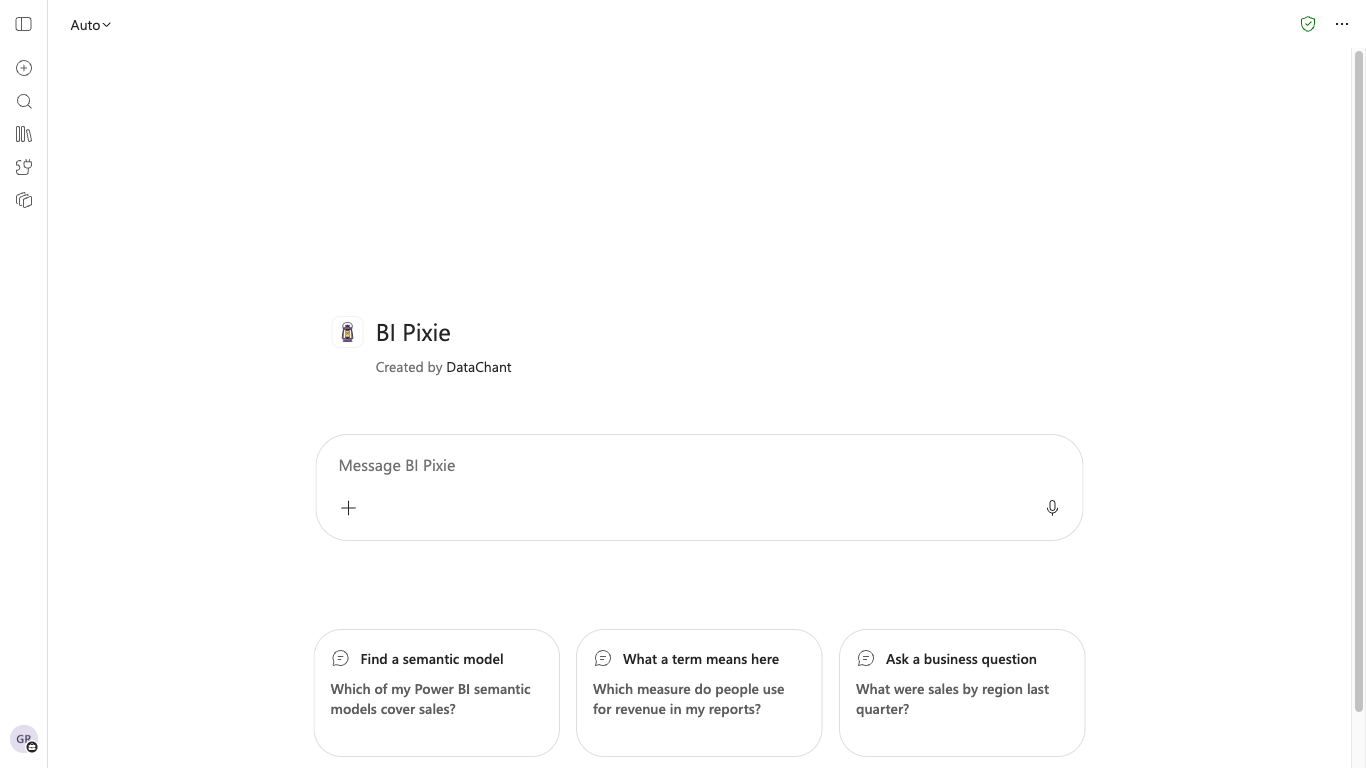
For questions about which reports and fields people use, BI Pixie reads your account's BI Pixie Dashboard, so Copilot can answer them only when you can open the workspace that holds the dashboard.
Considerations and limitations
Long answers
- Copilot reads a shorter answer from BI Pixie than Claude does. When a query returns many rows, BI Pixie sends the first 25 and says how many there were, and you can ask a narrower question to see the rest.
- BI Pixie stops a request that takes longer than 30 seconds and says so. A narrower question usually finishes in time.
The daily limit on the Free plan
- On the Free plan, AI apps can answer 25 questions a day through BI Pixie's cloud, shared by everyone in the account and by every AI app, Claude and Copilot alike. The count starts again at midnight UTC.
- On the Usage tab of the Account page, under AI app answers today, you see the count. See Account Settings.
- Paid plans have no daily limit.
What a BI Pixie administrator can turn off
- When an administrator turns off Allow the BI Pixie API and connectors, BI Pixie refuses calls from Copilot for everyone in the account. See API and connectors.
- When an administrator turns off Allow AI apps to query through BI Pixie's cloud, BI Pixie stops the queries Copilot runs. Copilot can still ask BI Pixie which fields and values people use.
AI instructions
- Copilot receives the AI instructions written for a semantic model only when you may edit that semantic model, and the first time, BI Pixie asks you to grant one Microsoft permission by name. This works as it does in Claude. See Use BI Pixie in Claude.
What Copilot sees
- The rows your queries return go to Microsoft, because Copilot reads them to answer you. BI Pixie does not store those rows.
- Before Copilot reads the rows, BI Pixie replaces each value that looks like an email address with "(email address withheld)".
- For what BI Pixie keeps and sends, see the Privacy Policy.
For Microsoft 365 administrators
Your organization decides in the Microsoft 365 admin center who can use BI Pixie. BI Pixie cannot see these settings.
- The administrator who uploads BI Pixie chooses who can use it. Later, an administrator can let people add BI Pixie themselves, add it for everyone or for a group, pin it, or block it. Microsoft describes these choices in the agent registry guide (opens in a new tab).
- Once BI Pixie is in the Agent Store, it appears there only when agents built by external publishers are turned on. Microsoft describes the setting in Manage agent settings (opens in a new tab).
- Each person approves BI Pixie's access for themselves when they first sign in, under your organization's own consent settings.