
Optimizations
Below the score card on every assessment result, the Optimize semantic model card turns findings into fixes. Every fix follows the same contract: BI Pixie proposes, you review and edit, and nothing is written until you apply. Applied changes are written into the semantic model itself as one atomic update, with no partial writes, and are immediately visible in Power BI. BI Pixie never renames anything, and your existing hand-written text is modified only when you explicitly select it.
AI Instructions and the AI data schema are written to the same semantic model metadata that Power BI's own Prep data for AI feature reads and writes, so the two stay in step. The Preview pill on the AI Readiness page notes that this part of Power BI is still in preview, and that behavior may change as Microsoft updates it. Selections in progress are saved as a draft and restored when you return.
The Optimize Semantic Model Card
The card is open every time you open a result, and holds six areas in Microsoft's Prep-for-AI order. Collapsing it leaves one line naming what is inside, and it reopens on its own when something inside needs your attention, such as a review step arriving or an apply failing.
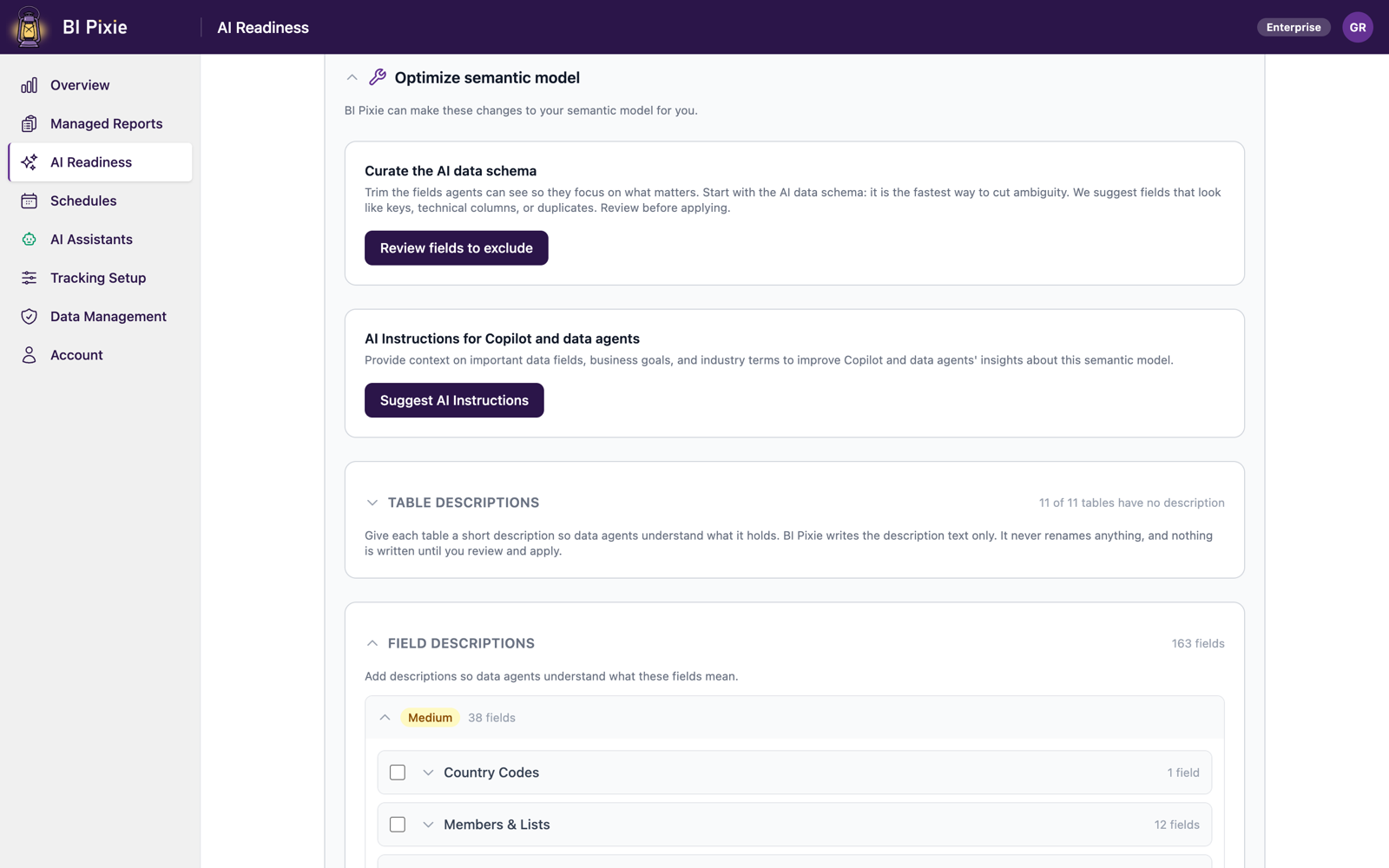
Curate the AI data schema
You reduce what AI can see to what matters. Select Review fields to exclude to open a comparison against the semantic model's current Prep-for-AI schema. Recommended changes lists fields to exclude, with the confident ones pre-selected, beside Bring back rows for fields that are excluded today but heavily used in practice. Bring-back rows are never pre-selected, because restoring a field is always your decision. Fields that are already excluded are collapsed out of the way. Apply changes writes both directions in a single update. For the complete inventory, Review AI data schema opens a full explorer showing the current state, the recommendation, and the reason for every field, with search, filters, Set recommendations, and Revert. This area needs no AI provider.
AI Instructions for Copilot and data agents
AI Instructions are the semantic-model-level guidance AI assistants read before answering. Select Suggest AI Instructions: BI Pixie writes instructions when none exist and improves them when they do, showing Current and Proposed (editable) side by side. Authoring runs in the background and can take up to a minute. Microsoft caps AI Instructions at 10,000 characters, and the editor counts against that cap as you type. When the text is right, select Apply to semantic model.
Table descriptions
BI Pixie creates missing table descriptions and refines existing ones. Tick the tables to work on and select Review table descriptions. Each proposal is editable, and the existing description is shown beside it where one exists.
Field descriptions
The Field descriptions area is a work list with one row per measure and column that needs attention, each tagged with the reason it surfaced: Similar name, Unclear name, or its usage. Tick the rows to work on and select Review field descriptions to open Review proposed descriptions, where every proposal is editable per row, badges separate measures, columns, and tables, and any existing description is shown beside the proposal. A soft warning flags proposals longer than 200 characters, because Copilot reads only the first 200. Apply descriptions writes your selection.
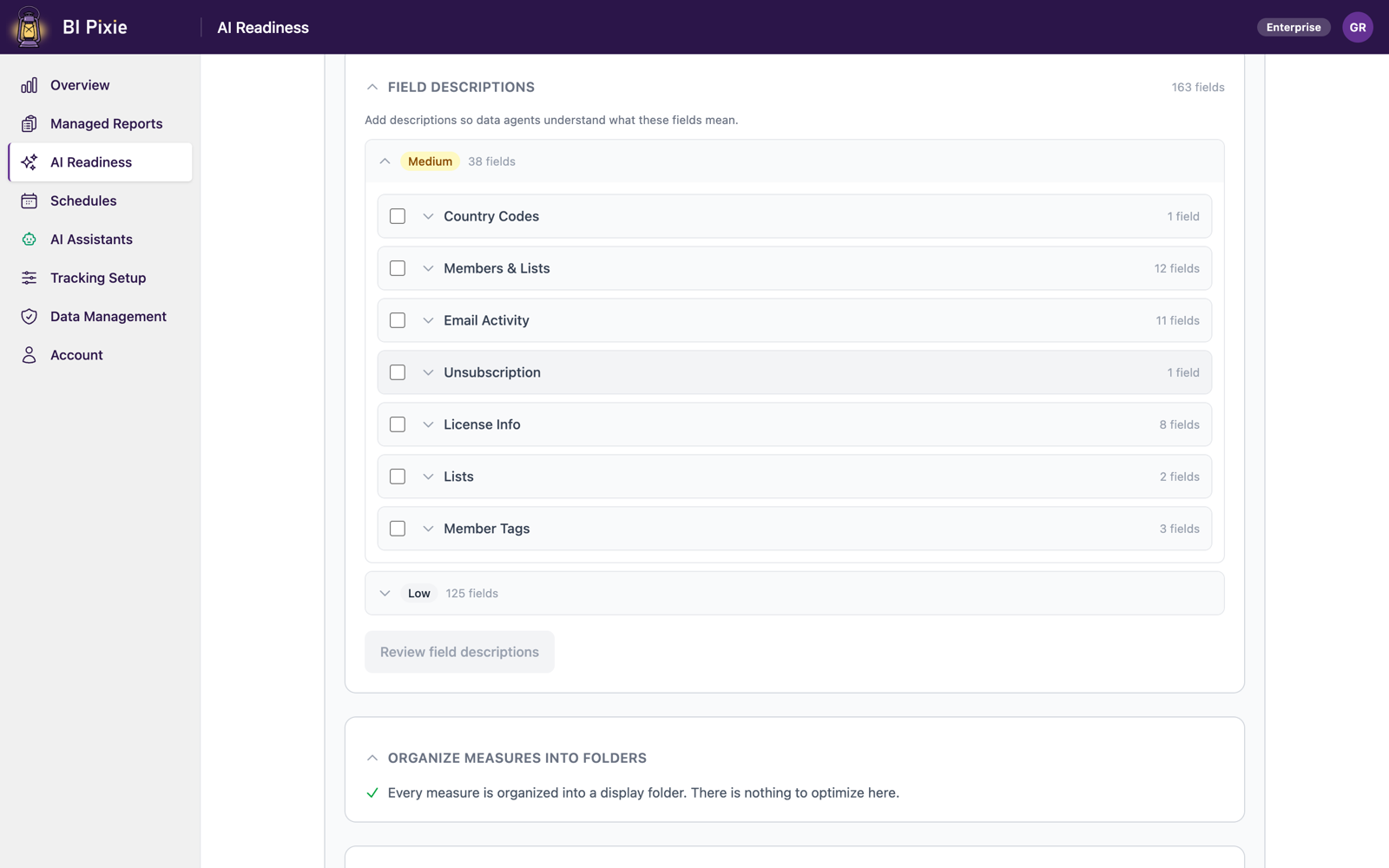
Once anything is ticked in the Table descriptions or Field descriptions area, a bar at the foot of the page offers Review descriptions for everything ticked in both, so one review and one apply can describe tables and fields together.
Organize measures into folders
BI Pixie proposes the folders as part of the assessment result, grouping the measures under their table headings, with folder names and assignments that you can rename, move, remove, or add to with New folder. Clear all folders empties the proposal, and Reset to BI Pixie's proposal brings it back. With an AI provider connected, Ask AI to group the rest places the measures the proposal left over. Apply folders writes the assignments.
Fix field defaults
BI Pixie proposes Don't summarize for text columns that Power BI would otherwise sum or count in visuals and in AI answers. Select Review defaults, adjust the selection, and select Apply defaults. This area needs no AI provider.
Fix on Your Own
Below the Optimize semantic model card, a Fix on your own section lists the findings BI Pixie deliberately does not change automatically, because changing them safely requires someone who knows the semantic model: unrelated tables, measures with a hard-coded date range, columns that look like personal data in a semantic model with no row-level security, and tables whose numeric columns auto-summarize but carry no explicit measure. Each finding carries guidance. This is also where BI Pixie flags a semantic model with no Verified answers, the one AI Readiness item you author in Power BI Desktop, under Prep data for AI > Verified answers, rather than in BI Pixie.
Optimizations and Your Plan
Optimization is included on every plan, including the free plan. The first optimization of a semantic model adds it to your plan's tracked items, stated in a short disclosure before the write, and once tracked you can keep optimizing it within your plan's daily pace for applied changes: 10 a day on the Free and Standard plans, 25 on Pro, and 50 on Enterprise. If claiming the semantic model would exceed your plan's tracked items, the apply is blocked with an upgrade prompt and nothing is written. The AI-authored areas also need an AI provider; without one, those cards show a note with a Connect shortcut, and the AI data schema and field defaults continue to work.
What's Next
- Assessments, to reassess after applying and watch the score move.
- Benchmarks, to prove that the changes improved real answers.
- AI Provider, to connect the AI that writes the proposals.